Open Ubisoft Connect. Type your password. It accepts. Then bounces you right back to the login screen. Over and over. The Dolphin-028 loop.
Why This Happens
Basically? Ubisoft’s launcher is having a fight with itself.
The cache stores a session token. The token gets invalidated server-side. But the client doesn’t know that. So it keeps trying. Login succeeds, server rejects the token, you bounce back.
IP weirdness can also trigger it. If your router gave you a fresh IP and Ubisoft’s servers still have your old session? Same loop.
Fix 1 – Launch the Game Directly
Quick workaround. You have to bypass the Ubisoft launcher and play the game directly.
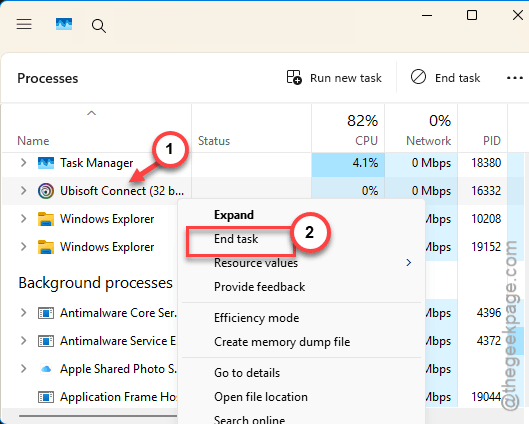
1 – Hit the Ctrl + Shift + Esc buttons at once to load up Task Manager.
2 – Try to find the Ubisoft Connect in the list of processes. Right-click. Pick End task.
3 – Open File Explorer. Proceed to game installation directory. Usually it is located here –
C:\Program Files (x86)\Ubisoft\Ubisoft Game Launcher\games\
But, it may change with your configuration.
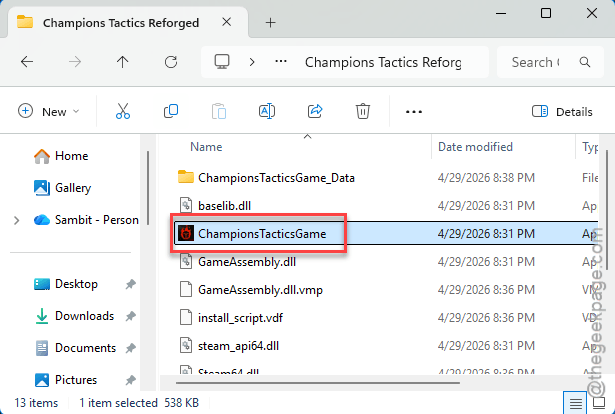
4 – Find the game’s .exe file. Double-click it.
5 – Ubisoft Connect will pop up asking for your login. Sign in.
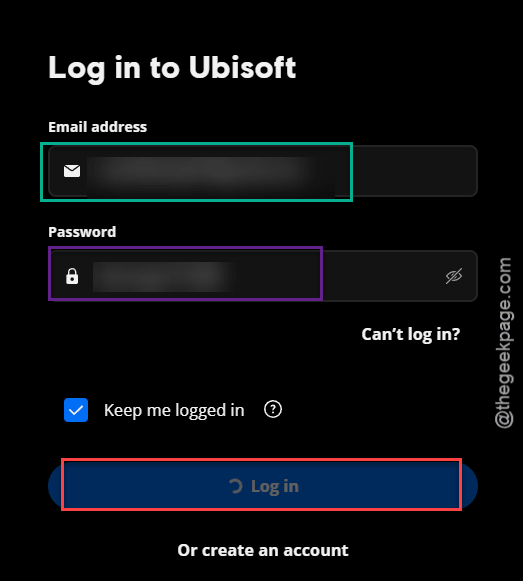
6 – After login, it should close and the game should launch.
And next time you open Ubisoft Connect normally? Should work fine.
Fix 2 – Use the Rename trick on Cache Folders
This is the official Ubisoft fix. You don’t delete the cache — you rename it. That way you can roll back if something breaks.
1 – Close Ubisoft Connect completely. Use Task Manager if it doesn’t close from the system tray.
2 – Load up the File Explorer.
3 – Proceed to the path –
C:\Program Files (x86)\Ubisoft\Ubisoft Game Launcher\.
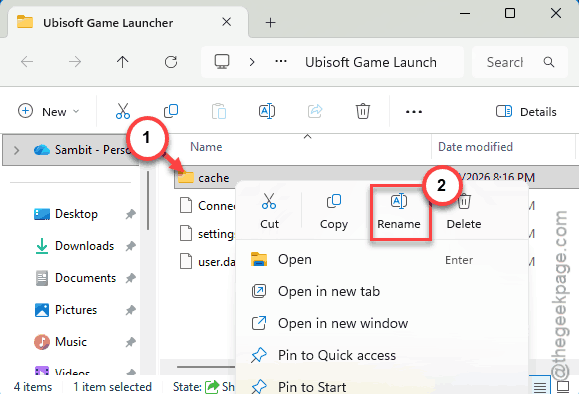
4 – Find the cache folder. Right-click. Pick Rename. Call it cache_backup.
5 – At the next step, proceed to this location –
%LocalAppData%\Ubisoft Game Launcher\ (paste it into the address bar).
6 – Find that cache folder too. Rename it to cache_backup as well.
7 – Restart Ubisoft Connect.
It rebuilds the cache fresh. Login should work without the loop.
Fix 3 – Refresh Your IP
If your IP changed but Ubisoft’s session is tied to the old one? You loop. Force a refresh.
1 – Press Windows + S. Type cmd.
2 – Then, right-click the Command Prompt and tap the Run as administrator from the context menu.
3 – Write down ipconfig /release and hit the Enter.
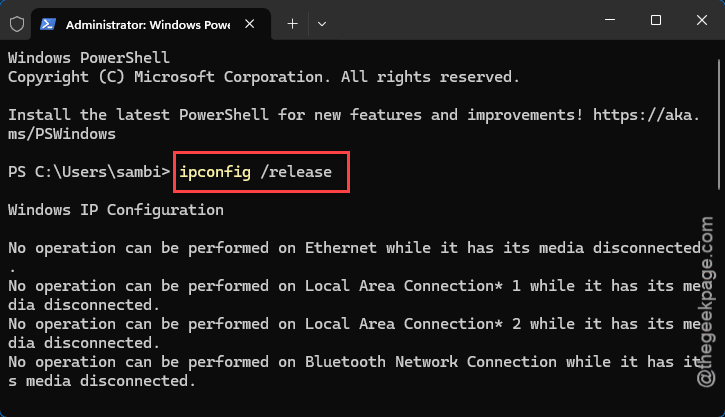
Wait for it.
4 – Type ipconfig /renew and press Enter.
5 – Restart your PC.
6 – Open Ubisoft Connect.
Annoying that this fixes a login bug. But it does.
Fix 4 – Full Network Reset
If a partial refresh doesn’t cut it. Nuclear option. This wipes all network adapters and any saved VPN settings.
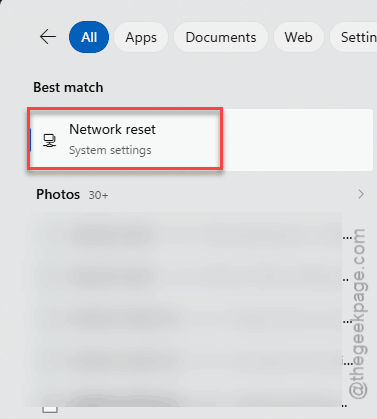
1 – Press Windows + S and type network reset.
2 – Click Network reset from the results.
3 – Click Reset now.
4 – Confirm. Your PC will restart.
5 – After reboot, reconnect to your WiFi or plug in Ethernet.
6 – Try Ubisoft Connect again.
If you were using a VPN — even a corporate one — this is probably the trigger. Reset wipes the VPN config too.
Fix 5 – Turn Off VPN and Antivirus
Some VPNs and antivirus suites can prohibit your access to the Ubisoft servers by blocking the authentication tokens. Ubisoft’s servers see the wrong region and reject the session.
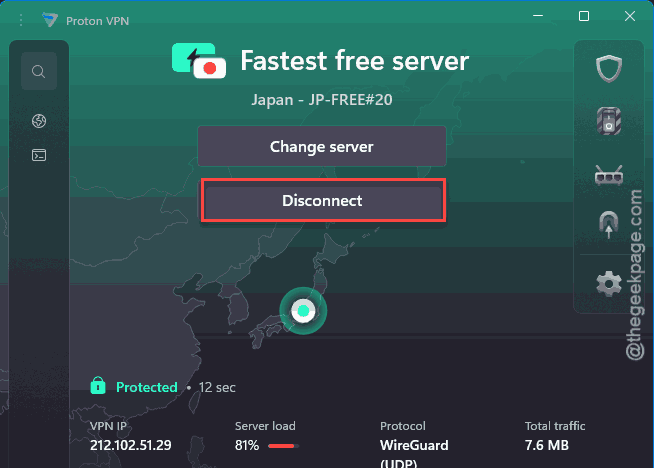
1 – Find your VPN app in the system tray (bottom right).
2 – Right-click and Disconnect or Quit.
3 – Same for any third-party antivirus. Pause / Disconnect it temporarily.
4 – Try logging in.
5 – Re-enable everything once you’re in.
NordVPN, ExpressVPN, even free VPN browser extensions — all known to trigger this.
Fix 6 – Reinstall Ubisoft Connect
Last resort. But it works when nothing else does. Your installed games are safe.
1 – Press Windows + I to open Settings.
2 – Go to Apps > Installed apps.
3 – Search “Ubisoft Connect“.
4 – Click the three dots (⋯). Pick Uninstall. Confirm.
5 – Download a fresh copy from Ubisoft Connect.
6 – Install it.
Sign in. Your games stay where they are — Ubisoft Connect just relinks them.
How to Prevent This
- After any network change — new ISP, new router — restart your PC before launching.
- Keep Ubisoft Connect updated. The launcher pushes silent fixes occasionally.
- Avoid running multiple game launchers at once. Steam, Epic, and Ubisoft can clash on token refresh.
People Also Ask
How to fix error code Dolphin-028 in Ubisoft Connect?
Easiest fix — close Ubisoft Connect, launch your game directly from its .exe in the install folder. Sign in when prompted. After that, the launcher works normally. If not, rename the cache folders and refresh your IP with ipconfig /release and renew. One of those covers it.
What is the error code Dolphin in Ubisoft?
Dolphin errors are Ubisoft’s catch-all for authentication and login problems. Different numbers point to different causes — Dolphin-028 is specifically the login loop. Dolphin-001 is server unreachable. Dolphin-005 is auth timeout. Most fixes overlap: cache, network, VPN, fresh install.