BitLocker has been encrypting your drive for hours. The bar crawls to 99.9%. And then it just… sits there.
Forever. It never hits 100%. You’re tempted to cancel and decrypt the whole thing. Don’t — at least not yet. There’s almost always a stuck sector behind this, and a few tricks get it moving without throwing away all that progress.
Why This Happens
The XTS-AES 256 is just the strong cipher it uses to scramble each one.
And right near the end — especially on secondary partitions — it can hit a snag. A pending disk operation. A weird unallocated patch at the tail of the drive. The encryption filter driver sits there waiting for that one operation to finish. But it never does.
So the progress freezes at 99.9%. Not because anything is broken. Because one tiny piece is stuck in limbo.
File system errors make it worse. So do outdated storage drivers. Why secondary drives more than your C: drive? They often have leftover partition quirks from past formatting. We nudge that last sector loose, fix the disk underneath, and let it finish.
Fix 1 – Check the Status and Resume Encryption
First, find out if BitLocker is actually paused versus genuinely working.
1 – Click Start, write down cmd. Then, right-click Command Prompt, and choose Run as administrator.
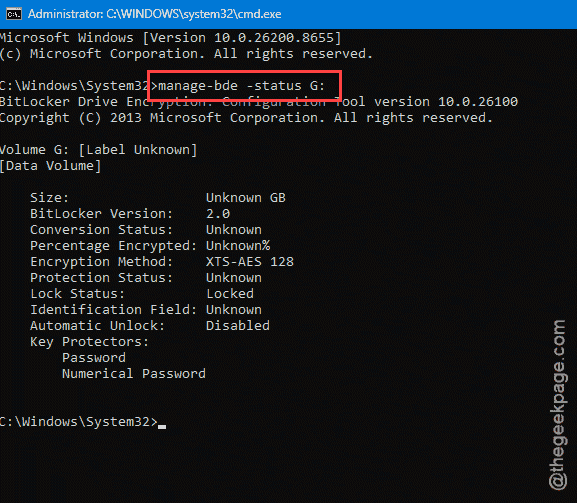
2 – Type this in the terminal, and press Enter. Swap X: for your stuck drive’s letter.
manage-bde -status X:
3 – Read the result. If it says Encryption Paused, that’s your answer.
4 – Restart your whole PC. A full reboot clears the busy state.
5 – Back in an admin Command Prompt, write this down and press Enter.
manage-bde -resume X:
And often that’s it — the bar starts climbing past 99.9% and finishes. If it stalls again, keep going.
Fix 2 – Suspend Protection, Then Turn It Back On
You should suspend the BitLocker encryption and later, turn it back on to fix the issue.
1 – Open PowerShell as administrator (right-click Start, choose Terminal (Admin) or Windows PowerShell (Admin)).
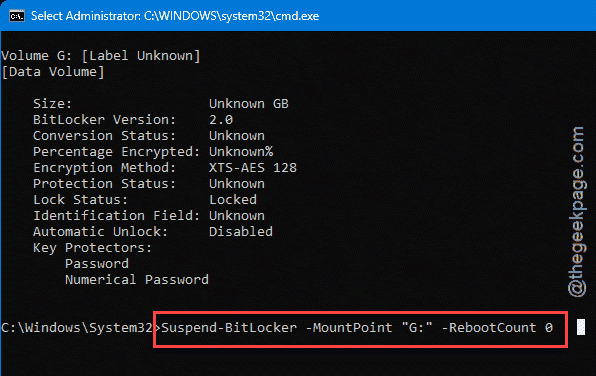
2 – Type this code and press Enter. Change C: to your drive letter.
Suspend-BitLocker -MountPoint "C:" -RebootCount 0
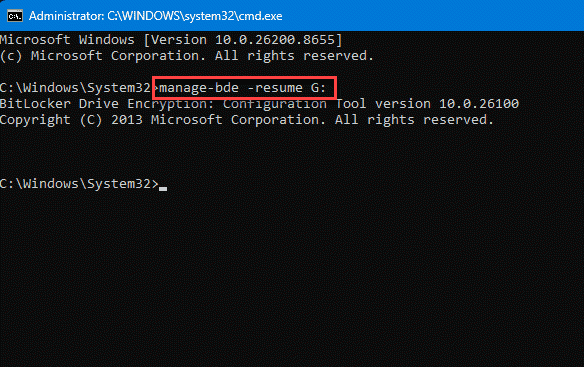
3 – Now resume it. In an admin Command Prompt, run this code for the same drive.
manage-bde -resume X:
4 – Watch the percentage in the BitLocker window.
The -RebootCount 0 part keeps protection suspended until you manually turn it back on, so nothing locks up mid-process.
Fix 3 – Run CHKDSK to Clear File System Errors
A hidden file system error can be the thing BitLocker keeps waiting on. CHKDSK finds and repairs it.
1 – You have to open the Command Prompt terminal as administrator.
2 – Type chkdsk X: /f and press Enter. Use your stuck drive’s letter for X:.
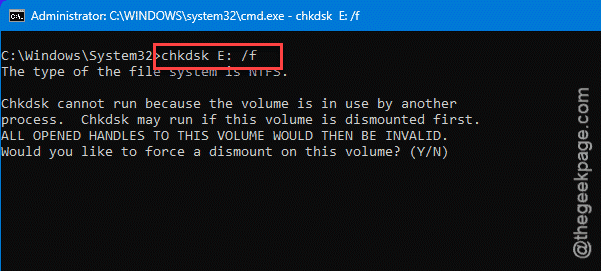
3 – If it asks to schedule the check at restart, type Y and press Enter, then reboot.
4 – Let it run all the way through. On a big drive this takes a while, so don’t interrupt it.
Once it’s done, check the BitLocker status again. With the disk errors cleared, encryption can usually finish that last 0.1%.
Fix 4 – Update Your Storage Drivers and Firmware
Old storage controller drivers cause exactly this kind of hang. The driver mishandles the final sectors and BitLocker waits on a reply that never comes.
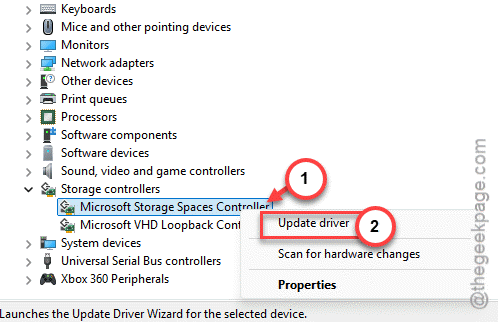
1 – Press Windows + X and click Device Manager.
2 – Expand Storage controllers and Disk drives.
3 – Right-click each one and choose Update driver, then Search automatically.
4 – While you’re at it, check your SSD or drive maker’s website for a firmware update — Samsung Magician, Crucial Storage Executive, and the like handle this.
5 – Restart and resume BitLocker like in Fix 1.
Firmware updates are easy to forget, but they fix a lot of low-level disk weirdness. Worth the ten minutes.
Fix 5 – The Shrink-and-Extend Trick
You can shrink the disk drive and extend it from the Disk Management setup.
1 – Press Windows + R, type diskmgmt.msc, and press Enter to open Disk Management.
2 – Right-click the stuck drive and choose Shrink Volume.
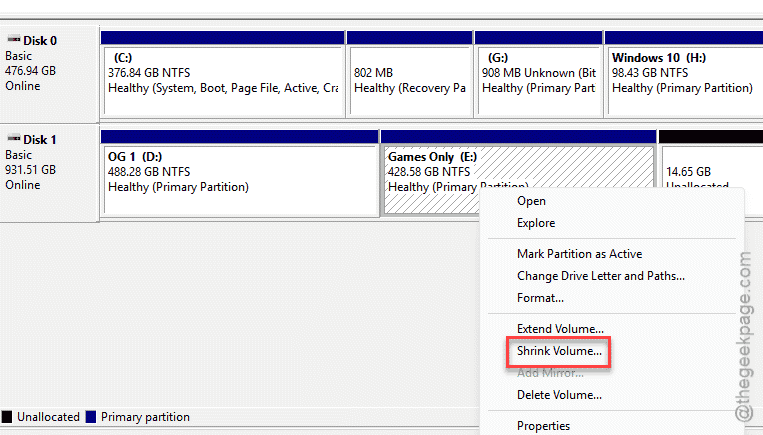
3 – Shrink it by a chunk — around 40 GB works well. The freed space shows up as unallocated to the right of the drive.
4 – Go back to the BitLocker window and resume encryption. On the smaller volume, it should run all the way to 100% and finish.
5 – Now, go back to Disk Management. Finally, right-click the same drive, and choose Extend Volume.
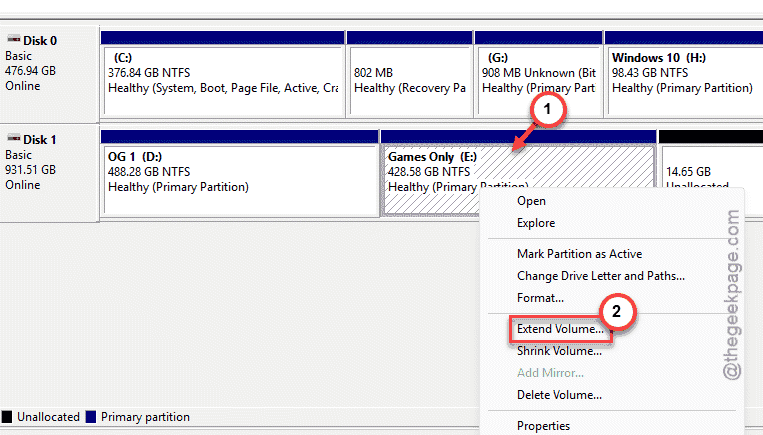
6 – Reclaim all the unallocated space you shrank off earlier.
When it’s done, you’ve got your full drive size back, and the whole thing is encrypted. The stuck sector that was blocking 100%? You moved it out of the way and it never came up again.
Fix 6 – Last Resort: Decrypt and Start Over
Only if everything above fails. Back up your data first — really, do it.
Then open the BitLocker control panel (Windows + R, type control /name Microsoft.BitLockerDriveEncryption), click Turn off BitLocker on the stuck drive, and let it fully decrypt. Once it’s done, turn BitLocker back on for a clean encryption pass. It’s slow and tedious. But a fresh start sidesteps whatever corrupted the original run.
How to Prevent This
– Run chkdsk X: /f on a drive before you encrypt it.
– Keep your storage drivers and SSD firmware current. Old ones are a top cause of these hangs.
– Don’t use the PC heavily while BitLocker is encrypting. Pending disk operations are exactly what it gets stuck waiting on.
People Also Ask
Is it safe to restart while BitLocker is encrypting?
Yes. BitLocker is built to handle interruptions — it picks up right where it left off after a reboot. Just resume with manage-bde -resume afterward so it continues automatically.
How long should BitLocker take to encrypt a drive?
It depends on size and speed, but a 256 GB SSD usually finishes in under an hour. Larger or slower drives take longer. If the bar sits frozen at 99.9% for hours, that’s not normal — it’s a stuck sector or disk error, not the encryption simply being slow.