Does your document got stuck in an endless save loop? If you have found yourself in this situation, where the MS Word is stuck in an endless ‘Saving’ status, don’t worry. The time to save a document in MS Word varies depending upon the file size, storage type, condition, etc. The reason it is getting stuck in the loop is due to any of these factors, including the possibility of corruption of the original document.
Fix 1 – Copy the contents to a new Word document
There is a high chance that the document that is got stuck in the endless Save as loop is corrupt. So, we recommend you copy the entire contents of such document to a new one and save that.
Step 1 – At first, select all the contents of the document using the Ctrl+A. Then, press the Ctrl+C keys together to copy the contents of the document.
Step 2 – Next, tap the File menu in MS Word and choose Blank page.
Step 3 – In this new blank page, paste the content that you have copied before.
Step 4 – Repeat the same steps for the entire document.
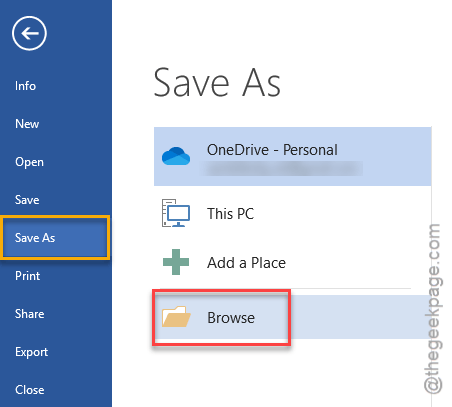
Step 5 – Now, go to File ⇾ Save As and save the file in a location of your choice.
This time, you won’t face any issues saving the document.
Fix 2 – Edit the document in MS Word Online (web version)
Try using the web client of the Microsoft Word to bypass this endless save issue.
Step 1 – At first, load up Sign in with your Microsoft account or Office 365 credentials.

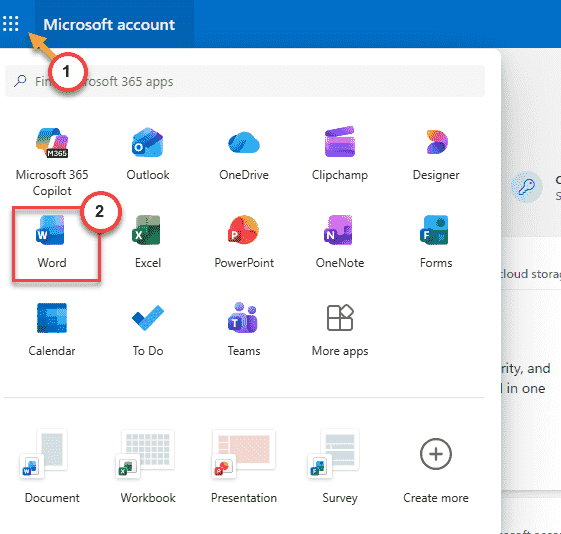
Step 2 – After signing in successfully, tap the menu icon in the top-left corner.
Step 3 – Next, tap the Word from the left dock to load it up.
Step 4 – Load up the file that you were working on there.
Make the changes in there and try saving the changes there.
Fix 3 – Save the file locally and modify
Sometimes, if you are working on the files that are stored in OneDrive or a network location, it may lead to this problem. You can directly save the file in a local storage drive. You can store a duplicate copy of the same file that you are currently working on. Later, you may upload the same file to its original location.
Fix 4 – Run the MS Word in Safe Mode and retry
The Safe Mode for Microsoft Word disable the COM Add-ins and toolbar.
Step 1 – Search for word from the search box on Windows.
Step 2 – Next, press the Ctrl button and while pressing that, tap the Microsoft Word to launch the application in Safe Mode.
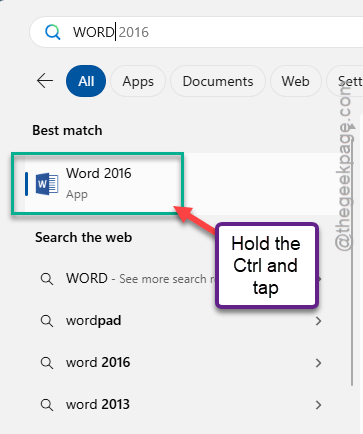
Step 3 – While you are in the Safe Mode, try to save the same file again.
Check whether this works for you.
Fix 5 – Disable COM Add-ins in Microsoft Word
A corrupted Add-in in Microsoft Word can create such issues.
Step 1 – While the document is open in MS Word, go this way –
File ⇾ Option
Step 2 – In the Options panel, select the Add-ins tab.
Step 3 – Now, on the right-hand pane, make sure ‘Manage:’ is set to COM Add-ins. Tap Go to load up the list of COM Add-ins.
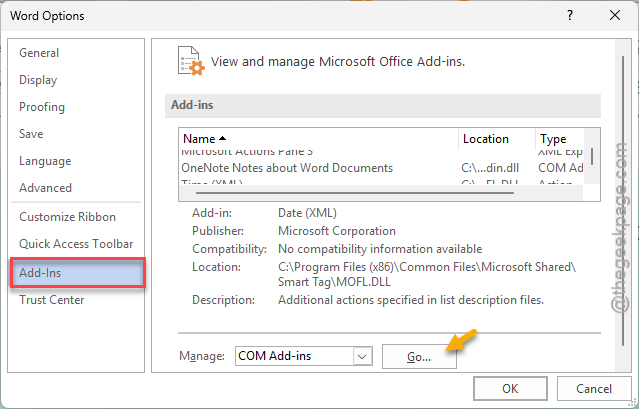
Step 4 – Uncheck all the Add-ins in there, and click OK.
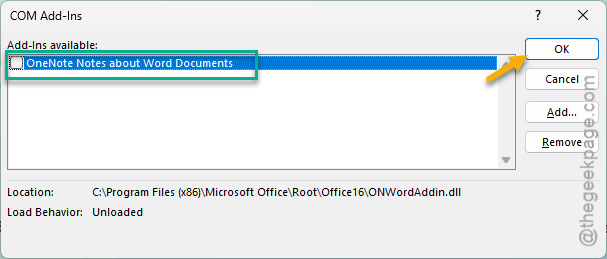
After disabling the COM Add-ins, try saving the file in MS Word. This time, you won’t face any issues.
Fix 6 – Update to the latest version of MS Word/ Office 365
Have not update the Microsoft Word or Office 365 apps in a while?
Step 1 – On the Microsoft Word console, follow this path –
File ⇾ Account
Step 2 – Tap the Update Now option to update the program.
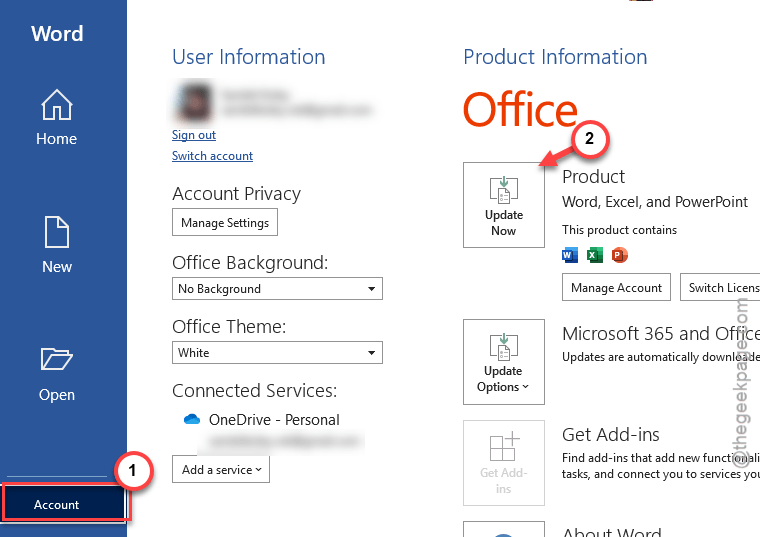
Step 3 – If that does not work, tap the Update Options and choose the Update Now button from the drop-down.
Once you have updated MS Word, this bug will go away. Check whether this has solved the issue.