Every single reboot, that blue BitLocker screen. Asking for the 48-digit recovery key. Again.
You type it in. Windows boots. You restart later — and it’s right back. Over and over. Maddening.
Why This Happens
The cause? BitLocker thinks something about your PC changed. So it locks the drive and demands the key to prove it’s really you sitting there.
And it’s twitchy about hardware. A BIOS update. A change in the TPM. Even certain USB-C or Thunderbolt devices plugged in at boot. Any of it can trip the alarm.
Sometimes nothing actually changed. Did your hardware really change? Often, no. BitLocker just gets stuck re-checking the same setup every boot and never clears the flag.
So you’re trapped in a loop. The fix is to make BitLocker re-scan once, cleanly — or to tell it to stop being so jumpy.
Fix 1 – Suspend, Then Resume BitLocker
This is the classic loop-breaker. Suspending and resuming forces BitLocker to take a fresh look at your hardware and clear that stuck flag.
1 – Boot into Windows (type the recovery key one more time if it asks).
2 – Press Windows, type Manage BitLocker, and open it.
3 – Find your system drive (C:) and click Suspend protection.
4 – Restart your PC.
5 – Go back into Manage BitLocker and click Resume protection.
Check if this resolves the issue.
Fix 2 – Turn On Auto-Unlock
If it’s a secondary or data drive doing the nagging, auto-unlock tells Windows to unlock it automatically once you’re signed in.
1 – Open Manage BitLocker from the Start menu.
2 – Find the drive that keeps prompting.
3 – Click Turn on auto-unlock next to it.
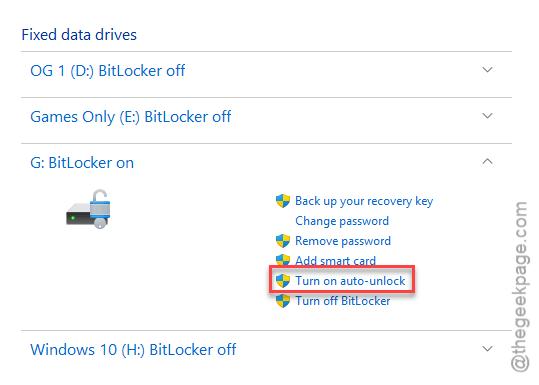
Quick note: that toggle shows up for data drives.
Fix 3 – Disable Protection From the Recovery Screen
Can’t even reach the desktop? Stuck staring at the key screen no matter what you type? You can break the loop from a command prompt right there in recovery.
1 – On the recovery key screen, click Skip this drive (small link near the bottom).
2 – Proceed this way ->
Advanced options > Troubleshoot > Advanced options > Command Prompt
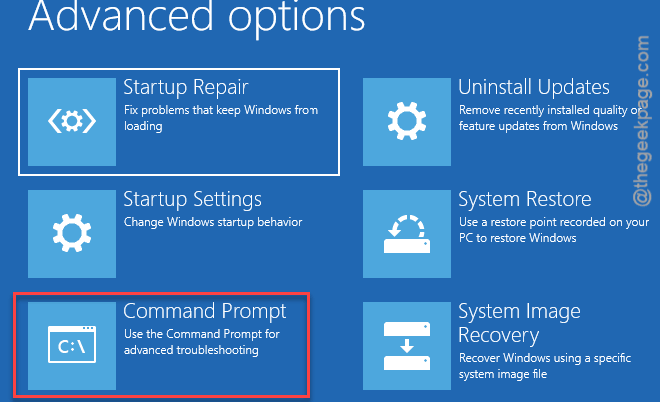
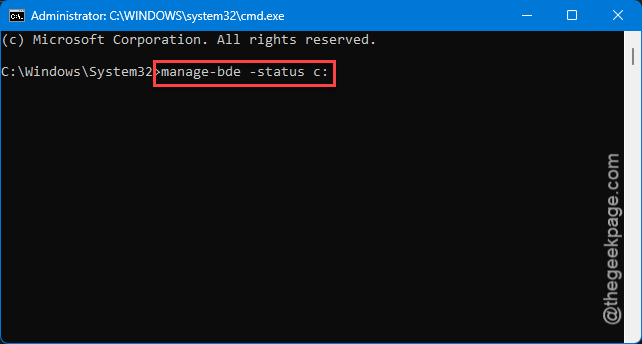
3 – Type this code and press Enter. Look at the Lock Status.
manage-bde -status c:
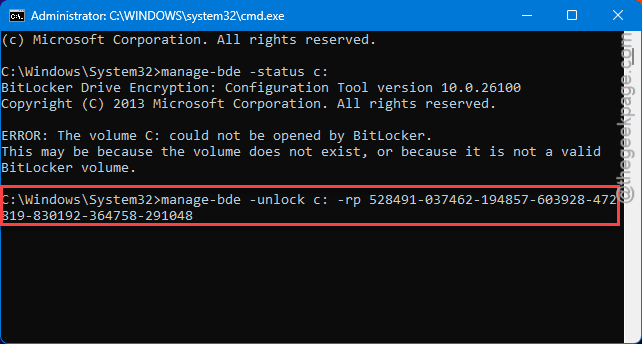
4 – If it says Locked, type and press Enter.
manage-bde -unlock c: -rp 48-DIGIT-KEY
(Swap in your real key.)
5 – Type manage-bde -protectors -disable c: and press Enter.
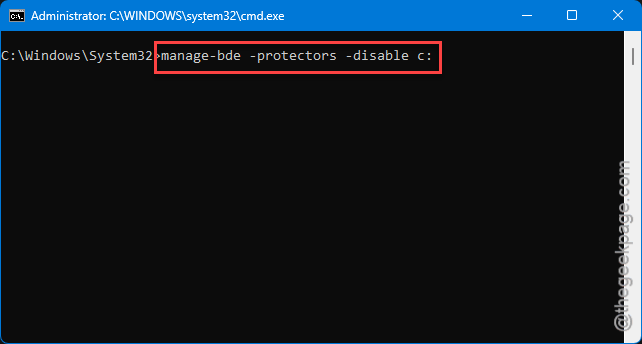
This pauses protection so Windows can boot.
6 – Type exit, then click Continue to boot into Windows.
7 – Once you’re in, open Manage BitLocker and click Resume protection.
Looks intimidating, sure. But it isn’t, really — you’re just unlocking the drive and pausing the lock so Windows can load. Then you re-enable it cleanly from inside.
Fix 4 – Change the Right BIOS Settings
If a boot or preboot feature keeps tripping BitLocker every time, the fix lives in the BIOS. Turning off the preboot stuff stops the constant re-checks.
1 – Restart your computer first and then, tap F2 or F12 buttons at the boot screen to enter the BIOS.
2 – Go to System Configuration > USB Configuration.
3 – Disable USB Type-C / Thunderbolt 3 Boot support.
4 – Disable USB Type-C / Thunderbolt 3 (and PCIe behind TBT) Preboot.
5 – Disable the UEFI Network Stack.
6 – Set POST Behavior > Fastboot to Thorough.
7 – Save and exit.
And these names and locations shift between PC makers. If yours don’t match exactly, look for anything Thunderbolt, preboot, or network-boot related and turn it off.
Fix 5 – Turn Off BitLocker Completely
Last resort. Truly fed up and don’t need the encryption? You can switch BitLocker off entirely. No more prompts, ever — but your drive won’t be encrypted anymore.
1 – Boot into Windows.
2 – Open Manage BitLocker.
3 – Click Turn off BitLocker on the drive.
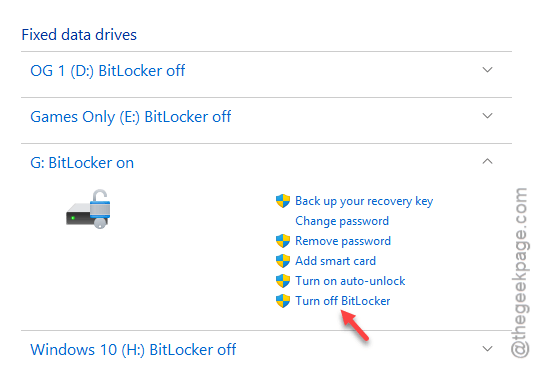
4 – Let it decrypt fully. On a big drive, this takes a while — leave it running.
Only do this on a personal machine where the data isn’t sensitive. On a work laptop, talk to IT first — they may require encryption.
How to Prevent This
- Save your recovery key somewhere you can actually reach — Microsoft account plus a printout. Future you will be grateful.
- Suspend BitLocker before any BIOS or firmware update. That’s the single most common trigger for the loop.
- Unplug Thunderbolt and USB-C docks before rebooting if they keep setting it off. Reconnect once you’re booted.
- After it asks once and you get in, do a suspend-resume right away. Clears the flag before it becomes a loop.
People Also Ask
Why does BitLocker keep asking for the key after reboot?
Because it detects a change it can’t verify — a BIOS update, a TPM shift, or a preboot device. Sometimes nothing really changed and it’s just stuck re-checking. Suspending and resuming protection forces a clean re-scan and usually ends the prompts.
How do I fix a BitLocker recovery key loop?
If you can boot in, suspend and resume protection. If you’re stuck at the key screen, open Command Prompt from recovery and run manage-bde to unlock and pause protection, then re-enable it in Windows. Have your 48-digit key ready either way.