You closed the app. You try to delete the file, or rename it, and Windows says it’s open in another program.
Open where? Nothing is running. Task Manager looks clean. And the file just sits there, locked.
Why This Happens
The app is supposed to give the ticket back when it’s done. Plenty of them forget. The window disappears, a background process keeps running, and the ticket never comes back.
But here’s the part that catches people. Half the time the app isn’t even the guilty one. File Explorer itself grabs your files. That preview pane on the right? It opens your PDF to show you a preview. The details pane does the same. Windows also reads the file to build a thumbnail image for the icon.
So Explorer quietly holds the file open while you’re standing there trying to delete it. And then Explorer tells you the file is in use. Not ideal.
Antivirus scanners and cloud sync clients do it too. Same story, different program.
Fix 1 – Kill the Leftover Process
The app is closed, but a piece of it is still breathing. Ending just the app isn’t enough — you want the whole tree of child processes under it.
1 – Press Ctrl + Shift + Esc to open Task Manager.
2 – Click the Details tab on the left. This view shows the raw process names, which is what you need.
3 – Look for the closed app’s process. A PDF reader would still be listed as its own .exe. Also check for RuntimeBroker.exe, which Windows apps use to touch your files.
4 – Right-click that process and choose End process tree.
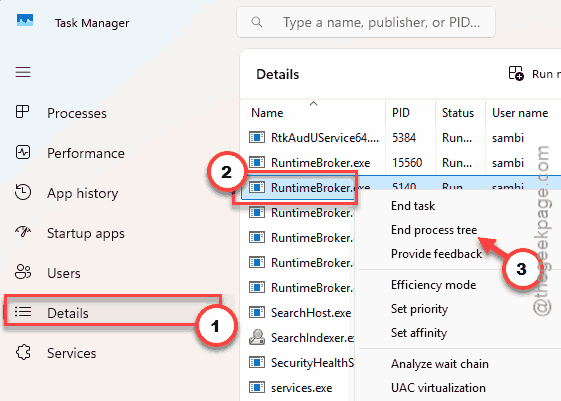
5 – Confirm when Windows asks.
Now try the file again. Worked? Great. If you can’t tell which process to blame, Fix 2 names it for you.
Fix 2 – Find the Exact Program Holding the File
This is the one that always works, because it stops the guessing. Windows will tell you the culprit by name.
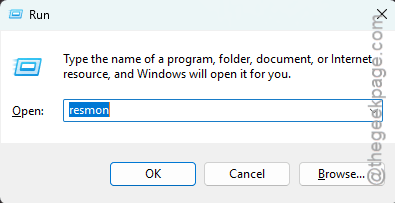
1 – Press Windows + R, type resmon, and press Enter.
2 – Click the CPU tab at the top.
3 – Find the Associated Handles bar and click it to expand it. It’s the third grey bar down.
4 – Click the Search Handles box on the right side of that bar.
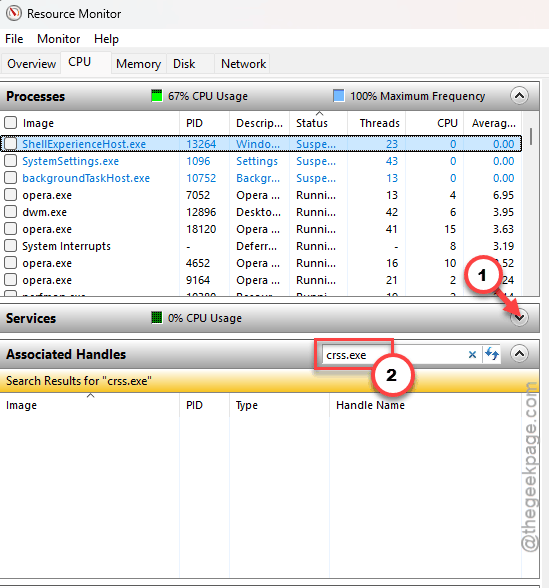
5 – Type the exact name of your locked file — report.pdf, for example — and press Enter.
6 – Wait a second or two. Any process holding that file appears in the list below.
7 – Right-click the process and choose End Process.
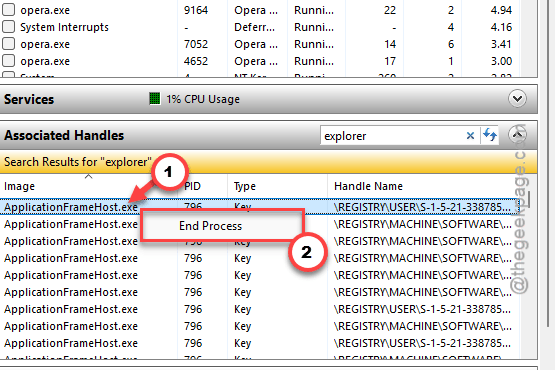
One warning. If the answer comes back explorer.exe, don’t end it — you’ll lose your taskbar and desktop. That means Explorer is the one holding your file, and Fix 3 is where you want to be.
Fix 3 – Turn Off the Preview and Details Panes
These two panes open your files to show you what’s inside them. Handy for browsing. Terrible when you want to delete something.
1 – Open File Explorer with Windows + E.
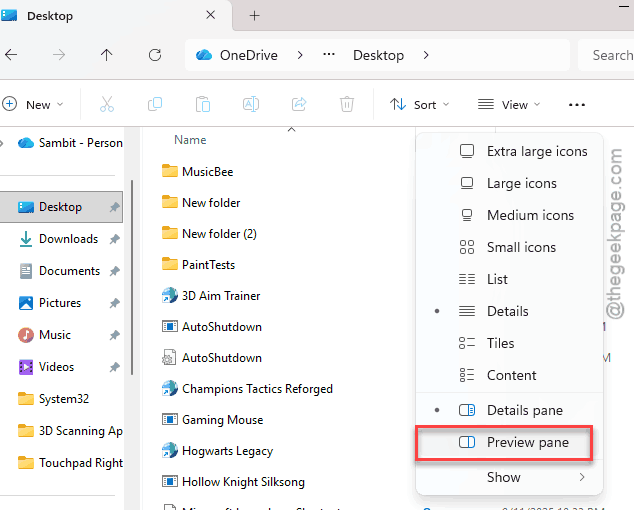
2 – Click View in the toolbar at the top.
3 – Hover over Show at the bottom of the menu.
4 – Click Preview pane to uncheck it.
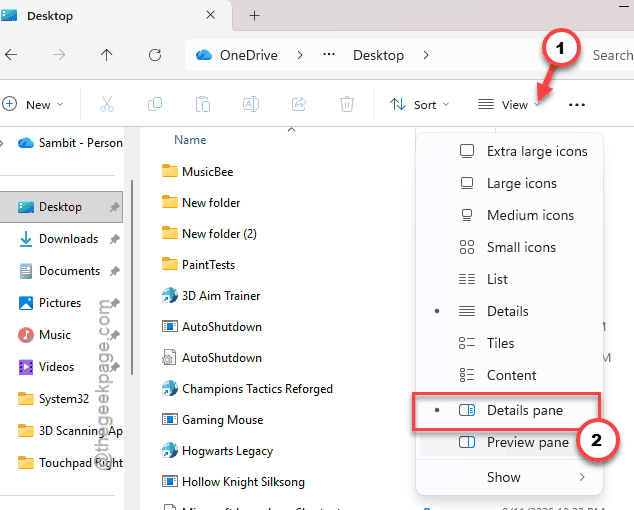
5 – Open the same menu again and click Details pane to uncheck that too.
6 – Click somewhere empty in the folder to deselect the file, then press F5 to refresh.
And now delete it. PDFs and images are the usual victims here, since those are exactly what the preview pane loves to open.
Fix 4 – Restart File Explorer
Fast and harmless.
1 – Open Task Manager with Ctrl + Shift + Esc.
2 – Then, find Windows Explorer in the Processes list.
3 – Next, right-click it, and choose Restart.
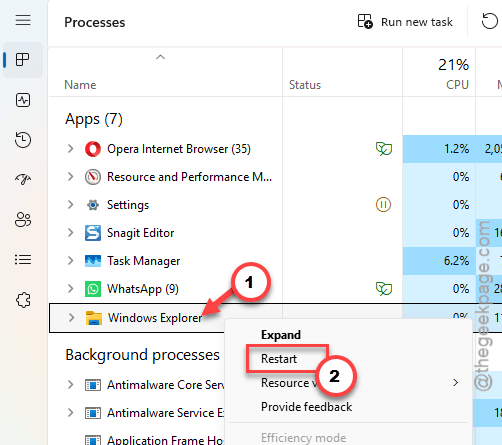
Your taskbar vanishes for about two seconds and comes back. Every file handle Explorer was holding is dropped in that moment.
Then delete the file within the next few seconds, before Explorer re-reads the folder and grabs it all over again.
Fix 5 – Stop Windows From Building Thumbnails
Still locked, and it’s always image or video files? Windows opens each one to draw its little preview icon. Turn that off and the locking stops.
1 – Press Windows + R, type regedit, and press Enter. Click Yes on the prompt.
2 – Go to this path. You can paste it straight into the address bar at the top of the Registry Editor:
HKEY_CURRENT_USER\Software\Microsoft\Windows\CurrentVersion\Explorer\Advanced
3 – At first, right-click an empty spot in the right pane and choose New > DWORD (32-bit) Value.
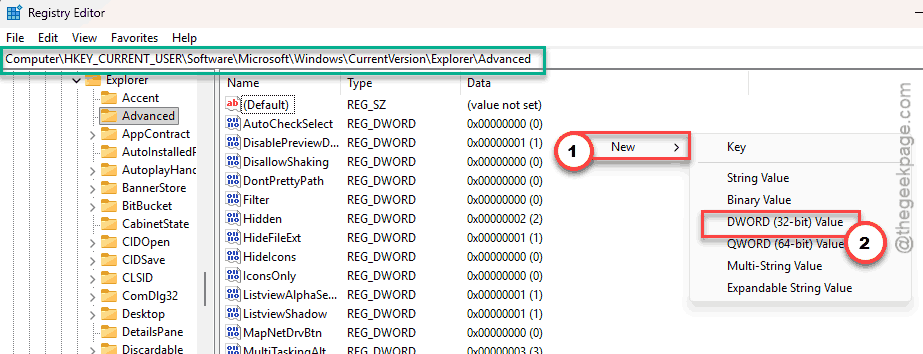
4 – Then, name it DisableThumbnails and press Enter.
5 – Double-click it, type 1 in the Value data box, and click OK.
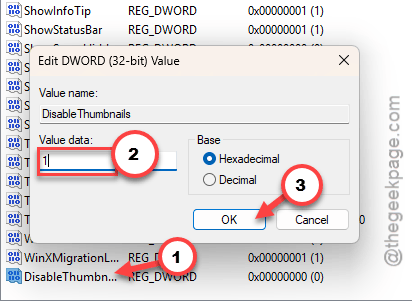
6 – Restart your PC.
Your photo folders will show plain generic icons from now on. That’s the trade. Set the value back to 0 whenever you want the previews back.
How to Prevent This
– Pause OneDrive syncing before a big cleanup. It grabs files mid-delete, and then blames you.
– Learn resmon. Seriously. It’s the only tool here that names the guilty process instead of making you guess.
People Also Ask
How to fix file errors in Windows 11?
Start with the simple stuff. Restart Windows Explorer from Task Manager, since it holds files more often than any app does. Turn off the preview and details panes under View, Show. Still stuck? Reboot. A restart drops every file handle on the machine.
Why does Windows say a file is open when nothing is running?
Because something is running — you just can’t see it. Closing a window doesn’t always end the program, and background bits keep their claim on the file. Explorer’s preview pane, thumbnail generation, antivirus scanners and cloud sync clients all hold files open without showing a window.