Your wallpaper is there. Your mouse moves. Everything else is gone.
No taskbar along the bottom. Click Start and nothing opens, because there’s no Start button to click. Just a big empty desktop and a cursor.
Why This Happens
The taskbar and Start menu aren’t part of the desktop. They’re separate apps, drawn with a framework called XAML — the same system Windows uses for its modern settings screens.
Each one keeps a little cache of its layout. And when that cache gets corrupted, the app crashes as it starts, silently, over and over. No error. It just never appears.
What corrupts it? A cumulative update installing while the shell is running is the usual answer. So is a forced shutdown. So is a profile that’s been carried across three Windows versions.
There’s also a service called IrisService, the thing that fetches the suggested content and spotlight images Windows likes to show you. It has a bug where it loops trying to sync a configuration it can’t reach. And it takes the whole shell down with it.
Good news, at least. Your PC is running perfectly underneath. You just can’t see the controls. Task Manager still works, and that’s your way in.
Fix 1 – Restart Explorer
Try this before anything else.
1 – At first, press Ctrl + Shift + Esc to open Task Manager.
2 – Then, tap the Run new task at the top.
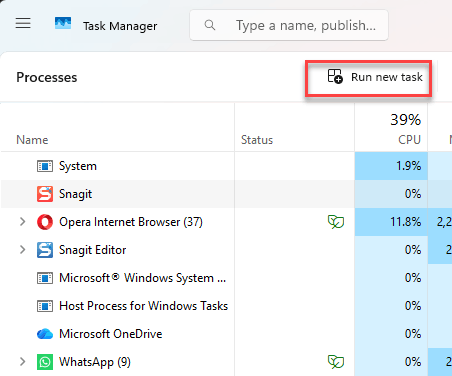
3 – Type explorer.exe there. Then, tick Create this task with administrative privileges, and click OK.
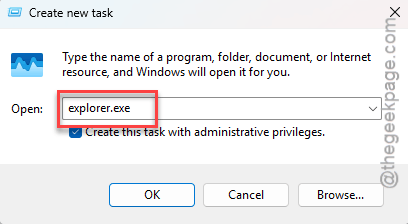
The taskbar usually reappears within a couple of seconds. If it does, you’re done — though if this keeps happening every day, work through the rest of this list anyway.
Task Manager not opening either? Press Ctrl + Alt + Delete and choose it from the blue screen that appears.
Fix 2 – Wipe the Shell’s Cache
Try wiping the entire shell cache from your device to fix the issue.
1 – Press Ctrl + Shift + Esc to open Task Manager.
2 – Click Run new task.
3 – Type cmd, tick Create this task with administrative privileges, and click OK.
4 – Run this:
taskkill /f /im explorer.exe
5 – Run this:
taskkill /f /im StartMenuExperienceHost.exe
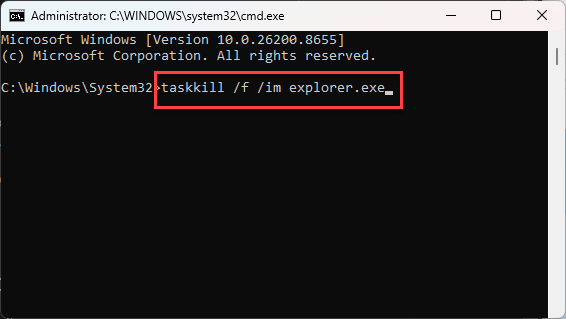
6 – Run this as one line:
del /f /q /s "%localappdata%\Packages\Microsoft.Windows.StartMenuExperienceHost_cw5n1h2txyewy\LocalState\*"
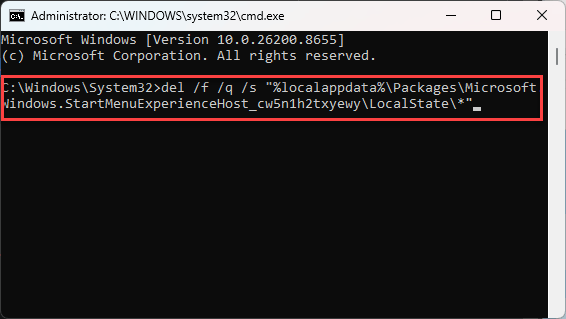
7 – Run this as one line:
del /f /q /s "%localappdata%\Packages\Microsoft.Windows.Search_cw5n1h2txyewy\LocalState\*"
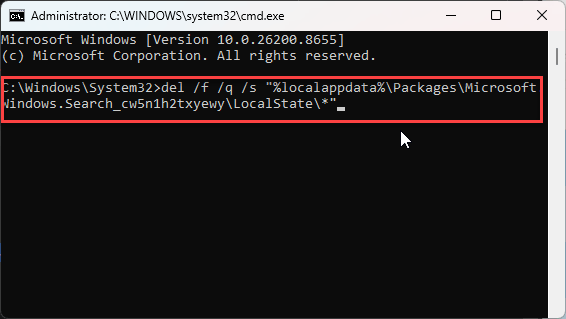
8 – Bring the desktop back with:
start explorer.exe
9 – Restart your PC.
You’ll lose your pinned Start menu tiles. Everything else stays. A few “file not found” messages during the delete commands are fine — it means the cache was already partly gone.
Fix 3 – Re-Register the Shell Apps
1 – In Task Manager, click Run new task.
2 – Type powershell, tick the administrative privileges box, and click OK.
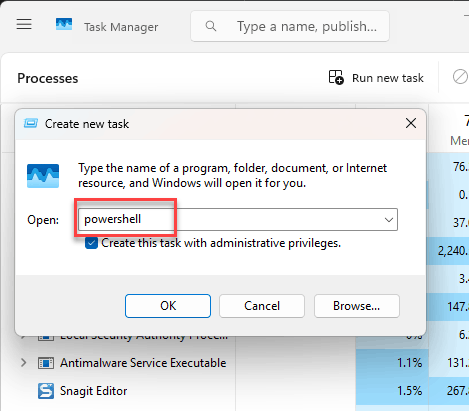
3 – Paste this in as a single line and press Enter:
Get-AppxPackage -AllUsers *ShellExperienceHost* | Foreach {Add-AppxPackage -DisableDevelopmentMode -Register "$($_.InstallLocation)\AppXManifest.xml"}
4 – Then paste this one and press Enter:
Get-AppxPackage -AllUsers *StartMenuExperienceHost* | Foreach {Add-AppxPackage -DisableDevelopmentMode -Register "$($_.InstallLocation)\AppXManifest.xml"}
5 – Restart.
Red error text scrolls past on most systems. Ignore it unless every single package failed. This re-registers the apps from files already on your disk — nothing is downloaded and nothing is removed.
Fix 4 – Stop IrisService Crashing the Shell
If your taskbar dies a few seconds after login, every login, this is your fix. IrisService is fetching spotlight content, failing, and taking the shell with it.
Back up the registry first. In Registry Editor, click File, then Export.
1 – Start to type regedit in the search box and open up the Registry Editor.
2 – Then, paste this directly ino the address bar at the top and press Enter to reach there directly:
HKEY_CURRENT_USER\SOFTWARE\Microsoft\Windows\CurrentVersion\IrisService
3 – If you can’t find that key, right-click CurrentVersion, choose New, then Key, and name it IrisService.
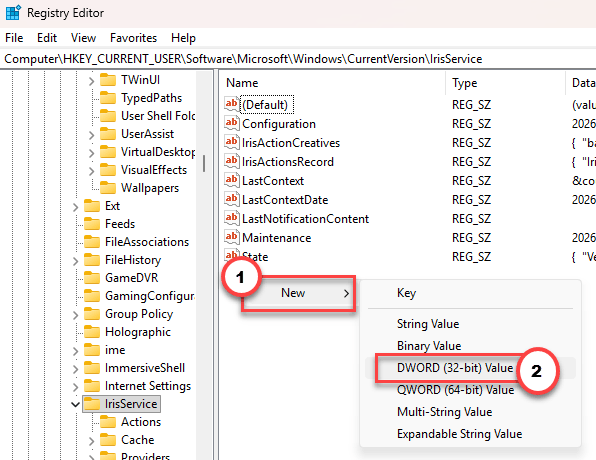
4 – Then, right-click the empty right-hand pane. Choose New, then DWORD (32-bit) Value.
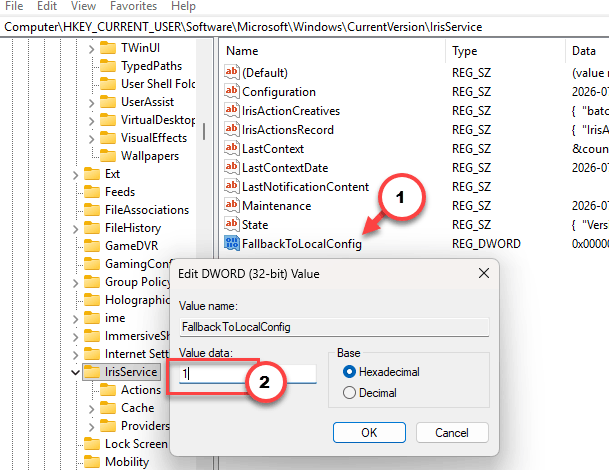
5 – Name it FallbackToLocalConfig.
6 – Then, double-click that and set the value to 1, and click OK.
7 – Restart your PC.
That tells Windows to use a local configuration instead of waiting on a server it can’t reach. Some guides tell you to delete the whole IrisService key. This is gentler and it survives updates better.
Fix 5 – If It Started the Day an Update Installed
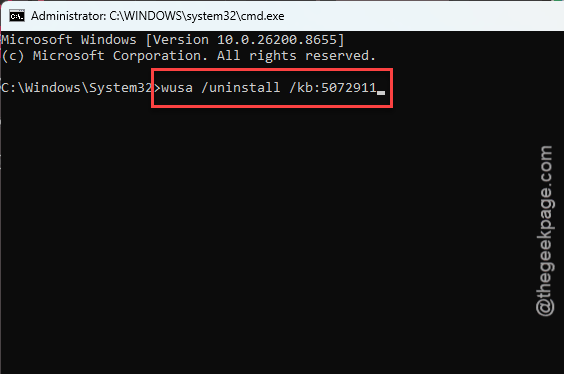
Remove the update. You can do it from a command line, which is handy given that Settings is hard to reach without a Start menu.
1 – Open an administrator Command Prompt from Task Manager, as in Fix 2.
2 – Run this:
wusa /uninstall /kb:5072911
3 – Follow the prompt and restart.
Pause Windows Update for a week afterwards. Otherwise it reinstalls tonight and you do this all again.
Fix 6 – Build a Fresh User Profile
Sometimes the corruption is baked into your account, not Windows. A new account gets a clean shell. This also tells you, definitively, whether the problem is your profile or the system.
1 – Open an administrator Command Prompt from Task Manager.
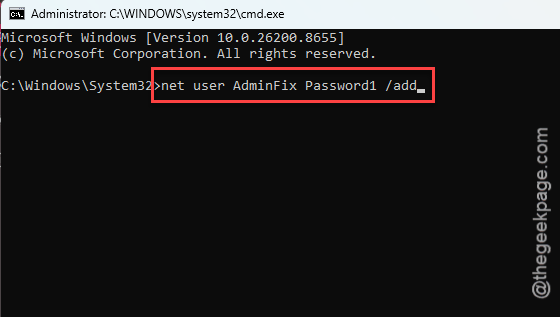
2 – Create the account, choosing your own password:
net user AdminFix Password1 /add
3 – Give it administrator rights:
net localgroup administrators AdminFix /add
4 – Press Ctrl + Alt + Delete and click Sign out.
5 – Sign in as AdminFix. The first login takes a minute or two while Windows sets things up.
Taskbar working? Then your old profile is the culprit. Copy your files across from C:\Users\YourOldName and settle into the new account. Still broken? The problem is system-wide, so go back and finish Fix 2 and Fix 4.
Pick a real password, not Password1. And delete this account once you’re finished with it.
Fix 7 – Repair the System Files
Worth running once, in the background, while you try other things.
1 – Open an administrator Command Prompt.
2 – then, run these two codes one after the other.
DISM /Online /Cleanup-Image /RestoreHealth
sfc /scannow
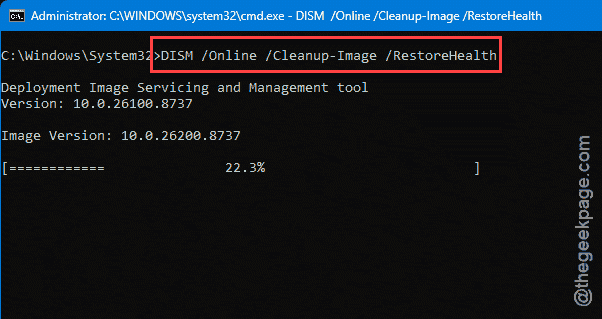
Together they take about half an hour. That order matters — DISM repairs the store of clean files, and SFC copies them into place. Reversed, SFC just copies broken files over broken files.
How to Prevent This
– Shut down properly. Holding the power button while Windows is writing shell caches is how most of these start.
– Keep a second administrator account on the PC, unused. When your main profile eats itself at 9am on a Monday, you’ll have somewhere to log in.
– Turn off Windows Spotlight and suggested content in Settings, under Personalization. Less for IrisService to fail at.
– Don’t install big updates right before you need the machine. Let them land on a Friday evening.
People Also Ask
How to fix a broken taskbar in Windows 11?
Restart Explorer from Task Manager first. Then re-register the shell apps with the Get-AppxPackage command in PowerShell. If the taskbar dies a few seconds after every sign-in, add a DWORD called FallbackToLocalConfig set to 1 under the IrisService registry key. That’s a known Windows 11 crash loop.
How to fix Windows 11 black screen issues?
You should try pressing the Ctrl+Shift+B keys together. Your computer screen should become normal once again, as it restarts the display driver.