You try to open a file in Paint. Error: “Paint can’t read this file.” That’s it. No useful info. Just that. Either the file is unsupported, corrupted, or Paint’s cache is messed up.
Why This Happens
Basically? Paint only reads PNG, JPEG, BMP, GIF, TIFF, and the new .paint format. Anything else — WebP, SVG, HEIC — nope.
But sometimes this error shows up for supported formats too. This usually means the file is corrupted. Or someone renamed the extension. A .webp file renamed to .png will trigger this because the actual data doesn’t match.
And .paint files from OneDrive? Sync delays give you half-downloaded files. Which MS Paint chokes on. So yeah.
Fix 1 – Check the Actual File Format
Make sure the file is something Paint can actually open.
1 – Right-click the file.
2 – Click Properties.
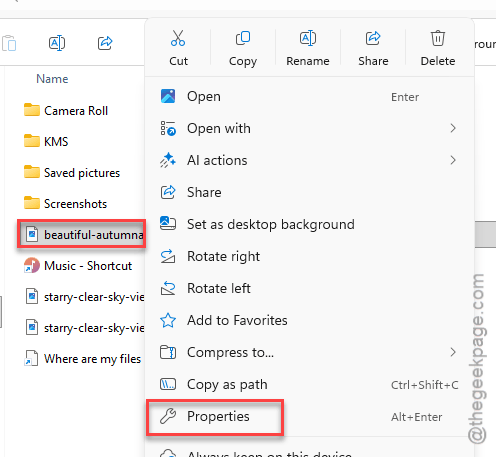
3 – Check the file extension: .png, .jpg, .bmp, .gif, .tiff = fine. Anything else = no.
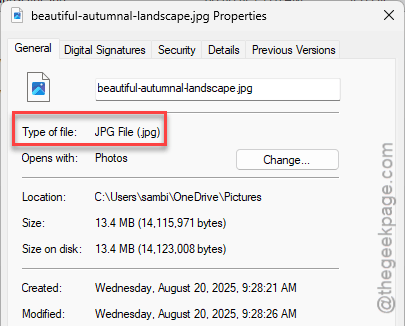
And watch for renamed files. Someone renames a .webp to .png — Paint sees the extension but the data inside doesn’t match. Instant error.
Fix 2 – Open from a Local Drive
File on OneDrive or network drive? Copy it locally first.
1 – Copy the file to your Desktop or a local folder like C:\PaintTests.
2 – Open it from there.
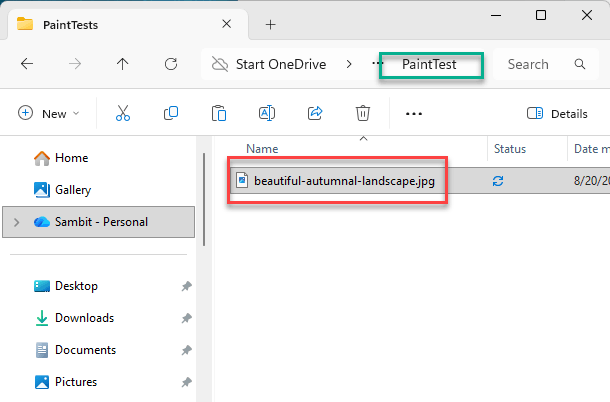
Cloud sync delays cause half-downloaded files. Moving it local fixes that. Weird, but true.
Fix 3 – Reset MS Paint
Paint should open this file but won’t? Cache might be damaged.
1 – Open Settings.
2 – Click Apps.
3 – Click Installed apps.
4 – Find Paint.
5 – Click the three dots.
6 – Click Advanced options.
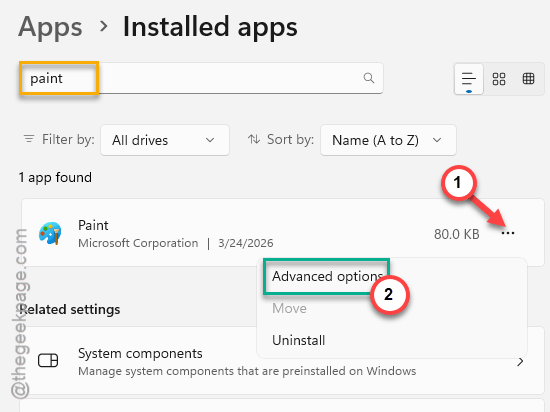
7 – Click Reset.
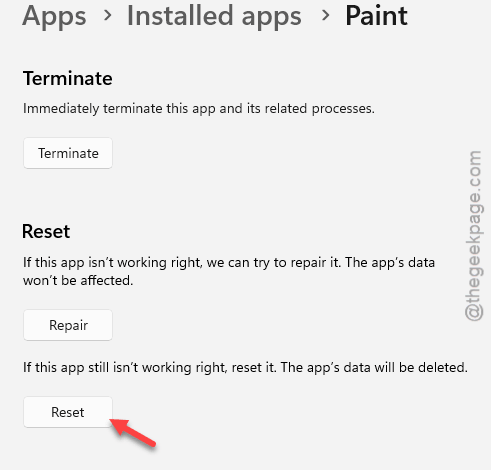
Clears cached data (won’t delete your files). Try opening after.
Fix 4 – Try a Different User Account
File opens on another computer but not yours? Profile-level issue.
1 – Open Settings.
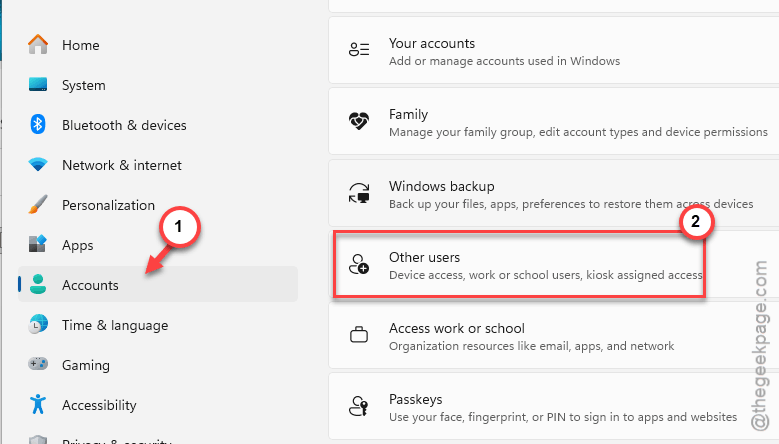
2 – Go to Accounts.
3 – Click Other users.
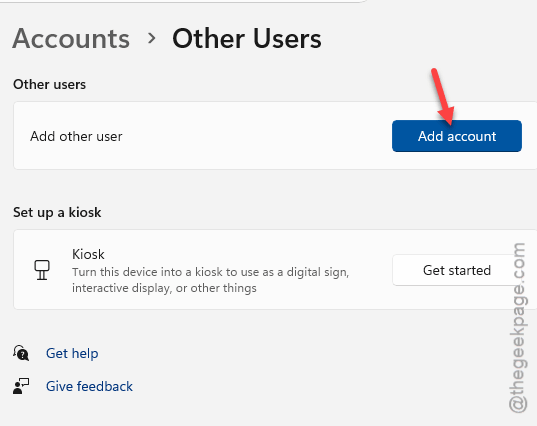
4 – Create a new local account. Tap Add Account option to create a new account.
5 – Sign in with it.
6 – Try opening the file.
Works on the new account? Your main profile’s app data is corrupted. Reset Paint on your main account.
Fix 5 – Update Paint
Format support depends on having the latest version.
1 – Open the Microsoft Store.
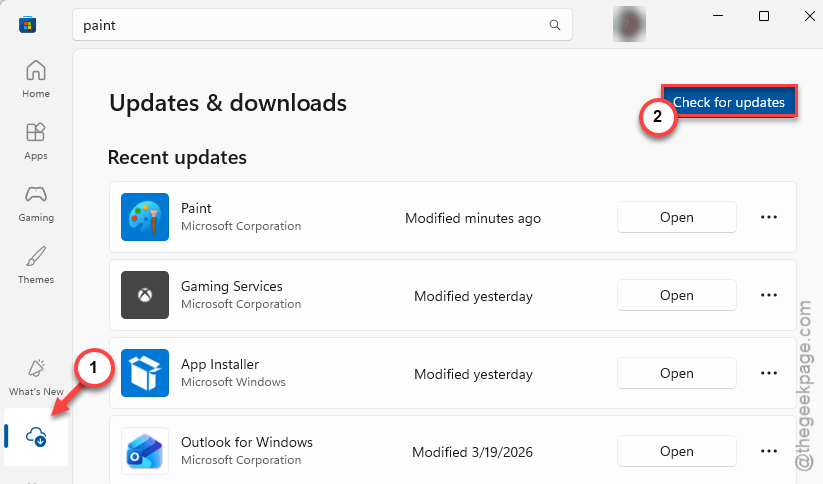
2 – Click Downloads at the bottom left.
3 – Tap the Check for updates.
Honestly, this fixes more format issues than you’d expect. Microsoft keeps adding support. But only if you update.
Fix 6 – Convert the File
File genuinely unsupported? Convert it. Open in Photos, GIMP, or a web browser. Export as PNG or JPEG. Open that in Paint.
Quick fix. Not ideal. But sometimes the only option.
How to Prevent This
- Save images as PNG or JPEG. Always works.
- Don’t rename file extensions manually. Breaks the file header.
- Open .paint files from local storage. Not cloud.
- Keep Paint updated from the Store.
People Also Ask
Why can’t Paint read my file?
Probably wrong format or corrupted. Check the extension. If it’s supported, reset Paint through Settings. Might be a renamed file.
How to fix unsupported file format?
Convert it. Open in Photos or GIMP. Export as PNG. Then open in Paint.
How do I open an old file in MS Paint?
Update Paint from the Store. Old .paint files need matching versions. Won’t open? Try a different user account.