The current status of Microsoft Teams is an underrated feature where it let the others know your current status, whether you are Available or Busy. So, if by any chance the Teams Status is not updating, you have to take other means to announce their current status, which is not feasible, if there are lots of members in your team. Here are some solutions which will fix the Teams’ status update issue.
Fix 1 – Reset the MS Teams Edge WebView2 Cache
Clear out the stored up Microsoft Teams Edge WebView2 cache from the designated folder to fix the issue.
Step 1 – Close the MS Teams client. Next, tap the arrow button in the taskbar, and right-click the Microsoft Teams app there, and tap Quit Teams.
Step 2 – Next, press Win+R buttons. Paste this address in the Run box, and hit Enter.
%localappdata%\Microsoft\Edge\UserData\Default
Step 3 – Find these folders and remove them from there.
Cache
Code Cache
GPUCache
IndexedDB
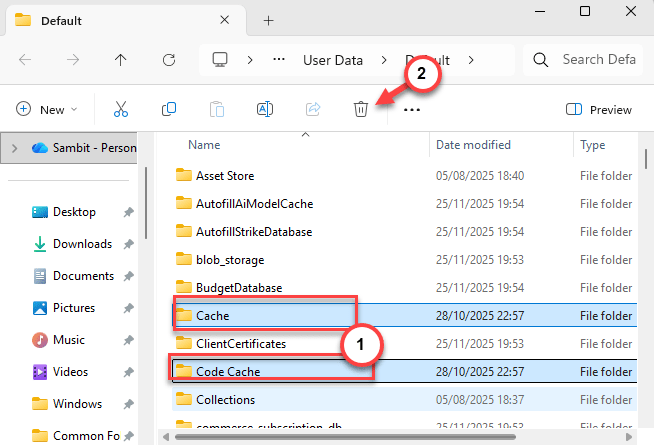
Step 4 – After this, restart MS Teams.
This should have fixed this status issue on MS Teams client.
Fix 2 – Sign out and sign in to Teams
The Status is dependent on the MS 365 token, signing out of the MS Teams account and signing back to it should resolve the issue.
Step 1 – Tap the profile icon on your MS Teams client, and tap Sign out button to sign out of MS Teams.
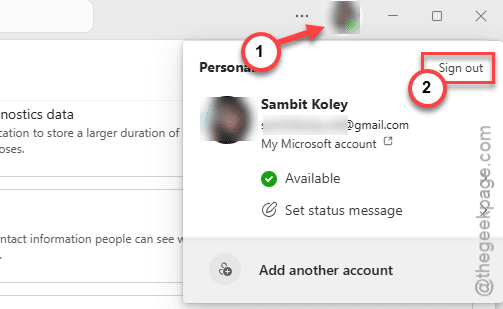
Step 2 – Then, quit MS Teams from the system tray as well.
Step 3 – Next, press the Ctrl+Shift+Esc keys together to launch the Task Manager.
Step 4 – Go to the Details tab. Find these two active components in there, and end them –
ms-teams.exe
ms-teams-webview2.exe
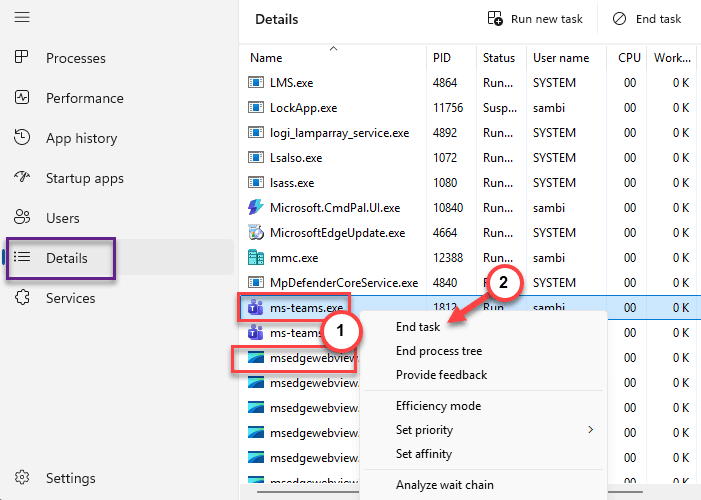
Step 5 – After this, go ahead and relaunch the MS Teams client.
Step 6 – Your account will be visible on the Teams’ startup page, if you have opted to store the account ID. Just tap it to sign in easily. Otherwise, you may have to sign in manually using ID, password.
Once you have signed in, toggle the activity status in the Teams client.
Fix 3 – Check the sync for Outlook Teams Meeting Add-in
The contradiction between the Microsoft Teams and Outlook status (as both share the same presence component) can result into such issues.
Step 1 – Load up the Outlook app. Then, proceed this way –
File ⇾ Options
Step 2 – Find the Add-ins tab. Set the ‘COM Add-ins‘ and click Go.
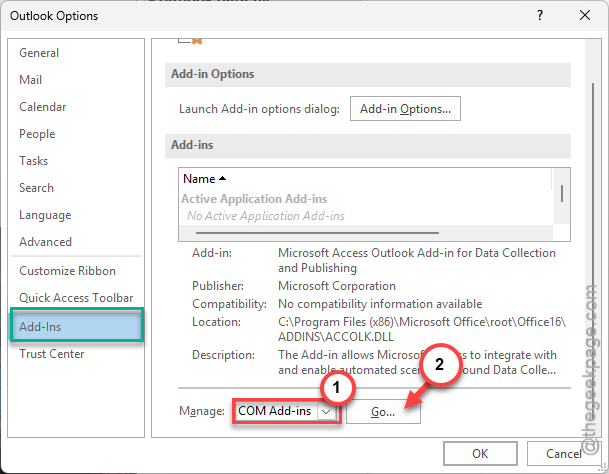
Step 3 – Now, check the Microsoft Teams Meeting Add-in function. Click OK to save the changes.
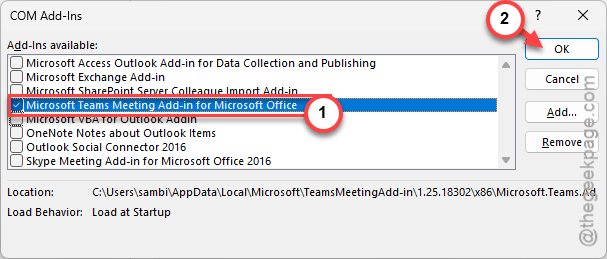
Close and relaunch the Microsoft Outlook and Teams client.
NOTE – If the problem still remains, as if others are getting dual status on Outlook and on MS Teams client, you shall disable the Teams Meeting Add-in the Outlook client.
Fix 4 – Refresh the Presence Information Settings in Teams
Turn off the share presence information settings for the Teams client, restart Teams and turn it back on.
Step 1 – In the Teams page, tap the three-dot button and, tap Settings.
Step 2 – Next, go to the Privacy tab. Turn off the Presence Information settings there.
Step 3 – Close and restart the Teams client.
Step 4 – Then, turn on the Presence Information settings in the Teams’ client again.
Check whether this basic fix solves the status issue that you are having. Check if this solves the issue at your end.