Complications on the Apple Watch screen works exactly like the widgets on your iPhone Lock Screen. But, what is the use of carrying those complications on the watch, if they are not showing up updated information. This is usually just a glitch in the watchOS 26 or the lack of background app refresh may be held accountable for the complications getting stuck on the Apple Watch. Follow these fixes for a quick and easy resolution.
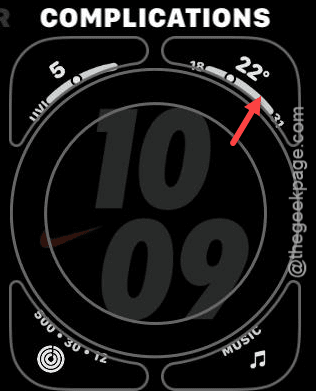
Fix 1 – Restart the Apple Watch
If this is just a temporary glitch in the watchOS 26, restarting the Apple Watch is the easiest resolution available.
Step 1 – Just press the Side Button until it loads up the power console.
Step 2 – Next, slide sideways to power off the Apple Watch.
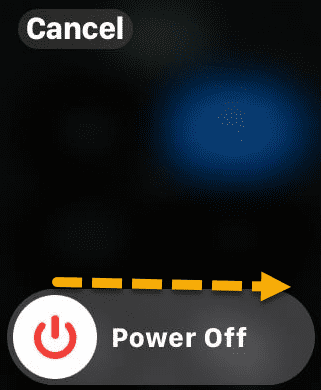
After switching off the Apple Watch, wait for a few seconds.
Step 3 – Then, restart your Apple Watch.
The complications will show up updated, real-time information on the Apple Watch.
Fix 2 – Turn on the Background App Refresh
The application associated to the complication on the Apple Watch need to have the background access for the complication to show up live, updated information.
Example – The Weather app influences the weather complication on the Apple Watch. So, the Weather app needs to run in the background.
Step 1 – Go to the General tab in the iPhone Settings.
Step 2 – Proceed to the Background App Refresh settings there.
Step 3 – Then, make sure that app (which is related to that complication) is enabled in the Background App Refresh page.
Check the current status of that complication again.
Fix 3 – Allow Location Permission for Complication-related to App
The complication feature sometimes demand additional permission. Moreover, make sure that the app is allowed mobile data access.
Step 1 – Open the iPhone Settings. Then, go to the Privacy & Security settings.
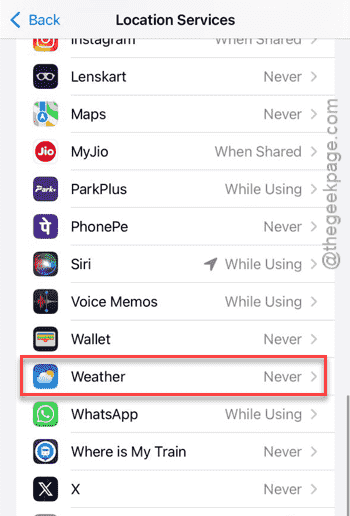
Step 2 – Then, go to the Location Services tab. Now, look through the list of apps which are allowed access to the location services.
Step 3 – Now, load up the app associated to the complication (like – Weather) to edit it.
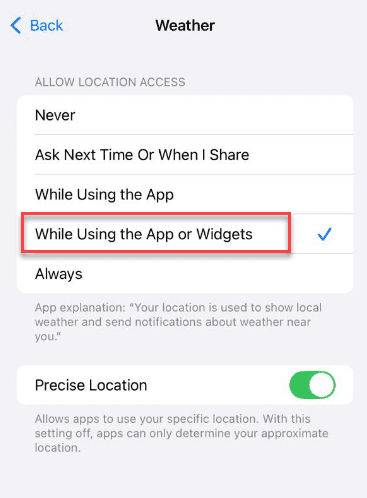
Step 4 – Set it to While Using the App or Widget or Always mode.
Step 5 – After this, go to the Mobile Service. Tap the Show All option to view the complete list of apps that has access to the mobile data.
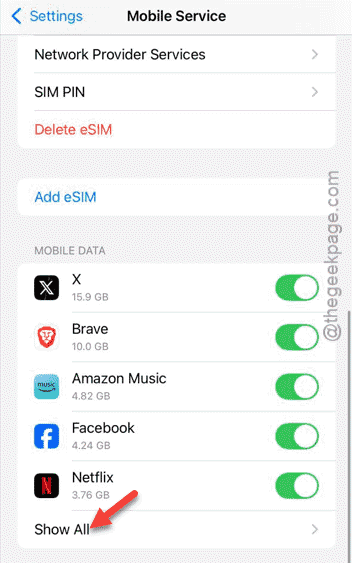
Step 6 – Check whether that same app has mobile data permission.
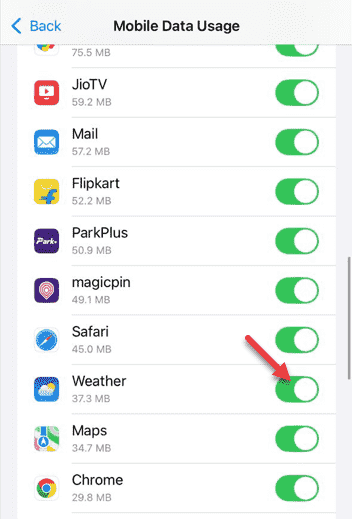
This will clear out any mobile data settings contradictions working against that complication’s function.
Fix 4 – Remove and Re-add the Complication
Just change the stale complication in the watch face and reset it back.
Step 1 – Load up the Watch app on your iPhone.
Step 2 – Find the watch face that you are currently using in the list of watch faces there.
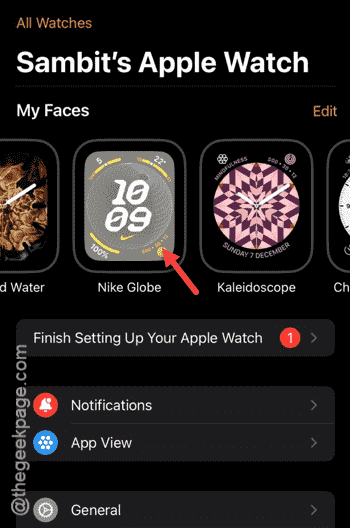
Step 3 – Go to the Complications tab. Open the stuck complication.
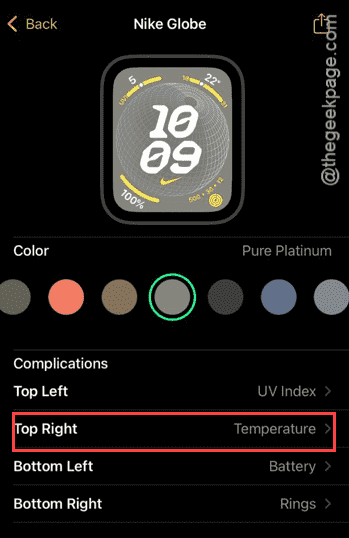
Step 4 – Set it to a different complication from the list of available complications.
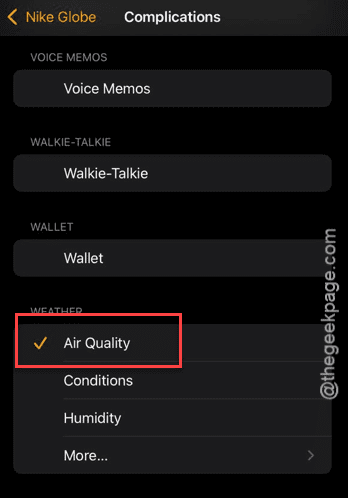
Step 5 – Wait for a few seconds, then, tap to choose a different complication from there.
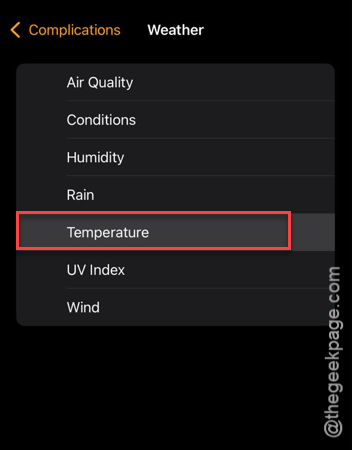
This will refresh the complication and fix the problem altogether.
NOTE – You can tweak the complications on the Apple Watch a little bit. Choose a different style of complication or set the different complication, as well. Additionally, you can switch to another watch face that contains the same complications.