Many users experience a problem in Microsoft Teams, where the chat messages of their teams and colleagues do not update in real time. This may hinder a collaborative experience, delay the vital user input, and may lead to unwanted confusion among the team members. This problem often arises from the sync glitches, corruption in Teams client, VPN related issues, etc. Here are some tips that you should follow to resolve this problem.
Fix 1 – Refresh Teams Account Session (Sign out and Sign in)
The broken synchronization chain between the cloud servers and your Teams’ client can cause such issues.
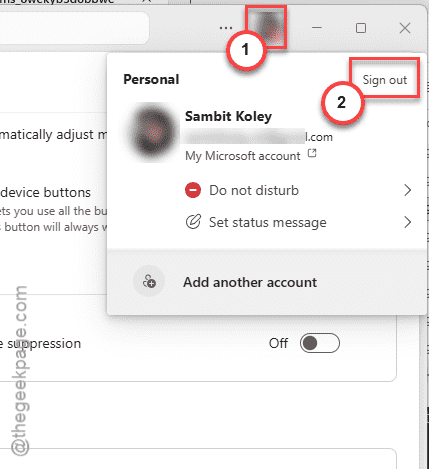
Step 1 – Load up the Microsoft Teams client. Then, tap the profile picture in there, and tap Sign out to sign out of the MS Teams client.
[If you have a work or school account, go this way –
Teams ⇾ Manage Account ⇾ Account & Orgs ⇾ (Choose your work/school account) ⇾ Sign out
]
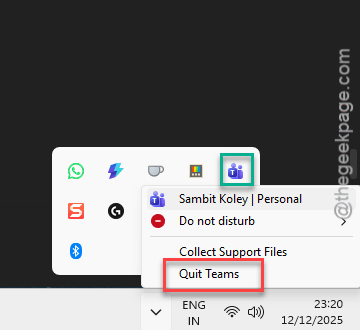
Step 2 – Close the MS Teams client completely. Then, right-click the Teams app, and tap Quit Teams.
Step 3 – Re-open the MS Teams client, and Sign in to the app again.
Now, you just have to wait for a minute or so for the app to restore all of your chats.
Fix 2 – Clear the MS Teams Chat Cache
Empty the corrupted Microsoft Teams cache from your local storage.
Step 1 – Exit the Microsoft Teams client properly. Make sure to quit it from the system tray in the taskbar, as well.
Step 2 – Then, open the File Explorer, or use a Run box to get to this address –
%localappdata%\Packages\MSTeams_8wekyb3d8bbwe\
Step 3 – Then, delete the LocalCache folder.
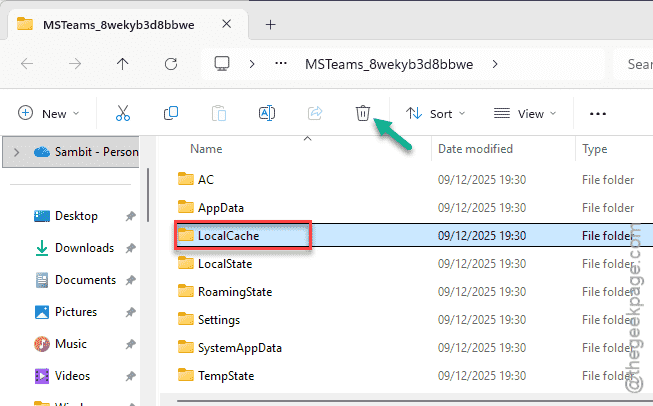
After deleting this folder, relaunch the Teams client. Microsoft Teams will just rebuild the entire LocalCache folder and all of your chats and messages will be retrieved.
See whether the chat messages are updating in real time or not.
Fix 3 – Disable any VPN Connection
Microsoft Teams may halt the messages if you are using any VPN connection.
Step 1 – Hit the Win+I button together to load up the Settings console. Then, proceed to the Network & Internet settings.
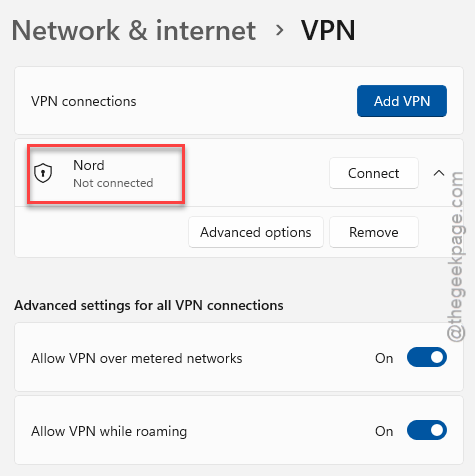
Step 2 – Next, go to the VPN tab.
Step 3 – Disconnect from any VPN network that the device is connected to.
Step 4 – Return to the Network & Proxy settings page in Windows Settings. This time, open up the Proxy settings.
Step 5 – Take a look in the Manual proxy setup console. If it is turned on, tap Edit.
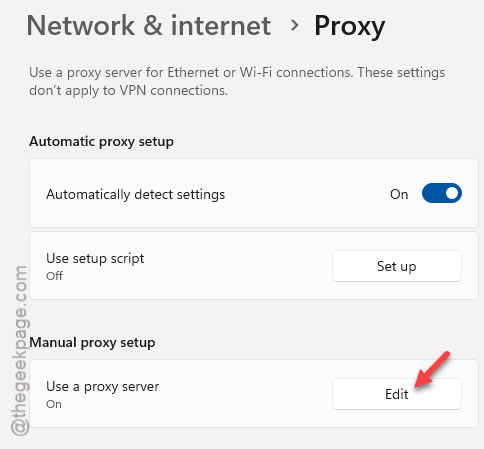
Step 6 – Then, turn off the Proxy server setup from there. Save the changes.
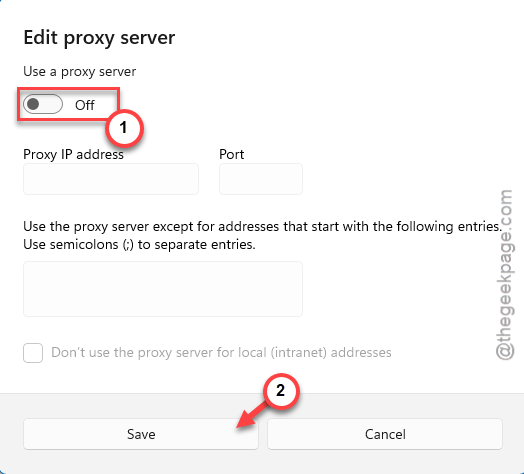
After turning off the proxy server and disconnecting from the VPN server, see whether those messages are getting updated in MS Teams or not.
Fix 4 – Reset the Notification & Activity Sync for MS Teams
You have to refresh the notification and activity synchronization for the Teams client.
Step 1 – In the Teams client, tap the ⋯ and tap Settings.
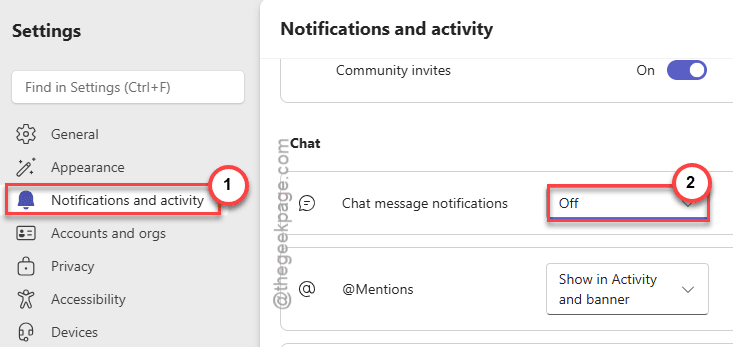
Step 2 – In the Microsoft Teams Settings page, go to the Notifications and activity tab.
Step 3 – Go to the Chat message section. Set the Chat message notifications to Off mode.
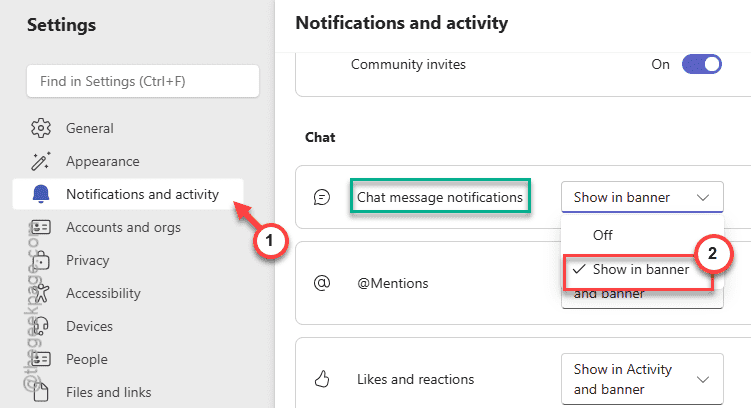
Step 4 – Then, wait for 10 seconds and then reset the Chat message notifications back to Show in banner from the drop-down.
Step 5 – Close and restart the MS Teams client.
See whether this solves the message updates issue in Teams.