Does the Big Picture Mode on your Steam client is not using the dedicated GPU on the system? Running the Steam in Big Picture mode puts some strain on the system hardware, mainly on your system GPU. But, some users have noticed that Steam in Big Picture mode is using the integrated GPU, instead of dedicated NVIDIA GPU. This may produce uncalled lags, stutters in the UI, slow game startup and various other issues. Here are the fixes for it –
Fix 1 – Switch the GPU Preference for Steam to NVIDIA
If have a dual GPU (integrated+dedicated) system, you can set the Steam to use the dedicated NVIDIA card from Windows Settings.
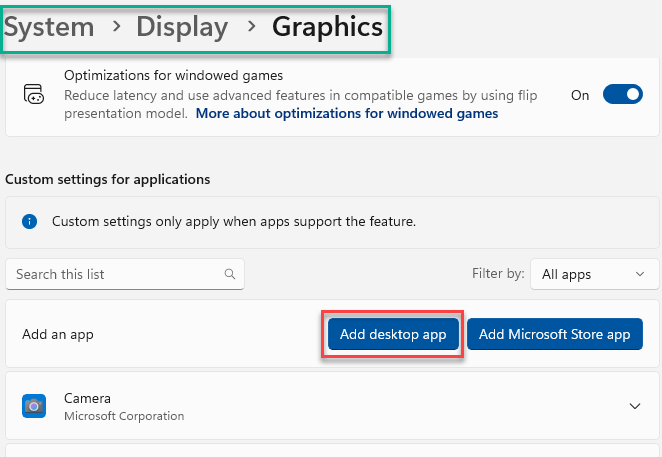
Step 1 – Open the Settings on Windows using Win+I keys. Then, go to the System settings.
Step 2 – Next, load up the Display settings and load up the Graphics settings.
Step 3 – Now, tap Add desktop app option there.
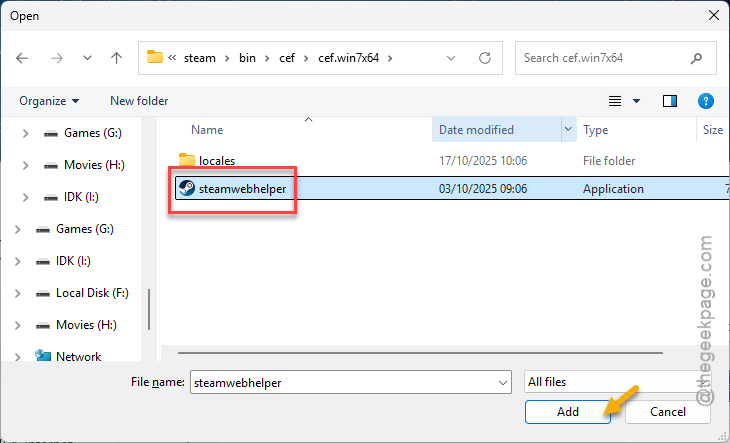
Step 4 – Then, go to the Steam app installation directory. Generally, it is located in this address –
C:\Program Files (x86)\Steam\bin\cef\cef.win7x64
Step 5 – Select the Steamwebhelper.exe from there and tap Add. This is actually the Steam application that runs on your system.
Step 6 – Once you have added it, set the GPU preference to High Performance NVIDIA card from the drop-down menu.
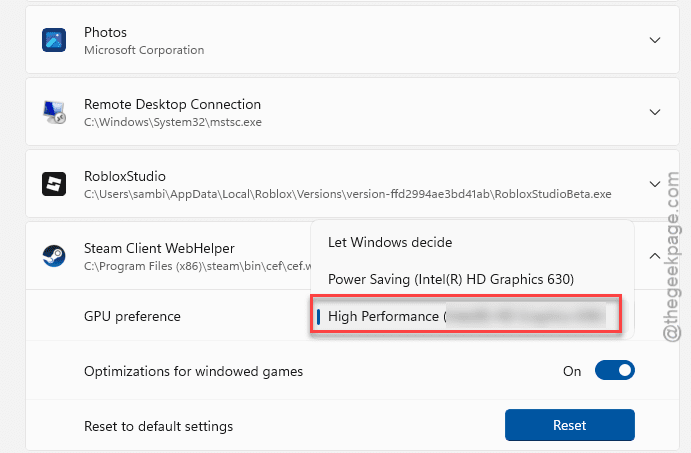
That’s it! The Steam app will be using the NVIDIA card only, not the integrated one. This should fix your issue.
Fix 2 – Set the NVIDIA GPU in Program settings
If your system has the support for switchable graphics card, you can set up the Steam app to use the NVIDIA card instead of the integrated one.
Step 1 – Search for the NVIDIA Control Panel app and load it up.
Step 2 – Next, go to the Manage 3D Settings option.
Step 3 – Now, switch to the Global settings.
Step 4 – Set the Preferred graphics processor: to High Performance NVIDIA processor.
Once you have set this, NVIDIA will be used everywhere in your system. Steam will by default use it, while running in the big picture mode.
Fix 3 – Update the NVIDIA GPU
Sometimes, an obsolete GPU driver may cause the same sort of issue.
Step 1 – Go to the NVIDIA App on your computer.
Step 2 – Next, proceed to the Drivers tab. Look for any update for your GPU driver.
Step 3 – Tap the Download option to download and install the latest version of the GPU.
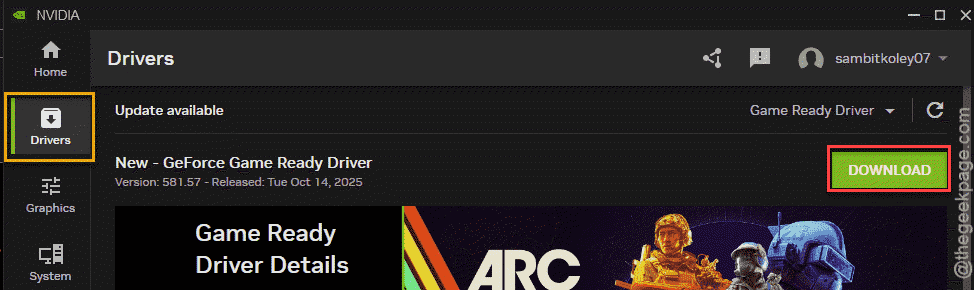
Once the entire process has finished, load up the Steam in Big Picture Mode and retry.
Fix 4 – Disable the Integrated GPU
If the Steam app in Big Picture mode is still running the integrated card, you can think of disabling the integrated card from Device Manager.
Step 1 – Right-click the Windows icon and tap the Device Manager.
Step 2 – Next, expand the Display Adapters option there.
Step 3 – Now, right-click the integrated GPU card driver and tap Disable device.
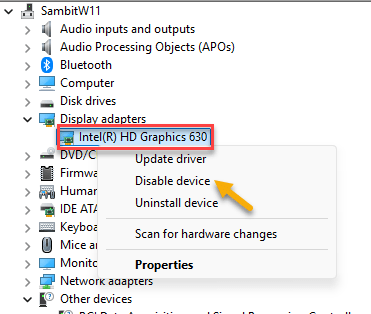
Now, your screen may turn black for a few seconds, but the NVIDIA card will take its place.
Retry using Steam in big picture mode. Check whether if this works.
What is the Big Picture Mode in Steam?
The Big Picture Mode let the Steam enter a full-screen, console-like experience for the gamers. It intends the user to use their joystick for navigation, instead of regular keyboard, mouse me- offering a console like vibe directly on their PC. Gamers can launch and play controller supported games without even have to touch the
How to exit the Big Picture Mode in Steam?
Gamers can easily exit the Big Picture mode using their joystick/ Xbox controller. Follow this path to quickly get out of the Big Picture mode in Steam - Home/Xbox button ⇾ Power ⇾ Exit Big Picture Mode. You can use your mouse to navigate as well.