Does the AirDrop transfer got stuck on Waiting Mode for too long? Airdrop is the fastest and best way to transfer files between iPhones, Mac, iPad and all the other Apple devices. But, should never get stuck on waiting mode indefinitely on your iPhone while you are sharing some files to others. If that happens, we recommend you retry the sharing process from scratch. Here are some tips that you can help you address this unusual delay in the Airdrop issue.
Fix 1 – Switch to Everyone and then Contacts Only
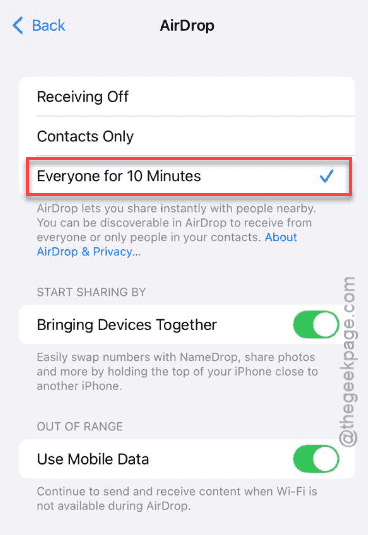
You should switch the receiving function to Everyone, and then revert it to Contacts only mode to start sharing the files.
Step 1 – To do this, proceed to the General tab in iPhone Settings.
Step 2 – Next, open up the Airdrop settings there.
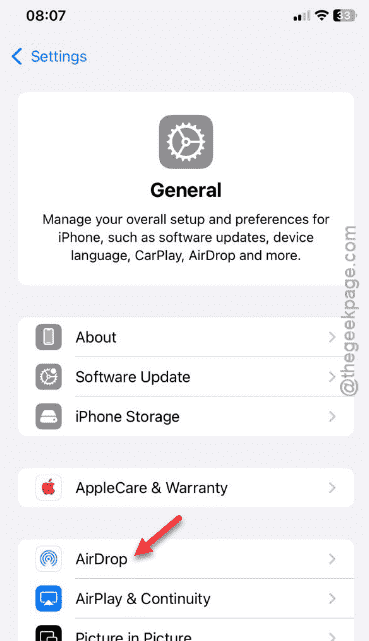
Step 3 – Later, switch the Airdrop mode to Everyone for 10 Minutes.
Step 4 – Finally, set it to Contacts Only mode.
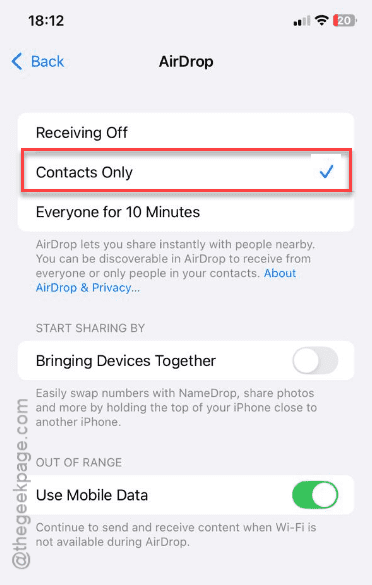
After setting it to Contacts Only mode, start airdropping the files again.
Fix 2 – Refresh the Wi-Fi and Bluetooth on iPhone
You have to refresh the Wi-Fi and Bluetooth radios by turning them off and On again on the iPhone.
Step 1 – Open the Control Center. Find the Wi-Fi and Bluetooth module there.
Step 2 – Turn both of the Wi-Fi and Bluetooth radios off.
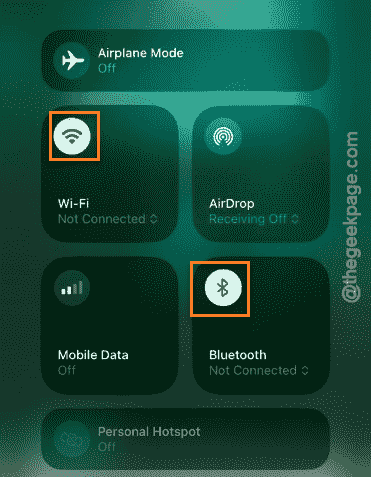
Step 3 – Wait for a few seconds. Then, turn on the Bluetooth and Wi-Fi function on the iPhone.
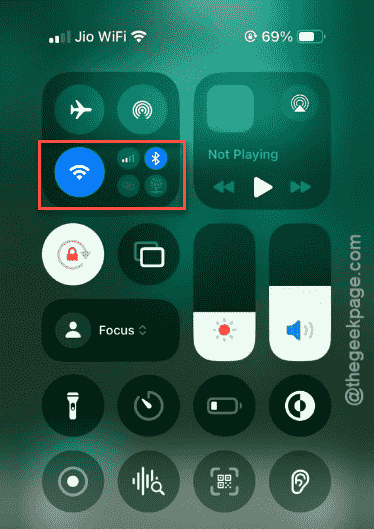
Step 4 – Resume the Airdrop operation once again.
See whether the Airdrop is still stuck on waiting or not.
Fix 3 – Restart the Bringing Devices Together Module
If you are facing this issue, while using the Namedrop, refreshing this particular airdrop feature should fix the issue.
Step 1 – Open the iPhone Settings and follow this path –
General ⇾ Airdrop
Step 2 – In the Airdrop settings page, turn off the Bringing Devices Together option.
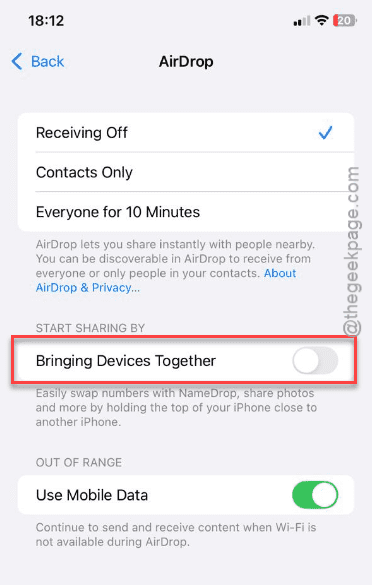
Step 3 – Then, re-enable the Bringing Devices Together feature.
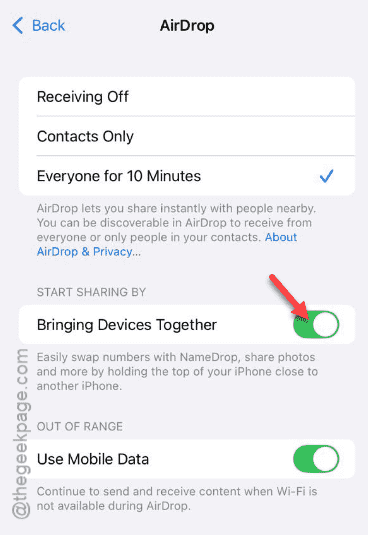
After re-enabling this feature, bring those devices again and try sharing the same stuff again and check it yourself.
Fix 4 – Reboot the iPhone
A simple restart of both the iPhones should eliminate any instance of bugs or glitches and let you Airdrop your files.
Step 1 – At first, press the Volume Up+Side Button together.
Step 2 – Use the Slide to power off bar and slide across to power off the iPhone.
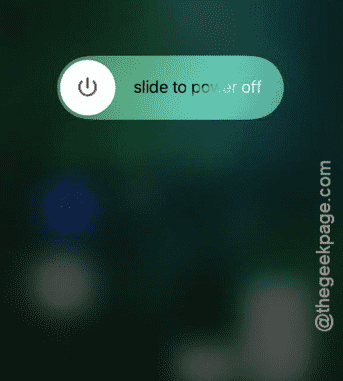
Step 3 – Then, press-hold the Side button to restart the iPhone.
Step 4 – Do this for both the devices.
Then, try to share the files again using Airdrop.
Fix 5 – Reset the Network Settings
You must reset the network settings on the iPhone.
Step 1 – Open the Settings on your iPhone. Go to the General settings.
Step 2 – Later, open up the Transfer or Reset iPhone option. Next, go to the Reset settings.
Step 3 – Finally, tap the Reset Network Settings feature.
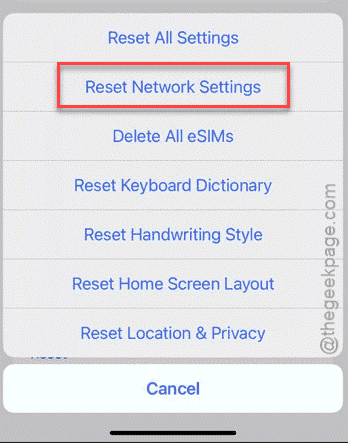
It will demand the Apple passcode to verify and confirm it.
Your iPhone will restart once, and all the saved networking configurations will be cleared off.
This time, there won’t be any more issues using the Airdrop function.
NOTE – Recently, Google has rolled out the Airdrop feature for their Pixel lineup. So, as this is their first rollout, it may face some glitch or bugs. It is completely normal. In that case, you may use third-party alternative tools or other methods to transfer those files.