Since the iOS 26 update, Spotlight has not escaped the reach of bugs and glitches. Several users have escalated their disregard that Spotlight on their iPhones can’t find any attachments or search through their image files. This is frequently linked to some background process getting terminated unexpectedly due to Apple Intelligence. These tips will be helpful in solving this problem.
Fix 1 – Use the Language Re-Indexing Method
Switching the language briefly forces the iOS to re-index all the files.
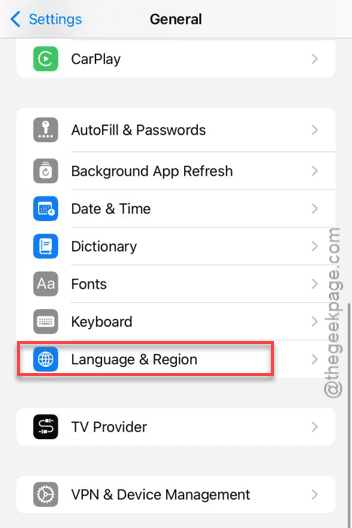
Step 1 – Open the iPhone Settings. Then, go to the General tab.
Step 2 – Tap the Language & Region.
Step 3 – Switch to a different language that you are not currently using (like US to UK).
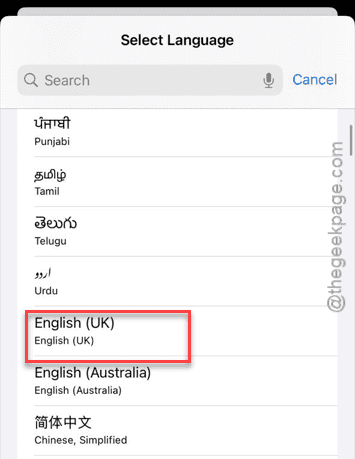
Step 4 – Wait for the entire process to finish. Then, revert to your original language settings. Now, leave the iPhone on charge, connected to Wi-Fi, for 30 minutes to let it re-index the database.
Fix 2 – Allow the Photos Contents in Search Results
Spotlight won’t show up the images in the search results if it does not have permission to look into your image files or attachments.
Step 1 – Load up the Siri & Search settings.
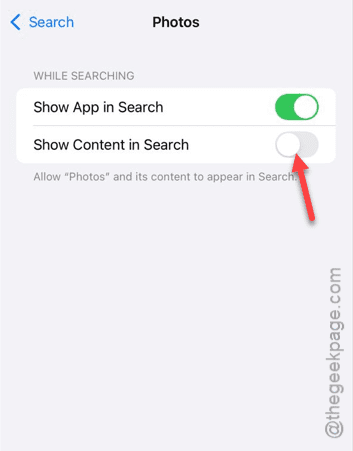
Step 2 – Then, scroll through the list of apps and tap the Photos app to change the settings.
Step 3 – Turn off the Show Content in Search settings in there.
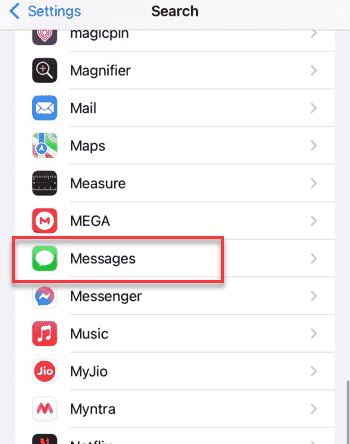
Step 4 – Now, turn off the same toggle for both the Messages and Files app.
Step 5 – Next, restart your iPhone.
Step 6 – Then, turn on the same Show Content in Search setting for Photos, Messages and Files app.
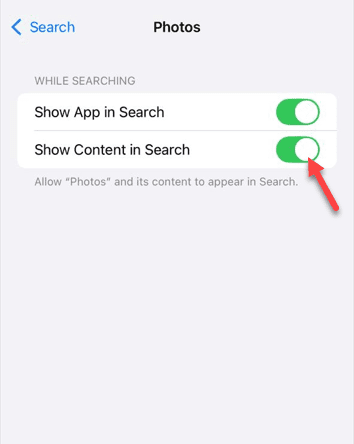
Search for those files again and check again.
Fix 3 – Refresh the iCloud Attachment Protocol
If the Spotlight is not showing any attachments stored in the iCloud account, a simple iCloud Message re-sync will help.
Step 1 – Tap the Apple ID banner in the iPhone Settings.
Step 2 – Proceed to open the iCloud settings. Tap the Show All button to open the complete list of apps.
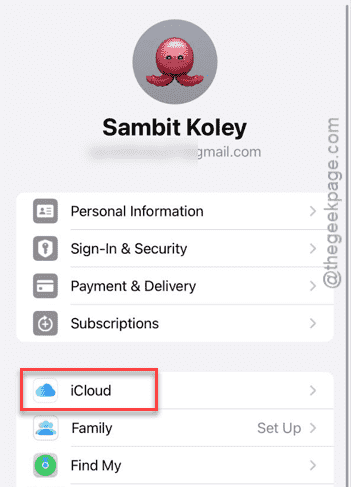
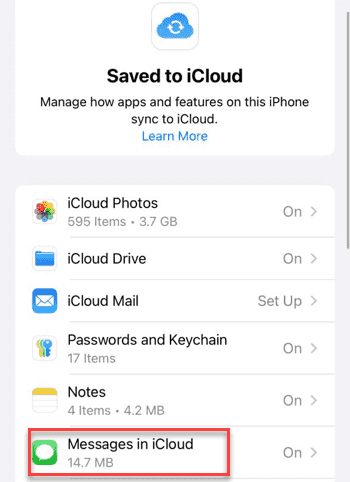
Step 3 – Select the Messages app.
Step 4 – Then, toggle the Use on this iPhone to Off mode. Choose Disable and Download Messages, if required.
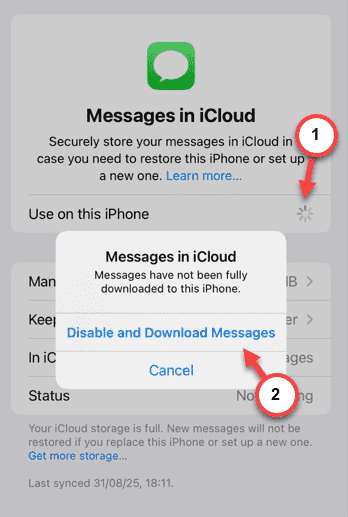
Step 5 – Wait for a few seconds, then turn it back On.
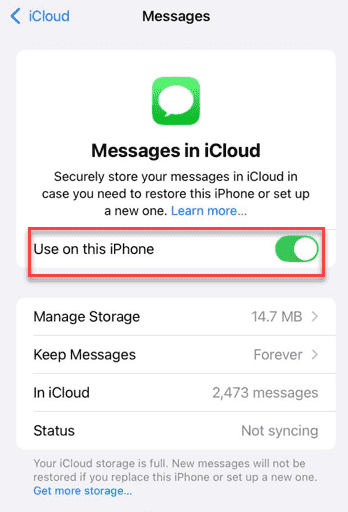
This should force a resync. Try searching for them again.
Fix 4 – Force re-index the files
You have to allow iOS 26 a few hours to index all the files. Alternatively, you can ease the process by simply leaving the device on charge for at least an hour.
Step 1 – Connect your iPhone to a charger.
Step 2 – Next, press and release the Volume Up button of the iPhone.
Step 3 – Then, press and release the Volume Down button.
Step 4 – Hold the side button on the Apple Watch until the Apple logo shows up on the iPhone.
Step 5 – After the iPhone restarts, leave the device locked and keep it charging for an hour.
This will re-index the files. Try searching the files again.