Do some of the email with attachment files are not delivering? Some of the Outlook users have recently complained of this problem where the email messages with attachments seems not getting past the exchange servers. In that case, these solutions will be helpful in troubleshooting this issue.
Preliminary workarounds –
1. Check whether the device is connected to a stable internet connection.
2. Change the internet connection and retry sending the same email message.
Fix 1 – Occasional Exchange server issue
This can well be an issue of Microsoft Exchange Server. Sometimes, the exchange server outages may cause this problem which you can’t do anything about it. Usually, the issue with the exchange server doesn’t last long and may resolve within an hour or two. Try resending the emails again.
Fix 2 – Run the Outlook in Safe Mode/ Disable add-ins
Try running the Outlook in the safe mode to check whether there are plug-ins causing this issue.
Step 1 – You can start the process by opening up a Run box.
Step 2 – Simply paste this term there. Click OK.
outlook.exe /safe
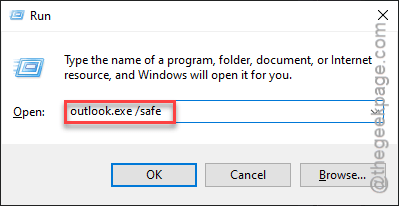
Wait for the Microsoft Outlook client to launch in the safe mode. This particular mode doesn’t allow the influence of external add-ins, plug-ins of the Outlook client.
Check whether the email with attachments are delivering or not. If they are indeed getting through, there must be some issue with the plug-ins.
Step 3 – On the same Outlook client, go this way –
File > Options
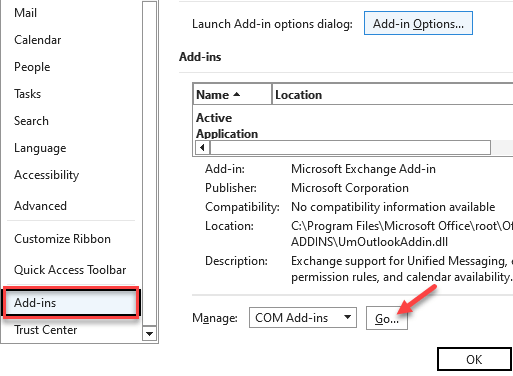
Step 4 – Select the Add-ins tab there.
Step 5 – Choose the COM Add-in from there. Click the Go button.
Step 6 – Uncheck all the boxes beside the add-ins there. Irrespective of the origin of the add-ins (including Microsoft apps or services), disable all of them.
Step 7 – Tap OK.
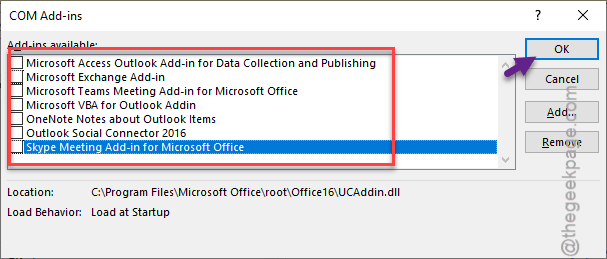
After disabling all the plug-ins, launch the MS Outlook client normally. Check if this works.
Fix 3 – Check the attachment size
If you are still having problem delivering the email messages with attachments, you should definitely take another look at the properties.
Step 1 – At first, look at the size of the attachment that you have shared. The maximum allowed range of the attached file is 25 MB per email.
Step 2 – Another crucial point users miss is the type of attachment file that you are trying to send. Like, .exe, .js, .bat or any kind of suspicious file types.
If the attachment file is valid and falls within the specified range, there won’t be any problems with delivering email messages with attachments.
Fix 4 – Disable the antivirus temporarily
Sometimes, the local antivirus can wrongfully delete or block attachments from your incoming email messages.
Step 1 – You can just disable the Windows Security console.
Step 2 – To do that, load up the Windows Security panel, and reach there –
Virus & threat protections > Manage settings
Step 3 – Turn off the Real time protection and Cloud-delivered protection settings.
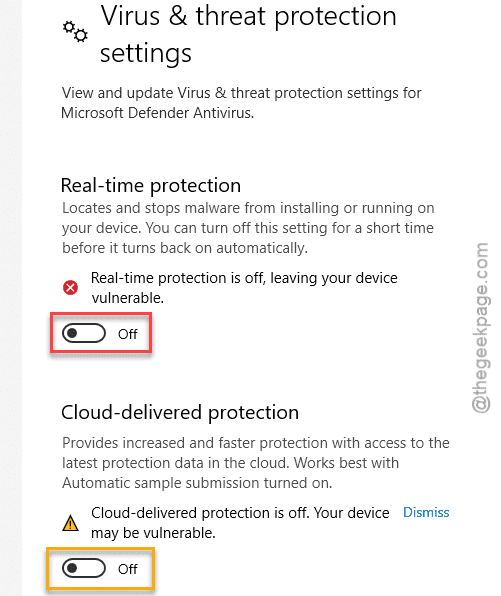
After turning it off, check again.
NOTE – If you are using the Microsoft Office 365/ Exchange service, add this custom header to bypass safe attachments check by the Exchange online server.
X-MS-Exchange-Organization-SkipSafeAttachmentProcessing: 1
Fix 5 – Repair the outlook profile
There is a slight chance that the Outlook profile can be corrupted that can cause this issue on your client.
Step 1 – Open up the MS Outlook client on the machine.
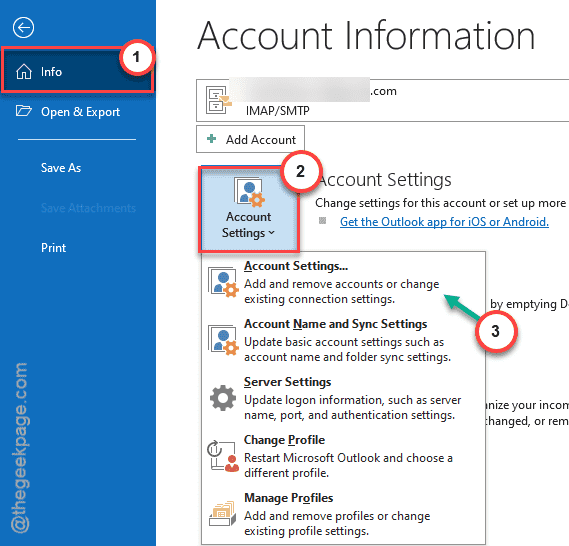
Step 2 – Next, tap the Info tab. Later, tap the Account Settings and tap the Account Settings from the drop-down.
Step 3 – Reach the Email tab.
Step 4 – Next, select the email ID where you are having this issue and tap the Repair button.
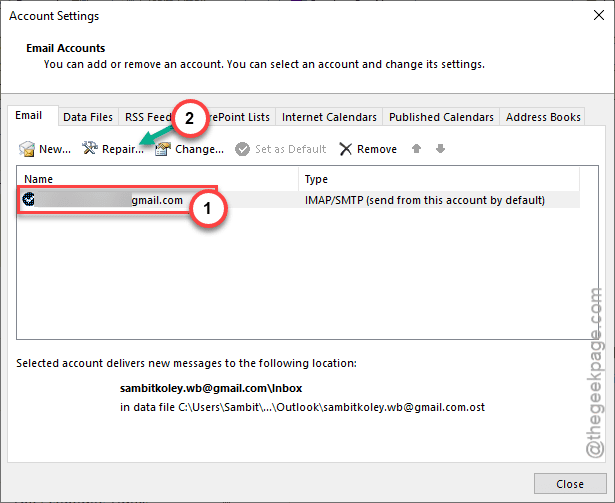
Step 5 – Tap the Repair button there to repair the email setup.
Follow the on-screen instructions to completely repair the email data file there.
Fix 6 – Compress the file before emailing
You can still deliver the attachment file in a compressed format with the email that you want to send. Compressing the files will not affect the actual contents of the attachment. On the other hand, when you compress a file, the compressed file size also goes down significantly.
There are a ton of compressing tools available online and offline. You may use WinZip or WinRAR tools to compress the files from there.
This should have fixed the problem for you!