Having some problem with the image or other attachment preview in Microsoft Teams? The preview system of images or other attachments helps users sort out the important files among all the other documents. This is clearly a glitch in the Teams app, where the corrupt Teams cache is usually responsible for such issues. Here are some tips that you can apply to fix the preview images or attachments not showing up in the Teams app.
| Issue | Recommend Fix |
| Gray box with a broken icon | Delete blob_stroage folder |
| Blank white space in place of images | Enable the Connected Experience feature |
| Image files look distorted or flickers too much | Set the Teams to run Power Saving mode |
Fix 1 – Clean up the Teams Local Cache
If the Microsoft Teams local cache is corrupted, the image or attachment preview can break apart.
Step 1 – Quit the Microsoft Teams application. Then, tap the arrow button on the taskbar. You will find the Microsoft Teams app there.
Step 2 – Now, right-click that Microsoft Teams app, and tap Quit Teams.
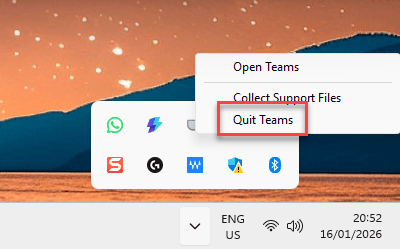
Step 3 – After quitting the Teams app, press the Win+R buttons at once. Paste this address to load up the Teams app cache folder location.
%localappdata%\Packages\MSTeams_8wekyb3d8bbwe\LocalCache\Microsoft\MSTeams
Step 3 – Now, delete these three specific folders in the MSTeams folder –
Cache
Local Storage
blob_storage
Step 4 – Now, go ahead and restart the Microsoft Teams client.
[If you can’t find these folders in the MSTeams folder, look for them in the Default subfolder.]
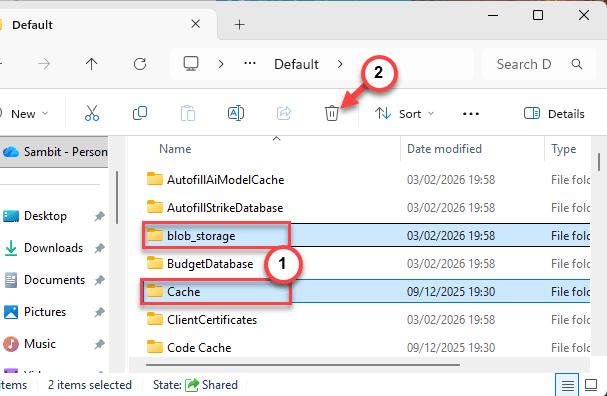
Check whether the images or attachments are loading properly or not.
Fix 2 – Enable the Optional Connected Experiences Feature
Working in a strict IT environment can sometimes mistakenly block the image preview functions.
Step 1 – In the Microsoft Teams app, tap the ⋯ button next to the profile picture and tap the Settings.
Step 2 – Proceed to the Privacy section.
Step 3 – Go to the bottom and make sure the Optional Connected Experiences is turned ON.
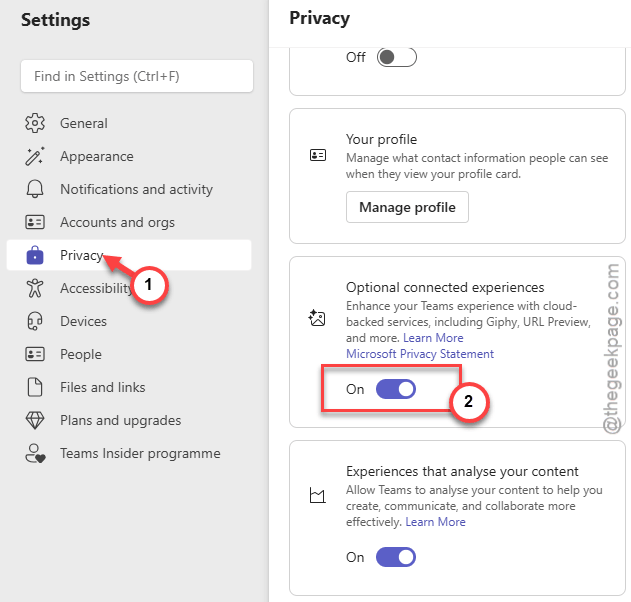
The previews of the files in MS Teams are considered a part of the connected service. You can now see the images or other attachments there.
Fix 3 – Use the Pop-Out Chat Workaround
The images that are failing to load in the main Teams window should show up properly in the pop-out chat console.
Step 1 – In the Microsoft Teams client, find the chat header where you are seeing the broken images.
Step 2 – Hover over the chat in that list and click the Pop-out icon to pop out the chat.
Step 3 – Try to view the images in the pop-out chat console.
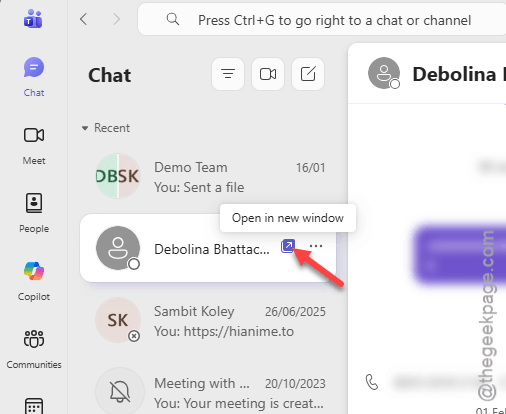
The image preview should load up properly in the Teams app console.
Fix 4 – Run the Microsoft Teams in Power Saving mode
If you are running Microsoft Teams on a low-end device, you should run the Teams app in power-saving mode to fix this issue.
Step 1 – Press the Win+I buttons together. Go to the System tab. Proceed to the Display sub-section.
Step 2 – Open the Graphics settings.
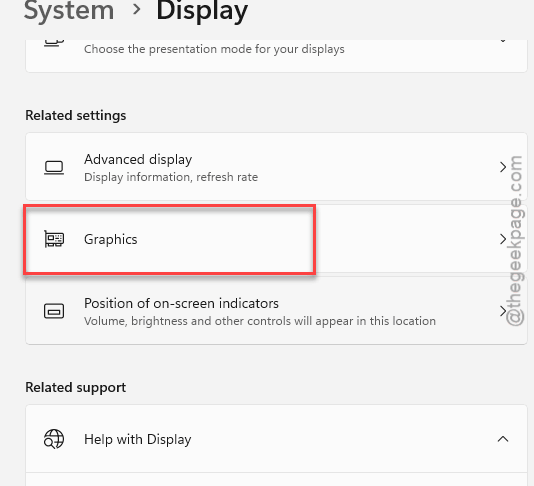
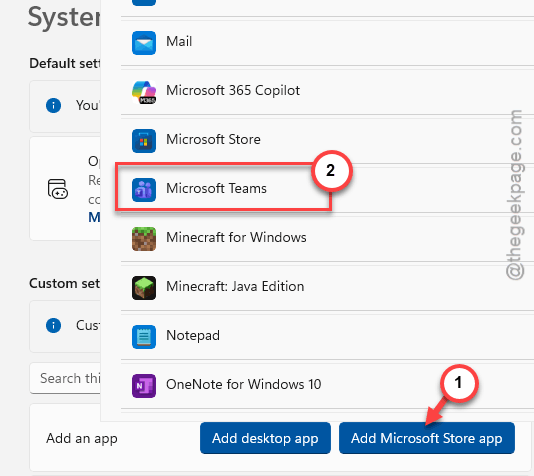
Step 3 – Find the Microsoft Teams app in the list of apps there. If it is not there, tap Add a Microsoft Store app.
Step 4 – Choose to Add a Microsoft Store app.
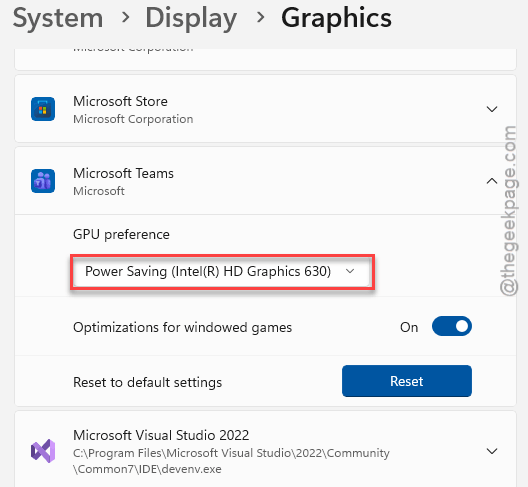
Step 5 – Once the Microsoft Teams app has appeared in the list, expand it and set the GPU Preference to Power Saving mode.
Now run the Teams app on your machine. Check whether this works out for you or not.