The main use case of the Outlook program is to manage your email accounts. But some users may have some problem printing emails directly from the email client from their computer. This may cause annoyance for the users, forcing them to look for quick workarounds or finding solutions to troubleshoot the problem. This may have a negative impact on the user productivity. If you are also in the same situation, we recommend you try these set of solutions.
Fix 1 – Rename the OutlPrnt file
You can rename the OutlPrnt file in the core Outlook root folder on your computer.
Step 1 – To do this, press the Win+R buttons together.
Step 2 – Paste this address in the box and click “OK“.
%appdata%\Microsoft\Outlook
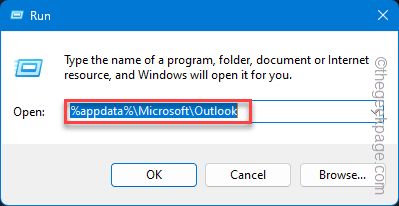
Step 3 – Once you have reached this folder, look for the “Outlprnt” file there.
Step 4 – You have to rename it to something different. So, right-click the file and use the rename function.
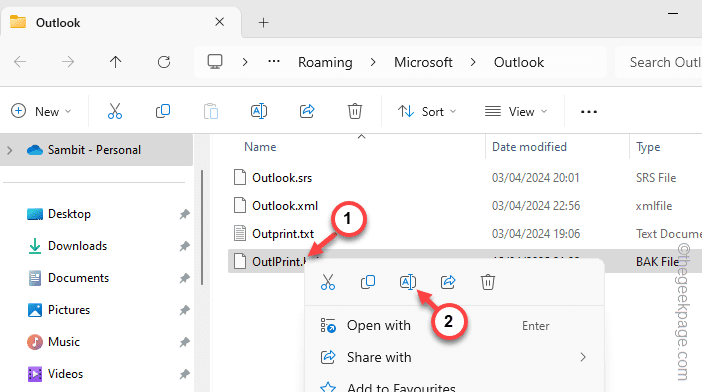
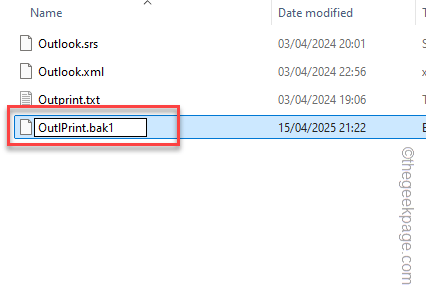
Step 5 – Change the extension of the file, like, “OutlPrnt.old” or “OutlPrnt.bak“.
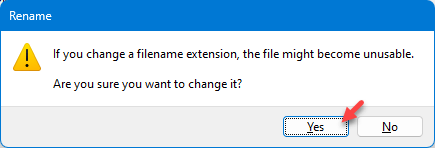
Step 6 – A standard warning message about changing the file type will flash on your screen. Tap “Yes” to ignore it.
Close and restart the Outlook client. Outlook will automatically rebuild the OutlPrnt file if you try to print any of your emails. This time, you won’t face any problem.
Fix 2 – Omit the Quick Print disagreement
It seems that Outlook is deleting the PDF file automatically while using the Quick Print feature.
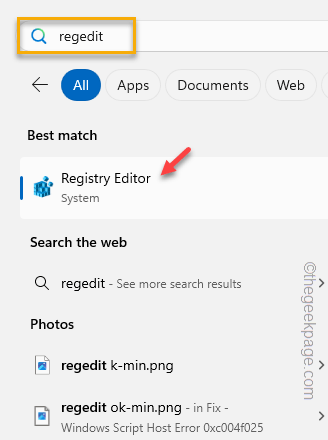
Step 1 – Start by entering “regedit” in the search box.
Step 2 – Subsequently, tap the “Registry Editor” in there to open it up.
Step 3 – Go to this point ~
HKEY_CURRENT_USER\Software\Microsoft\Office\16.0\Outlook\Options\Attachments
Step 4 – If you can’t find the ‘Attachments’ key, you have to create it. So, right-click the “Options” key and tap “New>” and select “Key“.
Step 5 – Name this key “Attachments“.
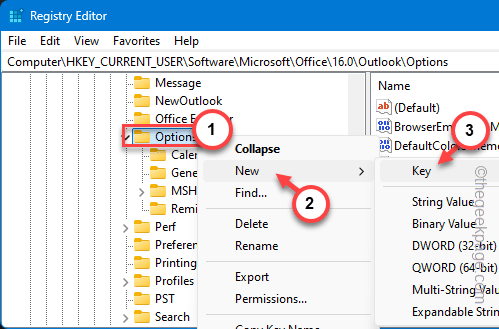
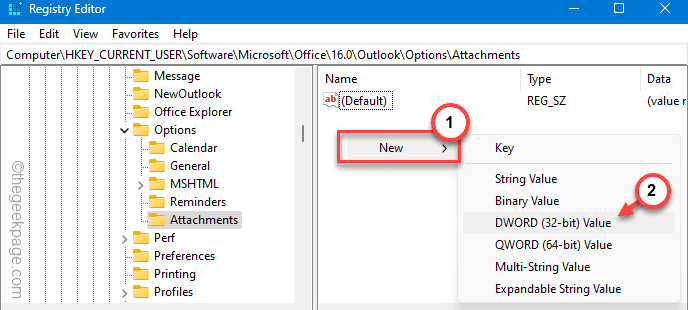
Step 6 – Later, right-click on the “Attachments” key and tap “New>” and “DWORD (32-Bit) Value“.
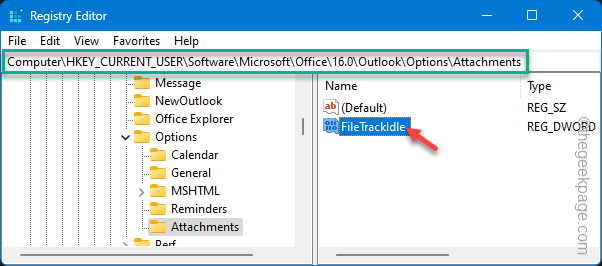
Step 8 – Name this value “FileTrackIdle“.
Step 9 – Double-tap the value to change it.
Step 10 – Set the ‘Value Data:’ to “15000“.
Step 11 – Click “OK“.
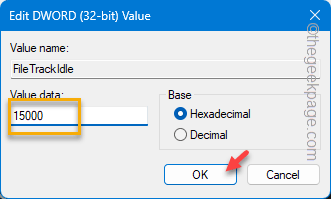
After saving these changes, quit the Registry Editor page. After restarting the device, print the Output file. Test if this works.
Fix 3 – Set your default printer
Outlook tries to use the default printer to print your emails directly from the email console.
Step 1 – Load up the Settings page by pressing the Win+I key together.
Step 2 – Open up the “Bluetooth & devices” settings from the left pane.
Step 3 – Next, go to the “Printers & scanners” settings.
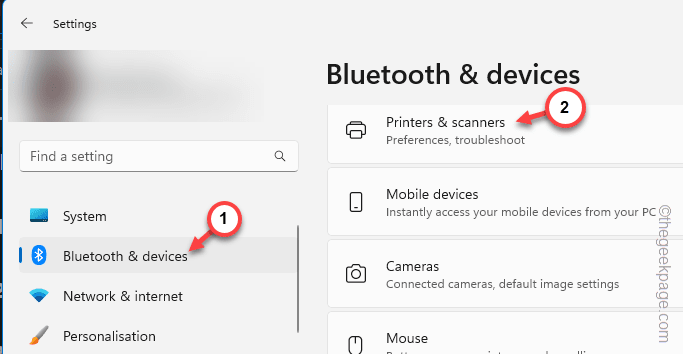
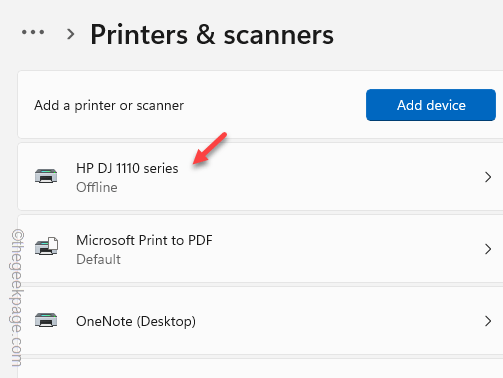
Step 4 – You will see your entire list of printers on the right-hand pane.
Step 5 – Tap to open the main printer that you use to print files.
Step 6 – Next, tap “Set as default” to set the printer as the default printer.
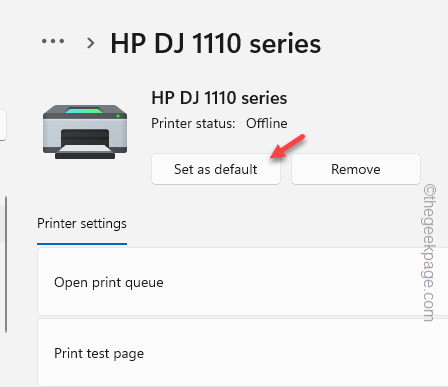
Outlook will use this printer to print your emails by default. Check if this works.
Fix 4 – Try using the Outlook in Safe Mode and print
The Add-ins from Adobe Reader can sometimes cause this problem on Outlook. So, you should try printing the file in Safe mode.
Step 1 – On your MS Outlook page, go to the “Home” page.
Step 2 – Next, tap the “Options” tab.
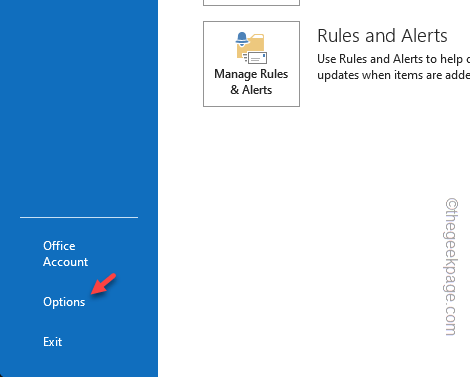
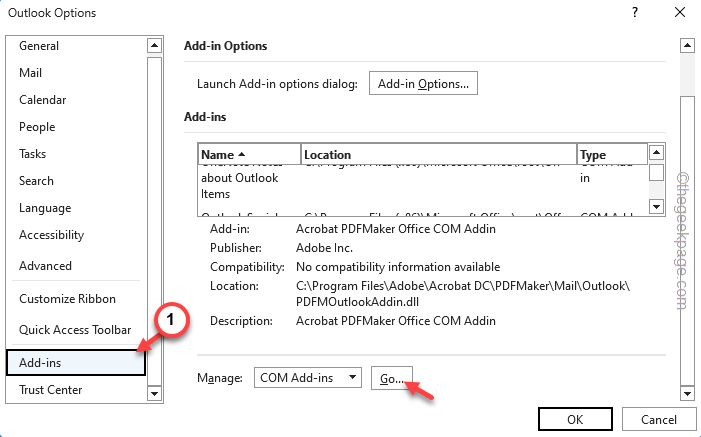
Step 3 – In the Office Options tab, visit the “Add-ins” tab.
Step 4 – Tap the “Go” option beside the ‘COM Add-ins‘ feature.
Step 5 – Uncheck all the Add-ins that you can see there in the list.
Step 6 – Next, tap “OK” to save the changes.
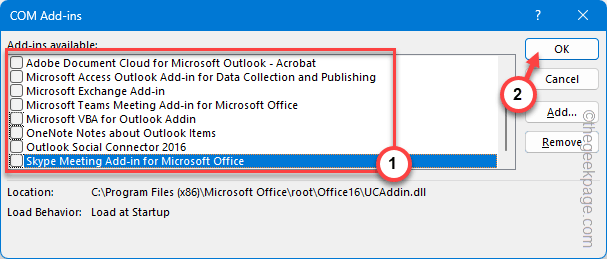
After you have disabled the Add-ins on your Outlook client, you should not have any problem printing emails.
See if this works out for you!