You kick off a render. Halfway through, the whole machine just locks. Mouse frozen, nothing responds. Then it snaps back like nothing happened.
And it only does it under heavy load. Light work? Smooth. Push the GPU hard in Blender or a video export and it stutters or hangs. The culprit is a security feature called VBS quietly fighting your hardware for resources.
Why This Happens
Quick explainer. VBS stands for Virtualization-Based Security. It walls off a chunk of your memory inside a tiny virtual machine to keep attackers out. Good idea, mostly.
But it comes at a cost. A piece of it called Memory Integrity checks code as it runs, and that check adds delay deep in the system. Under a light load you’d never feel it.
Push a heavy 3D or video render, though? Now your CPU and GPU are slamming the same memory and PCIe lanes that VBS is policing. They collide. The system locks up while it sorts out who goes first. So yeah — a security feature is stealing the performance your render needs.
Fix 1 – Turn Off Memory Integrity
Start here. Memory Integrity is the part of VBS that causes the worst stutter, and it’s a single toggle. No registry, no BIOS.
1 – Click Start, type Windows Security, and open it.
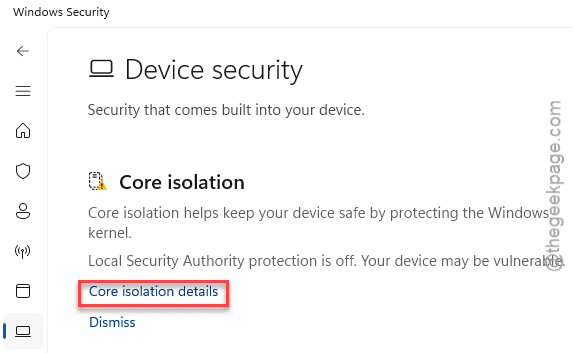
2 – Go to Device security, then click Core isolation details.
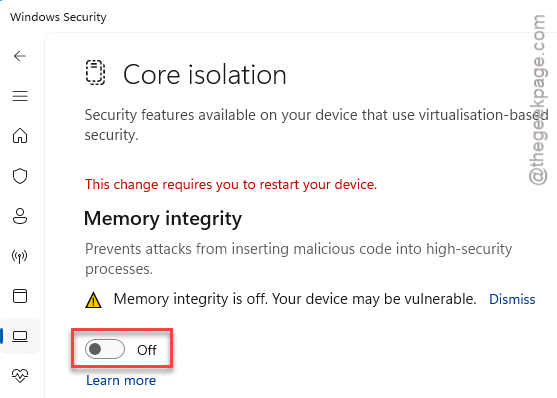
3 – Switch Memory integrity to Off.
4 – Restart your PC.
Run your render again. For most people, the freezing stops right here. Keep in mind this does lower one layer of protection — fine on a trusted work machine, but know the trade.
Fix 2 – Turn Off the Hypervisor Features
Render engines like V-Ray, Blender, and Cinema 4D fight Windows’ built-in hypervisor over the same memory and PCIe resources. Turning those features off clears the conflict.
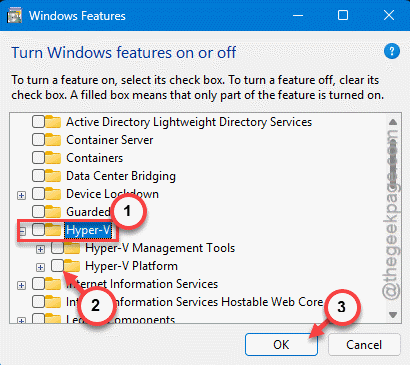
1 – Press the Windows key, type Turn Windows features on or off, and press Enter.
2 – In the list, uncheck Virtual Machine Platform.
3 – Uncheck Windows Hypervisor Platform.
4 – Uncheck Hyper-V as well.
5 – Click OK and let Windows apply it. Restart when it asks.
One catch: if you use WSL2, Docker, or Android emulators, leave these on — they need the hypervisor. Skip to the next fix instead.
Fix 3 – Kill VBS From the Registry
Sometimes Windows switches VBS back on after a reboot, especially on enterprise builds. This shuts it down at the source. Two values in two spots — change only these.
1 – Press Windows + R, type regedit, and press Enter.
2 – Paste this path into the top bar and press Enter:
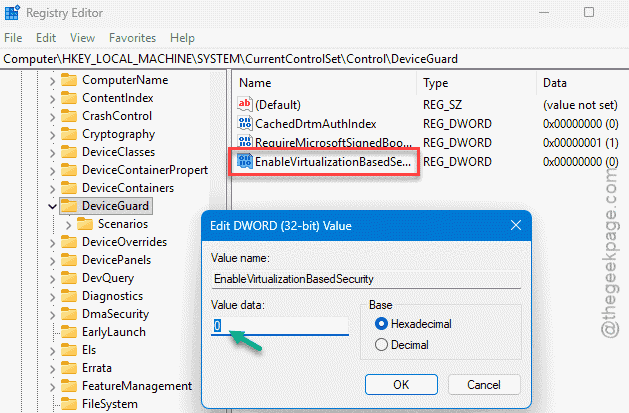
HKEY_LOCAL_MACHINE\SYSTEM\CurrentControlSet\Control\DeviceGuard
3 – Double-click EnableVirtualizationBasedSecurity and set it to 0.
4 – Now go to this second path:
HKEY_LOCAL_MACHINE\SYSTEM\CurrentControlSet\Control\Lsa
5 – Double-click LsaCfgFlagsDefault and set it to 0.
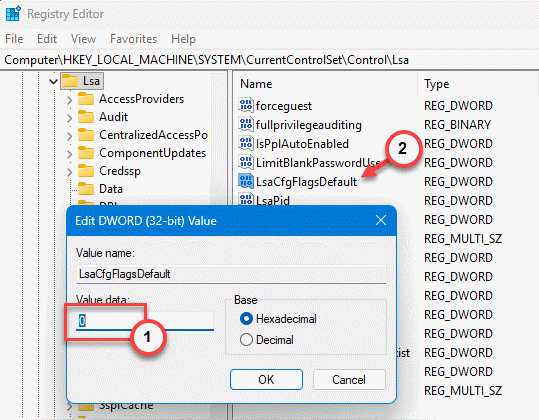
6 – Restart your computer.
Fix 4 – Turn Off Hardware-Enforced Stack Protection
This particular VBS mitigation clashes with GPU rendering pipelines and overlay hooks under full load. Switching it off can smooth out the hangs.
1 – Open Windows Security and go to App & browser control.
2 – At the bottom, click Exploit protection settings.
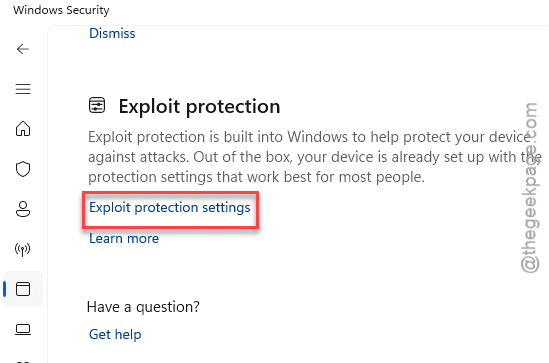
3 – Go to the Programe tab. Find the app there. Then, look for the Hardware-enforced Stack Protection.
4 – Set it to Off by default.
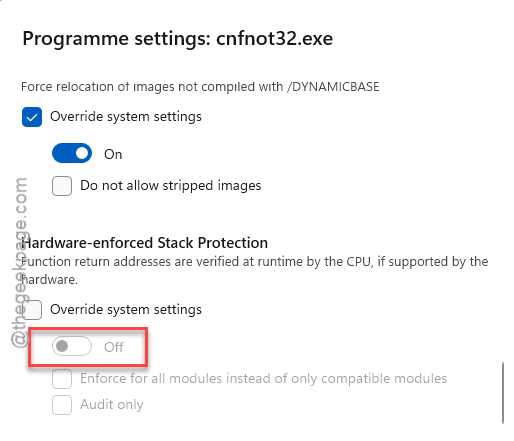
5 – Restart and test.
Fix 5 – Disable Virtualization in the BIOS
The nuclear option. If VBS keeps clawing its way back no matter what, you can stop it at the motherboard level. Only do this if you don’t run any virtual machines, WSL2, or emulators — they all need this turned on.
1 – Restart your PC and tap Del or F2 during boot to enter the BIOS. (The right key flashes on screen for a second.)
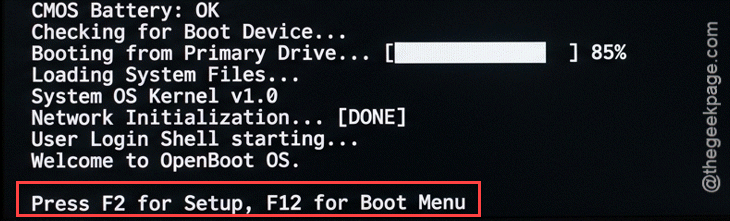
2 – Switch to Advanced Mode if your BIOS opens in a simple view.
3 – Find your CPU settings. Look for SVM Mode on AMD, or Intel Virtualization Technology (sometimes VT-x) on Intel.
4 – Set it to Disabled.
5 – Press F10 to save and exit.
With virtualization off at the hardware level, VBS simply can’t run. Total fix — at the cost of ever running a VM until you switch it back.
How to Prevent This
– After a big Windows update, re-check that Memory Integrity stayed off. Updates love to flip it back on.
– Pick a lane: a render workstation or a VM box. Running heavy 3D work and Hyper-V on the same machine is what starts this fight.
– Keep your GPU drivers current. A clean driver handles the load far better when VBS is involved.
– If you turn VBS off, weigh it honestly. It’s a real security layer, so leave it on for general-use or shared machines.
People Also Ask
How do I turn off Virtualization-Based Security?
Quickest way: open Windows Security, go to Device security, click Core isolation details, and switch Memory Integrity off, then reboot. If VBS turns itself back on, set EnableVirtualizationBasedSecurity to 0 in the registry under Control\DeviceGuard. The last resort is disabling virtualization in your BIOS entirely.
Can enabling virtualization cause problems?
It can, yes — mostly performance ones. Features built on virtualization, like VBS and Memory Integrity, add a small constant overhead. You won’t notice it day to day, but under heavy GPU or CPU rendering it can cause stutters and freezes. That’s why a lot of creators turn it off on their workstations.
Why does my system freeze during rendering?
Heavy renders push your CPU, GPU, and memory all at once. If VBS is running, it’s competing for those same resources and the system can briefly lock while it arbitrates. Outdated GPU drivers and thermal throttling cause it too, but on modern Windows, VBS is a very common and overlooked reason.