Sharing the screen with others in a Teams meeting is a normal peformance that can be done irrespective of the computer hardware. But some users seem to be struggling with sharing their Teams screen with others. Either the Teams app is completely stalling or crashing when these affected users are trying to share their camera in meetings. Here are some steps that can help you to resolve this issue.
| Issue | Recommended Fix |
| Instant Freeze Turning the Camera On | Turn off GPU Hardware Acceleration |
| Freeze while only while sharing camera | Use Teams in Power Saving mode |
| Audio continues, video is stuck while sharing | Clear the Teams Meeting Cache |
Fix 1 – Disable GPU Hardware Acceleration for Teams
If MS Teams uses the CPU processor instead of the GPU, sharing the camera feed can black out or even induce crash events.
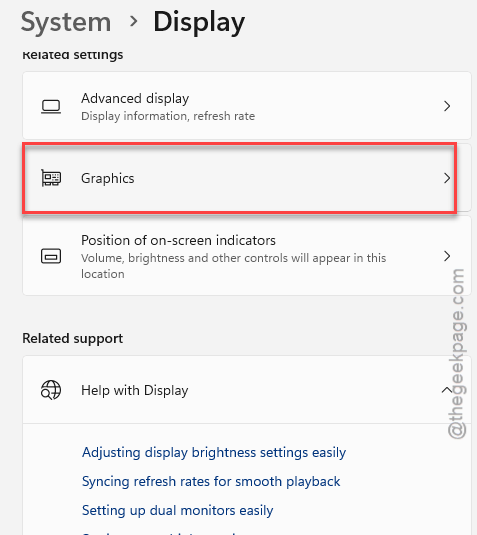
Step 1 – Open the Windows Settings. Next, proceed to the System tab. Open the Display settings.
Step 2 – Load up the Graphics settings, next.
Here, you can add apps and set their GPU preferences manually.
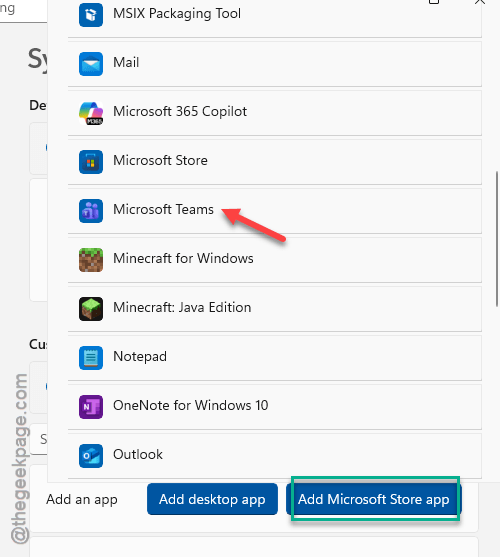
Step 3 – Tap the Add Microsoft Store App option and tap Microsoft Teams to add it.
Step 4 – Expand it and set the GPU Prefernces to Power Saving mode.
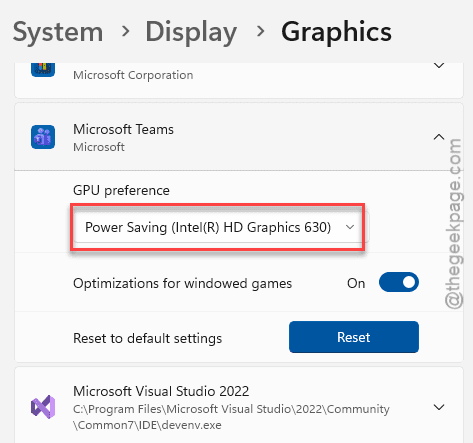
Now, retry running the Teams app in power-saving mode. Check whether you
Fix 2 – Disable Soft Focus, Adjust Brightness Features
The software features offered in the Teams settings can glitch out during the screen sharing process and crash the Teams application.
Step 1 – Tap the … button in the Teams page, and tap Settings.
Step 2 – Go to the Devices tab.
Step 3 – Now, on the right-hand panel, proceed to the Cameras tab. Turn OFF the Adjust Brightness and Soft Focus there.
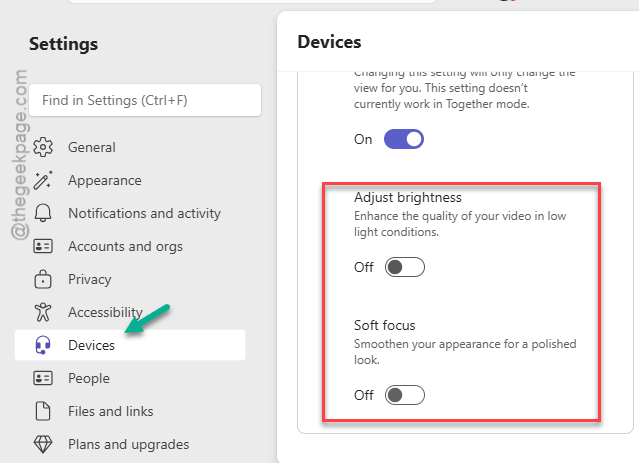
Try sharing the camera on Teams again.
Fix 3 – Clear the Microsoft Teams cache
Sometimes, the corrupted local cache files can be to blame for this crash events while sharing the camera with others in a Teams meeting.
Step 1 – Quit the current instance of the Microsoft Teams app. Make sure to quit the Teams app as well.
Step 2 – Then, open a Run box. Use this address to reach the MSTeams folder.
%localappdata%\Packages\MSTeams_8wekyb3d8bbwe\LocalCache\Microsoft\MSTeams
Step 3 – Delete the meeting-storage and Tmp folders from there.
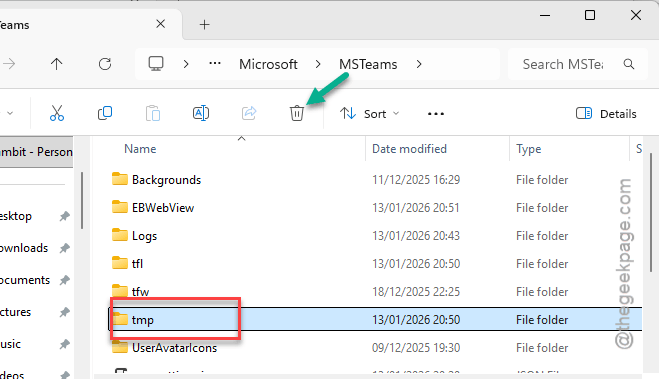
After you have deleted the specified folders, you can expect the Teams app to function properly.
Fix 4 – Update the Camera Driver
Old camera drivers may conflict with newer version of MS Teams app on your machine.
Step 1 – Press the Win+X keys together. Choose the Device Manager from there.
Step 2 – Next, toggle the Cameras tab. Right-click the camera device, and click the Update driver.
Step 3 – Then, choose the Search for latest device driver option.
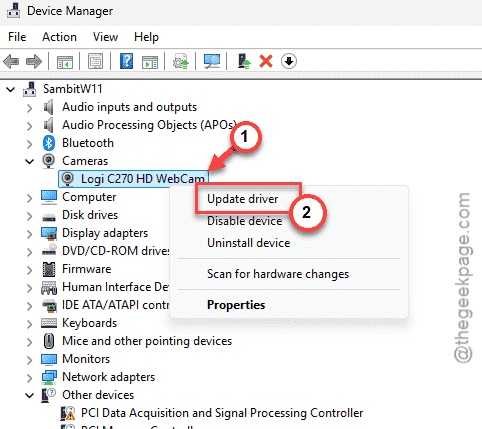
Let Windows automatically install the camera driver.
Fix 5 – Change the Camera settings in Teams
If you use Snap Camera, OBS Virtual Camera, or any other camera application, it can come into conflict with the Teams camera settings.
Step 1 – Open the MS Teams app. Tap the three-dot button at the top, and tap Settings.
Step 2 – Go to the Devices tab. Find the Camera section.
Step 3 – Make sure the correct camera gear is selected in there.
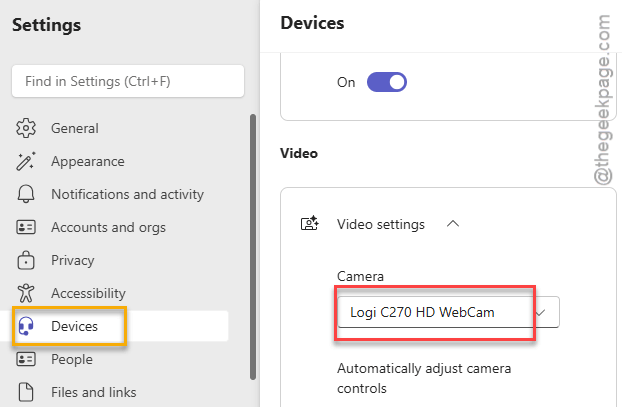
Step 4 – Do not run any other apps, such as OBS Camera while using the Teams app. This is to avoid any unusual camera exclusivity contradictions between the programs.
Now, try to share the screen in a demo meeting.