You open one PDF. Fine. Open a second one. Everything locks up. The cursor turns into the spinning circle of doom. Acrobat stops responding. Sometimes Windows kills it. Sometimes it just sits there forever.
Painful when you’re trying to compare documents.
Why This Happens
Few things going on. Adobe’s Enhanced Security tries to sandbox every PDF you open. So when you load multiple files? It’s running multiple sandboxes at once. RAM fills up. CPU spikes. Acrobat freezes.
And Adobe’s new AI-powered interface (the one that shipped in 2024) makes it worse. The AI assistant tries to scan every open document. With several PDFs loaded, it just chokes.
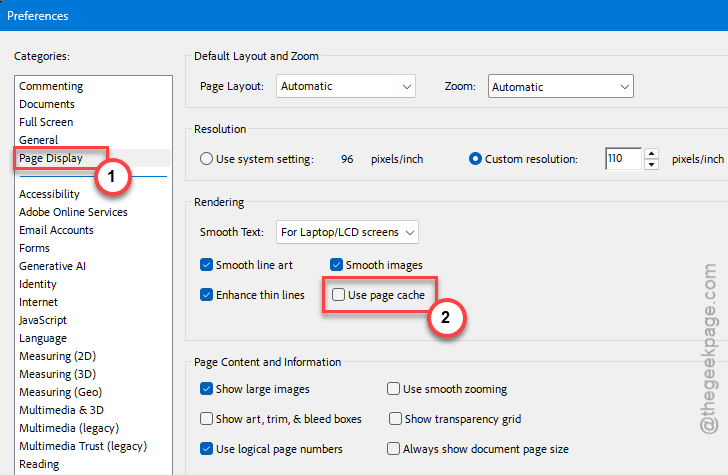
Then there’s the Page Cache feature. Sounds helpful. Speeds up scrolling. But for some reason, it conflicts with the new rendering engine on Windows 11. Causes random freezes.
Browser previews are another big one. Open a PDF link in Chrome and Acrobat tries to take over. Multiple PDF links? Acrobat gets stuck managing all of them.
Fix 1 – Disable Page Cache (The #1 Fix)
This is the one most people miss. And it fixes the freezing problem more than any other tweak.
1 – Open Adobe Acrobat.
2 – Press Ctrl + K to open Preferences.
3 – Click Page Display on the left sidebar.
4 – Scroll down to the Rendering section.
5 – Uncheck Use page cache.
6 – Click OK.
7 – Close Acrobat completely.
8 – Reopen and try loading multiple PDFs.
Real fix. Not a workaround. Acrobat just runs cleaner without it.
Fix 2 – Turn Off Enhanced Security
Enhanced Security is well-intentioned. But on a modern Windows 11 box that already has Defender and a firewall? It’s overkill. And it makes Acrobat painfully slow with multiple files.
1 – Press Ctrl + K inside Acrobat.
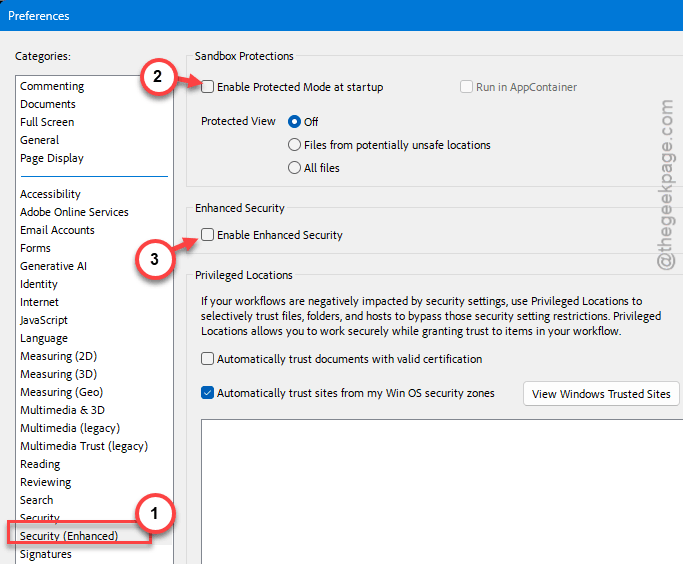
2 – Click Security (Enhanced) on the left sidebar.
3 – Uncheck Enable Protected Mode at startup. A confirmation pops up — click Yes.
4 – Uncheck Enable Enhanced Security.
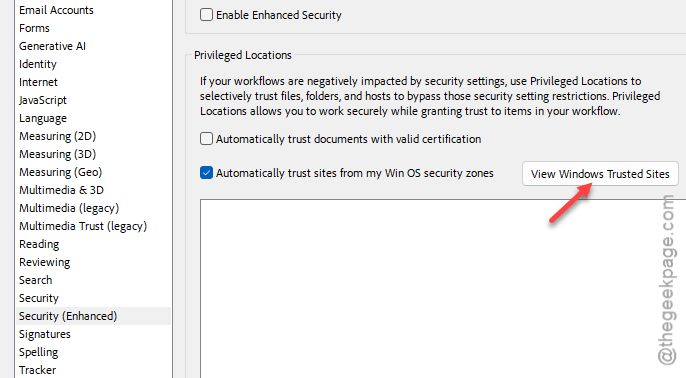
5 – Click View Windows Trusted Sites.
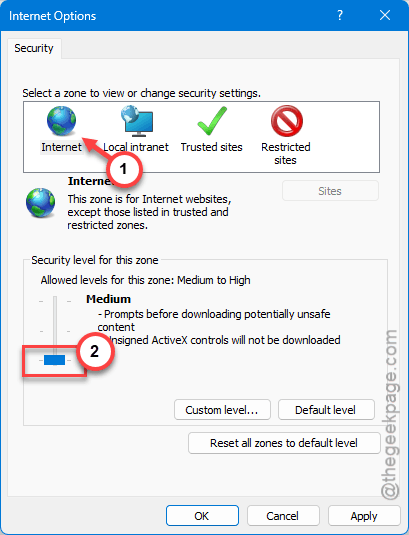
6 – Pick Internet in the zones list (usually selected already).
7 – Move the security slider down from Medium-high to Medium.
8 – Click Apply, then OK.
9 – Close Acrobat and reopen.
Big speed boost. And no, this doesn’t make your system unsafe. You’ve still got the rest of Windows security.
Fix 3 – Revert to the Classic Acrobat Interface
Quick one. The new AI-powered Acrobat is heavy. The old interface? Light, fast, and doesn’t freeze.
1 – Open Acrobat.
2 – Click Menu in the top left (hamburger icon).
3 – Click Disable new Acrobat.
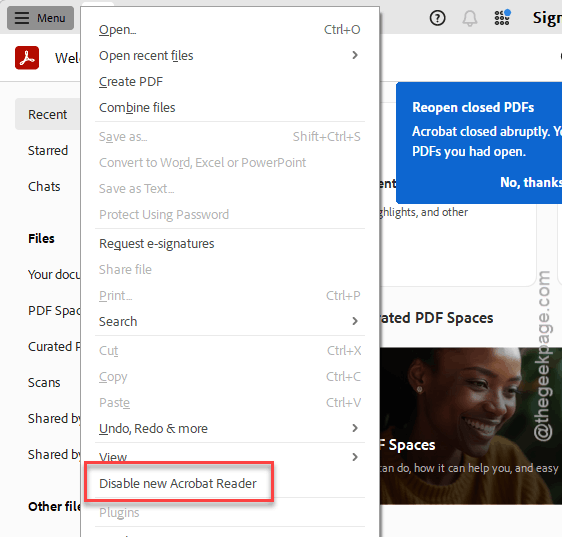
4 – Confirm. Acrobat restarts.
You’re now on the older, snappier interface. The AI sidebar is gone. So is the random freezing on most setups.
Fix 4 – Disable Generative AI Features
Want to keep the new interface but kill the AI weight? You can.
1 – Click Menu in the top left.
2 – Click Preferences.
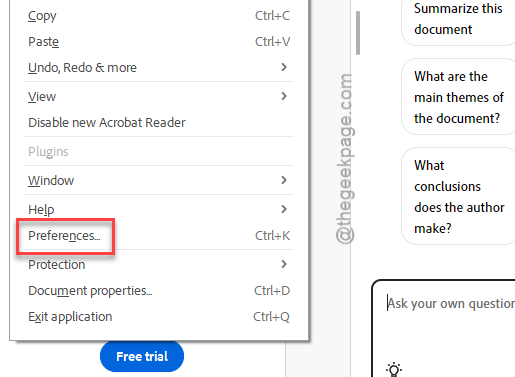
3 – Click Generative AI on the left sidebar.
4 – Uncheck Enable generative AI features.
5 – Click OK.
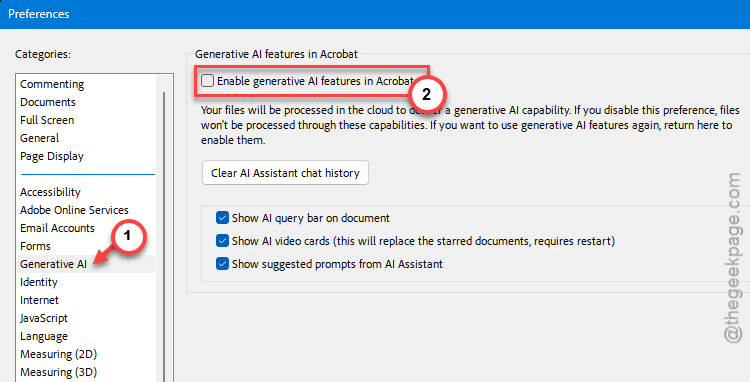
6 – Restart Acrobat.
Acrobat stops trying to read your PDFs in the background. RAM drops. Freezing stops.
Fix 5 – Switch the Browser You Open PDFs From
This one’s weirdly specific. PDFs opened from Chrome on Windows 11 cause more Acrobat freezes than the same PDFs opened from Firefox or Edge. No idea why exactly — something to do with Chrome’s PDF handler clashing with Acrobat’s.
Workaround? Open PDFs from a different browser.
1 – In Chrome, type chrome://settings/handlers in the address bar.
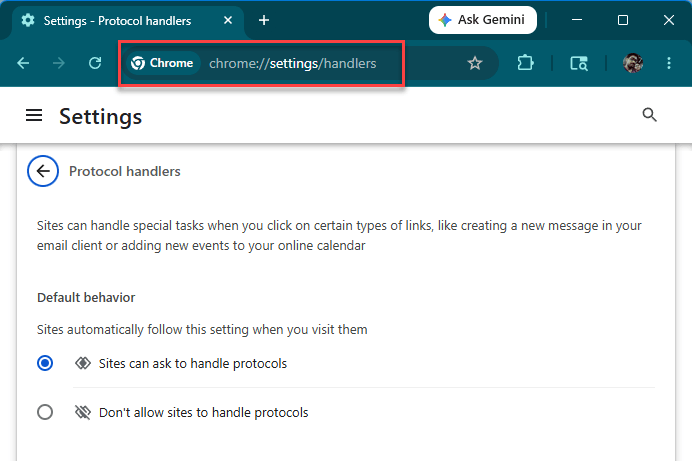
2 – Find any PDF-related handler and remove it.
3 – Or just download PDFs first (right-click the link, Save link as) instead of clicking to open.
4 – Then open the downloaded files from File Explorer directly.
Firefox handles this more cleanly. So does Edge. Try one of those if Chrome keeps freezing things.
Fix 6 – Update Acrobat (Yes, Really)
Adobe pushed an update in early 2026 that specifically fixed the multi-PDF freeze. If you haven’t updated in a few months, this might be the whole fix.
1 – Open Acrobat.
2 – Click Menu in the top left.
3 – Hover over Help.
4 – Click Check for updates.
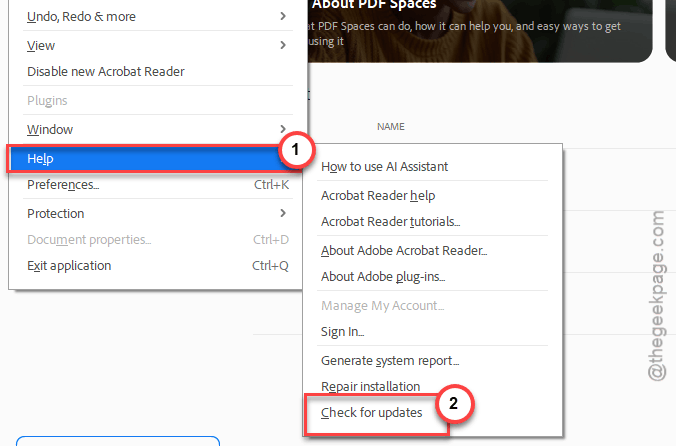
5 – If an update is found, click Download.
6 – Let it install. Restart Acrobat when prompted.
If Acrobat says you’re up to date but you still freeze, the auto-updater is lying. Go to adobe.com/acrobat/pdf-reader.html and download a fresh installer. Run it. It’ll do an in-place upgrade.
How to Prevent This
- Keep Acrobat updated. Adobe ships fixes for this exact issue every couple months.
- Disable Page Cache once. Forever. It’s the single biggest cause of multi-PDF freezing.
- Don’t keep more than 5-6 PDFs open at once. Even with all the fixes — Acrobat just isn’t built for that.
- Skip Enhanced Security on modern Windows 11. You’ve already got Defender doing the same job.
People Also Ask
How to fix Adobe Acrobat freezing?
First thing? Disable Page Cache. Ctrl + K > Page Display > uncheck Use page cache. That alone fixes most freezing. Then turn off Enhanced Security. Restart Acrobat. If it’s still freezing, switch to the classic interface from the Menu.
Why can’t I open multiple PDF files at once?
Acrobat’s Enhanced Security sandboxes each PDF separately. Open 5 PDFs and you’ve got 5 sandboxes eating RAM. Turn off Enhanced Security and Page Cache. Both live in Preferences (Ctrl + K). Acrobat handles multiple files way better after that.
Why is Adobe freezing when combining files?
Same root cause. Enhanced Security plus Page Cache plus the new AI features all hit at once when you combine documents. Disable all three. Or switch to the classic interface via Menu > Disable new Acrobat. Combining PDFs gets way faster after that.