Outlook hangs. “Not Responding” sitting in the title bar. You wait. Nothing. You end up killing it in Task Manager just to start it again.
And it gets weirder. Sent emails vanish from Sent Items. The same messages download over and over. Painful.
Why This Happens
The trigger? A January update. The January 13, 2026 Windows updates broke Outlook Classic for one specific setup — POP accounts, or PST files stored inside OneDrive.
Here’s the conflict. OneDrive constantly syncs whatever’s in its folders. But a PST is a huge database file that Outlook keeps open the entire time. So OneDrive tries to sync it while Outlook has it locked — and they deadlock. Outlook freezes.
Good news? Microsoft already fixed it in a later update. But until that patch is on your PC, the real cure is getting your PST out of OneDrive for good.
Fix 1 – Move Your PST File Out of OneDrive
This is the actual fix. A PST simply doesn’t belong in a synced folder. Move it somewhere local and the freezing stops. It’s a few steps, so take it slow.
1 – Close Outlook completely.
2 – Go to the File Explorer. Now, go here –
C:\Users\%username%\OneDrive\Documents\Outlook Files
3 – If you don’t see the PST file there, you should do this – On Outlook, right-click the account, choose Data File Properties. Then, go to the Advanced to see its full path.
4 – Copy the .pst file to a folder that is NOT in OneDrive — something like – C:\My Outlook Files.
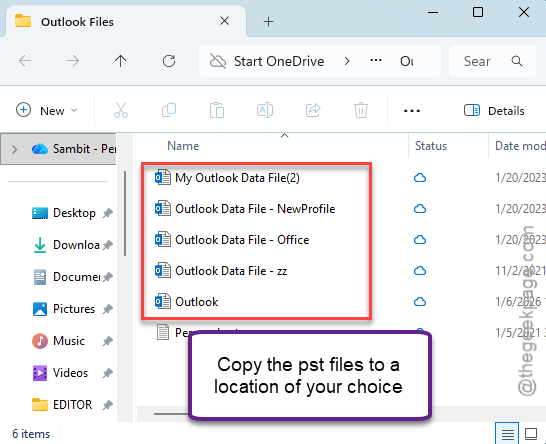
5 – Rename the copy so you don’t mix them up (e.g., myname-local.pst).
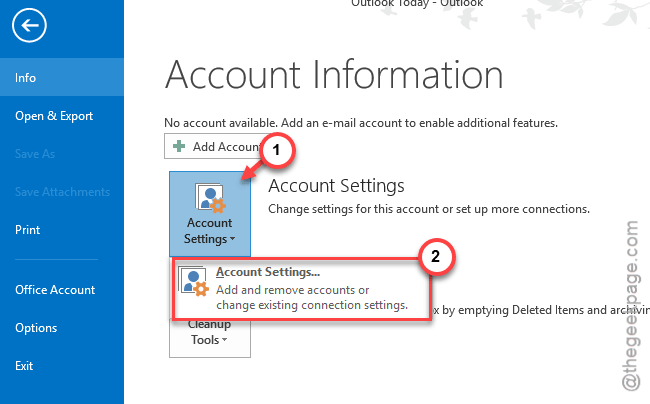
6 – Reopen Outlook. Go to File > Account Settings > Account Settings.
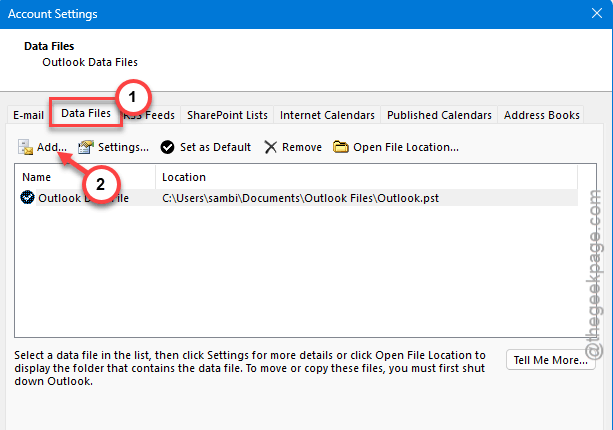
7 – Proceed to the Data Files tab, use the Add button. Go to the local copy and select it.
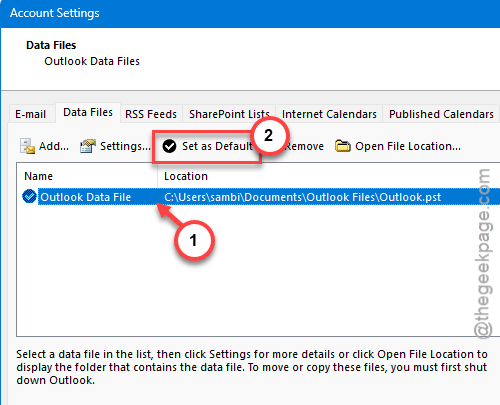
8 – Now, choose the new local file and later, use the Set as Default option. (You can’t remove a default file, so this has to come first.)
9 – Now select the old OneDrive data file, click Remove, then Yes.
And don’t panic at that Remove button. It does disconnects the Outlook from the PST file. You already have a back up of it.
Fix 2 – Install the Latest Windows Update
Microsoft fixed this one through Windows Update. So if you’d rather not touch your PST at all, just get fully current.
1 – At first, right-tap Start and tap Settings.
2 – Then, go to the Windows Update tab.
3 – On the right-hand tab, use the Check for updates button.
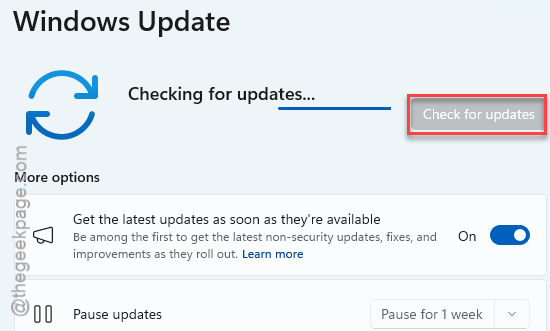
4 – Repeat until it says You’re up to date.
And keep going until that message shows. The fix often arrives a couple of updates deep, not in the first one you install.
Fix 3 – Uninstall KB5074109 and Pause Updates
Need Outlook working right now and can’t wait for the patch? Pull the update that caused it. This is the quick temporary fix.
1 – Press Windows + I to open Settings.
2 – Go to Windows Update > Update history.
3 – Scroll down and click Uninstall updates.
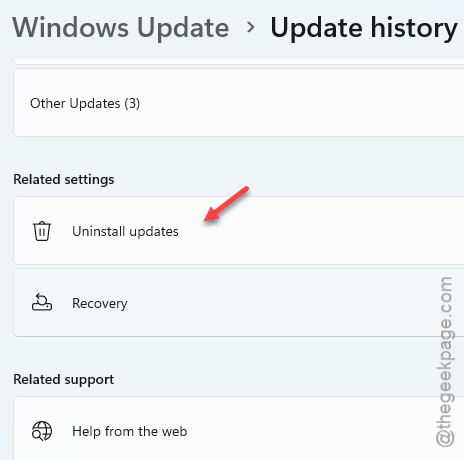
4 – Find KB5074109 and click Uninstall. Restart.
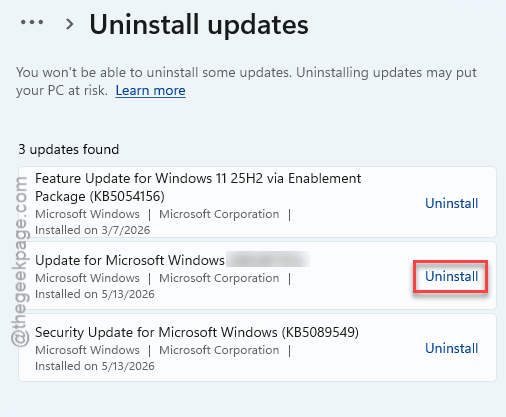
5 – After that, tap the Pause updates and set it to 5 weeks to stay away from that update.
This is just a temporarily solution for your case.
Fix 4 – Try Rebuiling the Outlook Search Index
Sometimes the corrupted Outlook search index can cause this issue.
1 – Hit the Windows button, type Control Panel, and open it.
2 – Open Indexing Options. (Set View by to Large icons if you can’t see it.)
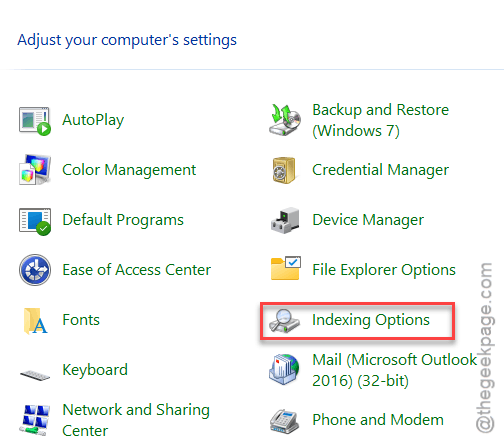
3 – Click the Advanced button.
4 – Proceed to the Troubleshooting tab, click Rebuild.
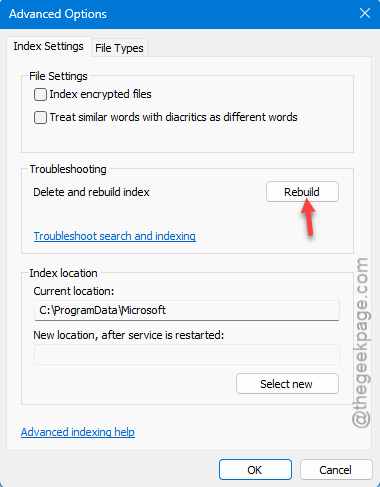
And then go do something else for a while. A full rebuild can take an hour or more (search will be patchy until it finishes). Totally normal.
Fix 5 – Start Outlook in Safe Mode
Quick diagnostic. Safe Mode launches Outlook with no add-ins, so you can tell whether one of them is dragging it down.
1 – Press Windows + R.
2 – Type outlook.exe /safe and press Enter.
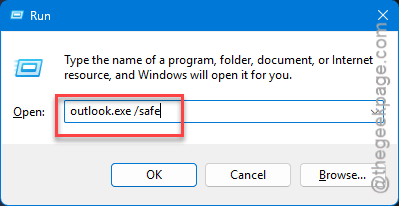
3 – Use it for a bit. Smooth in Safe Mode? Then an add-in is your problem.
4 – If the Safe Mode works, you can disable the third-party add-ins in the Outlook and use it. If you disable them one at a time, you can narrow your search down to the culprit.
How to Prevent This
- Never keep PST or OST files inside OneDrive (or any synced folder). They’re always-open databases — sync and Outlook just fight over them.
- Stay current on Windows updates. The fix for this lives in a later patch, so falling behind keeps you stuck.
- Keep a local folder like C:\My Outlook Files for your data files. One spot, outside the cloud, and you always know where it is.
- Back up the PST separately with a real backup tool — not by syncing it. That’s the safe way to protect it.
People Also Ask
How do I fix Outlook constantly freezing?
Start with the cause. If your PST is in OneDrive, move it out. Then install the latest Windows update, since Microsoft patched a known freeze.
Why is my Outlook PST file not syncing with OneDrive?
Usually, the PST files are quite large and always-open files, and OneDrive can corrupt them or deadlock Outlook trying. Store the PST locally and back it up separately instead of relying on cloud sync.