You go to set up a PIN. Type it in, confirm it, hit OK. And up pops “Something went wrong, try again later.” So you try again. Same message. Round and round.
Maddening, right? The PIN is supposed to be the easy part. Instead it’s stuck in a loop that never lets you finish.
Why This Happens
Basically? Windows keeps your PIN data in a hidden folder called Ngc. And when something in there goes bad, the whole setup chokes.
What corrupts it? Could be a Windows update that didn’t land cleanly. Could be an out-of-sync Microsoft account token. Sometimes the TPM — that’s the little security chip that guards your PIN — is holding onto an old key from a past install and won’t let a new one through.
And here’s the annoying part. Windows shows you the same vague “try again later” every single time. No clue which piece broke. So you end up fixing the likely causes one by one. That’s what the fixes below do.
Fix 1 – Sign Out to a Local Account, Then Back In
Quick one, and it’s the gentlest. Swapping to a local account and back forces Windows to refresh the account token that often jams the PIN setup.
1 – Press Windows + I to open Settings.
2 – Go to Accounts, then Your info.
3 – Click Sign in with a local account instead and follow the short setup.
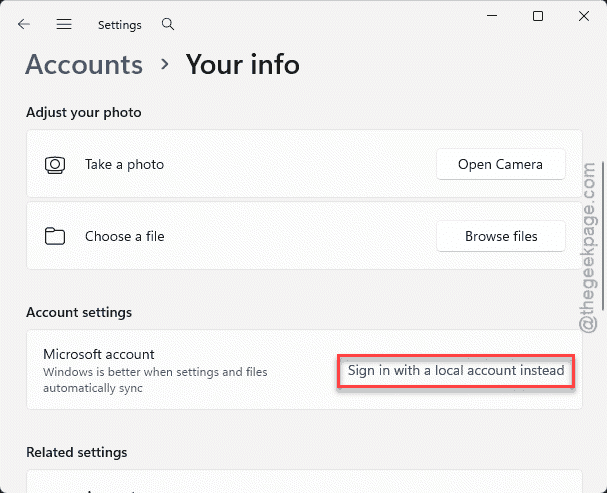
4 – Reboot your PC.
5 – Come back to the same menu and click Sign in with a Microsoft account instead to re-link it.
Now try making the PIN again. Fresh token, clean slate. If it still loops, the problem’s in that Ngc folder — next fix.
Fix 2 – Clear Out the Ngc Folder
This is the real fix for most people. You’ll empty the Ngc folder — the place Windows stores PIN data. Deleting what’s inside just resets your PIN setup. It doesn’t touch your files or apps.
The folder is locked by the system, so first you take ownership of it.
1 – Open File Explorer with Windows + E and paste this into the address bar:
C:\Windows\ServiceProfiles\LocalService\AppData\Local\Microsoft
2 – Press Enter. You’ll see the Ngc folder. [If you can’t reach this folder, open the folder path manually.]
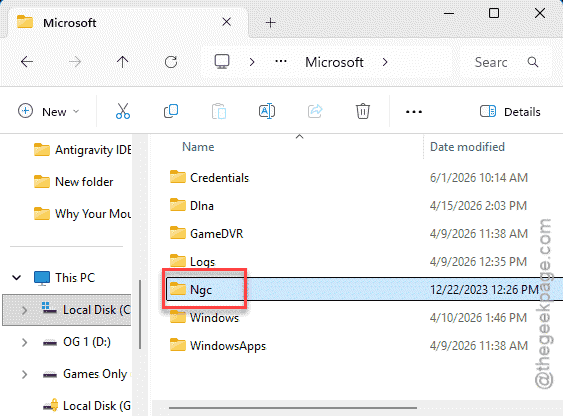
3 – Right-click Ngc and choose Properties, then the Security tab, then Advanced.
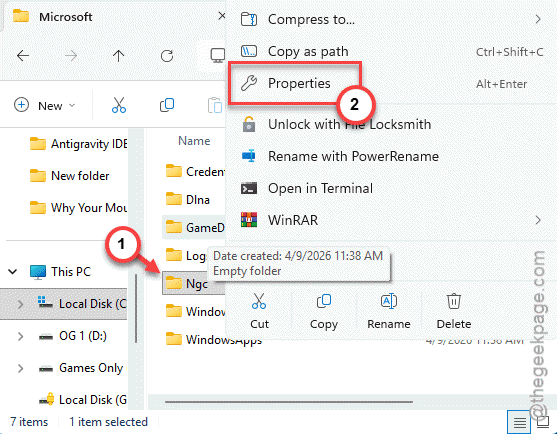
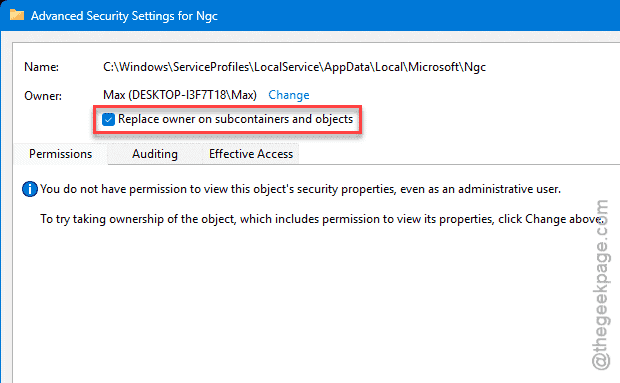
4 – Near the top, next to Owner, click Change.
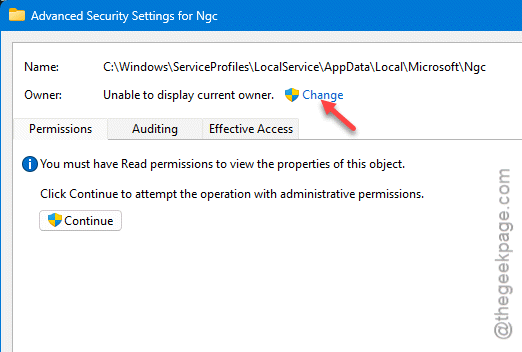
Type your account name, click Check Names, then OK.
5 – Tick the box Replace owner on subcontainers and objects. Click OK.
6 – Now open the Ngc folder. Select everything inside and delete it. Leave the Ngc folder itself — just empty it.
7 – Restart your PC and set up the PIN one more time.
Check if this works.
Fix 3 – Turn On Convenience PIN Sign-In
Some Windows setups quietly block PIN sign-in through a policy. You can switch it back on — but only on Windows Pro, Enterprise, or Education. Home doesn’t include this tool.
1 – Press Windows + R, type gpedit.msc, and press Enter.
2 – In the left pane, open this path: Computer Configuration, then Administrative Templates, then System, then Logon.
3 – On the right, double-click Turn on convenience PIN sign-in.
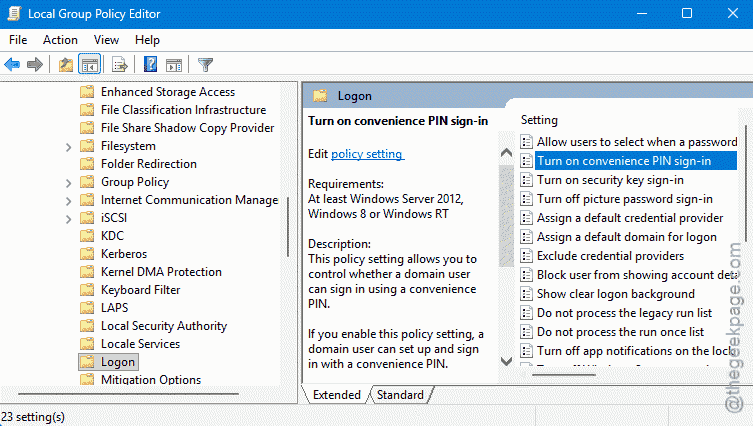
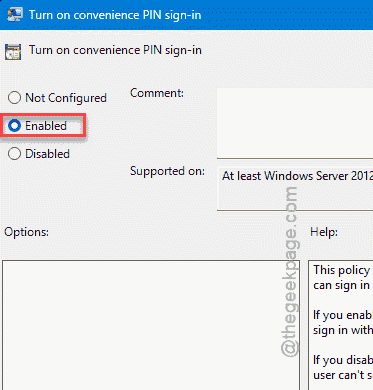
4 – Set it to Enabled and click OK.
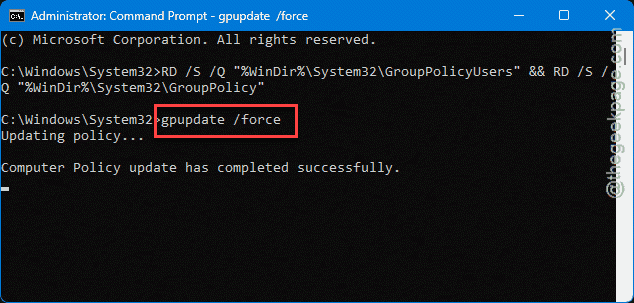
5 – Open Command Prompt and run gpupdate /force to apply it right away.
Then retry the PIN. Didn’t help? Move to the next one.
Fix 4 – Force PIN Logon in the Registry
Try forcing the PIN logon using a registry hack.
1 – Press Windows + R, type regedit, and press Enter.
2 – Paste this path into the top bar and press Enter:
HKEY_LOCAL_MACHINE\SOFTWARE\Policies\Microsoft\Windows\System
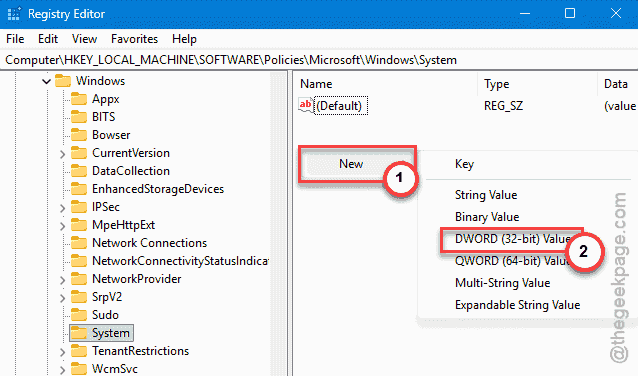
3 – Right-click the empty space on the right, pick New, then DWORD (32-bit) Value.
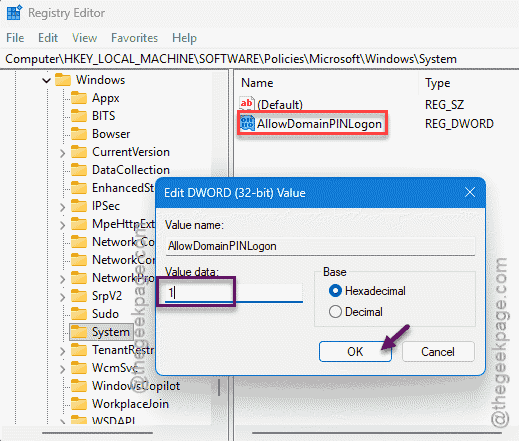
4 – Name it exactly AllowDomainPINLogon.
5 – Double-click it, set the Value data to 1, and click OK.
6 – Restart your computer.
Fix 5 – Clear the TPM Security Chip
Try clearing up the TPM security chip to clean up the cache.
1 – Click Start, type Windows Security, and open it.
2 – Go to Device security, then Security processor details.
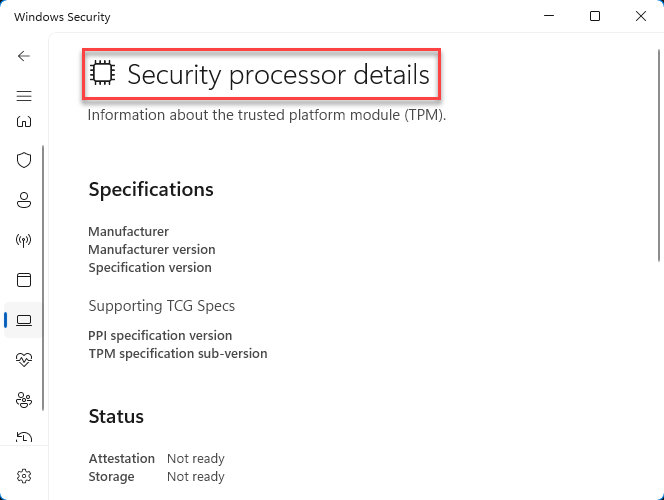
3 – Click Security processor troubleshooting.
4 – Click Clear TPM and follow the prompts. Your PC restarts to finish.
Once it’s back up, set the PIN again. With a clean chip and an empty Ngc folder, the loop is almost always gone by now.
How to Prevent This
– After a big Windows update, sign in once with your password before relying on the PIN. Updates are what break the Ngc folder most.
– Keep your Microsoft account password current and signed in. Stale tokens are half the battle here.
People Also Ask
Why can’t I set up my Windows Hello PIN?
Usually the Ngc folder — where Windows stores PIN data — has gone corrupt, often after an update. Emptying that folder (after taking ownership of it) and rebooting clears the loop for most people. If it still fails, a stale account token or the TPM chip holding an old key is the next thing to check.
How do I fix the Windows Hello something went wrong error?
Start gentle: switch to a local account, reboot, then switch back to your Microsoft account. That refreshes the token. If the error sticks around, clear the Ngc folder and try the PIN again. Those two steps handle the large majority of cases without anything drastic.
Will clearing the Ngc folder delete my files?
No. The Ngc folder only holds your Windows Hello PIN and sign-in data — not documents, photos, or apps. Emptying it just resets the PIN, so you’ll set a new one afterward. Your personal stuff stays exactly where it is.