You hit Windows + Shift + S. Or open the Snipping Tool from Start. And it just throws 0x803F8001 at you. Won’t launch. Won’t capture anything.
Frustrating. But it’s a known one — and the fixes are quick.
Why This Happens
The 0x803F8001 error is a Microsoft Store error. Means the Store thinks Snipping Tool isn’t licensed or registered properly to your account.
And there are a few reasons it gets there. Sometimes a Windows update breaks the app registration. Sometimes the Store cache gets corrupted. Sometimes the app package itself goes sideways after a bad install.
Why now and not before? No idea. Microsoft pushes updates that re-register UWP apps, and sometimes Snipping Tool gets left behind. Annoying.
On top of that, if you’re signed into a different Microsoft account than the one used at install — same error.
Fix 1 – Reset the Microsoft Store Cache
Quick and harmless. Wipes the Store cache and re-registers your apps.
1 – Click the Start button. Type cmd.
2 – Right-click Command Prompt in the results. Pick Run as administrator.
3 – Click Yes if a UAC prompt shows up.
4 – Type this and press Enter:
wsreset -i
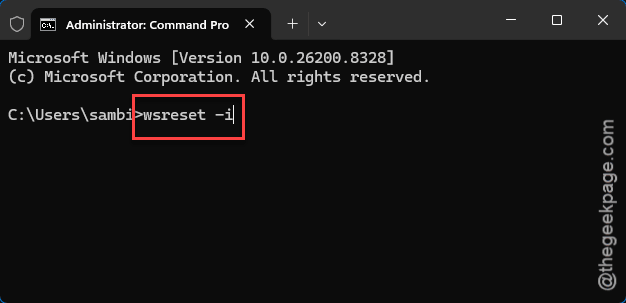
5 – Wait. The window may look frozen. Give it a minute.
6 – Close Command Prompt. Restart your PC. Not shut down — restart. There’s a difference.
And try Snipping Tool again. Worked for a lot of people on a single try.
Fix 2 – Repair the App
Windows has a built-in repair option for UWP apps. Doesn’t delete your data. Just patches the install.
1 – Press Windows + I to open Settings.
2 – Click Apps in the left sidebar.
3 – Click Installed apps.
4 – In the search box at the top, type snip.
5 – Click the three dots (⋯) next to Snipping Tool. Pick Advanced options.
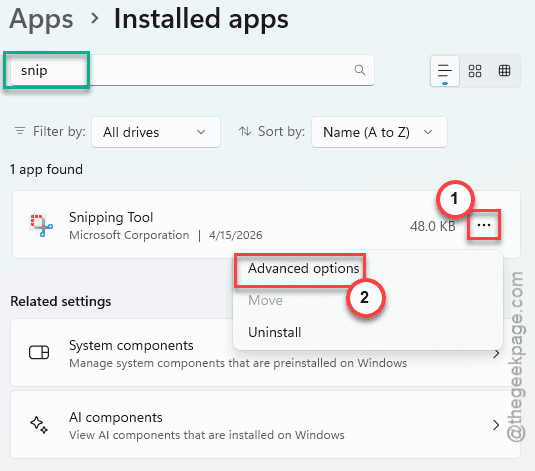
6 – Scroll down to the Reset section. Click Repair first.
7 – Wait for the checkmark. Try the Snipping Tool.
Still broken? Come back to the same screen and click Reset instead.
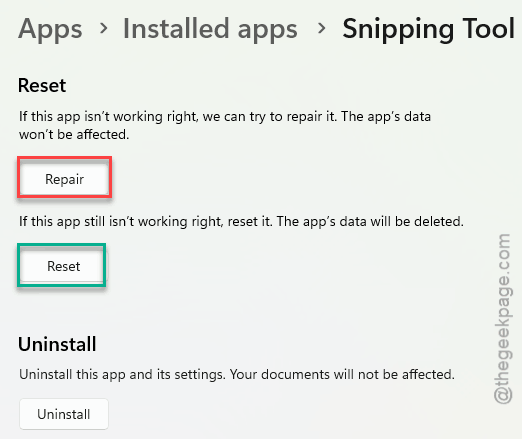
That clears the app data — settings will reset, but the app itself reinstalls clean.
Fix 3 – Reinstall from the Microsoft Store
Sometimes a fresh install just works.
1 – Open Settings (Windows + I).
2 – Go to Apps > Installed apps.
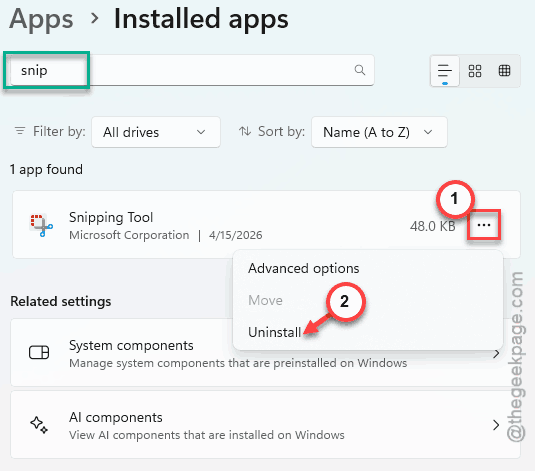
3 – Search snip. Click the three dots (⋯). Pick Uninstall. Confirm.
4 – Open the Microsoft Store from the Start menu.
5 – Search Snipping Tool. Make sure it’s the one by Microsoft Corporation.
6 – Click Get or Install.
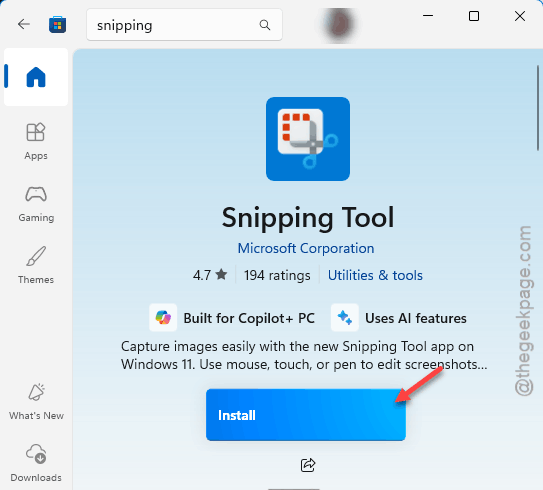
7 – Once installed, launch it.
And that’s usually the end of it.
Fix 4 – Re-Register All Store Apps via PowerShell
Heavier hammer. Use this if the others didn’t stick. It re-registers every Store app for your account — Snipping Tool included.
1 – Click Start. Type powershell.
2 – Right-click Windows PowerShell and pick Run as administrator.
3 – Click Yes on the UAC prompt.
4 – Put this code in the terminal and press Enter:
Get-AppXPackage | Foreach {Add-AppxPackage -DisableDevelopmentMode -Register "$($_.InstallLocation)\AppXManifest.xml"}
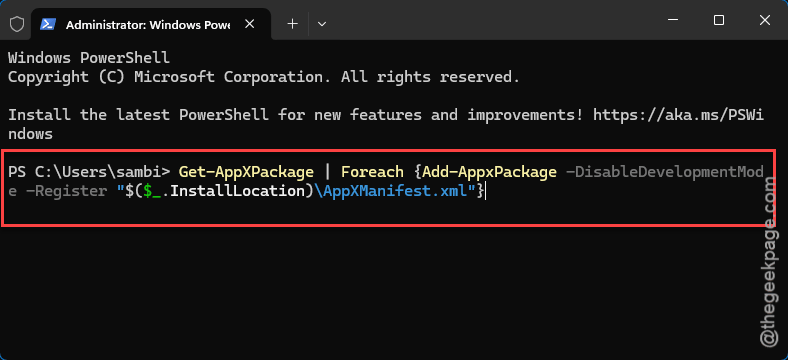
5 – Let it run. You’ll see red error text for some apps. That’s fine — ignore it.
6 – When it finishes, run this one too:
Get-AppxPackage -allusers Microsoft.WindowsStore | Foreach {Add-AppxPackage -DisableDevelopmentMode -Register "$($_.InstallLocation)\AppXManifest.xml"}
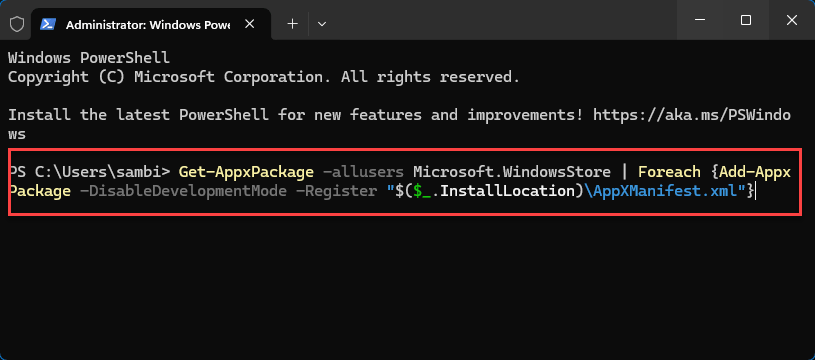
7 – Close PowerShell. Restart your PC.
And test Snipping Tool again.
Fix 5 – Check which Microsoft Account you are using
There is a chance that you may get the error 0x803F8001, if you are using a different Microsoft account.
1 – Open the Microsoft Store.
2 – Tap the profile icon at the top right.
3 – Check which Microsoft account you are using.
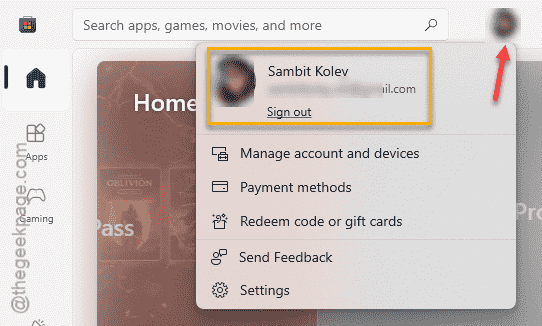
4 – If it is not the regular account, you should log out and sign back in with the correct ID.
5 – Restart Snipping Tool.
How to Prevent This
- Don’t sign out of your Microsoft account in Windows unless you really need to. It can break Store-licensed apps.
- After major Windows updates, run wsreset -i once. Takes ten seconds and clears most weird Store glitches before they start.
- Avoid third-party tools that try to debloat or remove default Windows apps. They often nuke Snipping Tool by mistake.
People Also Ask
Why does Snipping Tool say 0x803F8001?
The reason you are getting the 0x803F8001 error . The Store can’t confirm your account owns the app. Usually triggered by a corrupted app registration or a Store cache problem. Sometimes by signing into a different Microsoft account.
Can I use Snipping Tool without the Microsoft Store?
The Snipping Tool is a Microsoft Store app. If the Store breaks, the app breaks with it. The old desktop snippingtool.exe is gone from Windows 11. So fixing the Store is the real fix.