You boot up your PC. Black screen. A scary message: “Couldn’t connect to the network. Keep your device on, and we’ll look for solutions.” Sometimes a 30-minute timer counting down. No login. No desktop. Just panic.
Why This Happens
Here’s the deal. This usually shows up after a power outage. Or a forced shutdown. Or a Windows update that didn’t finish properly. Windows boots into a recovery state and can’t talk to its activation servers. So it stalls.
And the timer? That’s Windows trying to fix itself in the background. It rarely works. People wait the full 30 minutes and end up at the same screen. Annoying.
But there’s good news. Most of the time you don’t need to reinstall Windows. A simple power cycle fixes it. Or a system restore. Just don’t sit there and stare at the timer.
Fix 1 – Force a Full Power Cycle
This is the first thing to try. Sounds dumb but it works for a huge chunk of people. You’re forcing Windows to drop whatever broken state it got stuck in.
1 – On the black screen, press Enter to access the recovery options menu.
2 – Look for Turn off PC or a similar option. Click it.
3 – If that doesn’t work, just press and hold the power button on your machine for a full 20 seconds. Don’t let go early.
4 – Wait until the PC is fully off.
5 – Unplug it. Or pull the battery if it’s a laptop with a removable one.
6 – Wait 60 seconds. Don’t rush. Let everything drain.
7 – Plug it back in and press the power button to boot.
And weirdly often? It just boots into Windows like nothing happened. Worth trying first because it’s free.
Fix 2 – Use System Restore From Recovery
If the power cycle didn’t work, this is the next move. Windows usually has an automatic restore point from a few days ago.
1 – On the error screen page, hit the Enter button once to load up the recovery options.
2 – Click Troubleshoot.
3 – Click Advanced options.
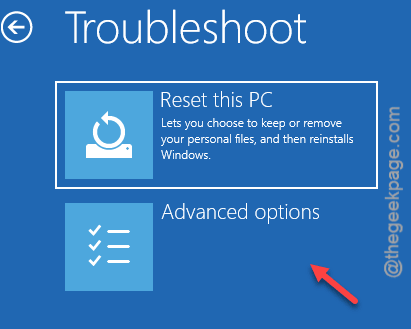
4 – Click System Restore.
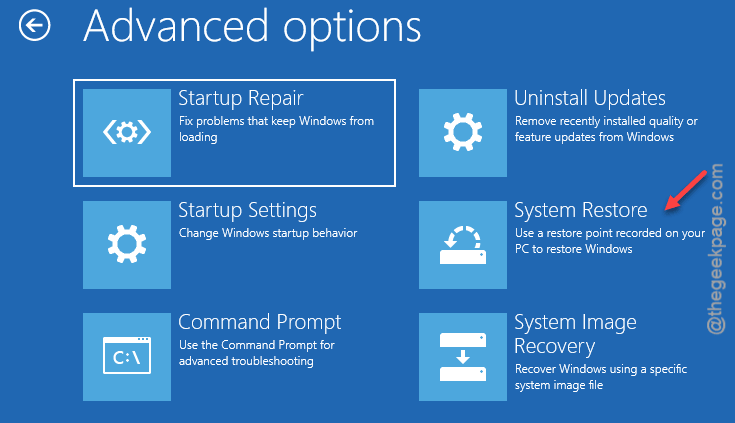
5 – Pick your operating system if asked. Probably Windows 11.
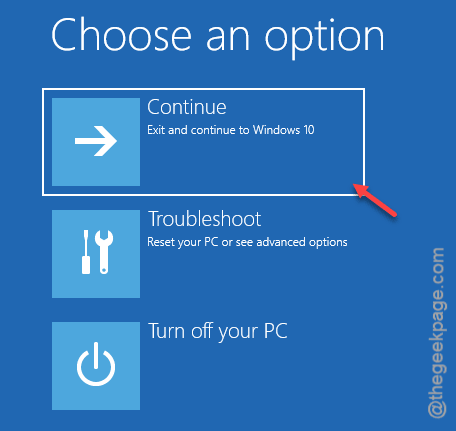
6 – Sign in to your account if it asks.
7 – You’ll see a list of restore points. Pick the most recent one before the issue started. Even an automatic one from 2 days ago is fine.
8 – Click Next, then Finish, then Yes to confirm.
And it’ll restart on its own. Takes 10–20 minutes. Don’t shut it off mid-restore. That makes things worse.
Fix 3 – Run Startup Repair
Startup Repair scans for boot problems and tries to fix them automatically. Doesn’t always succeed but takes 5 minutes to find out.
1 – Press Enter on the error screen.
2 – Click Troubleshoot.
3 – Click Advanced options.
4 – Click Startup Repair.
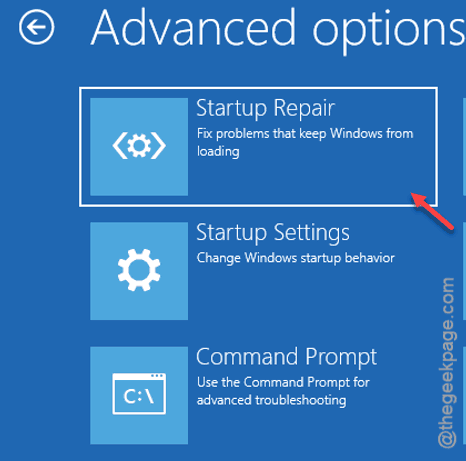
5 – Pick your account and enter your password if prompted.
6 – Wait. Could take up to 20 minutes.
Done. If this solution has worked, it’ll restart to Windows. If not, you’ll get a “could not repair” error prompt. Move to the next fix.
Fix 4 – Disconnect Network Hardware
Quick one. The error literally mentions network — so try removing the network entirely. Detach the Ethernet cable from your system. If you’re on a Wi-Fi, tweak the Wi-Fi off using the function key (Fn + F2 or wherever you can see the Wi-Fi icon). Now restart. Sometimes Windows skips the network check entirely once it can’t find any connection. Reconnect after you reach the desktop.
Fix 5 – Reset This PC (Keep Files)
Last resort before reinstalling. This rebuilds Windows but keeps your personal files. Apps get wiped. Settings get wiped. Files in your user folder stay.
1 – Press Enter on the error screen.
2 – Click Troubleshoot.
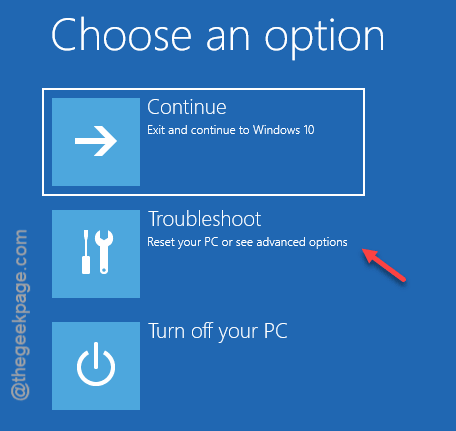
3 – Click Reset this PC.
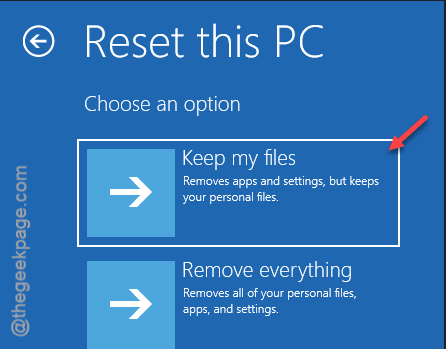
4 – Click Keep my files. Critical step. Don’t pick the other one unless you want to lose your stuff.
5 – Pick Local reinstall if you don’t have stable internet. Or Cloud download if you do.
6 – Click Reset and wait. This takes 30–60 minutes. Plug your laptop into power.
You’ll have to reinstall apps after. But your files survive. That’s the trade-off.
Fix 6 – If You’re Stuck on BitLocker Recovery
Sometimes this error pairs with a BitLocker recovery prompt asking for a key. Don’t panic.
1 – On any other device, go to aka.ms/myrecoverykey.
2 – Sign in with the Microsoft account linked to the broken PC.
3 – Find your BitLocker recovery key. Copy the long number.
4 – Enter it on the PC’s recovery screen.
5 – Once unlocked, you can run the other fixes — System Restore, Startup Repair, etc.
How to Prevent This
- Get a UPS if you have power outages. Even a cheap one. Unexpected shutdowns are the #1 cause of this error.
- Don’t pause Windows updates for months at a time. Pending updates that never install leave the system in a fragile state.
- Save your BitLocker key somewhere outside the PC. aka.ms/myrecoverykey works. Print it. Email it to yourself. Whatever.
- Create manual restore points before big changes. Settings > System > About > System protection. Takes 30 seconds.
People Also Ask
How long should I wait on the “Couldn’t connect to the network” screen?
You don’t have to wait for long at that error screen. It rarely fixes itself. Press Enter to access recovery options instead. Try a hard power cycle first. If that fails, jump to System Restore. Waiting just delays the actual fix.
Does resetting Windows delete the files from Windows?
Only if you pick “Remove everything” instead of “Keep my files” during reset. Pick the right one. Your documents, photos, and downloads stay put. Apps get wiped though — so you’ll need to reinstall those after.