You hit PrtScn and nothing happens. Or you click the icon and get that ugly error. “This app can’t open.” Annoying. And it’s been hitting tons of people for no clear reason.
Why This Happens
Short version? Snipping Tool had a baked-in certificate that expired. Microsoft signed the app with a cert that ran out — and once it expired, Windows just refused to launch it.
But there are other reasons too. App data gets corrupted. A Windows update messes with the install. Or your clipboard service is misbehaving. So the date trick isn’t always the answer.
Fix 1 – The Date Change Trick
Try this first. It’s the weirdest fix in the world but it works for the certificate bug.
1 – Look for the clock on the taskbar. At first, right-click that and click Adjust date and time.
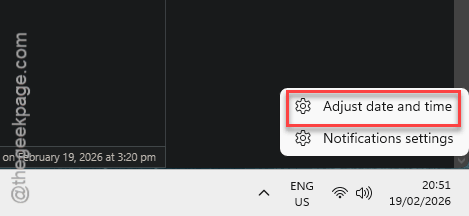
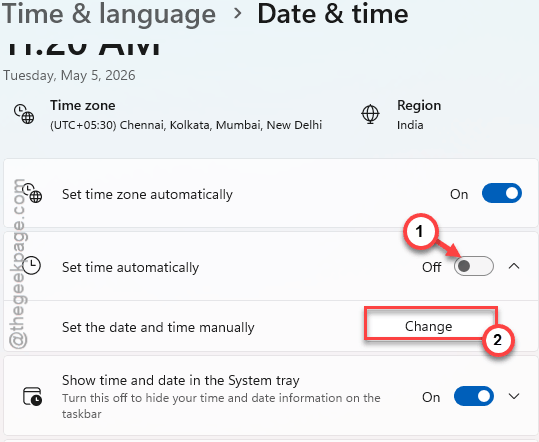
3 – Turn OFF the toggle for Set time automatically. It’s the first toggle on the page.
4 – Find the Change next to “Set the date and time manually” and tap it.
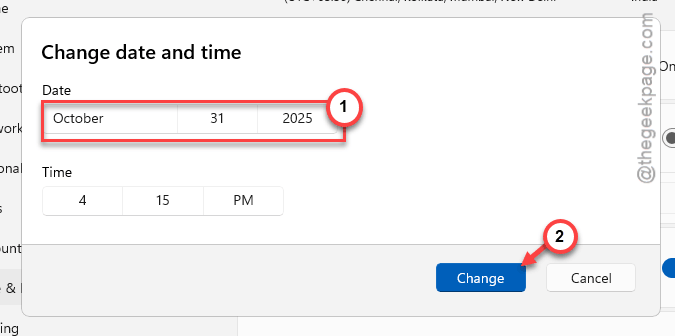
5 – Set the date to October 31, 2025. Yes, really.
6 – Click Change to save.
7 – Load up the Start menu and look for Snipping Tool. Open it.
8 – Once it opens, go back to Date and time settings and turn Set time automatically back on.
And weirdly, the app keeps working after this. Don’t ask me why.
Fix 2 – Install the Microsoft Patch
Microsoft eventually pushed a fix for this. Update KB5008295.
1 – Press Windows + I to open Settings.
2 – Click Windows Update in the left sidebar. It’s near the bottom.
3 – Click Check for updates.
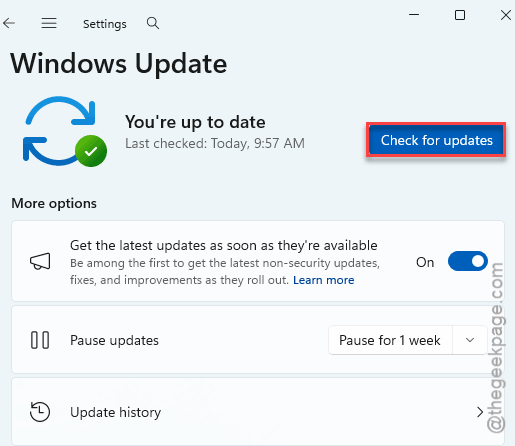
4 – Install whatever it finds. Restart if asked.
Done. Try Snipping Tool now.
Fix 3 – Repair or Reset the App
If the date trick didn’t work and you’re updated, the app itself is probably broken. Repair first. Reset if that fails.
1 – Load up the Windows Settings page.
2 – Click Apps in the left sidebar.
3 – Click Installed apps (or Apps & features on older builds).
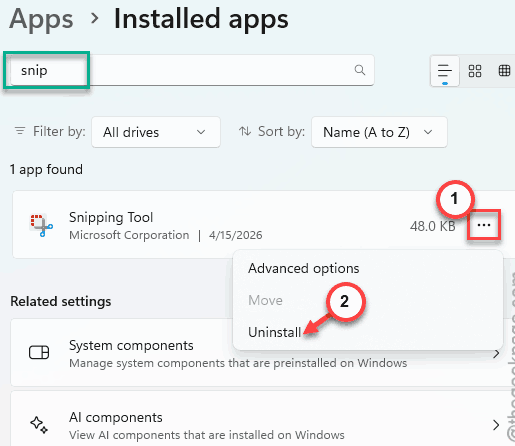
4 – Type Snipping in the search box at the top. Way faster than scrolling.
5 – You have to tap the (⋯) next to Snipping Tool. Later, choose the Advanced options.
6 – Scroll down and click Repair. This won’t delete anything.
7 – Try Snipping Tool. Still broken?
8 – Go back and click Reset.
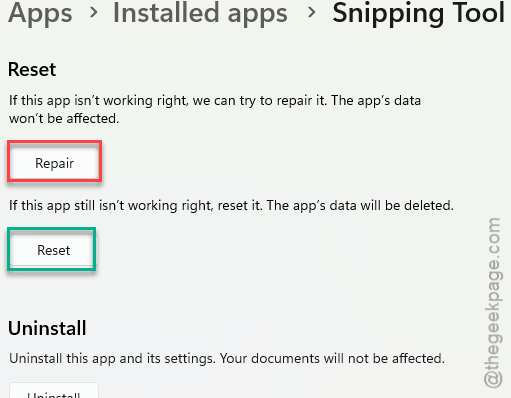
This wipes the app’s data. Nuclear option, but effective.
Fix 4 – Turn On Clipboard History
Quick one. Snipping Tool needs clipboard history active in some builds.
1 – Hit the Windows + I to load up the Settings panel.
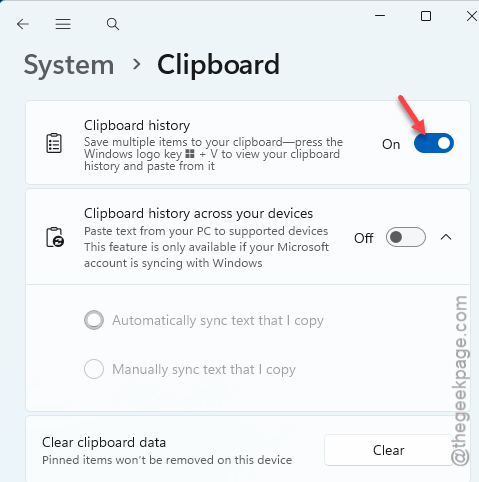
2 – Go to the System, tab. Find and open up the Clipboard section.
3 – Turn the Clipboard history on.
Done.
Fix 5 – Reinstall via PowerShell
Last resort. You’re going to nuke the app entirely and grab it fresh from the Microsoft Store.
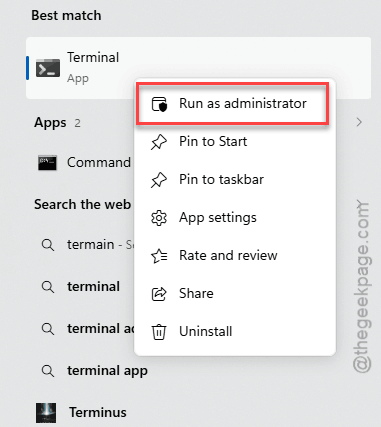
1 – Right-click the Start button.
2 – Click Terminal (Admin) or PowerShell (Admin), depending on your build.
3 – Click Yes on the UAC prompt.
4 – Paste this command and press Enter:
Get-AppxPackage *SnippingTool* | Remove-AppxPackage
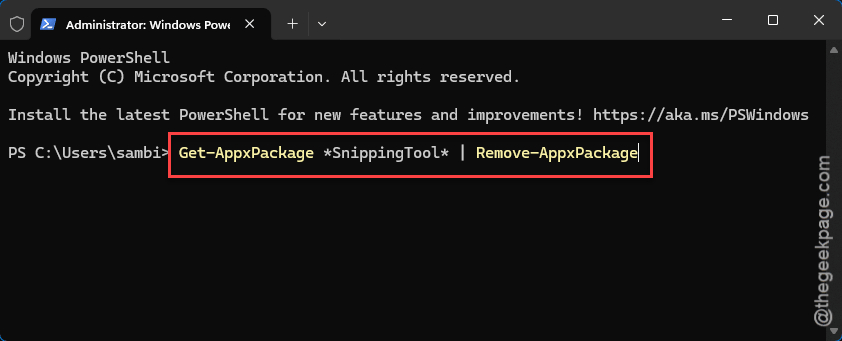
Wait till the code completes its execution. Then restart your PC.
6 – Later,load up the Microsoft Store and search for Snipping Tool. Install it again.
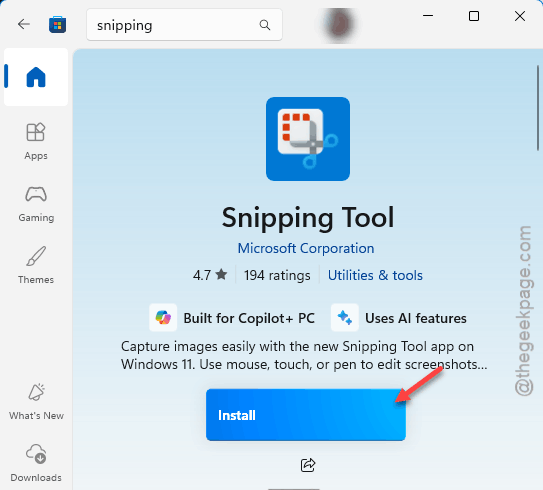
Fresh install. Should work now.
How to Prevent This
- Don’t disable Windows Update. Microsoft patches stuff like this through it. Turning updates off is what got people stuck in the first place.
- Open Microsoft Store every few weeks and check for app updates. Snipping Tool patches go through the Store. Trust me.
- If you rely on screenshots daily, install a backup tool. ShareX is free. Greenshot too. So you’re not stuck the next time this happens.
- Keep Set time automatically on. Mess with it and other apps will break in weird ways.
People Also Ask
How do I fix “This app can’t open” error prompt in Windows 11?
Try the date trick first. Then update Windows. Then repair the app from Settings > Apps > Installed apps > Advanced options. If none of that helps? Reinstall it via PowerShell using Get-AppxPackage. One of those will fix it. Reset is the most aggressive but it works.
Does resetting the Snipping Tool delete my screenshots?
Nope. You can find the recorded screenshots in the Pictures folder. When you reset the Snipping Tool, it does not even touch the Screenshots folder. Your actual images stay put. Same for Repair — that doesn’t touch your saved files either.