You hit Windows + Shift + S on your second monitor. The overlay shows up on the wrong screen. Or only captures one display. Or worse — captures nothing.
Multi-monitor + Snipping Tool = headache. But fixable.
Why This Happens
Here’s the deal. Snipping Tool tries to capture your primary display by default. When you have two or three monitors, it gets confused about which one is active. So it grabs the wrong one. Or freezes.
And display scaling makes it worse. If your monitors have different scaling settings, it may cause this issue. The crosshair lands somewhere weird. The snip ends up cropped.
On top of that? GPU driver issues. Outdated NVIDIA or AMD drivers can mess with how the screenshot is rendered across multiple displays.
Fix 1 – Repair and Reset the App
The single most effective fix. A lot of users solve this just by hitting Repair or Reset.
1 – Press Windows + I to open Settings.
2 – Click Apps in the left sidebar.
3 – Click Installed apps.
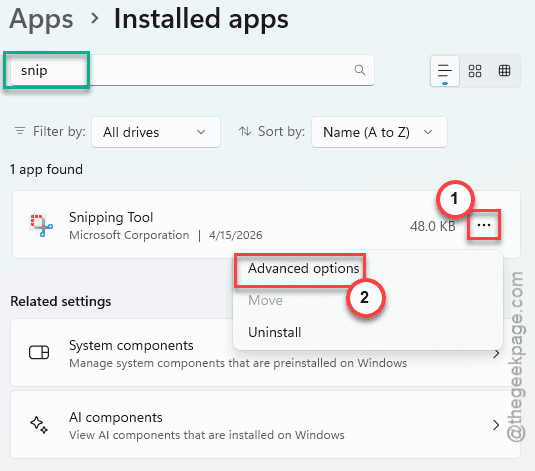
4 – Type snip in the search box at the top.
5 – Click the three dots (⋯) next to Snipping Tool. Pick Advanced options.
6 – Scroll down. Click Repair first.
7 – Test the Snipping Tool across both monitors.
Still broken? Come back. Click Reset instead.
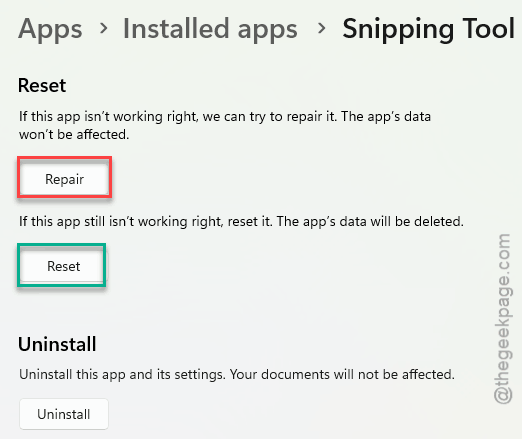
That wipes the app’s settings — but fixes the multi-monitor bug for most people.
Fix 2 – Match Display Scaling Across Monitors
Different scaling per monitor confuses Snipping Tool’s overlay.
1 – Right-click your desktop. Pick Display settings.
2 – Click on each monitor at the top. You’ll see the Scale dropdown below.
3 – Set them to the same scale value if you can. 100% is the safest baseline.
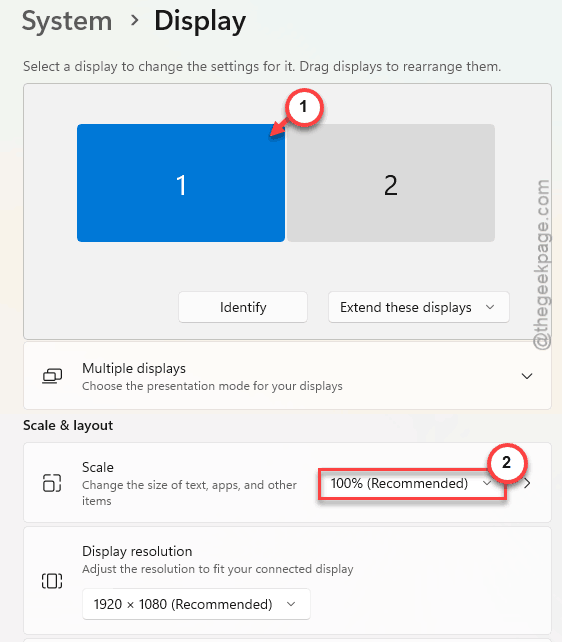
4 – If you really need different scales, sign out and sign back in after changing them. Sometimes Windows holds onto the old values until you do.
5 – Try Snipping Tool on each monitor.
And honestly, this fixes it for a surprising number of users.
Fix 3 – Set Your Primary Display Correctly
Quick fix. Open Settings > System > Display. Click the monitor you want as primary. Scroll down. Check Make this my main display. Done.
Snipping Tool defers to the primary display for capture coordinates. If your active monitor isn’t the primary, weird things happen.
Fix 4 – Update Your Graphics Drivers
GPU drivers handle the actual screen capture. Old or buggy ones break Snipping Tool in multi-monitor mode.
1 – Press Windows + X. Pick Device Manager.
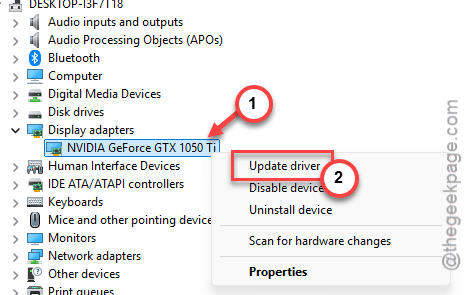
2 – Expand Display adapters. Right-click your GPU.
3 – Pick Update driver > Search automatically for drivers.
4 – If Windows says you’re up to date but you suspect otherwise — go directly to NVIDIA or AMD’s website. Get the latest driver from there.
5 – Restart your PC after the install.
Honestly? Driver updates from the GPU vendor are usually fresher than what Windows pushes. Worth grabbing direct.
Fix 5 – Reinstall Snipping Tool
Last resort before getting into Group Policy territory.
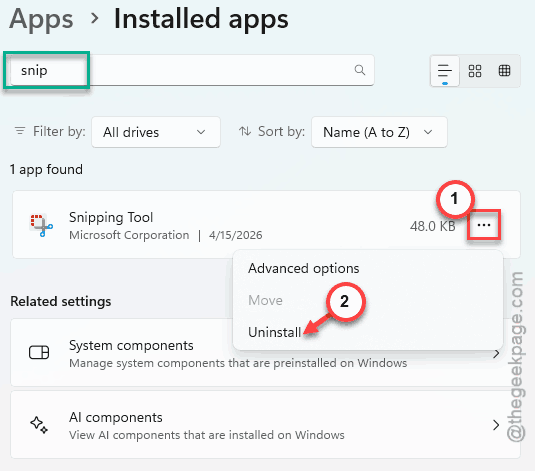
1 – Open Settings > Apps > Installed apps.
2 – Find Snipping Tool. Click the three dots (⋯). Pick Uninstall. Confirm.
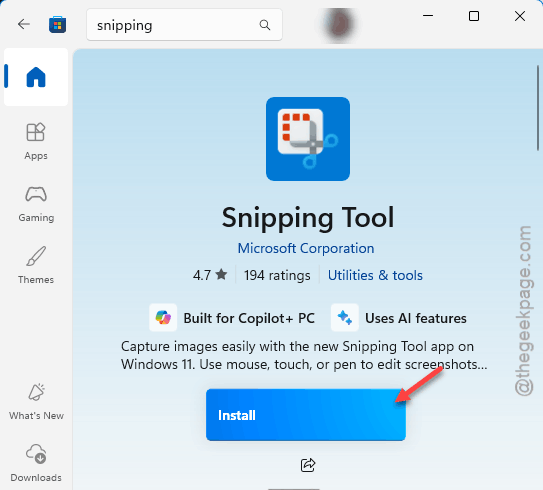
3 – Open Microsoft Store from the Start menu.
4 – Search Snipping Tool. Pick the one by Microsoft Corporation.
5 – Click Get or Install.
6 – Restart your PC after install. Don’t skip this part.
Test on each monitor.
Fix 6 – Use the Print Screen Key Alternative
Workaround, not a real fix. But useful when Snipping Tool is fighting you.
Press Print Screen by itself. It triggers screen snipping (assuming you’ve got the toggle on).
Not on? Quick fix:
1 – Open Settings (Windows + I).
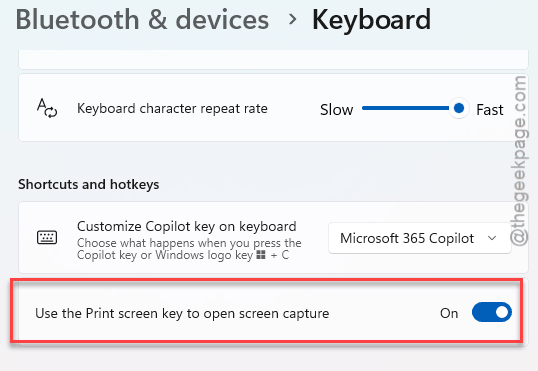
2 – Go to Bluetooth & Devices > Keyboard. If you are on Windows 10, you can find this in the Accessibility settings.
3 – Toggle on Use the Print Screen key to open screen snipping.
Print Screen sometimes plays nicer with multiple monitors than Win + Shift + S. No idea why exactly. Just does.
How to Prevent This
- Keep your monitors on the same scaling percentage when possible. Saves you a ton of weird app glitches, not just Snipping Tool.
- After every major Windows feature update, do a quick Repair on Snipping Tool. Two clicks. Saves grief.
- If you swap monitors often, make sure your primary display is set correctly each time. Snipping Tool follows the primary.
People Also Ask
Why my Snipping Tool is not working on multiple monitors?
Usually a mix of two things — different display scaling between monitors, and the wrong monitor being set as primary. Snipping Tool follows the primary display for its overlay. Fix the scaling, set the right primary, and most multi-monitor issues clear up. GPU driver updates also help.
Why is Windows 11 not recognizing multiple displays?
Different problem from the Snipping Tool one — but the fix overlaps. Try Windows + P to force a display mode. You can update the GPU driver from the NVIDIA, AMD driver.
How to enable Snipping Tool in Windows 11?
It’s already there. Press Windows + Shift + S to launch it instantly. If nothing happens, install it from the Microsoft Store — search Snipping Tool by Microsoft Corporation. You can also pin it to your taskbar from the Start menu for one-click access.