You right-click a ZIP file. Click Extract All. And then? File Explorer just freezes. Or crawls. A 50 MB archive that should take 5 seconds takes 5 minutes. Sometimes longer. Painful.
Why This Happens
Basically? The default ZIP extractor is a bit slow on Windows machines. Like really slow.
And it gets dragged down by extra stuff. Antivirus scanning every file as it comes out. OneDrive trying to sync each extracted file the second it appears. “Show files from Office.com” pulling cloud data into Explorer. All of it slows extraction to a crawl.
But the biggest reason? Built-in ZIP support is just not built for speed. Third-party tools like 7-Zip extract the same archive in a fraction of the time. Why Microsoft hasn’t fixed this? No idea.
Fix 1 – Use 7-Zip Instead
This is the answer for almost everyone. 7-Zip is free. Extracts ZIPs 5–10 times faster than Windows. Once you install it you’ll never go back to Extract All.
1 – Open your browser and go to 7-zip.org.
2 – Download the 64-bit Windows installer (top of the page).
3 – Run the installer. Click Install. Click Close. Done in 10 seconds.
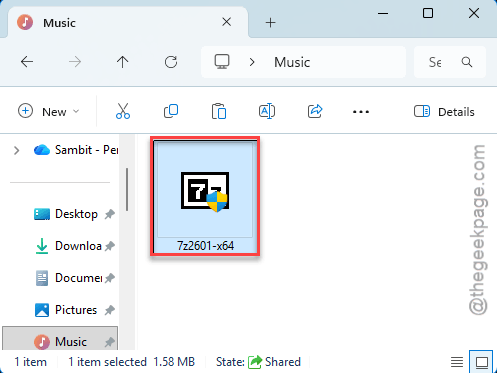
4 – Find your slow ZIP file in File Explorer.
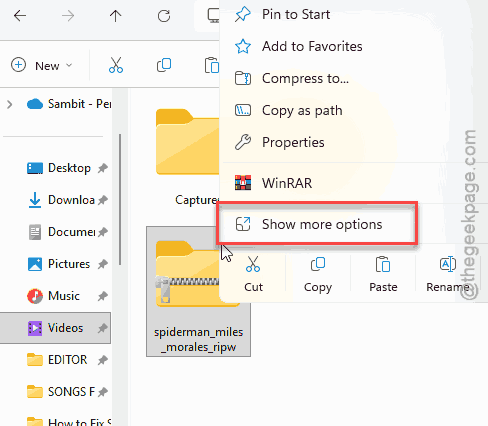
5 – Right-click it. On Windows 11 you’ll need to click Show more options first to see the legacy menu.
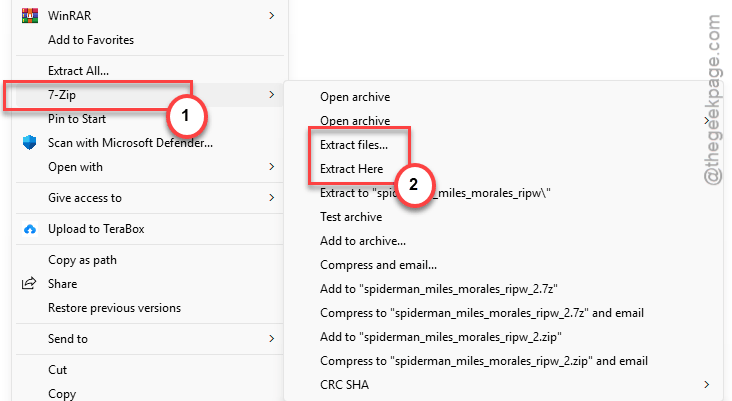
6 – Hover over 7-Zip.
7 – Click Extract Here to dump files in the same folder. Or Extract to [folder]\ to put them in a subfolder.
Massive difference. The same ZIP that took 5 minutes in Explorer? Done in 30 seconds with 7-Zip.
Fix 2 – Turn Off “Show Files From Office.com”
This setting is hidden but it bogs down Explorer like crazy. Especially on slower internet. Turn it off.
1 – Open File Explorer with Windows + E.
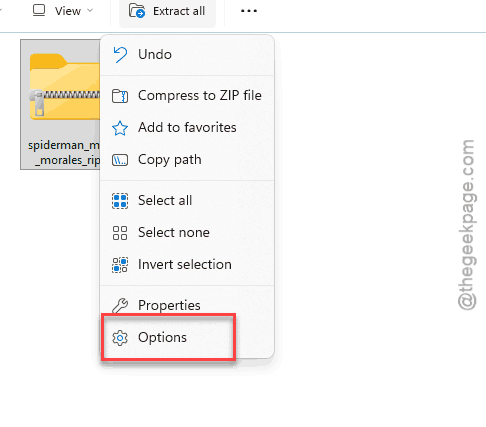
2 – Click the three dots (⋯) in the top toolbar.
3 – Click Options.
4 – Click the View tab in the dialog that opens.
5 – Scroll down in the Advanced settings list and find Show files from Office.com.
6 – Uncheck it.
7 – Click Apply, then OK.
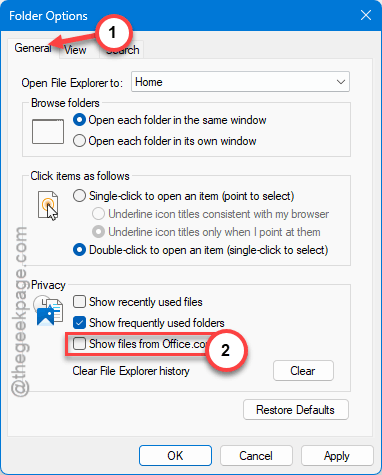
Restart File Explorer or just reboot. Then try extracting again.
Fix 3 – Briefly Pause Real-Time Antivirus Scanning
Antivirus scans every single file as it gets extracted. With a ZIP holding thousands of small files? That kills your speed. Pause briefly to test.
1 – Press Windows + I to open Settings.
2 – Click Privacy & security in the left sidebar.
3 – Click Windows Security.
4 – Click Virus & threat protection.
5 – Under Virus & threat protection settings, click Manage settings.
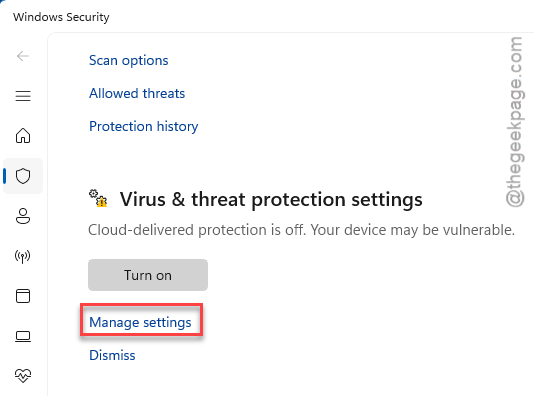
6 – Toggle Real-time protection off. Brief moment only.
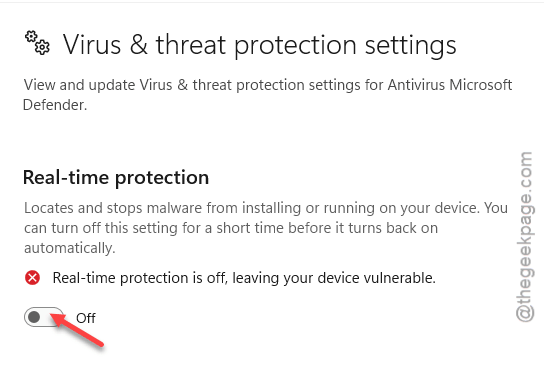
7 – Try extracting your ZIP.
8 – Turn Real-time protection back on right after. Don’t forget. Seriously, don’t forget.
If extraction was way faster with protection off, you can add the source folder as an exclusion so AV doesn’t scan it. But only if you trust the files.
Fix 4 – Move the ZIP Out of OneDrive
Quick fix. If your ZIP lives in a OneDrive folder, that’s probably your whole problem. OneDrive tries to sync every extracted file in real-time. Drag the ZIP to your Desktop or Downloads folder first. Extract from there. Way faster.
Fix 5 – Run System File Checker
Sometimes File Explorer itself is broken. Corrupted system files mean every operation runs slowly. SFC fixes most of these in the background.
1 – Press Windows key. Type cmd.
2 – Right-click Command Prompt in the results.
3 – Click Run as administrator. Click Yes on the UAC prompt.
4 – Type this and press Enter:
sfc /scannow
5 – Wait. This takes 5–15 minutes. Don’t close the window.
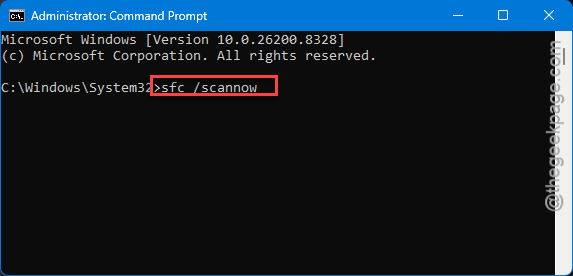
6 – When it finishes, restart your PC.
Try the ZIP again. If files were corrupted, this fixes them.
Fix 6 – Restart File Explorer
Sometimes Explorer just gets weird. You should try restarting the File Explorer process to get rid of this issue.
1 – Press Ctrl + Shift + Esc to open Task Manager.
2 – Click the Processes tab if you’re not already on it.
3 – Find Windows Explorer in the list. Type “explorer” in the search box at the top to find it fast.
4 – Right-click it.
5 – Click Restart.
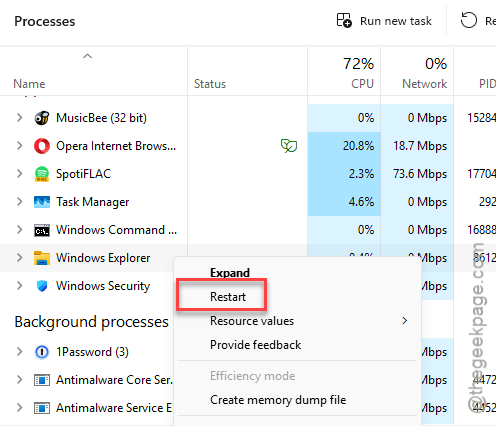
Your taskbar will flicker. Normal. Now retry the extraction.
How to Prevent This
- Don’t extract ZIPs directly inside OneDrive folders. Move them out first. Always.
- Add your usual download folder to your antivirus exclusions if you trust your sources. Less scanning means faster extraction.
- Keep ZIPs on your local SSD, not external drives or network shares. Speed difference is wild.
People Also Ask
Why is the Windows ZIP extractor so slow?
Microsoft built ZIP support directly into File Explorer years ago and never optimized it. It’s single-threaded. It scans every file as it extracts. And on Windows 11 it got worse with the rewritten Explorer code. Use 7-Zip instead. Same job, way faster.
How do I make ZIP extraction faster on Windows 11?
Install 7-Zip — that alone fixes 90% of cases. After that, turn off “Show files from Office.com” in File Explorer Options. Move the ZIP out of any OneDrive folder before extracting. And keep your antivirus exclusions tidy. Each step shaves off real time.
Why does File Explorer freeze when I extract ZIP files?
Usually it’s because the ZIP has thousands of small files. Windows extracts them one at a time and updates the UI between each one. Combine that with antivirus scanning and OneDrive syncing? You get freezing. Switch to 7-Zip and the freezing stops.