You press Windows + Shift + S. The crosshair appears. You snip. And then nothing. No popup. No notification. No edit window. You paste in Paint anyway — and it’s there. So the snip worked. The popup just vanished. Classic Focus Assist sabotage.
Why This Happens
Short version? The Snipping Tool’s preview popup is technically a notification. So when Focus is on — or worse, when it’s stuck on from a Focus Session you forgot about — Snipping Tool feels broken even though it isn’t.
Why is this so hidden? Because Microsoft buried the priority list. You can’t fix this from the Snipping Tool app itself. You have to dig into the Notification settings, find the priority panel, and explicitly let Snipping Tool through. Not obvious. Annoying.
It gets worse on managed work PCs. IT admins sometimes enable Do Not Disturb policies at certain hours. So your morning snip works fine. Your afternoon one disappears. No warning either way.
Fix 1 – Turn Off Do Not Disturb (Quickest Check)
Do this first. Takes seconds.
1 – Click the clock at the bottom right of your taskbar. The Notification Center opens.
2 – Look at the top of the panel. If you see a bell with a slash icon or Do not disturb highlighted in blue, it’s on.
3 – Click it once to toggle it off.
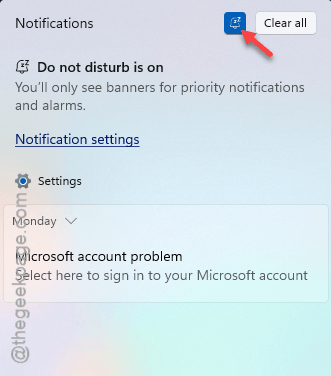
4 – Press Windows + Shift + S. Take a test snip.
If the popup shows up now? That was your whole problem. Focus Assist / Do Not Disturb was eating the notification the whole time.
Fix 2 – End Any Active Focus Session
Focus Sessions auto-enable Do Not Disturb. And they keep running even after you stop paying attention.
1 – Press Windows + I to open Settings.
2 – Click System on the left sidebar.
3 – Click Focus.
4 – If a session is running, click Stop session.
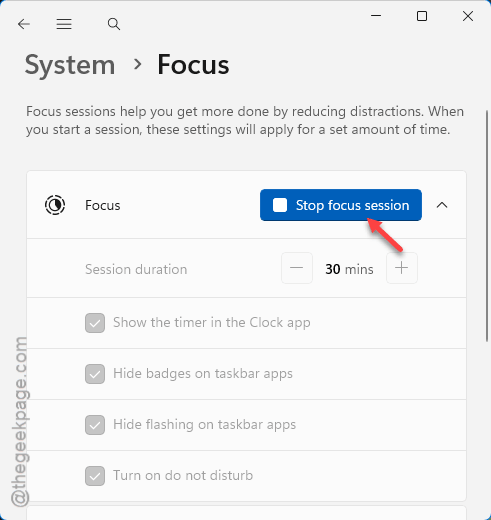
5 – While you’re there, scroll down to Show the timer in the Clock app — turn it off if you don’t actually use Focus Sessions. Stops accidental triggers.
Close Settings. Try Snipping Tool again.
Fix 3 – Add Snipping Tool to the Priority List (The Hidden Fix)
This is the real hidden setting. The one that fixes the issue properly without disabling Do Not Disturb entirely.
1 – Press Windows + I to open Settings.
2 – Click System on the left.
3 – Click Notifications.
4 – Scroll down. Click Do not disturb.
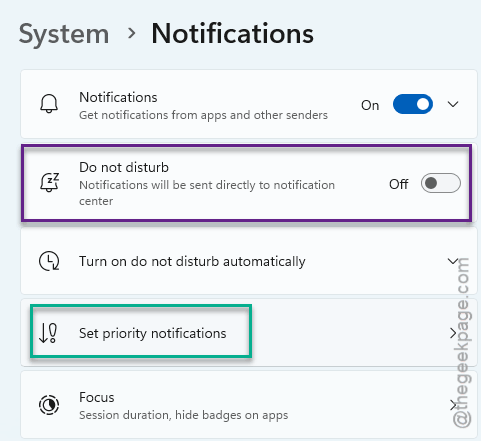
5 – Click Set priority notifications. Buried, but there.
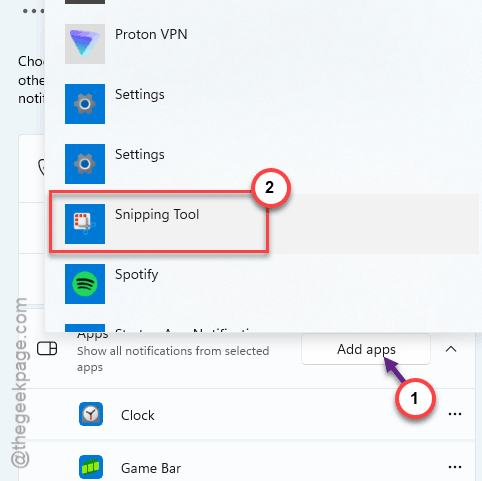
6 – Scroll to Apps. Click Add apps.
7 – Find Snipping Tool in the list. Click it. It gets added to the priority list.
8 – Close Settings.
Now Do Not Disturb can stay on. Snipping Tool still gets through. Best of both. And honestly — this should be the default for built-in Windows tools.
Fix 4 – Make Sure Snipping Tool Notifications Are On
Sometimes the app’s own notifications got toggled off by accident. Or by an update. Worth checking.
1 – Press Windows + I.
2 – Click System > Notifications.
3 – Make sure the master toggle Notifications at the top is On.
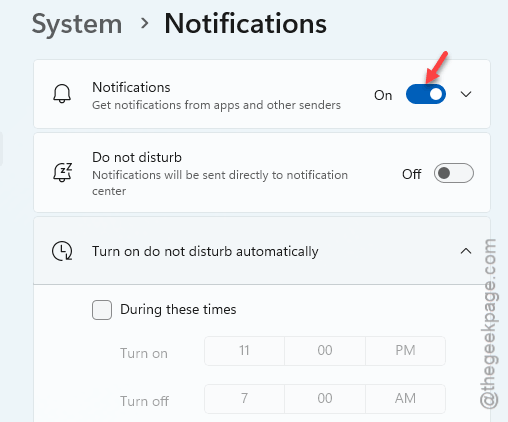
4 – Scroll down to Notifications from apps and other senders.
5 – Find Snipping Tool in the alphabetical list.
6 – Click it. Make sure the Notifications toggle inside is On.
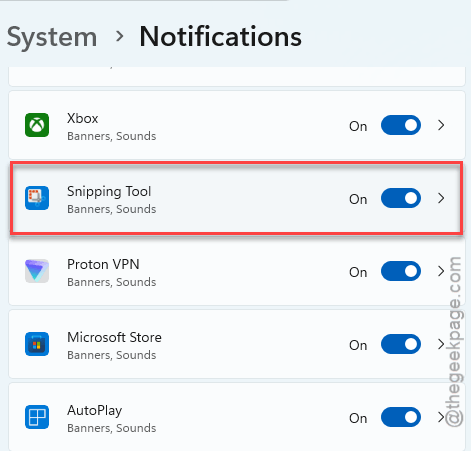
7 – While you’re in there, also turn on Show notification banners and Show notifications in notification center.
Back out. Test the shortcut.
Fix 5 – Check Automatic Focus Rules
Windows quietly turns on Do Not Disturb in certain situations. Like when you’re duplicating your display, playing a game in full-screen, or during quiet hours. You might never notice.
1 – Go to Settings > System > Notifications > Do not disturb.
2 – Click Turn on do not disturb automatically.
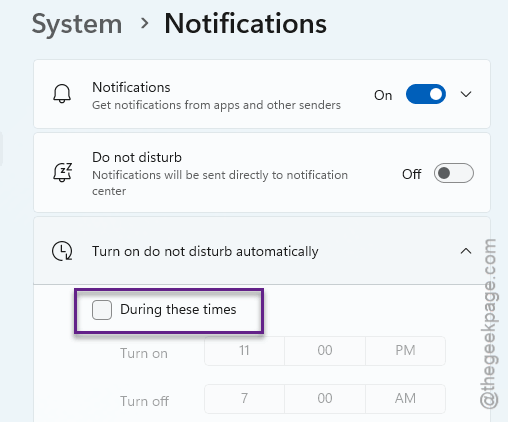
3 – Look at the rules. During these times, When duplicating my display, When playing a game, When using an app in full-screen mode, For the first hour after a Windows feature update.
4 – Turn off any rule you don’t actually want. Especially When playing a game — that one catches people who use Snipping Tool while streaming or recording.
Fix 6 – Disable Quiet Hours via Group Policy (Work PCs)
This one’s for managed laptops. If your company enforces quiet hours, you can’t change it from Settings — IT has to.
1 –You should request your IT Admin to check whether if Quiet Hours or Do Not Disturb policies are enabled for your tenant account.
2 –Ask them to turn off the particular policy that is responsible for this debacle.
Check if this solves the issue.
How to Prevent This
- Add Snipping Tool to the priority list once. Stays there forever (Fix 3).
- Turn off automatic Focus rules you don’t actually use — especially the full-screen game one.
- Don’t start a Focus Session unless you’ll actually finish it. Stop sessions don’t always auto-cancel.
- After every big Windows 11 feature update, re-check your notification settings. Updates love to reset these silently.
People Also Ask
Why is Snipping Tool not showing the preview popup?
Focus Assist / Do Not Disturb is suppressing the notification. The snip itself works — paste in Paint to confirm. Just turn off the DND mode from the Taskbar. Otherwise, you may also add the Snipping tool to the priority list.
Does Focus Assist block Snipping Tool?
Yes. After taking a quick screenshot, the system shows up a quick preview of your capture in the Notification panel. The snip is captured to your clipboard fine — but the floating preview never shows. Add Snipping Tool to the priority list to keep Focus Assist on without losing the popup.