You ran a Windows update. Restarted. Tried to take a screenshot. Nothing. Or the app opens but won’t capture. Or saves come out blank.
It worked yesterday. Now it doesn’t. Classic post-update breakage.
Why This Happens
Here’s the deal. Windows updates sometimes break Snipping Tool. Has happened in March 2025, December 2025, and again in some recent cumulative updates. Microsoft’s QA team apparently doesn’t test the app every cy ,cle.
What actually breaks? A few things. Expired digital certificates inside the app — that was the March 2025 mess. Conflicts with leftover Snip & Sketch files from older Windows builds. Notification permissions getting silently reset, which kills the post-snip preview. Or just plain corrupted package files after a botched update.
And one more — Group Policy. There is a particular policy that can cause this problem.
Some users have even fixed it temporarily by changing their system date back to October. Yes, really. The certificate workaround. We’ll cover that too.
Fix 1 – Reset or Repair the App
Start here. Clears corrupted cache files without removing the app.
1 – Press Windows + I to open Settings.
2 – Click Apps > Installed apps.
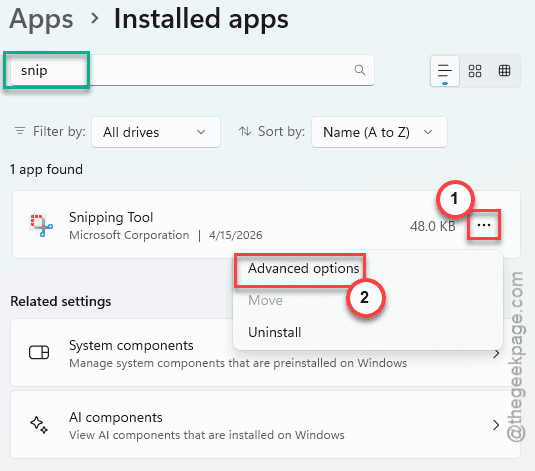
3 – Start to type the snip in the search box at the top.
4 – Click the the three dots (⋯) next to Snipping Tool. Later, tap the Advanced options.
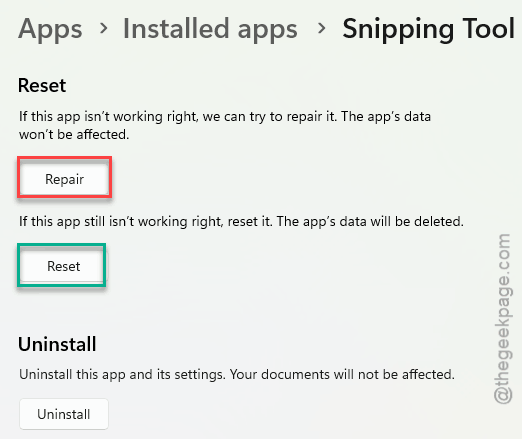
5 – Scroll to the Reset section. Click Repair first.
6 – Test it. Press Windows + Shift + S.
7 – Still broken? Come back. Click Reset below Repair. Confirm.
And while you’re in Advanced options, scroll up. Find Background apps permissions. Set it to Always. That stops Windows from killing the app between launches.
Fix 2 – Enable the Print Screen Shortcut
Quick fix. Sometimes updates flip this toggle off. The app works — but the shortcut doesn’t trigger it.
1 – Open Settings (Windows + I).
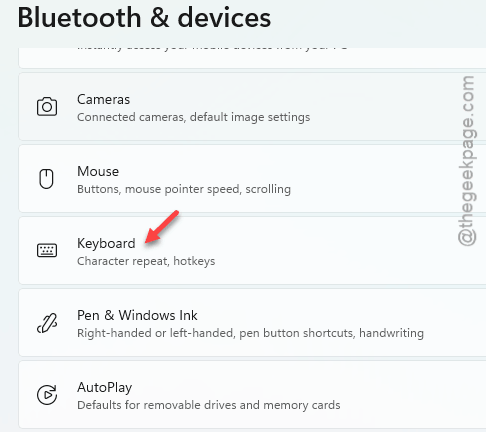
2 – Click Bluetooth & devices in the left sidebar.
3 – Click Keyboard.
4 – Find Use the Print Screen button to open screen snipping.
5 – Toggle it On.
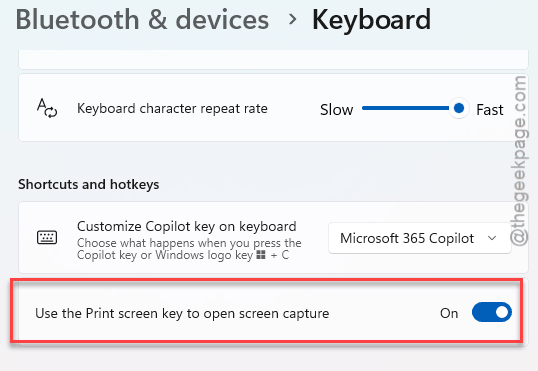
6 – If it’s already on? Tweak it to OFF settings. Wait for a few seconds and turn it back to ON. That refreshes the binding.
Test the Print Screen key. Should now bring up Snipping Tool.
Fix 3 – Date Trick (Certificate Workaround)
Weird one. Use it only if you suspect the March 2025 expired-certificate issue is back.
1 – Click the clock in your taskbar. Pick Adjust date and time.
2 – Toggle Set time automatically to Off.
3 – Click Change under Set the date and time manually.
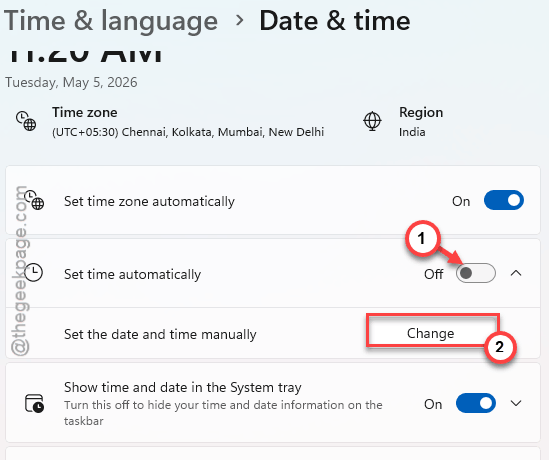
4 – Set the date to October 31 of the previous year. Or any past date.
5 – Click Change.
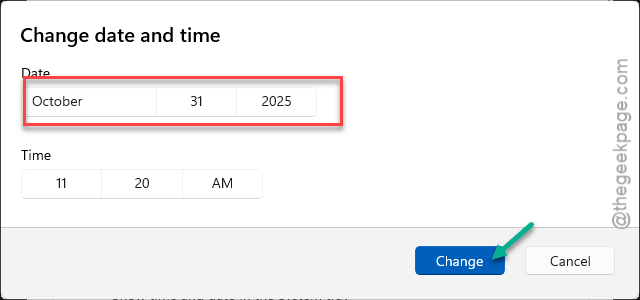
6 – Try Snipping Tool. If it works — confirm the certificate was the issue.
7 – Set your time back to automatic. Snipping Tool should keep working until the next sync.
Heads up — running with the wrong date breaks email, browsers, and HTTPS in general. Only use this temporarily to confirm the issue.
Fix 4 – Launch via Run Command
If the shortcuts are not working but the app is, you should try to run the app directly.
Press Windows + R. Type snippingtool.exe. Press Enter.
If it opens? The app is working fine, there are possible conflicts between shortcut key bindings.
Fix 5 – Check Notification Settings
If snips work but the preview / save toast never shows up, it’s a notification problem.
1 – Click Start. Search notification. Open Notifications & actions.
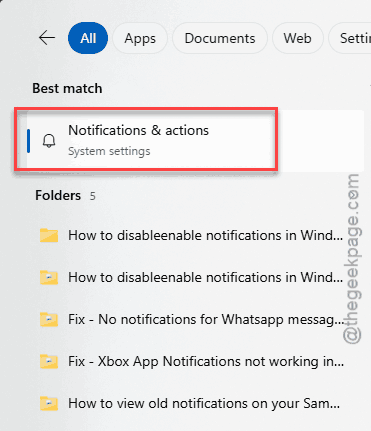
2 – Make sure the main Notifications toggle at the top is On.
3 – Scroll the app list. Find Snipping Tool.
4 – Make sure its toggle is On.
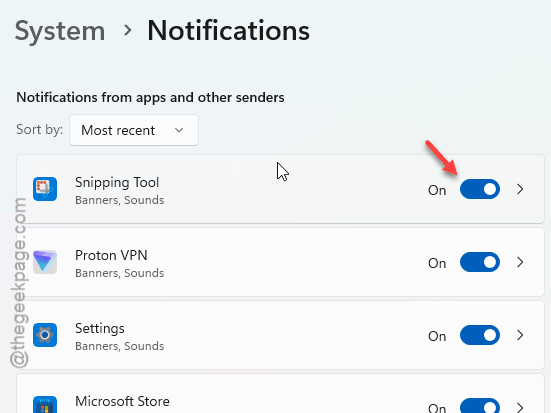
5 – Click on Snipping Tool to open its detail page. Set Priority of notifications to High.
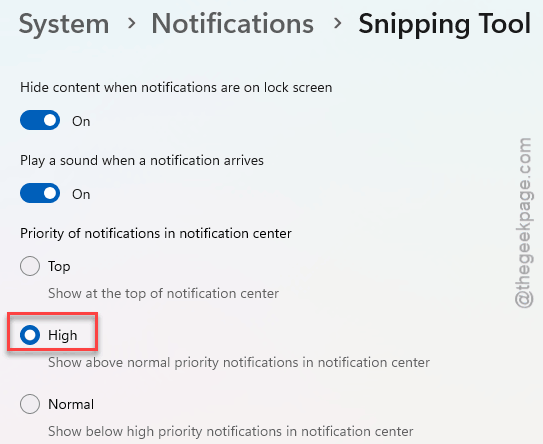
6 – Check your system tray. If Do Not Disturb is on (a moon icon), turn it off. It silences screenshot toasts too.
Fix 6 – Check Group Policy
Only relevant on Windows 11 Pro and Enterprise. Skip if you’re on Home — you don’t have the Group Policy Editor.
1 – Press Windows + R. Type gpedit.msc. Press Enter.
2 – In the left tree, navigate:
User Configuration > Administrative Templates > Windows Components > Tablet PC > Accessories.
3 – On the right, find Do not allow Snipping Tool to run.
4 – Double-click it.
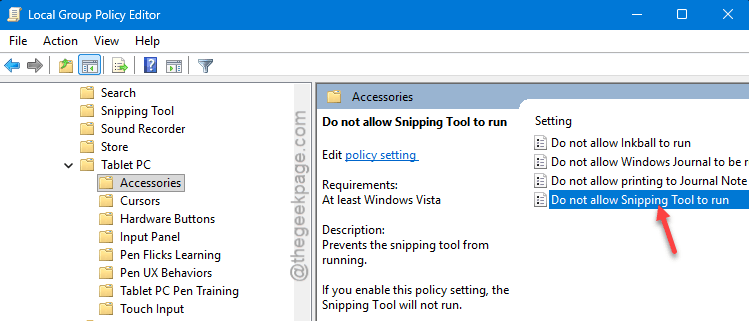
5 – Set it to Not Configured or Disabled. If it was on Enabled — that was your problem.
6 – Click Apply, then OK.
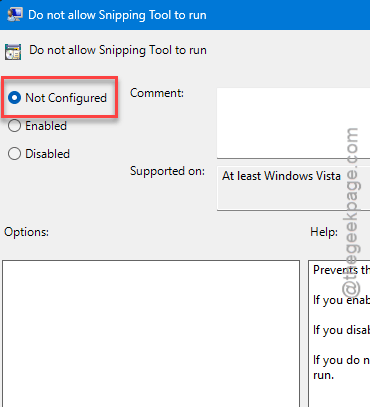
7 – Restart your PC.
Fix 7 – Reinstall Snipping Tool
When the others don’t stick, fresh install.
1 – Open Settings > Apps > Installed apps.
2 – Find Snipping Tool. Three dots (⋯). Uninstall. Confirm.
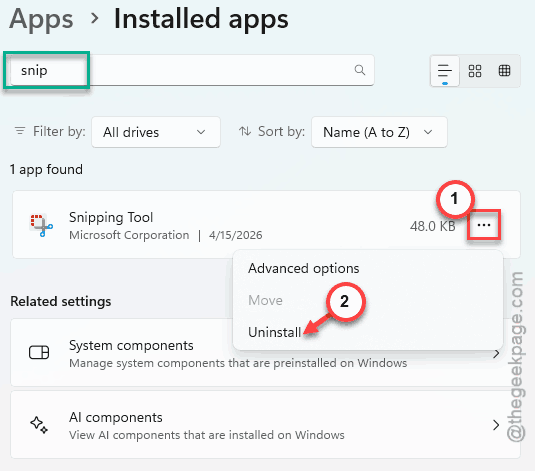
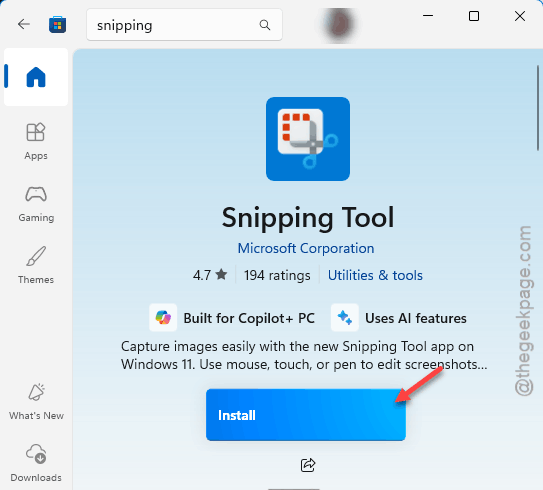
3 – Open Microsoft Store.
4 – Search Snipping Tool. Pick the one by Microsoft Corporation.
5 – Click Get or Install.
6 – Restart your PC. Don’t skip this — fresh installs misbehave without it.
Fix 8 – Install the Latest Windows Update
If a bad update broke it, the next update probably fixes it. Microsoft does ship hotfixes for Snipping Tool issues.
1 – Open Settings > Windows Update.
2 – Click Check for updates.
3 – Install everything. Including optional updates this time.
4 – Restart.
And check the Microsoft Store for app updates while you’re at it. Snipping Tool gets shipped through the Store now.
How to Prevent This
- After every major Windows update, run Repair on Snipping Tool. Two clicks.
- Turn off aggressive debloat tools. They strip out app components that Snipping Tool depends on, especially Snip & Sketch leftovers.
- If you’re on Windows 11 Pro at work, ask IT before assuming the issue is your fault. Group Policy can disable the app silently.
People Also Ask
Why is the Snipping Tool not working after Windows 11 update?
Some users have experienced issues with the Snipping Tool after the 25H2 enablment package for the 24H2 users. Could be expired certificates, conflict with old Snip & Sketch files, or notification permissions getting reset. Run Repair from Settings > Apps > Installed apps > Snipping Tool > Advanced options first. Later, take a quick look in the Print Screen settings in Windows Settings.
Will reinstalling Snipping Tool delete my saved screenshots?
No. The screenshots that you have already captured using the tool are safe and secure in their designated folder (usually, the Pictures folder). You can find them directly in there, even once you have removed the tool from your machine.