You take a snip. Crop it. Hit save. Or assume it auto-saved. Open the Screenshots folder later — empty. Or missing the latest snips.
And the worst part? Sometimes Snipping Tool gives no error. Just silently fails to save.
Why This Happens
Short version: If the automatica save setting is turned off for Snipping Tool, the screenshots won’t be saving automatically. Or pointed somewhere weird. That’s the case for most people.
And here’s the thing — Snipping Tool’s auto-save isn’t on by default in Windows 11. You have to turn it on yourself. Microsoft doesn’t make this obvious. Lots of users never realize.
On top of that? Other things break the save. If you are using any other third-party tools like, Ditto or Clipdiary, it can cause this issue. A OneDrive folder paused or out of sync. Permissions broken on your default Pictures > Screenshots folder.
And the ScreenshotIndex registry value can drift, which causes Windows to silently overwrite or skip saves in some edge cases. Annoying but fixable.
Fix 1 – Turn On Automatic Save
First thing to check. Most common cause.
1 – Write Snipping Tool in the search box. Open it up from there.
2 – Next, find the three dots (⋯) button there, and pick Settings.
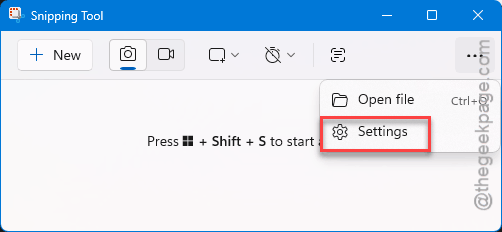
3 – Find Automatically save original screenshots.
4 – Toggle it On.
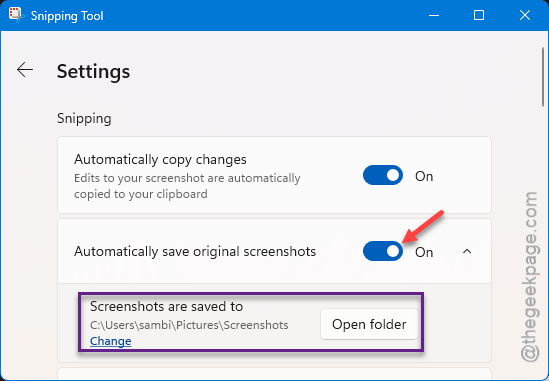
5 – Below that, check the save location. By default it’s Pictures > Screenshots.
6 – If you want to change it, click Change and pick somewhere else.
7 – Take a test snip. Verify the file landed where you expected.
And honestly, that fixes it for like 70% of people.
Fix 2 – Repair and Reset
If the app’s settings are corrupted, Repair fixes it without losing data. Reset wipes settings if Repair doesn’t cut it.
1 – Press Windows + I for Settings.
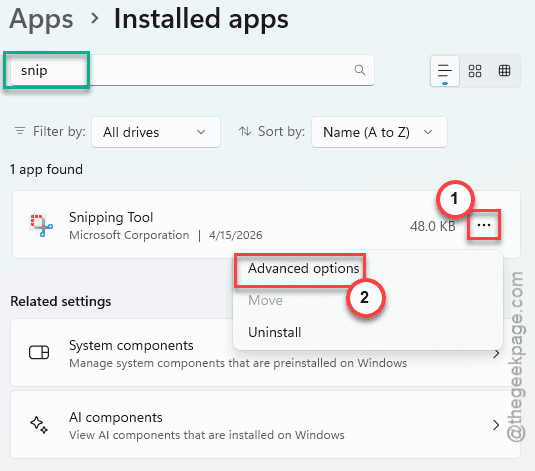
2 – Click Apps > Installed apps.
3 – Later, start to write snip in the search box.
4 – Once you have found the Snipping Tool, tap the three dots (⋯) next to Snipping Tool. Pick Advanced options.
5 – Scroll down. Click Repair first.
6 – Test.
7 – Still not saving? Click Reset below the Repair button. Confirm.
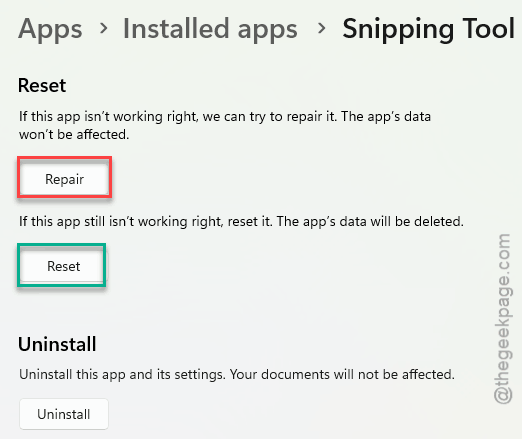
8 – Reopen Snipping Tool. Re-enable auto-save (Reset wipes that setting too).
Fix 3 – Check the Screenshots Folder Permissions
If the Snipping Tool settings is misconfigured, it won’t be able to store your screenshots.
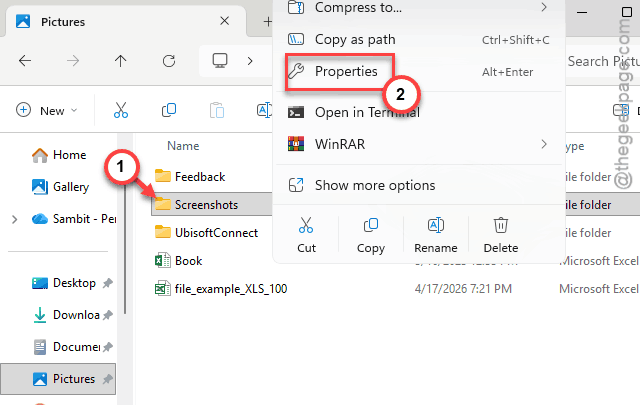
1 – Press Windows + E to open File Explorer.
2 – Go to Pictures.
3 – Right-click the Screenshots folder. Pick Properties.
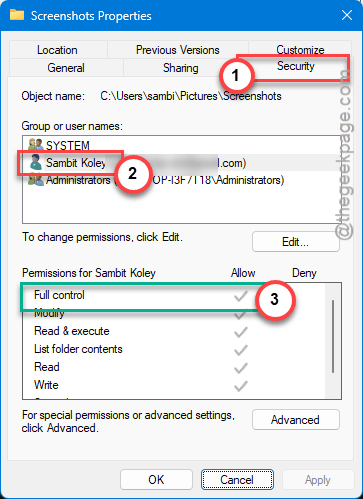
4 – Click the Security tab.
5 – Make sure your user account has Full control. If not, click Edit, select your user, check Full control, click Apply.
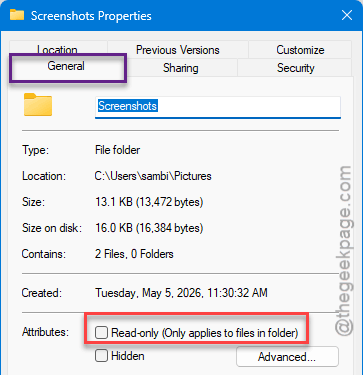
6 – While you’re here, click the General tab. Make sure Read-only at the bottom is unchecked.
7 – Click OK.
Test a snip.
Fix 4 – Disable Conflicting Clipboard Managers
Ditto, Clipdiary, ClipboardFusion — they hook into the system clipboard. Sometimes they intercept the snip before it can save.
1 – Click the up arrow in your taskbar to see system tray icons.
2 – Right-click any clipboard manager you see. Pick Exit or Quit.
3 – Take a test snip. Did it save?
4 – If yes — that was the culprit. Just, re-launch the clipboard tool. Next, add the Snipping Tool to that tool’s whitelist.
Normally, all the popular clipbaord apps have the whitelist option. They just don’t enable it by default.
Fix 5 – Reset the ScreenshotIndex Registry Value
Windows tracks screenshot numbering through a registry key. If it’s stuck or missing, Snipping Tool’s auto-save can quietly fail.
Heads up — registry edits need care. Don’t deviate from the steps.
1 – Press Windows + R.
2 – Type regedit and press Enter. Click Yes at the UAC prompt.
3 – Paste this into the address bar at the top:
HKEY_CURRENT_USER\Software\Microsoft\Windows\CurrentVersion\Explorer
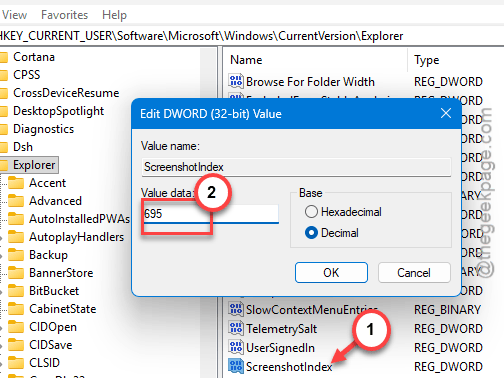
4 – On the right side, find the ScreenshotIndex.
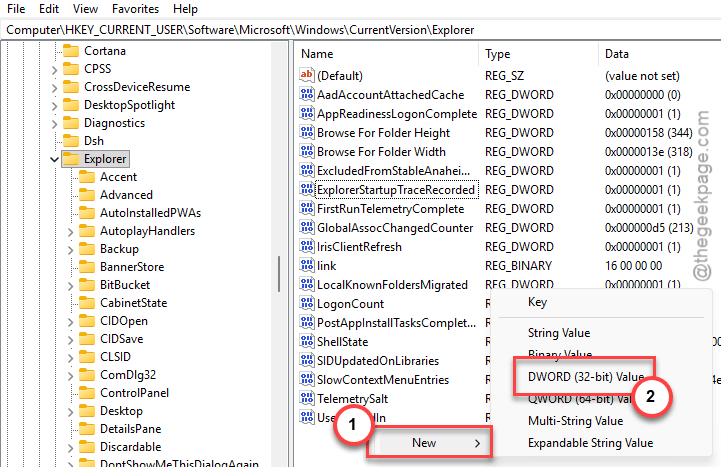
5 – If it’s missing, right-click anywhere on the right-hand panel, and pick New > DWORD (32-bit) Value. Name it ScreenshotIndex.
6 – Double-click ScreenshotIndex. Choose Decimal. Enter 695 (or any number) as the Value data. Click OK.
7 – Now navigate to:
HKEY_CURRENT_USER\Software\Microsoft\Windows\CurrentVersion\Explorer\User Shell Folders
8 – Locate the {B7BEDE81-DF94-4682-A7D8-57A52620B86F} entry on the right-hand panel. Double-click it.
9 – Make sure the Value data is
%USERPROFILE%\Pictures\Screenshots
10 – Click OK.
Close Registry Editor. Restart your PC.
Fix 6 – Move the Save Location Off OneDrive
Most of the users turn on the sync for the Pictures folder to the OneDrive cloud. Any break in the synchronization chain can lead to this issue.
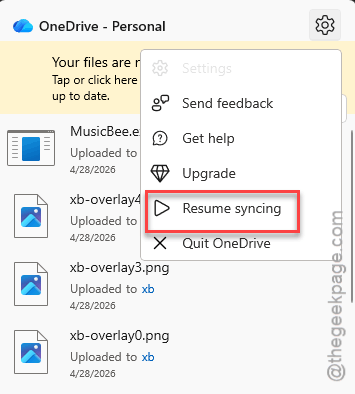
1 – Right-click the OneDrive icon in your taskbar.
2 – Click Resume syncing if it’s paused.
3 – Or — better — open Snipping Tool Settings and change the save location to a local-only folder. Like C:\Snips. Make the folder first.
4 – Test.
OneDrive sync issues are sneaky. Going local for screenshots is just simpler.
Fix 7 – Reinstall Snipping Tool
Last resort. Wipes the app entirely.
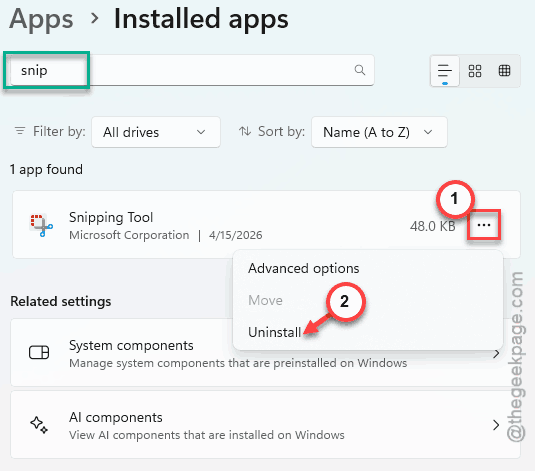
1 – Open Settings > Apps > Installed apps.
2 – Find Snipping Tool. Three dots (⋯). Uninstall.
3 – Open Microsoft Store.
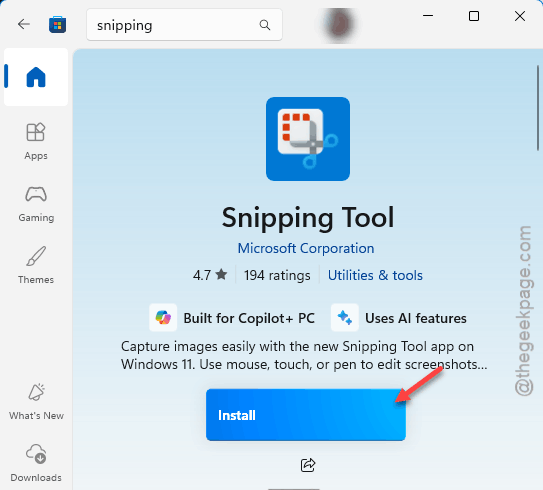
4 – Search Snipping Tool. Pick the one by Microsoft Corporation.
5 – Click Get or Install.
6 – Restart your PC.
7 – Open Snipping Tool. Turn auto-save back on (Fix 1).
People Also Ask
Why are screenshots not being saved automatically?
The auto-save toggle is off in Snipping Tool settings. Or — less obvious — your save folder is on a paused OneDrive. Or another clipboard tool is intercepting the screenshot, which is inherently causing such issues.
How do I fix Snipping Tool in Windows 11?
You can fix your Snipping Tool very easily. You can easily repair or reset it from the Installed Apps settings in the Windows Settings. We recommend you repair the app first, but it the screenshots are still not getting saved, go for the Reset option.