You hit Alt + Space. Nothing happens. Or the launcher pops up for half a second, then vanishes.
PowerToys Run is fast when it works. And kind of useless when it doesn’t.
Why This Happens
Short version? PowerToys Run is a separate module inside PowerToys. It can be disabled, conflicted, or just plain broken after an update.
A few things kill it. The Alt + Space shortcut gets hijacked by another app — IDEs love grabbing it. PowerToys itself isn’t running in administrator mode, so it can’t search elevated apps. Or the whole PowerToys process got force-killed and never restarted.
And sometimes Windows just rolls back PowerToys after an update. Not ideal. You think you have it. You don’t.
Fix 1 – Check That PowerToys Is Actually Running
Sounds obvious. Most people miss it. PowerToys runs in the background — no taskbar icon by default.
1 – Look at the system tray at the bottom-right of your taskbar.
2 – Click the up arrow (∧) to show hidden icons.
3 – Look for the PowerToys icon — it’s a stylized white symbol.
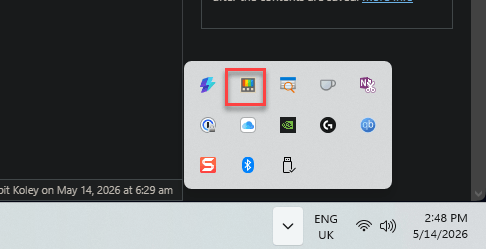
4 – No icon? PowerToys isn’t running. Search PowerToys in Start and open it.
5 – Try Alt + Space again.
Half the time, this is the whole fix. Windows just killed PowerToys at some point and never restarted it.
Fix 2 – Make Sure PowerToys Run Is Enabled
Each PowerToy is a separate module. Updates sometimes flip them off. Worth a quick check.
1 – Open PowerToys (search it in Start).
2 – In the left sidebar, click PowerToys Run.
3 – At the top of the page, make sure the PowerToys Run toggle is On.
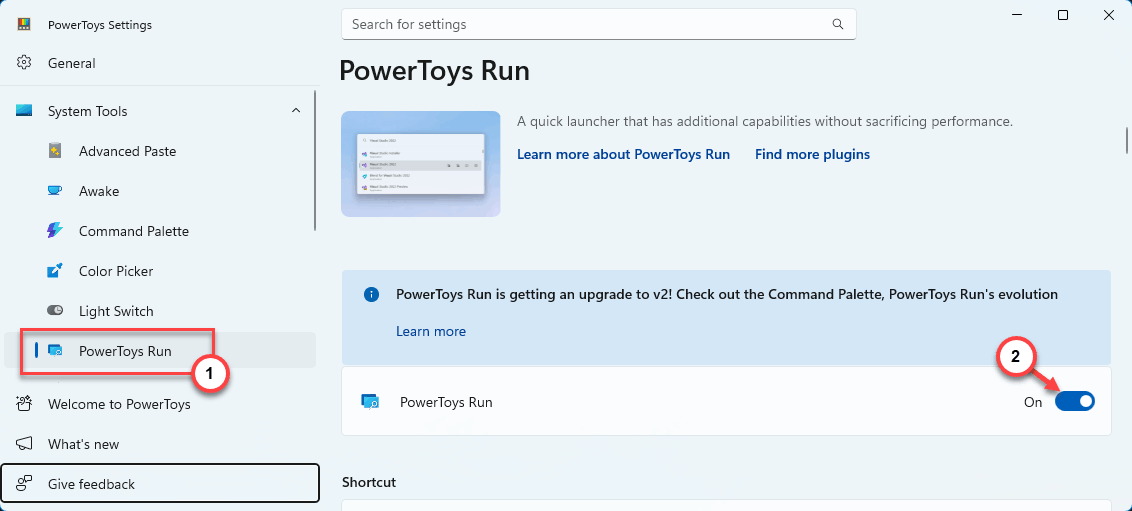
4 – Scroll down. Check the activation shortcut — default is Alt + Space. Confirm it’s still set.
5 – Try Alt + Space.
Still nothing? Read on.
Fix 3 – Change the Activation Shortcut
Alt + Space is taken by other apps. Visual Studio. Some IDEs. The default window menu on some systems.
1 – Open PowerToys.
2 – Click PowerToys Run in the left sidebar.
3 – Find the Activation shortcut field.
4 – Click on it.
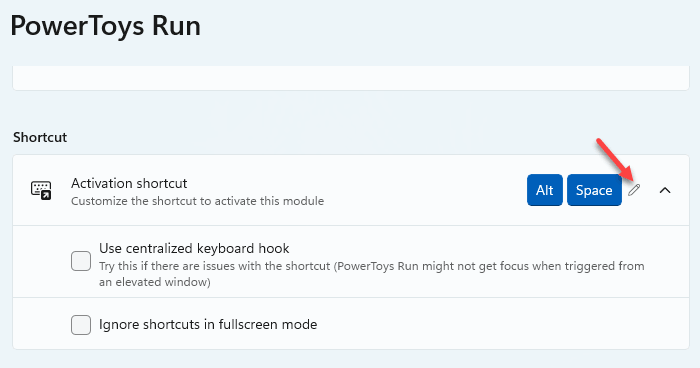
5 – Press a new combo. Ctrl + Space or Win + R (you’ll be asked to override) or anything unique.
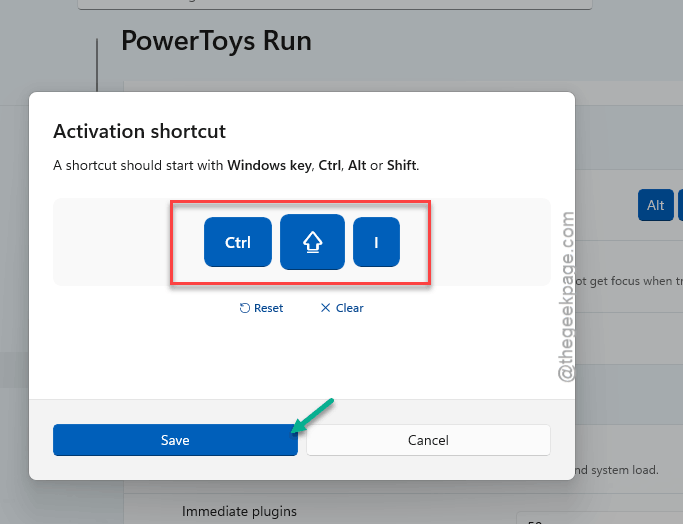
6 – Test it.
Pick something nothing else uses. Trust me — fewer headaches.
Fix 4 – Run PowerToys as Administrator
If PowerToys Run launches but can’t find your installed apps — or won’t run elevated programs — it needs admin rights.
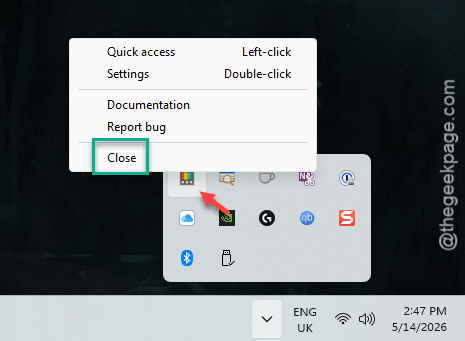
1 – Right-click the PowerToys icon in the system tray.
2 – Click Close to close the app completely.
3 – Search PowerToys in the Start menu.
4 – Right-click the result. Click Run as administrator.
5 – Click Yes on the UAC prompt.
6 – To make this permanent, open PowerToys > General and turn on Always run as administrator.
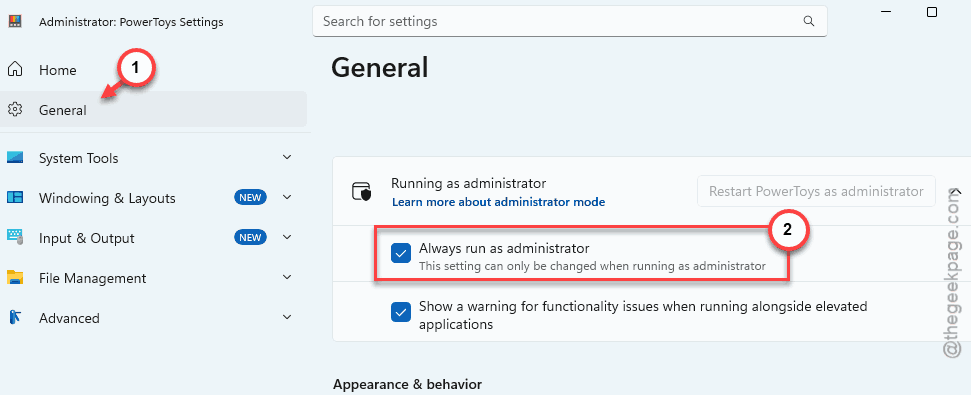
Now PowerToys Run can search elevated apps too. Big quality-of-life win.
Fix 5 – Reset the PowerToys Run Settings
Tweak the PowerToys Run settings, if it is behaving weirdly.
1 – Open PowerToys.
2 – Click PowerToys Run in the sidebar.
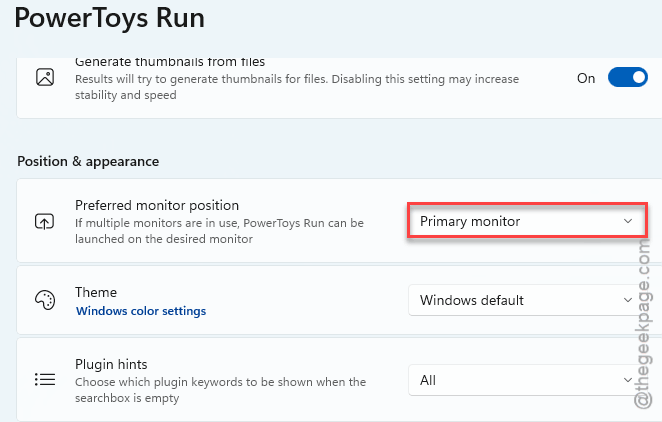
3 – Scroll to the Appearance & behavior section.
4 – Set Preferred monitor position to Primary monitor.
5 – Restart PowerToys. Right-click the tray icon. Click Exit. Reopen.
6 – Try the shortcut.
Now Run shows up on your main screen every time. No more searching for it.
Fix 6 – Reinstall PowerToys
As a last resort, you should uninstall the PowerToys app and reinstall the app on the device to fix this issue.
1 – Hit the Windows + I buttons together to open Settings.
2 – Then, go to the Apps tab. Later, load up the Installed apps.
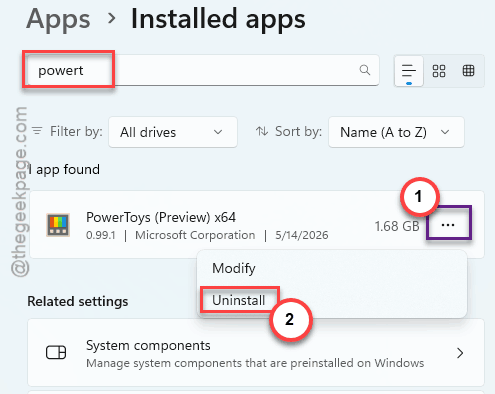
3 – Write down PowerToys in the search box to search for it.
4 – Then, tap the ⋯ button next to it and tap Uninstall.
5 – Confirm.
6 – Later, proceed to the PowerToys Release page and download the latest release. Don’t grab it from random sites.
7 – Download the latest installer (the .exe file matching your system — usually x64).
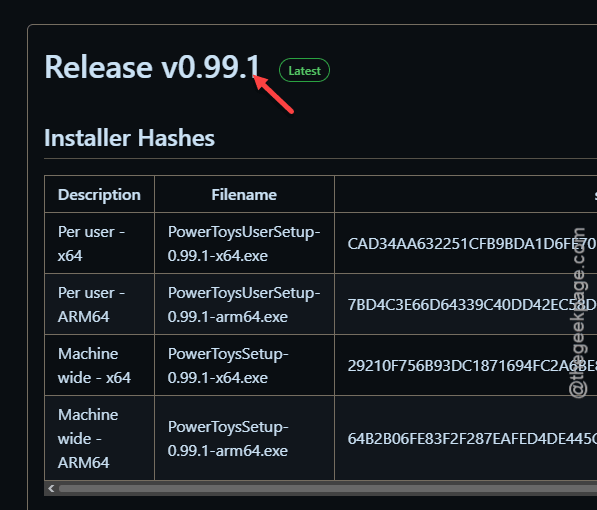
8 – Run the installer. Default options are fine.
9 – Launch PowerToys. Test Alt + Space.
Fresh install. Fresh settings. Should be back to normal.
How to Prevent This
- Turn on Always run as administrator in PowerToys’ General settings. Skips a lot of weird permission issues.
- Pick an unusual activation shortcut. Alt + Space conflicts with too many apps. Pick something nothing else uses.
- Enable Run at startup so PowerToys actually launches with Windows. Otherwise you’ll wonder why it stopped working after every reboot.
- Update PowerToys through GitHub releases or the Microsoft Store. Stable channel. Skip the preview builds unless you like breakage.
People Also Ask
How do I open PowerToys Run?
Default shortcut is Alt + Space. PowerToys has to be running in the background for it to work — check the system tray. No icon there means PowerToys isn’t running. Open it from the Start menu, then try the shortcut again.
Why is PowerToys Run not opening on Alt+Space?
Almost always a shortcut conflict. Visual Studio, certain IDEs, and some window managers grab Alt + Space first. Open PowerToys > PowerToys Run > Activation shortcut and pick something else. Ctrl + Space works well. Or any combo that’s not taken.
Does PowerToys Run need admin rights?
Not strictly. But running it as admin lets it search elevated apps and certain protected folders. Turn on Always run as administrator in PowerToys General settings if you use it a lot. Stops a lot of weird “app not found” results.