You hit Check for updates. Windows downloads KB5089549. Installs to 87%. Then crashes back with 0x800f0991. Restart. Same thing. Again. Again.
Feels broken. And it kind of is.
Why This Happens
A few common causes. Your Windows Update components got corrupted (the cache folder filled with broken files). A previous update half-installed and left the system in a weird state. Or the Component Store (where Windows tracks every feature) has integrity issues.
But it’s fixable. Without a clean install. Promise.
Fix 1 – Use Windows Update Recovery (Repair Install)
Microsoft hid a really useful tool in Recovery. It does a self-repair using Windows Update — keeps all your files and apps but fixes broken system components.
1 – Press Windows + I to open Settings.
2 – Click System > Recovery.
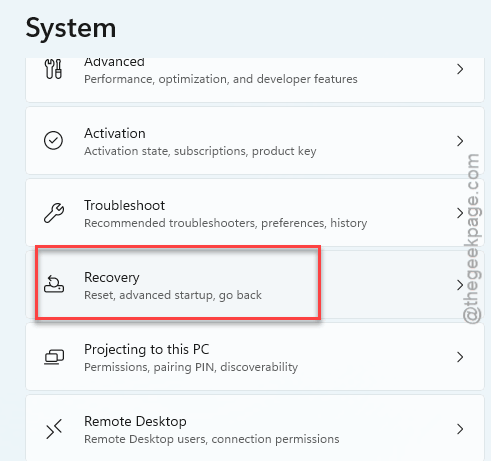
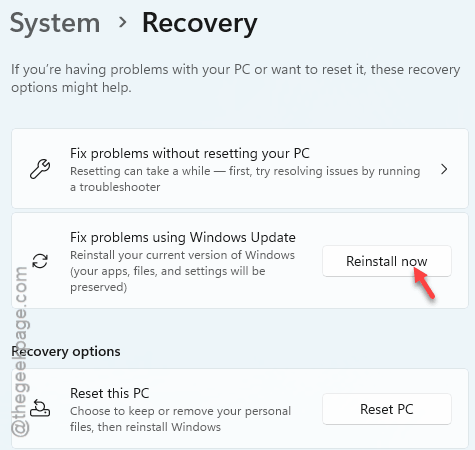
3 – Find Fix problems using Windows Update.
4 – Click Reinstall now.
5 – Tick the I agree box for automatic restart.
6 – Click OK.
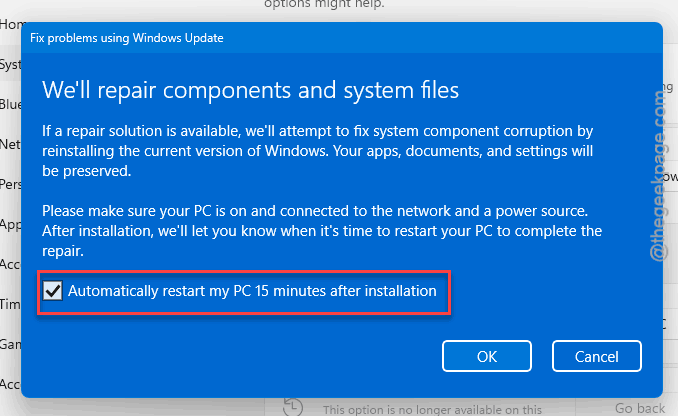
7 – Walk away. This takes 30-60 minutes. Your PC will restart a few times.
When it’s done, KB5089549 will probably install on its own. Or you can manually trigger it from Windows Update.
Fix 2 – Manually Download KB5089549 From the Catalog
The Windows Update auto-installer is finicky. The manual installer is more reliable. Just grab the update file directly and run it.
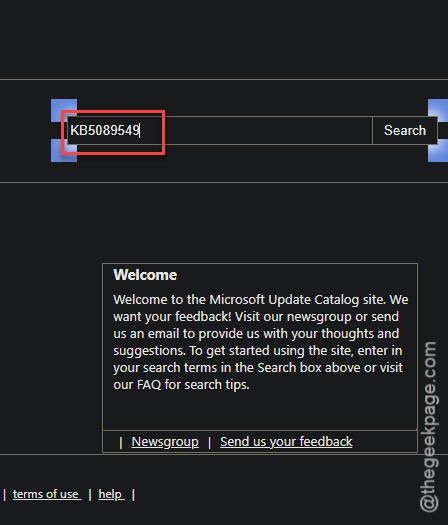
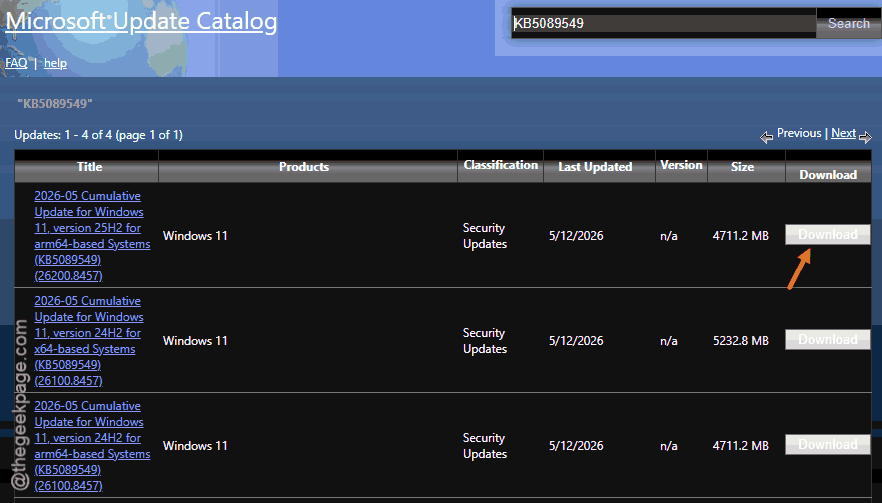
1 – Open a browser and go to Microsoft Update Catlog.
2 – Next, write down KB5089549 in the search box at the top right.
3 – Press Enter.
4 – Find the version for your system. For most people that’s x64.
5 – Click Download next to it.
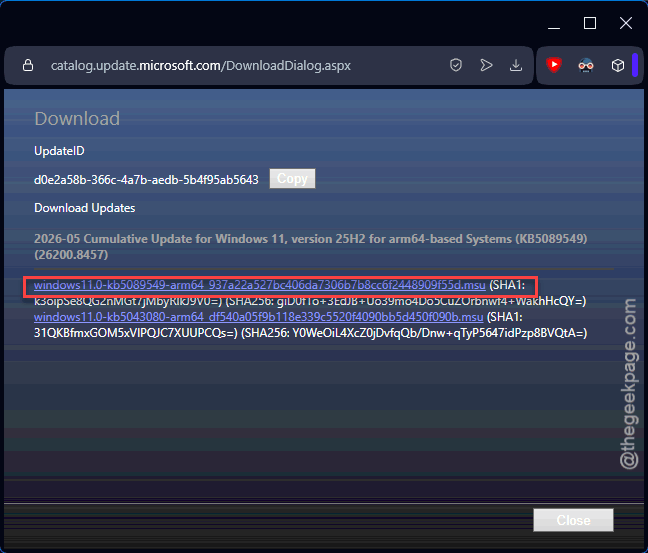
6 – A small popup window opens with the actual .msu file link.
7 – Click that link to download.
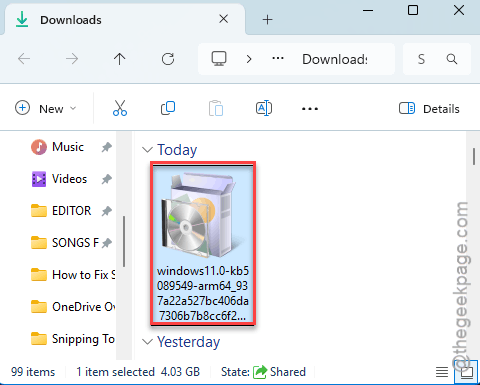
8 – Double-click the downloaded .msu file to install.
9 – Follow the prompts. Reboot when done.
Skips the broken auto-installer entirely. Worth trying.
Fix 3 – Run the Windows Update Troubleshooter First
Sometimes it’s the whole fix. Microsoft’s built-in Windows Update troubleshooter tool catches a lot of this.
1 – Press Windows + I to open Settings.
2 – Click System on the left sidebar.
3 – Scroll down and click Troubleshoot.
4 – Click Other troubleshooters.
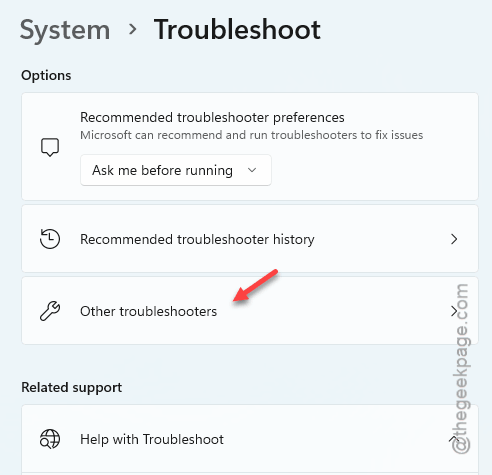
5 – Find Windows Update in the list.
6 – Click Run next to it.
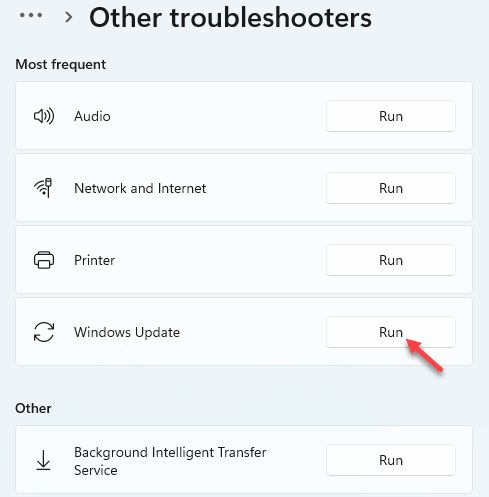
7 – Let it do its thing. It might take a few minutes.
8 – Reboot when prompted.
9 – Try the update again from Settings > Windows Update.
Works maybe a third of the time. But it’s a fast first try.
Fix 4 – Reset Windows Update Components
If the Update cache got corrupted, no amount of retrying will help. You need to wipe and rebuild it.
1 – Right-click the Start button.
2 – Click Terminal (Admin).
3 – Click Yes on the UAC prompt.
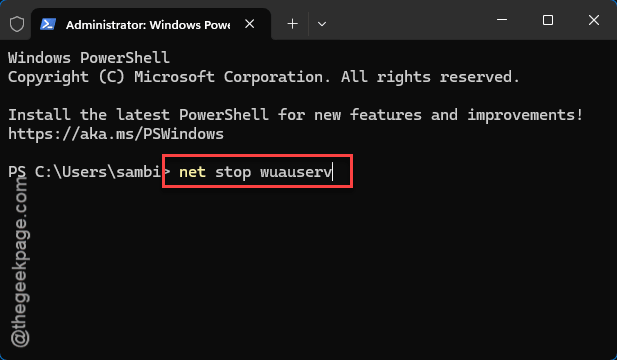
4 – Copy-paste these commands in the terminal from here one at a time, pressing Enter after each:
net stop wuauserv

net stop cryptSvc

net stop bits

net stop msiserver

ren C:\Windows\SoftwareDistribution SoftwareDistribution.old

ren C:\Windows\System32\catroot2 Catroot2.old

net start wuauserv

net start cryptSvc

net start bits

net start msiserver
5 – Close PowerShell.
6 – Reboot.
7 – Try Windows Update again.
This wipes the cache and gives Update a clean slate. Works more often than people expect.
Fix 5 – Run DISM and SFC
Component Store corruption is a sneaky cause of 0x800f0991. Two built-in tools fix it. Run them in order.
1 – Open Terminal (Admin) again.
2 – Paste this:
DISM /Online /Cleanup-Image /RestoreHealth
3 – Press Enter.
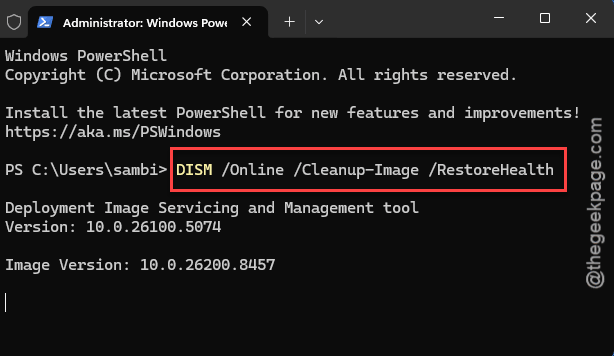
4 – Wait.
5 – Once DISM finishes, paste this
sfc /scannow
6 – Press Enter.
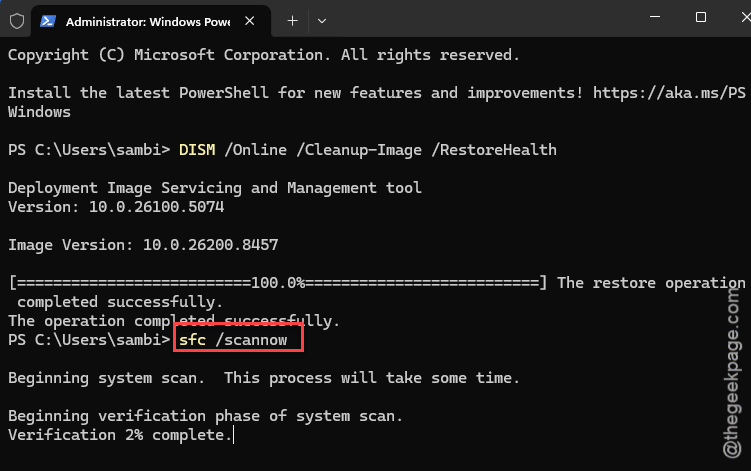
7 – Wait again. Could take 15 minutes.
8 – Reboot when both finish.
9 – Try KB5089549 from Windows Update.
DISM repairs the Component Store. SFC repairs system files. Together they fix the underlying state that’s causing the install error.
Fix 6 – In-Place Repair Using Media Creation Tool
If nothing else worked, this is the nuclear option that’s still safe. You’re basically reinstalling Windows on top of itself — keeping all your files and apps.
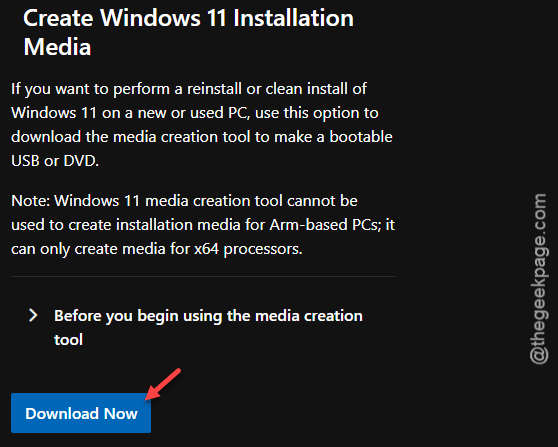
1 – Go to Windows 11 official webpage.
2 – Scroll down to Create Windows 11 Installation Media.
3 – Click Download now.
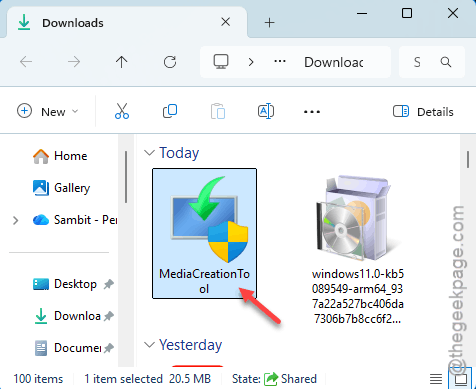
4 – Run the downloaded MediaCreationTool.exe.
5 – Accept the license.
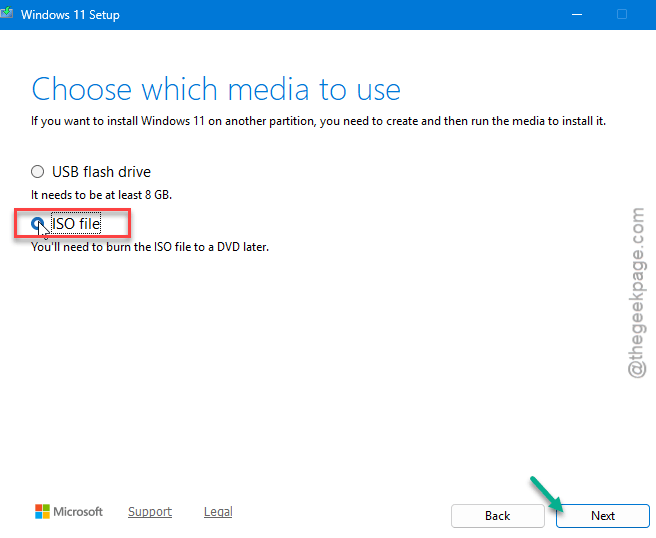
6 – Pick Create installation media > ISO file.
7 – Save the ISO to your Desktop.
8 – When it’s done, double-click the ISO file. Windows mounts it as a virtual DVD.
9 – Open the mounted drive in File Explorer.
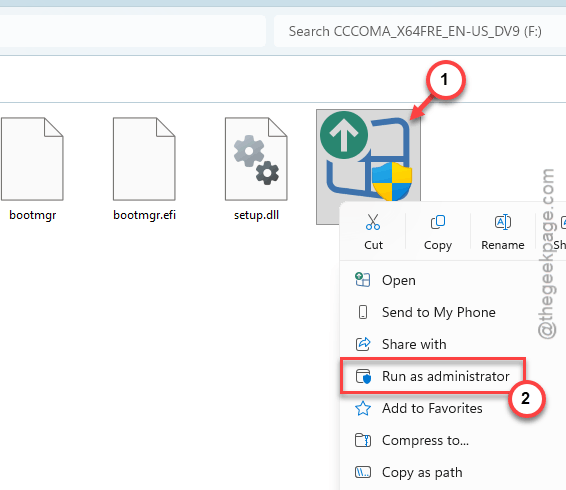
10 – Double-click setup.exe.
11 – Walk through the prompts. CRITICAL: when it asks what to keep, pick Keep personal files and apps.
12 – Let it run. It may take a while.
This time, you won’t get the error.
How to Prevent This
- Don’t pause Windows Updates for months at a time. Big gaps between updates make install errors more likely.
- Maintain 20GB free space in the Windows drive (generally C: drive). Windows Update needs working room. Cramped drives cause install failures.
People Also Ask
What is install error 0x800f0991?
The installation error 0x800f0991 incurs possibly from the non-functional windows update services. The lack of free space in the C drive is another reason behind this issue.
How to troubleshoot error 0x800f081f when installing roles and features?
Different error but related. The error code 0x800f081f means Windows can’t locate the feature source files of the update packge. You may need to point DISM scanner code at a Windows ISO with the /Source parameter. On Windows 11 24H2 or later version, you can easily reinstall Windows 11 update package from the Settings page.