You hit Windows + Shift + S. The crosshair shows up. You drag, you snip. And then? Nothing. No popup. No clipboard copy. Just silence. The Snipping Tool is broken again.
Why This Happens
Basically? Snipping Tool relies on the clipboard service and Windows Explorer to work properly. If either gets stuck or the app crashes silently in the background, your snip goes nowhere.
Why does this start out of nowhere? A few things. In some cases the certificate inside the app expires, breaking it until Microsoft patches it. Weird, but real.
And if you still have the old Snip & Sketch installed? The two apps clash. One steals the shortcut and the other does nothing.
Fix 1 – Restart Windows Explorer
Start here. Takes ten seconds.
1 – Right-click the Taskbar and click Task Manager. Or just press Ctrl + Shift + Esc.
2 – Type Explorer in the search box at the top.
3 – Right-click Windows Explorer in the results.
4 – Click Restart.
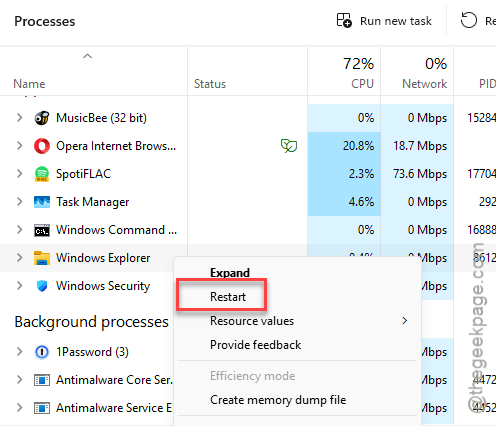
Your taskbar will flash. That’s normal. Try Windows + Shift + S again — it usually works right after.
Fix 2 – Check Notifications and Focus Settings
Sometimes the tool is fine. You just can’t see the popup. Quick test first.
Press Windows + Shift + S. Take any snip. Now press Ctrl + V in Paint, Word, or even the address bar. If it pastes? The capture worked. The notification was just hidden.
Fix the notification visibility:
1 – Load up the Windows + I buttons together.
2 – Next, go this way –
System > Notifications
3 – Make sure the master toggle at the top is On.
4 – Go down to Notifications from apps and other senders section.
5 – Find Snipping Tool. Toggle it On.
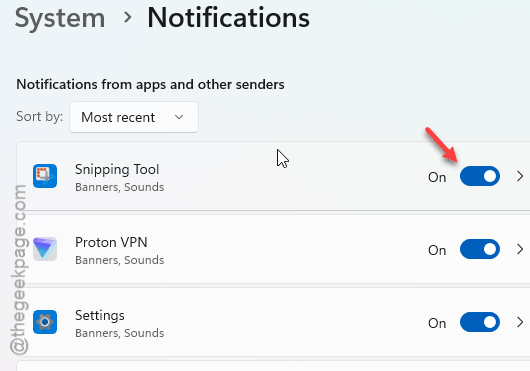
6 – Check whether the Focus mode is turned on from the taskbar. Turn it off immediately.
Fix 3 – Repair and Reset the App
If the Explorer restart didn’t help, the app itself probably needs a fix.
1 – Press Windows + I.
2 – Click Apps > Installed apps.
3 – Type Snipping Tool in the search box.
4 – Click the three dots (⋯) next to it. Click Advanced options.
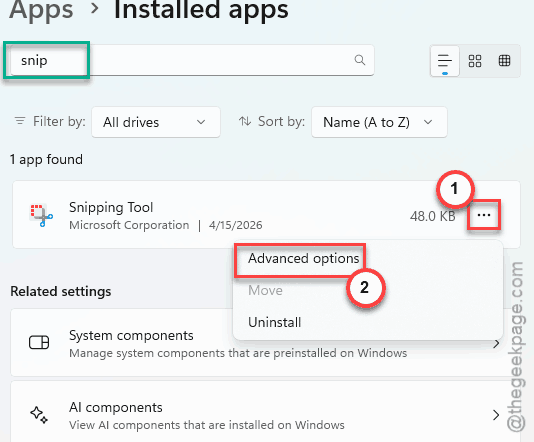
5 – Scroll down to the Reset section.
6 – Click Repair first. This won’t delete anything.
7 – Still broken? Click Reset.
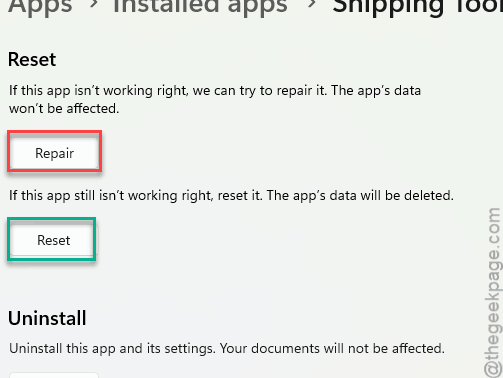
This wipes the app’s internal data but doesn’t touch your saved screenshots.
See if this works.
Fix 4 – Uninstall the Old Snip & Sketch
Just uninstall the Snip & Sketch tool and re-install it.
1 – Press Windows + I.
2 – Click Apps > Installed apps.
3 – Search Snip & Sketch.
4 – Tap the three dots button next to it. Click Uninstall.
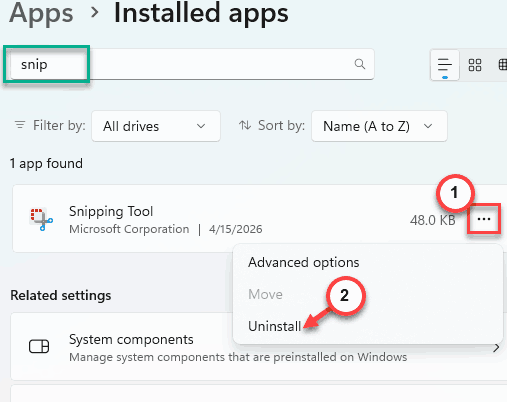
5 – Restart your PC.
Try the shortcut again. For some people, that’s the entire fix.
Fix 5 – The Date Bug Trick (Windows 11)
Sounds insane. But, this has worked for many users sharing the same problem.
1 – Press Windows + I. Open Settings.
2 – Click Time & language > Date & time.
3 – Turn off Set time automatically.
4 – Tap the Change next to Set the date and time manually.
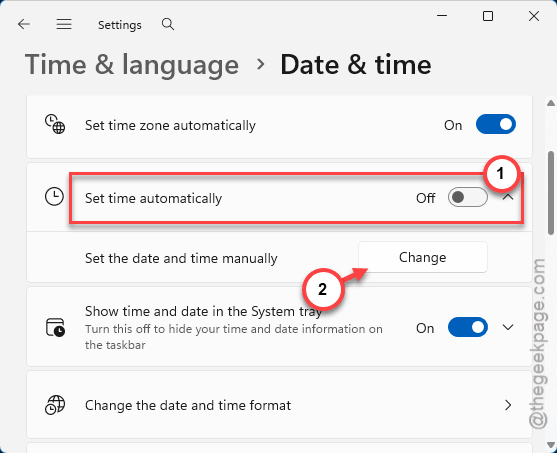
5 – Set the date to October 31, 2025.
6 – Save it.
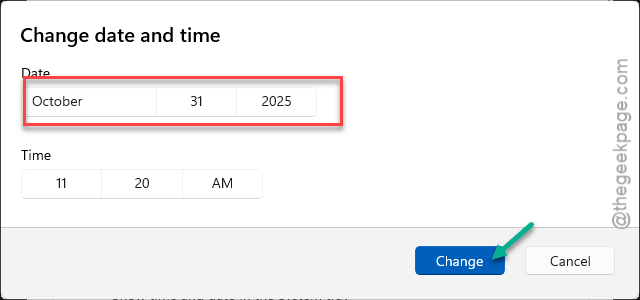
7 – Open Snipping Tool. Take a snip.
8 – Go back to Date & time and turn Set time automatically back On.
Weird? Yes. Effective? Also yes. This unsticks the certificate check and the tool starts working in the present too. Just don’t forget to flip the clock back.
Fix 6 – Run an SFC Scan
Possible system file corruption in your computer may lead to this issue.
1 – Press the Windows key and type CMD.
2 – Right-click Command Prompt in the results.
3 – Click Run as administrator.
4 – In the black window, type:
sfc /scannow
5 – Press Enter.
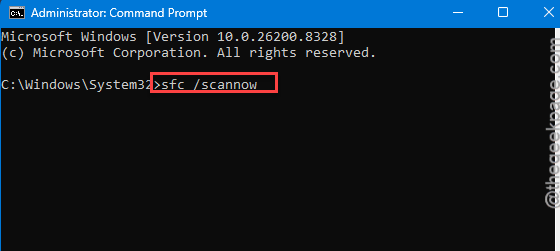
Wait till the scan completes and the status reaches 100%. Check if this works.
Fix 7 – Kill the Hung Background Process
Sometimes the Snipping Tool can sometimes hang up in the background.
1 – Open Task Manager with Ctrl + Shift + Esc.
2 – Click the Details tab. Some Windows 11 builds show this under Processes instead.
3 – Look for SnippingTool.exe or ScreenSketch.exe.
4 – Right-click it. Click End task.
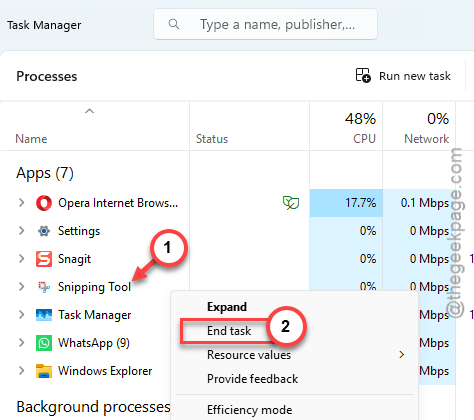
5 – Try Windows + Shift + S again.
If the process keeps coming back from the dead? Restart your PC. That kills the truly stuck ones.
How to Prevent This
- Keep Snipping Tool updated through Microsoft Store. Microsoft patches these certificate bugs fast.
- Don’t run Focus Assist all day. It blocks more than people realize — Snipping Tool included.
- Uninstall Snip & Sketch if you don’t use it. One screenshot tool at a time is plenty.
- Restart your PC at least once a week. A lot of background process bugs just clear themselves overnight.
People Also Ask
Why isn’t Snipping Tool copying to clipboard?
Usually because Windows Explorer or the clipboard service got stuck. Restart Explorer from Task Manager first. There are other routes you can take like to repair the Snipping Tool.
Why is the Snipping Tool not capturing?
A few common causes. A buggy Windows 11 update. An expired signing certificate inside the app. Or a conflict with the old Snip & Sketch still installed somewhere. Run Repair first. Then uninstall Snip & Sketch. If neither works, try the date-rollback trick — sounds dumb but works.