Hit Windows + Shift + S. The screen dims like it always does. But then? Just grey. No crosshair. No overlay. Frozen.
Or worse — your whole desktop locks up until you force-end the app. Yeah, that’s a thing.
Why This Happens
Short version: Snipping Tool is hanging mid-launch. The grey overlay is technically the capture mode trying to start. But something in the rendering pipeline gets stuck — and the app freezes before it can hand control back to you.
Why does it stick? A few reasons. Old GPU drivers. A corrupted app cache. Auto-save trying to hit a folder that no longer exists. Conflicting clipboard managers (Ditto, Clipdiary, etc.) hooking into the screenshot process.
And on top of that — the December 2024 and 2025 Windows updates introduced certificate issues that broke Snipping Tool for a lot of users. Microsoft acknowledged it. The fix? Install the next cumulative update, or work around it.
Bottom line — multiple causes, but the fixes are mostly the same. Quick stuff.
Fix 1 – End Snipping Tool from Task Manager
When the screen is frozen grey, you can’t click anything. So launch Task Manager from a different angle.
1 – Press Ctrl + Shift + Esc. This forces Task Manager open even when the rest of the screen is unresponsive.
2 – Look for Snipping Tool in the list.
3 – Click it once, then click End task at the top right.
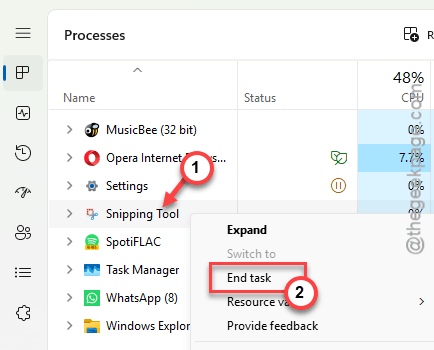
4 – The grey overlay should clear instantly.
5 – Try again. Sometimes that single relaunch fixes it.~~~
Also worth trying: the Game Bar trick. Press Windows + G, click the Resources widget, scroll to find Snipping Tool, end it. Same result, different path.
Fix 2 – Restart Windows Explorer
Quick one. Restarts the shell that handles overlays and the taskbar. Often unsticks Snipping Tool.
1 – Press Ctrl + Shift + Esc to open Task Manager.
2 – Find Windows Explorer in the Processes tab.
3 – Right-click it. Pick Restart.
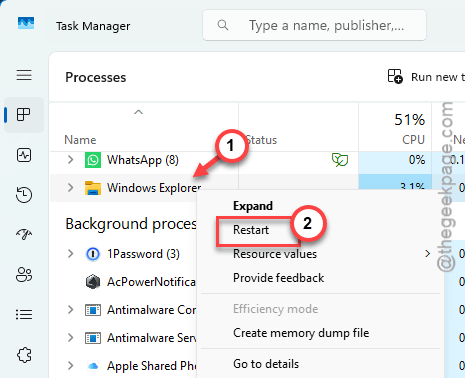
4 – Your taskbar will flash and reload.
5 – Now try Snipping Tool.
And honestly, this is one of the fastest fixes. Takes ten seconds.
Fix 2 – Use the Shutdown Trick
Weird but it works. Reported by users when nothing else clears the grey screen.
1 – Make sure you have a file open — Word, PowerPoint, Excel, anything with unsaved content.
2 – Press the Windows key on your keyboard.
3 – Click the Power icon. Pick Shut down.
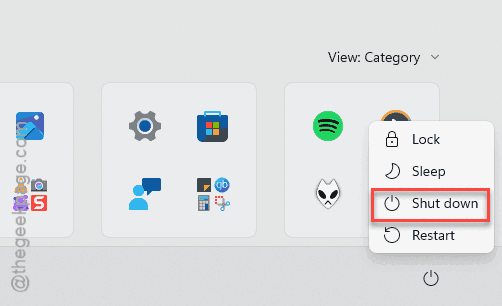
4 – Windows will pause to ask about unsaved work. Click Cancel immediately.
5 – You’ll be back at the desktop. Snipping Tool should now be closed.
Why does this work? Shutting down forces non-essential apps to close. Cancelling at the last second leaves you back where you started — minus the frozen Snipping Tool. Oddly effective.
Fix 3 – Repair and Reset
The catch-all for UWP apps. Works for grey screen issues more often than you’d think.
1 – Right-click the Start button. Pick Settings.
2 – Go to Apps > Installed apps.
3 – Stat to type snip in the search box.
4 – As soon as you see the Snipping Tool in the list, click the ⋯ button next to Snipping Tool. Pick Advanced options.
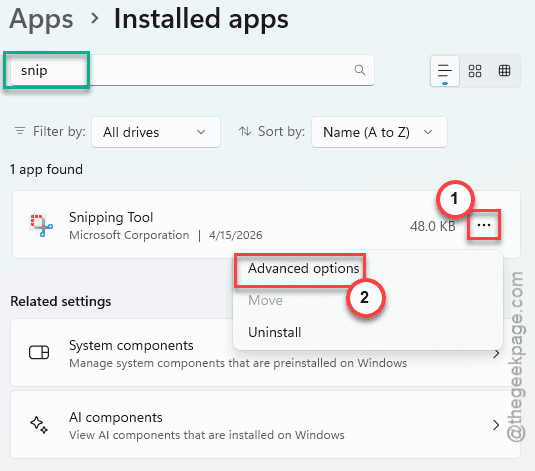
5 – Scroll down. Click Repair first.
6 – Test.
7 – Still grey? Come back and click Reset below the Repair button.
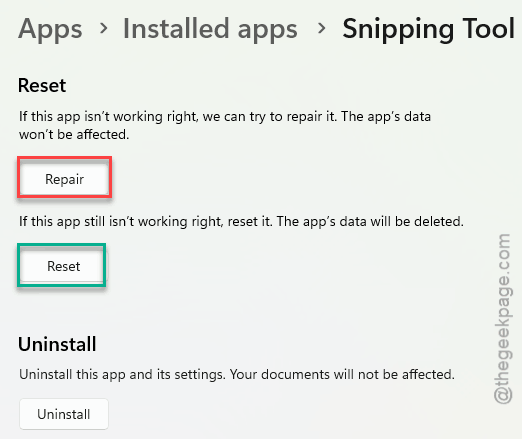
That clears all app data — but fixes deeper corruption.
Fix 4 – Disable Auto-Save and Clipboard
If Snipping Tool tries to auto-save to a folder that’s missing or restricted, it can hang. Same for the clipboard handoff.
1 – Open Snipping Tool (if it’ll open at all).
2 – Click the three dots (⋯) at the top right. Pick Settings.
3 – Toggle off Automatically save original screenshots.
4 – Toggle off Automatically copy to clipboard if it’s on.
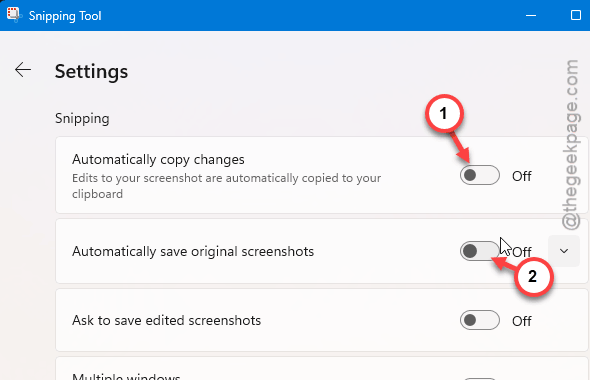
5 – Close Snipping Tool. Try again.
Worked? Try to use Snipping tool extensively and check whether the problem recurs or not.
Fix 5 – Reinstall Snipping Tool
When everything else fails, fresh install.
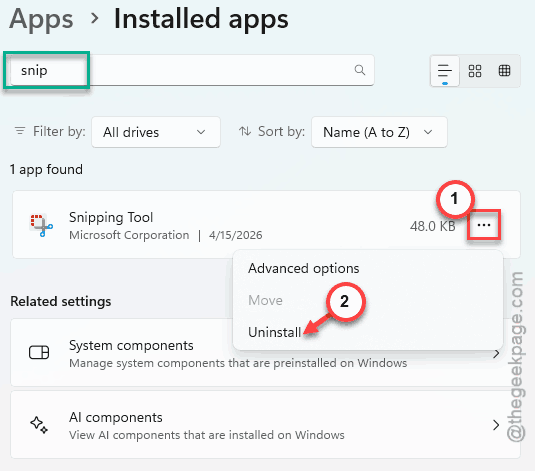
1 – Open Settings > Apps > Installed apps.
2 – Find Snipping Tool. Three dots (⋯) > Uninstall. Confirm.
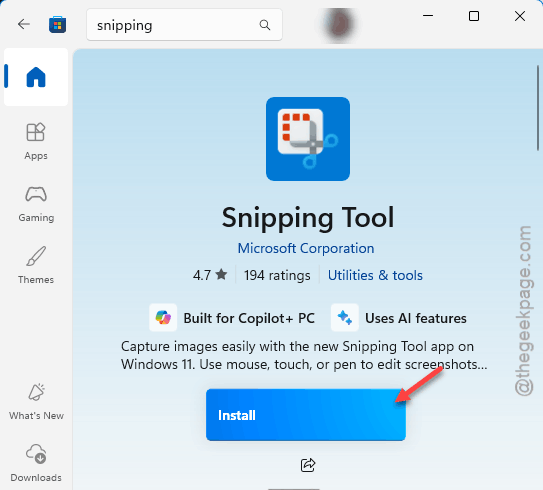
3 – Open the Microsoft Store.
4 – Search Snipping Tool. Pick the one by Microsoft Corporation.
5 – Click Get or Install.
6 – Restart your PC.
Fix 6 – Update Windows
If your grey screen issue started after a Windows update, the next update probably fixes it. Microsoft does ship hotfixes.
1 – Press Windows + I for Settings.
2 – Click Windows Update in the left sidebar.
3 – Click Check for updates.
4 – Install everything available. Including optional ones.
5 – Restart. Test Snipping Tool.
How to Prevent This
- We highly recommend you get rid of any external clipboard managers like Ditto, Clipdiary parralely on your system. They fight Snipping Tool for the screenshot handoff.
- Set your Snipping Tool save folder to somewhere safe — Pictures works fine. Don’t point it to a OneDrive folder that gets paused.
- Keep your GPU driver fresh. NVIDIA, AMD, Intel — straight from the vendor, not just Windows Update.
People Also Ask
Why is the Snipping Tool grey screen?
The app is hanging mid-launch. There are many probable reasons behind this problem, like possible GPU driver issue or a bug in Windows system. End it from Task Manager and restart Windows Explorer first.
Will resetting Snipping Tool delete my screenshots?
No. Resetting the app only ommits the app’s settings. Saved screenshots live in your Pictures folder — they’re untouched. So feel free to hit Reset without backing anything up. Quick fix, no risk.