You open a document. And it’s the wrong version. Old text. Missing edits. Your latest work? Gone. OneDrive does this sometimes. Painful, especially if you’ve been working all day.
Why This Happens
Basically? OneDrive sync gets confused. You edit a file on one device. Sync hasn’t finished yet. Then another device opens the older copy and pushes that one up as the “latest.” Boom — your fresh changes are buried.
And it gets worse when you’ve got multiple devices signed in. Or when one machine was offline for hours. Sync conflicts pile up. OneDrive picks a winner. Not always the right one.
But here’s the good news. OneDrive keeps version history. Up to 30 days for personal accounts. So your real version is probably still there. You just need to dig it out.
Fix 1 – Restore the Previous Version
This is the easiest fix. Every file in OneDrive has version history. Open it, pick the one you want, restore it. Takes maybe a minute.
1 – Open your browser and go to onedrive.com.
2 – Now, go sign in with the Microsoft account that owns the file.
3 – Find the file. You can also use the search bar at the top if you don’t want to dig through folders.
4 – Right-click the file name. Or click the three dots (⋯) next to it.
5 – Click Version history from the menu.
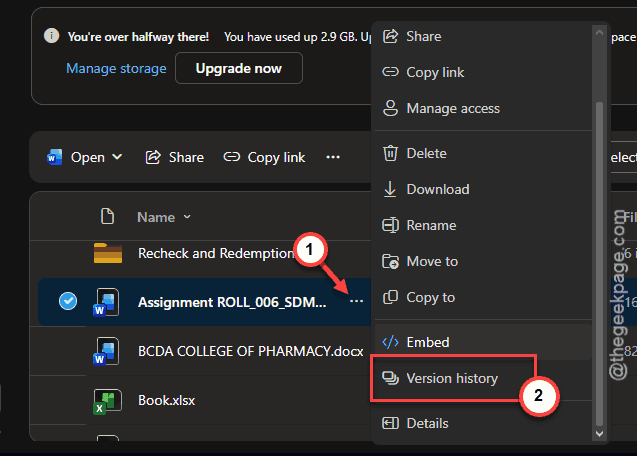
6 – A pane opens on the right. You’ll see all versions from the last 30 days.
7 – Click the three dots (⋯) next to the version you want.
8 – Click Open file first to preview it. Make sure it’s the right one before you commit.
9 – Use the Restore button to restore the file in OneDrive.
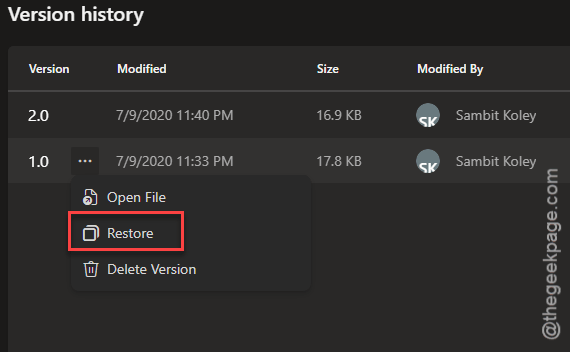
And the current version isn’t deleted. It just becomes another entry in version history. So if you mess up, you can roll forward again.
Fix 2 – Download the Old Version Without Restoring
Sometimes you don’t want to overwrite the current file. Maybe both versions have stuff you need. Just download the old one as a separate file.
1 – Open the file’s Version history pane (same way as Fix 1).
2 – Click the three dots (⋯) next to the version you want.
3 – Click Download.
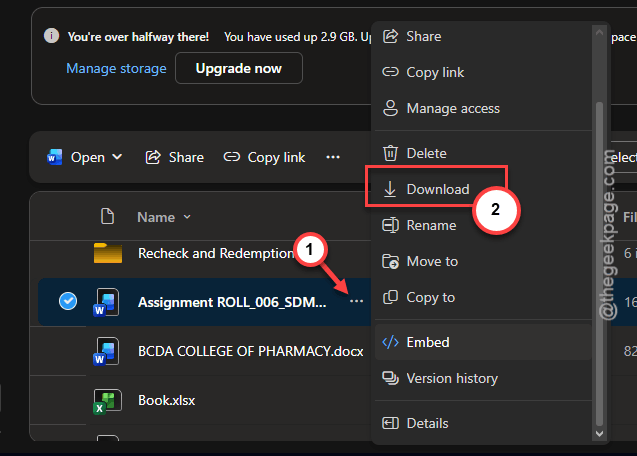
4 – The file lands in your Downloads folder. Rename it so you can tell it apart. Something like Report-OLD.docx.
Now you have both versions. Merge what you need.
Fix 3 – Restore Your Entire OneDrive
Lots of files got nuked? Whole folders went sideways? This is the big-button option. It rolls your entire OneDrive back to a specific point in time.
Heads up — this only works if you have a Microsoft 365 subscription. Free accounts can’t do this.
1 – Go to onedrive.com in your browser.
2 – Then, sign in with the correct account.
3 – Do tap the Settings gear in the top-right corner.
4 – Click Options.
5 – Click Restore your OneDrive in the left sidebar.
6 – Pick a date from the dropdown. Yesterday, One week ago, or a custom date.
7 – Look at the activity feed below. It shows every file change in reverse order. Scroll through and pick the activity right before the bad stuff started.
8 – Click Restore.
Everything reverts to that point. Files that got created after the restore date go to your Recycle Bin. So nothing’s permanently lost.
Fix 4 – Check the OneDrive Recycle Bin
Quick check. Sometimes the file isn’t “overwritten” — it was actually deleted. Go to onedrive.com, click Recycle bin in the left sidebar, look for your file. Right-click and click Restore. Done. Files stay there for 30 days on personal accounts. 93 days for work or school.
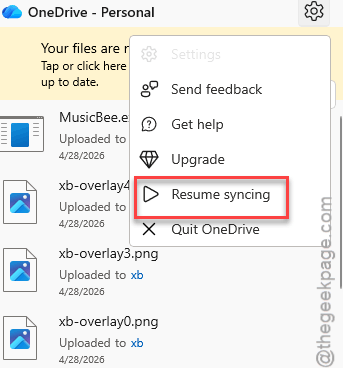
Fix 5 – Pause Sync If You’re Mid-Crisis
If overwrites keep happening as you work, pause OneDrive immediately. Otherwise it’ll keep syncing the wrong version everywhere.
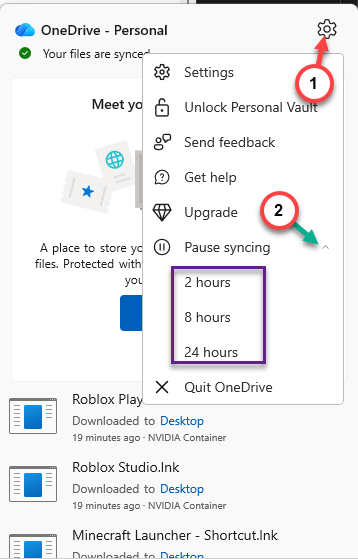
1 – Look at your taskbar. Find the OneDrive cloud icon near the clock. You may need to click the up arrow (^) to see hidden icons.
2 – Click the OneDrive icon.
3 – Click the gear icon at the top of the popup.
4 – Click Pause syncing. Pick any of the preferred time period such as 2, 8, or 24 hours from the drop-down tab.
5 – Later, you can easily restore your files. You may follow the steps mentioned in Fix 1 or Fix 3.
6 – Resume sync only after the right versions are in place.
Check if this works.
How to Prevent This
- Keep important files in folders with limited sharing. The more people editing, the more conflicts. Period.
- If you’re editing offline a lot, manually save with a new name when you finish. Like Report-Mar23.docx. Saves the day when sync goes weird.
People Also Ask
How do I restore overwritten files in OneDrive?
At first, locate the file in the OneDrive. Then, right-click the file and use Version history. You can find the saved versions of the file there. The current version isn’t lost — it just becomes another entry.
How do I restore my OneDrive to a previous date?
This particular feature is a part of the offerings of the Microsoft 365 subscription plan. You have to go to OneDrive web console. Then, open the Settings and proceed to the Options, and then you can use the Restore your OneDrive function. You can restore the OneDrive to . It rolls back the entire account. Anything created after that date goes to Recycle Bin, not deleted permanently. Worth knowing.