Several iPhone users have notified about the slow preview, slow focus issues on their iPhone’s camera after getting the iOS 26 update. According to these user reports, the iPhone’s camera is taking too much time to focus on the subject. There are many camera UI glitches, like slow loading preview, camera getting stuck. Here are some solutions that can fix the issue.
Fix 1 – Force Quit the Camera App
The basic workaround to this problem is just to force-close the Camera app, and relaunch the Camera app.
Step 1 – Swipe from the left-hand tab to load up the current apps.
Step 2 – Next, just force-close the Camera app.
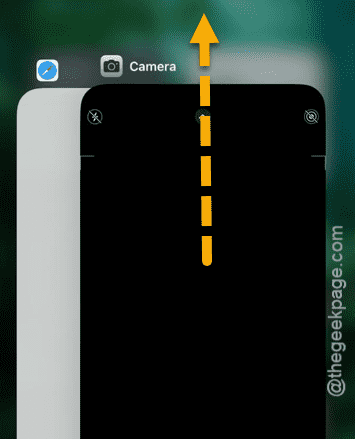
Step 3 – Then, relaunch the Camera app.
If this is just a one-time occurrence, these simple steps should resolve the issue.
Fix 2 – Reset all the iPhone’s Settings
You should reset all the iPhone’s settings to fix the camera issue that you are having on your system.
Step 1 – In the iPhone Settings page, go to the General tab.
Step 2 – Proceed to the Transfer or reset iPhone tab, next. Then, go to the Reset settings.
Step 3 – Next, tap the Reset All Settings to load it up.
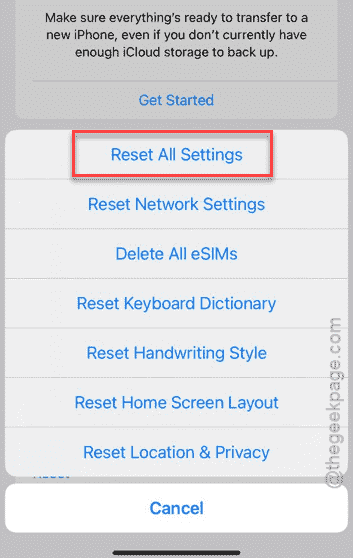
Step 4 – It will ask for your Apple password. Do input it there and start the resetting procedure.
It will reset all the settings modifications you have done on the device. The device may restart once. After the device restarts, test the camera.
Fix 3 – Remove any third-party lens accessory or tool
If you are using any third-party camera modifications or accessory to control the iPhone’s camera, this type of delay is not unusual. Some users prefer to use third-party custom cameras on their devices.
Step 1 – Go to the App Library.
Step 2 – Locate any third-party camera app that you have installed.
Step 3 – Hold it down, and tap Remove App and delete the app from your iPhone.
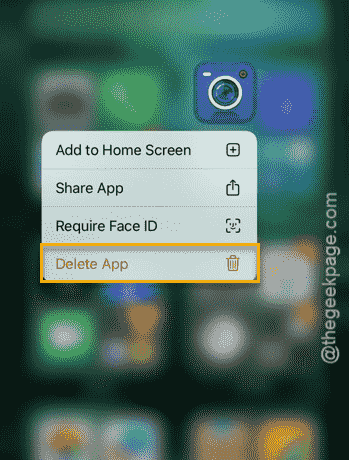
You should stick to the stock camera app of the iPhone, instead of using custom camera apps.
NOTE – Apart from this, make sure the phone case or add on lens protectors I’m not obscuring the camera sensor. These external enhancements can sometime cause slow focus on iPhones.
Fix 4 – Force Restart the iPhone
Typical bugs or glitches may cause this problem with the camera app on your iPhone. A simple force-restart procedure should help you fix the issue.
Step 1 – At first, press and release the Volume Up button.
Step 2 – Next, do that with the Volume Down button as well.
Step 3 – At the final step of the process, you must hold down the Power button of the iPhone for 10–15 seconds.
Once the device has force-restarted, test the camera. Check whether it is glitching out or slow preview or focus issues.
Fix 5 – Update the iPhone
Apple is already in the works to patch these inconsistencies and bugs with software updates and patches. So, you must install the latest available update on your iPhone to fix this issue.
Step 1 – To check for updates, open the Settings page, and proceed to Settings.
Step 2 – Go this way –
General ⇾ Software Update
Step 3 – In the Software Update section, install the pending iOS 26 update patch.
The update process depends on several conditions like, network speed, free space you have on the iPhone, and the update size itself. So, once the entire process is complete, test the camera.
Hope these fixes have helped you resolve the issue.