The Microsoft Teams client can become sluggish and slow to load if the WebView2 process struggles with a bloated cache or hardware conflicts. Flushing the current local Teams cache should solve this problem; setting the Teams app in power-saving mode should do it. We have discussed the solutions for all possible scenarios. So, just follow them to make the Teams app run faster and smoother.
| Issue | Recommended Fix |
| Laggy Typing | Run the MS Teams in Power Saving Mode |
| Slow startup | Clear the Teams LocalCache folder (Fix 2) |
| Teams and Outlook is slowing down | Turn off the add-ins for MS Outlook |
Fix 1 – Clear the Microsoft Teams Cache
If the Microsoft Teams save too many files in the local cache, it can slow down the performance of the application.
Step 1 – Close the Microsoft Teams app. Then, go to the system tray in the taskbar.
Step 2 – Then, right-click the Microsoft Teams app, and tap Quit Teams.
Step 3 – Load up a Run box. Put this address in there, and click OK.
%LocalAppData%\Packages\MSTeams_8wekyb3d8bbwe\LocalCache\Microsoft\MSTeams
Step 4 – Delete all the contents from that MSTeams folder.
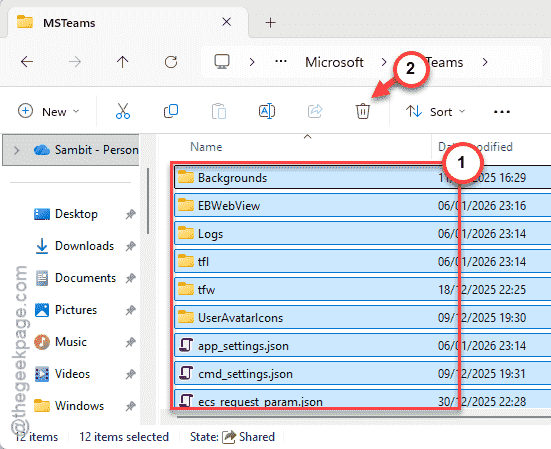
After emptying the contents of the MSTeams folder, relaunch the Teams client. Check if this works.
Fix 2 – Run the Teams in Power Saving mode
If you are experiencing a typing lag in Microsoft Teams, you should run the application in Power Saving mode.
Step 1 – Load up the Settings page on Windows.
Step 2 – Then, go to the System tab. Proceed to the Display section.
Step 3 – Go to the Graphics settings.
Step 4 – Find the Microsoft Teams app there and set it to Power Saving mode.
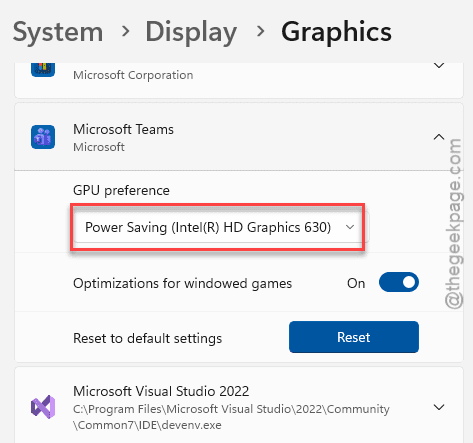
Running the Microsoft Teams app in power-saving mode should help run the app efficiently.
Fix 3 – Disable the Register Teams as the chat app
Teams continuously trying to communicate in the background may cause it to slow down.
Step 1 – Load up the Microsoft Teams app.
Step 2 – Then, tap the three-dot button, and tap Settings.
Step 3 – Go to the General tab. Uncheck the Register Teams as the chat app for Office setting.
This should fix the slow, sluggish effect that you are having in the Teams client.
Fix 4 – Clear the Teams Meeting Add-in
Sometimes, the Outlook plug-ins can slow down the Teams app.
Step 1 – Open the Microsoft Outlook client. Then, go to the File tab. Proceed to the Options tab.
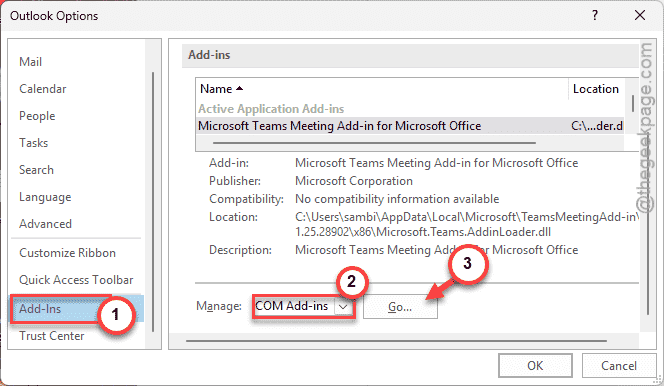
Step 2 – Go to the Add-ins console.
Step 3 – Tap the COM Add-ins and click Go to proceed.
Step 4 – Uncheck the Microsoft Teams Meeting Add-in for Microsoft Office tab. Click OK to save the changes.
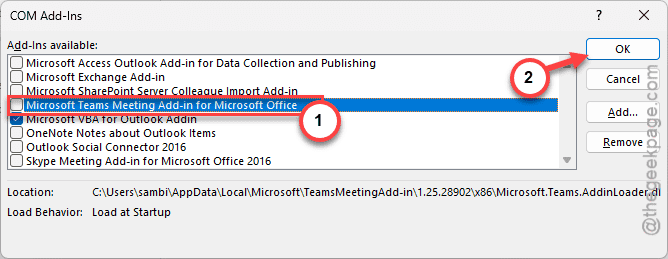
After disabling the Teams add-in, close and relaunch the MS Teams client.
Fix 5 – Repair or reset the Teams client
Repair the Microsoft Teams client to resolve the slow, sluggish effect on the Teams client.
Step 1 – At first, load up the Windows Settings.
Step 2 – Next, go to the Apps tab. Next, open the Installed Apps tab on the right-hand pane.
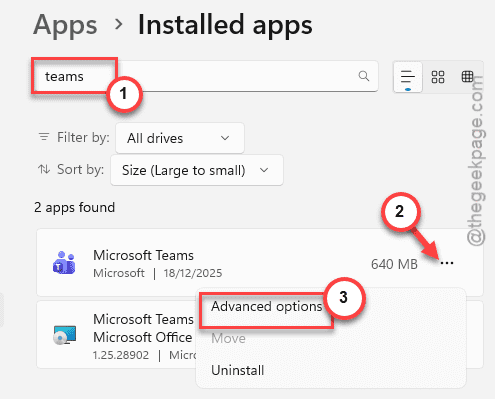
Step 3 – Search for the teams app. Then, tap the three-dot button next to the Microsoft Teams app, and tap Advanced options.
Step 4 – Now, once it leads to the Teams settings page, tap the Repair button. This will repair the Teams client.
Step 5 – If repairing does not fix the issue, use the Reset command to reset the app.
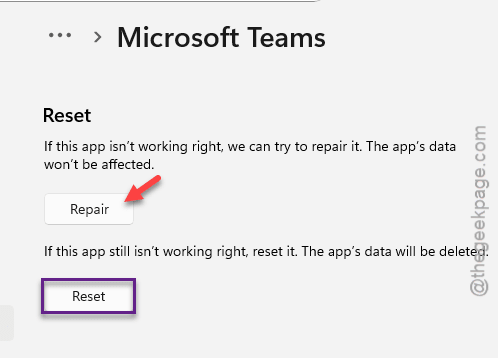
Resetting the Microsoft Teams app to the default version will let you start afresh.
You have to sign in with your account credentials once, but once you do that, the issue will be resolved.