Does your Apple Watch feel too slow to even perform regular tasks? Just like any other device, your Apple Watch may also slow down with continuous usage over the time. We have these cool tips and tricks that should help resolve the issue at your end. So, apart from the troubleshooting point of view, you may treat this article as a helpful guide to speed up your old Apple Watch as well.
Fix 1 – Force Restart the watch
How many times in your usage, you have ever restarted the Apple Watch? Most of the users never do this.
Step 1 – At first, hold the side button and the digital crown of the Apple Watch.
Step 2 – Hold on to those buttons until the device restarts automatically.
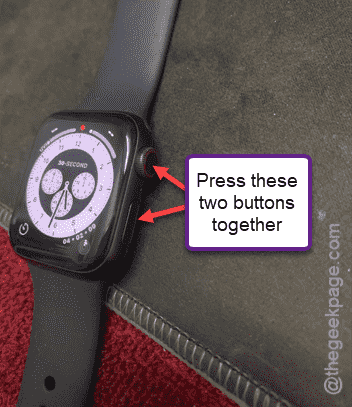
After the wearable restarts, try accessing features of the device. You will feel a definite improvement in the device operation.
Fix 2 – Free up some storage
You have to maintain a good level of free space on your Apple Watch.
Step 1 – To troubleshoot this, hit the digital crown on the watch.
Step 2 – Next, open up the Settings in there.
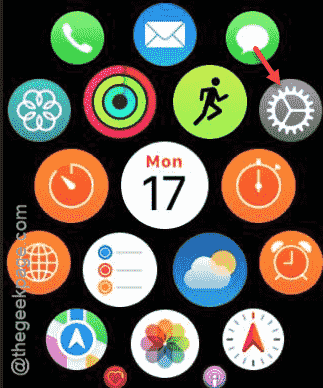
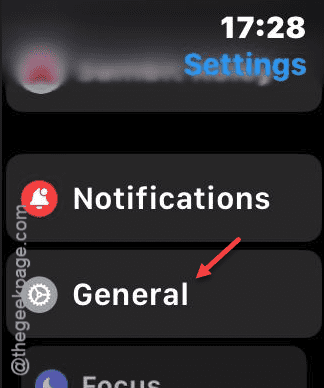
Step 3 – Reach the “General” settings on the watch.
Step 4 – On the General tab, open up the “Storage” option.
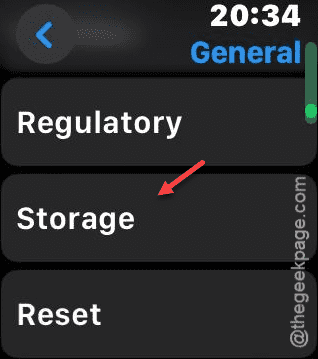
Step 5 – Look at the current status of storage on the watch.
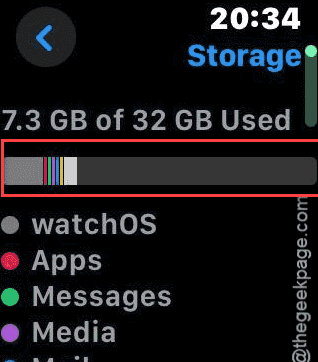
If you see the free space on the watch is less than 10% of the total storage, you have to clear at least some of it. The more free space you have, easier it should be to handle the device.
Fix 3 – Close the background apps
Too many apps running in the background of the watchOS can slow it down considerably.
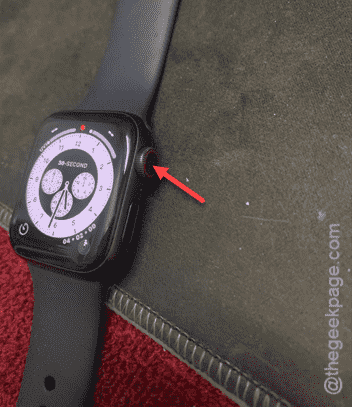
Step 1 – To do this, double-tap the digital crown button on your watch.
Step 2 – Doing this should show you the apps that are currently running on the device.
Step 3 – Drag the opened app windows one-by-one to close the apps.
Step 4 – You must close all the apps on the device.
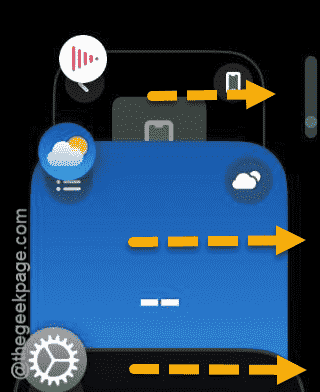
This should improve the user experience on the device.
Fix 4 – Turn off Background App Refresh
You should turn off the background app refresh directly from the Apple Watch settings.
Step 1 – You have to press the digital crown on the watch.
Step 2 – Next, navigate to the Watch settings page.
Step 3 – In the Watch settings page, reach the “General” section.
Step 4 – Reach the “Background App Refresh” settings.
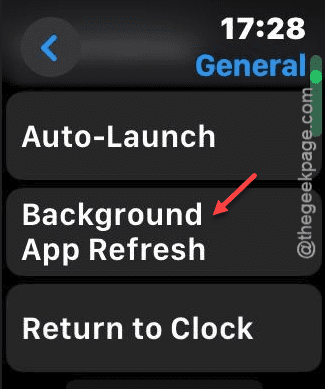
Step 5 – Turn off the “Background App Refresh” module.
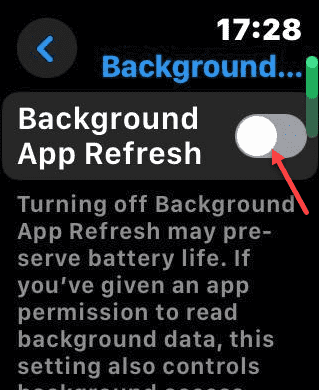
This will make the watch faster, and more agile to use.
NOTE – The background app refresh allows the watch to fetch app notifications based on their current background activity. Turning it off may limit some notifications on the watch.
Fix 5 – Refresh the reduce motion feature
Sometimes the ‘Reduce Motion’ feature on the watch may affect adversely affect the watch performance.
Step 1 – Go to the Settings page of Watch once more.
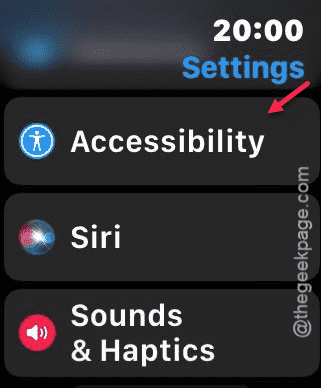
Step 2 – Then, go to the “Accessibility” suite of settings.
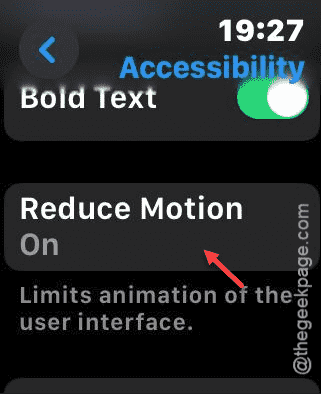
Step 3 – Find the “Reduce Motion” option and open that up.
Step 4 – Turn it off from there.
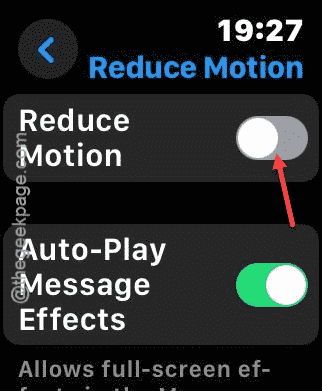
Check the status of the watch now. It should definitely be faster now.