Does your Outlook feel slow after the update? Microsoft has a proper channel of updates for their services like Microsoft Outlook. Some of the users have noticed a significant slow performance on the Microsoft Outlook client after the July 2025 update. If you are also experiencing this kind of problem on your outlook client, the following solutions will be helpful in your case.
Tips : -Outlook becomes slow if having large number of emails or so. Try to Delete or archive old huge size emails to reduce mailbox size.
Fix 1 – Update the Outlook client
There is a chance that you are using an older version of the Microsoft Outlook where this issue has been seen.
Classic Outlook users –
Step 1 – To do this, load up the MS Outlook client on your system.
Step 2 – Then, head on to the File menu.
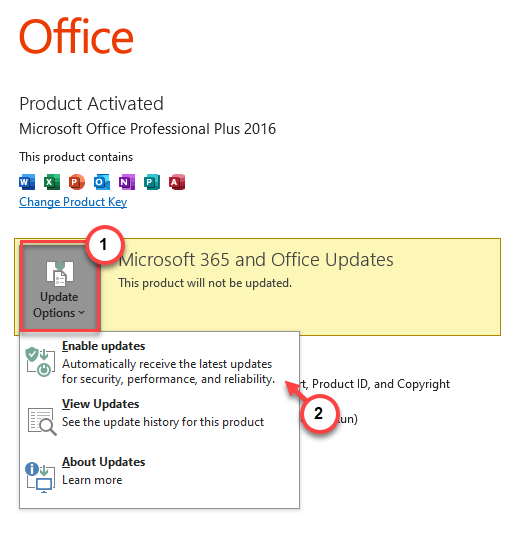
Step 3 – Thereafter, load up the Office Account section there.
Step 4 – Tap the Update Options there and use the Enable updates option from the drop-down to check and install any pending updates of MS Outlook.
Check back with the email messages you are facing problem delivering.
Outlook New app users –
You can update the Outlook New version directly from the MS Store.
Step 1 – To do this, load up the Microsoft Store app.
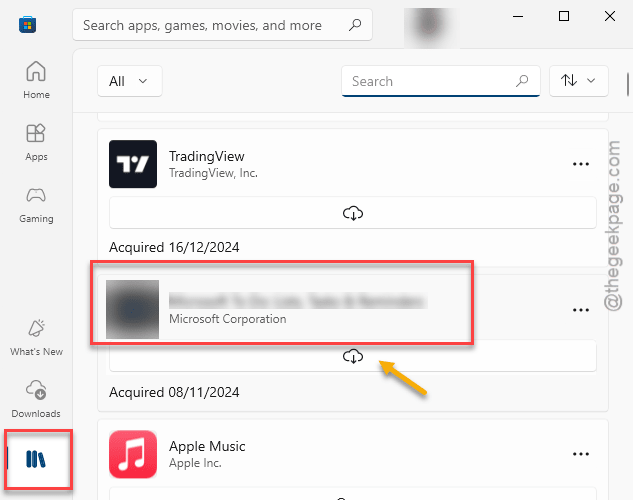
Step 2 – Next, go to the Library section.
The application pending updates will be listed there.
Step 3 – Scroll through them and look whether you can find any pending updates for the Microsoft Outlook program. Update it from there.
Wait for the app to get updated. Once it is updated, check again.
Fix 2 – Run the Outlook in Safe Mode
Try running the Microsoft Outlook in the Safe Mode to bypass all the influences of the add-ons.
Step 1 – Open up a Run dialogue box using the Windows key and the R buttons together.
Step 2 – Then, paste this code there and hit Enter.
outlook.exe /safe
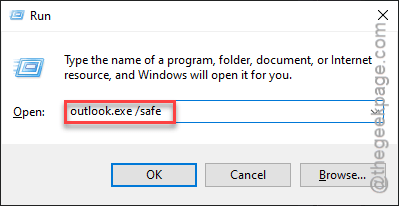
This will launch the outlook client in the safe mode. This particular mode restricts any third party plugins, add-ons.
Check the activity of the Outlook client once again.
Fix 3 – Disable the add-ons
To disable the add-ons on the MS Outlook program, you must
Step 1 – To do this, launch the Outlook (classic) version there.
Step 2 – Then, go this way –
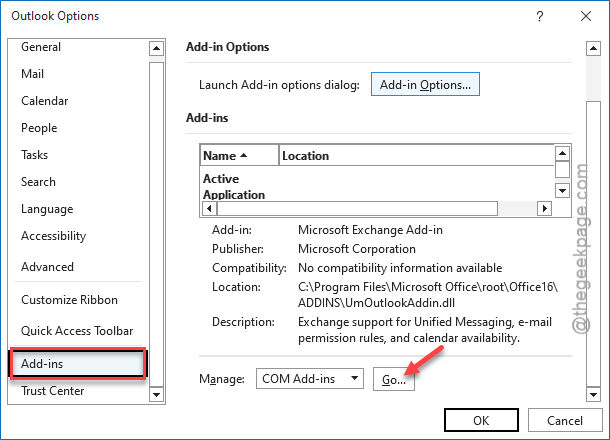
File > Options
Step 3 – Go to the Add-ins tab from the left column. Next, tap the Go button beside the COM Add-in section.
Step 4 – Uncheck all the Add-ins in the list.
Step 5 – Tap the OK button to save the changes.
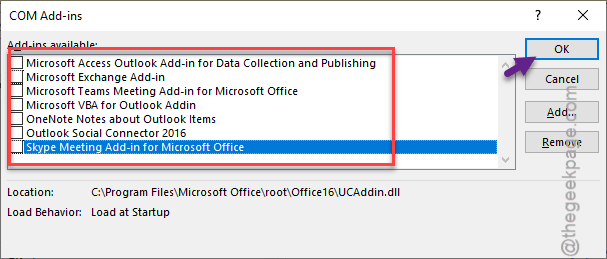
Once you have disabled all the add-ins, it should fix the slow issues that you were having on the Outlook client.
Fix 4 – Use the Classic Outlook
If you are consistently having this issue on the new Outlook app, you should revert to the classic version of the Outlook. The classic version of the Outlook offers should give you some respite from the ongoing issue with the latest client.
Fix 5 – Update the Microsoft Teams client
It seems that the Microsoft Teams plug in (and or the Teams client) has caused this problem.
Step 1 – If an update is pending for the MS Teams client, it will show up on the menu bar.
Step 2 – Now, tap the Update and restart option there to update and relaunch the MS Teams client.
After the update is installed, restart the system once. It will fix the issue with the Microsoft Outlook.