Many users have complained about the Safari browser loading pages extremely slowly and sometimes even crashing after getting the iOS 26 update. Although these Safari issues are not completely unexpected after a major iOS update, clearing the web cache and history should resolve everything back to normal. Sometimes, advanced tracking protection system can also crash specific tracker-intensive websites. So, follow these steps to fix the problem and get a snappier, fast web browsing experience on the Safari browser.
Fix 1 – Disable Advanced Tracking Protection
Many websites do load up slowly and sometimes can even crash when the advanced tracking and fingerprinting protection is enabled on the Safari browser.
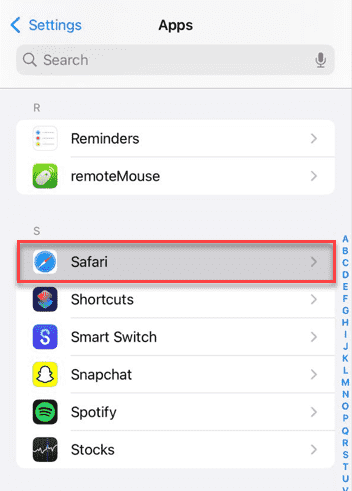
Step 1 – Load up the iPhone Settings. Proceed to the Apps tab.
Step 2 – Locate and open up the Safari settings.
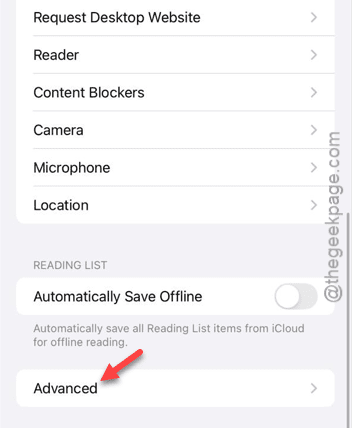
Step 3 – Scroll all the way to the bottom and tap Advanced.
Step 4 – Tweak the Advanced Tracking and Fingerprinting Protection to Off mode.
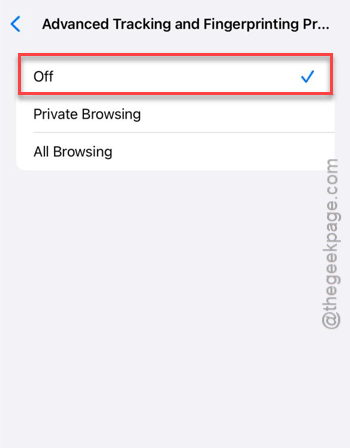
Reload the same webpage in Safari. Though you will get a few ads on the website, it will load up faster.
Fix 2 – Change the Tab Layout for Safari
The new Compact Layout of tabs in iOS 26 is suspected to linked with memory leaks. Switch to the Separate (Traditional) mode to fix this issue.
Step 1 – Proceed to the iPhone Settings. Tap the Apps to load up the list of apps installed on the device. Open the Safari app settings.
Step 2 – Go to the Tabs section. Choose the Separate Tab Bar.
Adopting the older layout should resolve the issue on the Safari browser.
Fix 3 – Clear the Safari Web Cache & History
The residue cache files from iOS 18 can sometimes conflict with the newer Safari web engine.
Step 1 – Open the iPhone Settings, and follow this path –
Apps ⇾ Safari
Step 2 – Click the Clear History and Website Data button once.
Step 3 – Choose All History and tap Clear History to clean up the older cache files and the browsing history from the Safari.
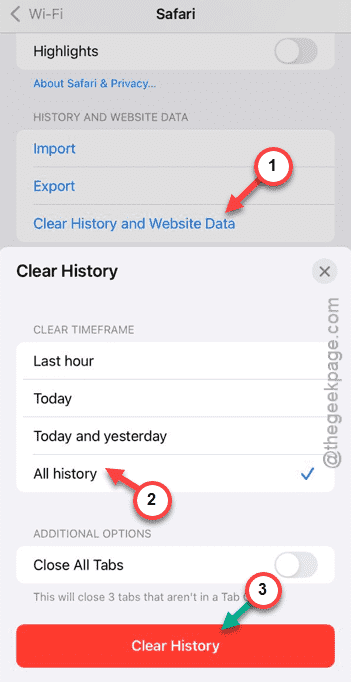
Clearing the cache and history will make the Safari load up the webpages faster. It will definitely feel snappier after this.
Fix 4 – Disable Suspecting Third-party Extensions
Several users have blamed third-party extensions like AdGuard or AdBlock Pro as the culprit that may increase the websites’ loading time.
Step 1 – Once again, follow this path to open up the Safari settings ⇾
Apps ⇾ Safari
Step 2 – This time, load up the Extensions tab.
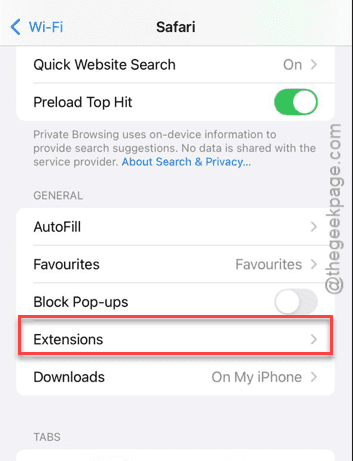
Step 3 – Turn off all the extensions there.
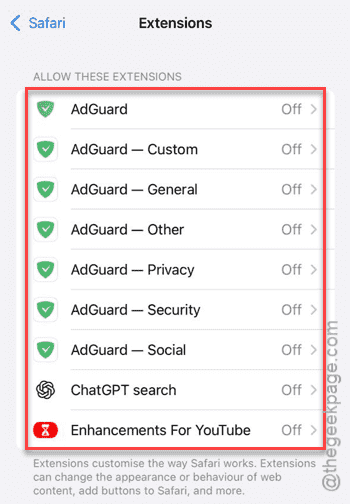
Then, proceed to the Safari browser and check the status. If you want to find the suspecting.
Fix 5 – Update the DNS Settings
iOS 26’s default DNS settings can cause this problem.
Step 1 – Open the Wi-Fi settings on iPhone.
Step 2 – Next, tap the ℹ button next to Wi-Fi to modify the Wi-Fi settings.
Step 3 – Find the Configure DNS and open it up, next.
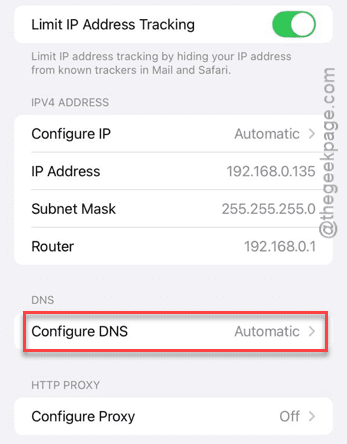
Step 4 – Then, set the DNS settings to Manual mode.
Step 5 – Tap the ➕ button and add these two DNS addresses –
8.8.8.8
8.8.4.4
Step 6 – Tap the Done button to save the changes.
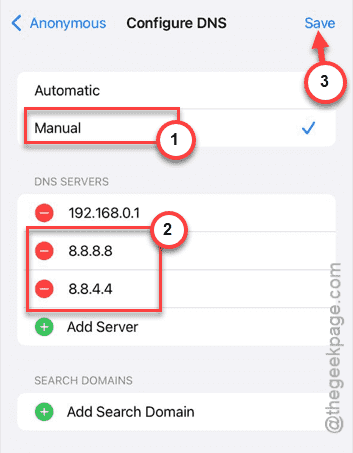
After saving these DNS changes, reconnect to the Wi-Fi, if needed. Then, try to open any of those websites again. Check whether you can access them or not.