Getting a black screen while trying to share the Microsoft Teams screen? Some users have experienced this problem where their entire screen turns black when they try to share with other participants on a call. This black screen is usually caused by permissions issues, or due to performance issues due to GPU limitations. These solutions will help you troubleshoot the problem, irrespective of the reasons that have caused the issue.
Fix 1 – Allow Screen Recording in Windows Privacy Settings
Windows has restrictions put upon the screen recording and screen sharing protocol.
Step 1 – Open the Windows Settings.
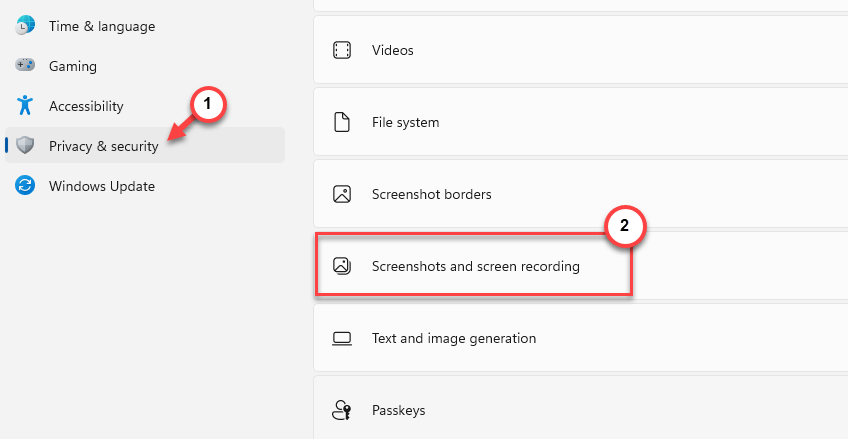
Step 2 – Next, go to the Privacy & Security tab. On the right-hand tab, open the Screenshots and screen recording settings.
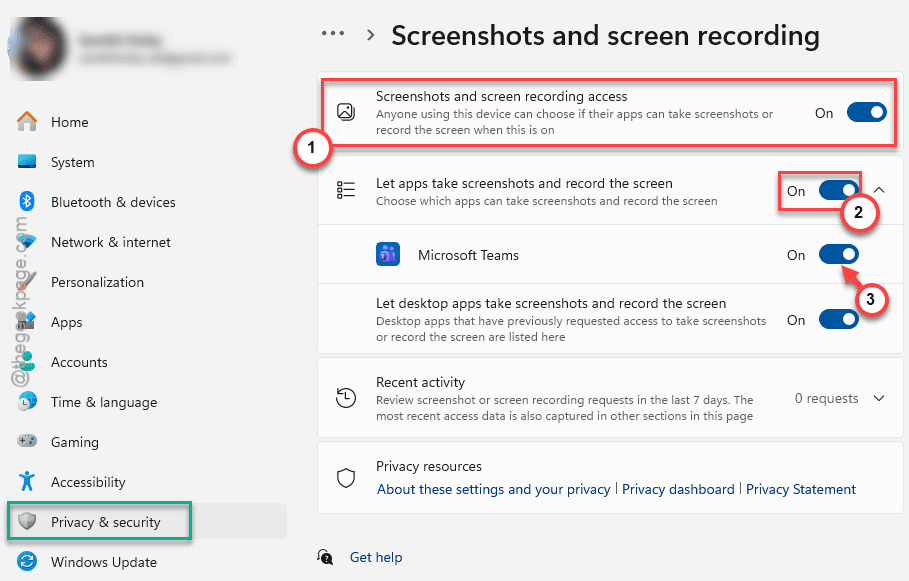
Step 3 – Turn on the Screenshots and screen recording access mode. Next, make sure the Let apps take screenshots and record the screen is enabled.
Step 4 – You will find the Microsoft Teams app there. Ensure that it is turned On.
Now, you can record your screen or share it with others on Microsoft Teams.
Fix 2 – Enable the Screen Sharing in Teams policy
It is not necessary for every user in a corporate meeting to share their screen. Only the host can share their screen and provide permission to others to share theirs on their particular request. So, you have to ask the host to allow you to share your screen.
Step 1 – Log in to the Microsoft Teams Admin Center with your administrative credentials.
Step 2 – Go to Meeting > Meeting Policies section and enable the Content sharing policy for the user account.
Step 3 – You may select the Screen sharing mode to Entire screen or One window at a time feature according to requirements.
NOTE – You should ask your IT administrator to apply these changes, if you don’t have those credentials.
Fix 3 – Reset the Teams cache
You have to reset the Microsoft Teams local cache.
Step 1 – Close the Teams client. Then, quit the Teams from the taskbar hidden apps as well.
Step 2 – Then, paste this address in the Run box and click OK. This way, you can reach the Teams local cache folder.
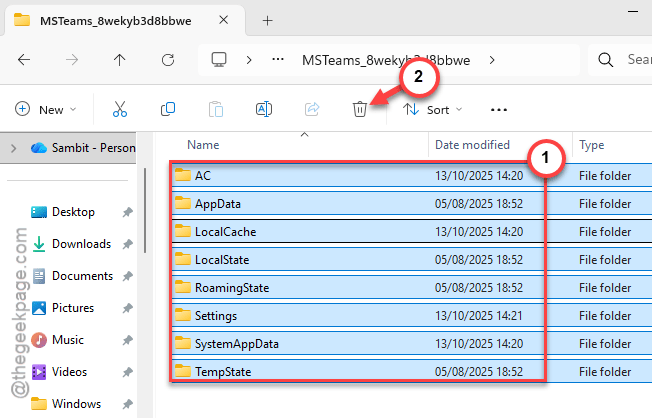
%localappdata%\Packages\MSTeams_8wekyb3d8bbwe
Step 3 – Select all the items there, and tap Delete to remove the cache files from there.
Step 4 – After this, open up the Teams client and log in with your account ID, password.
Once you have logged in, join the meeting and try to share your screen.
Fix 4 – Run the MS Teams in High Performance Mode
You must set the Microsoft Teams to run in the High performance mode.
Step 1 – Open the Windows Settings. Go to the System settings.
Step 2 – Proceed this way –
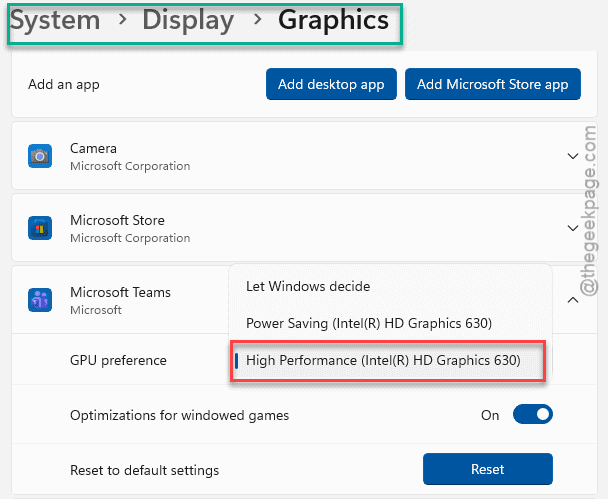
Display ⇾ Graphics
Step 3 – Then, find the Microsoft Teams app in the list. Switch the GPU Preference to use the High Performance mode all the time.
Step 4 – Now, if you can’t find the Microsoft Teams app in the list, tap the Add a Microsoft Store app, and select the Microsoft Teams from the list.
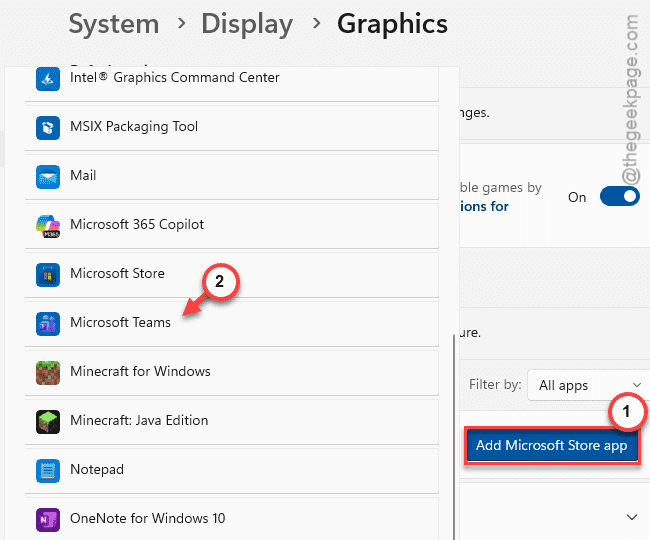
After this, you can enact the same steps discussed before to set it to run in the high performance mode.
This way, your shared screen won’t turn black again.