Facing continuous jitters, stutters, and performance lag since the iOS 26 update on your iPhone? Well, if you are experiencing any of these issues after installing the latest version of the iOS 26 on your iPhone, you will be slightly relieved to know that you are not alone. While the major iOS version updates has a history of users having lags, stutter issues, this new iOS26 update has severely affected the user devices. Here are some major solutions that should give the device an instant boost in performance, reducing lags and jitters.
Important Note for iOS 26 users –
Just after the introduction of a new iOS, your iPhone may face some bugs, jitters and various performance issues for the first few weeks. It is normal for your device to optimize itself towards the latest version of iOS while catering to your usage. So, the lag or stutter that you are experiencing should be gone within a week or two of upgrading to the iOS 26.
Fix 1 – Reduce Transparency Effect from Display Settings
The new Liquid Glass UI on the iOS 26 does consume quite a bit of battery power and GPU (and in turn CPU) resources. As you can’t disable the Liquid Glass feature completely, you can reduce the transparency effect.
Step 1 – Tap the ⚙ icon on your iPhone to load up the iPhone Settings.
Step 2 – Go to the Accessibility settings.
Step 3 – Next, open up the Display & Text Size option there.
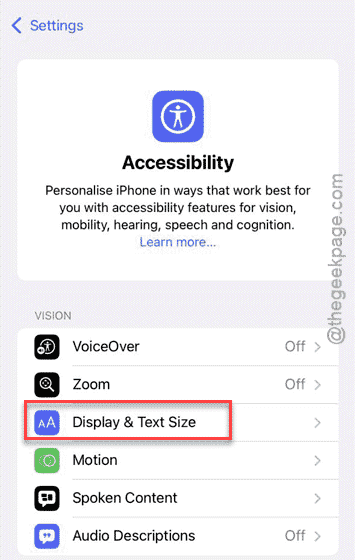
Step 4 – After this, turn off the Reduce Transparency effect in the iPhone Settings.
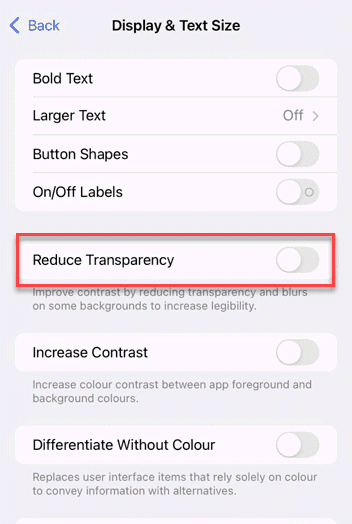
After reducing the transparency effects, you will notice a slight improvement in the performance, fewer jitters in overall UI.
Fix 2 – Turn off the Low Power Mode
The Low Power mode may save battery, but it does slow down the UI animations, restricts high performance CPU cores. This effect is quite prevalent in iOS 26.
Step 1 – You can turn off Low Power Mode directly from the Control Centre. So, swipe down from the top to access it.
Step 2 – Next, tap the small yellow battery sign there to turn off the Low Power Mode.
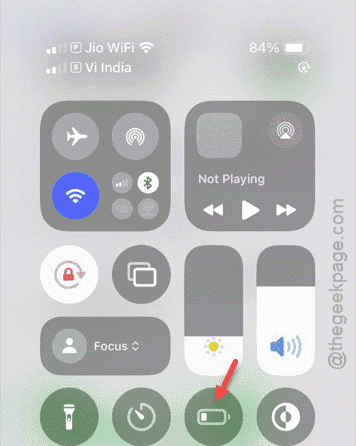
Step 3 – If you can’t find the Low Power Mode button there, go to the iPhone Settings.
Step 4 – Next, load up the Battery settings.
Step 5 – Finally, turn off the Low Power Mode from there.
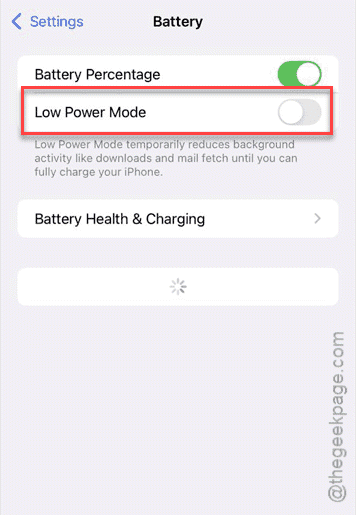
After turning it off, you will experience fewer stutterings in overall UI. Be it just simple animations or app opening/closing speed, you will get a better result this way.
Fix 3 – Update all the apps from App Store
App Developers push the latest patch for their apps as soon as the Apple releases a stable version of iOS. So, if you have not updated the apps in a while, you should update all the apps after upgrading to the iOS 26.
Step 1 – Make sure the iPhone is connected to a Wi-Fi. Then, load up the App Store.
Step 2 – Then, tap the profile icon on the top corner.
Step 3 – Next, on the elevated Account page, tap the Update All option in Available Updates option.
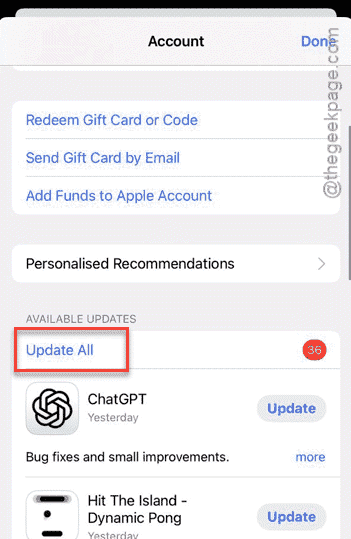
After updating all the apps, check the effect on your iPhone.
Fix 4 – Free up some space on your iPhone
Not having enough free space after updating to iOS 26 can make the user experience feel slow, laggy.
Step 1 – Go to the iPhone Settings console and reach the General settings page.
Step 2 – Next, go to iPhone Storage.
Step 3 – Check the free space status on the iPhone. If there is not enough free space available, delete some of the big apps or files to free up at least 5-10GB of space.
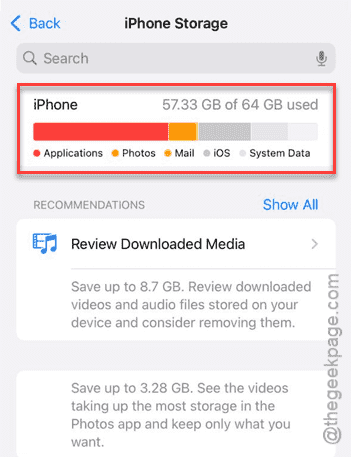
If you are still facing issues with the iOS 26 update, these measures should have improved the situation.
FAQs –
1. Why my iPhone feels slow, laggy after iOS 26 update?
Your iPhone may feel slow and laggy just after receiving iOS 26 update due to various factors like app incompatibility, bugs, or indexing issues. Normally, iOS takes 2–7 days to optimize the device after installing the iOS 26 update. Most of these bugs will be taken care of in future iOS updates.
2. Should I update to iOS 26 right away?
Yes. You should install the iOS 26 if it’s available. However, you may stick to the iOS 18.6 version, as it has less number of bugs, and comparatively more stable than the iOS 26. Give it a few weeks and then upgrade to iOS 26. But, updating to the latest version of iOS is the best practice, and you should not delay it more than a month.