The echo effect from the microphone on the Microsoft Teams app can be an annoying experience for the other participants in a meeting. While a minimal level of echo effect is barely manageable, you can not convey your inputs to others if the echo is too much. Generally, this is a software side issue or a simple adjustment error, that can be fixed via these set of easy instructions.
Fix 1 – Disable the Listen to This Device feature
The Listen to this device is a feature on microphone that let you listen to the microphone output to your headphone.
Step 1 – At first, use the Win+R buttons together to load up the Run panel.
Step 2 – Next, type this in the Run box, and hit Enter.
mmsys.cpl
Step 3 – Go to the Recording panel. Locate the microphone that you’re using. Next, double-tap the microphone to load its properties.
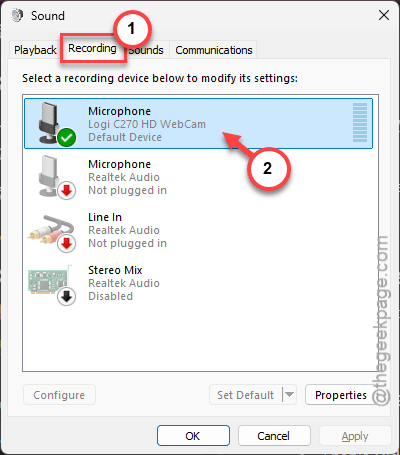
Step 4 – Proceed to the Listen tab. Uncheck the Listen to this device box.
Step 5 – Finally, tap Apply and OK buttons consecutively to save these changes.
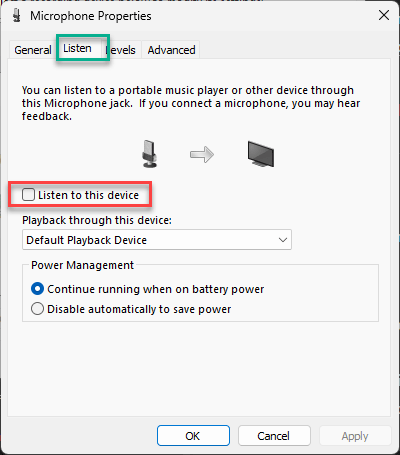
Try to use the microphone and check whether the eco effect is still effective or not.
Fix 2 – Lower the Microphone Gain
Too much microphone gain can capture external sound (noise) and cause echo effect. So, lower the microphone gain. This game can be controlled either by the dedicated software that came with your microphone or, the physical gain knob button present on the mic. Adjust the microphone gain microphone to a minimal value so that only your voice in the nearest proximity of the microphone can be heard.
Step 1 – Open up the Run panel. Next, use the mmsys.cpl, and click OK.
Step 2 – Go to the Recording panel.
Step 3 – Double-click the microphone device there.
Step 4 – Go to the Levels tab and set it to a lower level, like 40. Tap OK to save the changes.
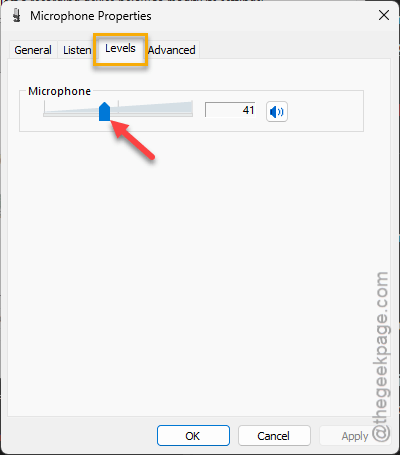
After this modification, the echo effect will go down significantly.
Fix 3 – Enable the Echo Cancellation feature
Microsoft Teams has the noise suppression feature which can disable any echo effect.
Step 1 – On the Microsoft Teams client, tap the three-dot mark, and tap Settings.
Step 2 – Proceed to the Devices tab.
Step 3 – On the right-hand side, find the Noise Suppression feature. Turn it on from there.
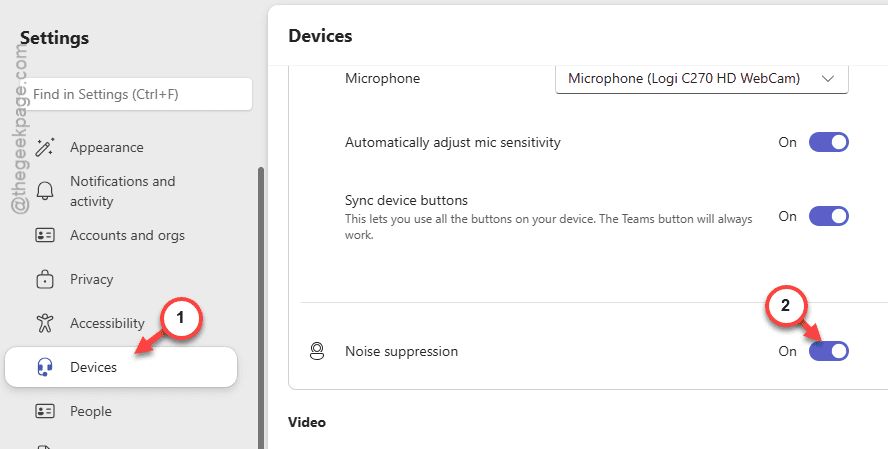
After enabling the noise suppression, it will reduce the echo effect significantly from the microphone. Check whether this works.
Fix 4 – Turn off or mute other devices in proximity
If you have the Teams app opened in other devices, the sound effect from those devices can cause the echo effect. So, if you have any other device where you have the Microsoft Teams installed, remove them from the proximity. Either turn those devices off, or quit the Microsoft Teams running on those devices.
This way, you can eliminate the echo effect that is causing this problem.
Fix 5 – Use Headphones Instead of Speakers
You should wear headphones to nullify the echo effect. The sound emitting from your speakers gets picked up from the microphone and thus results into the undesirable echo effect. Usage of headphones eliminates any chance for the microphone to pick up the residue sound and create echo.