Some iPhone users have faced a problem where the iPhone’s camera is not working while scanning QR code scanners, mainly the UPI QR codes. The camera is essential to scan QR codes with the iPhone camera to initiate payments in the UPI system. Refreshing the Scan QR code toggle in the Camera app should fix this weird issue.
Fix 1 – Disable and re-enable the Scan QR code
Refreshing the Scan QR code option should resolve this UPI issue.
Step 1 – Go to your iPhone Settings.
Step 2 – Then, proceed to the Camera settings.
Step 3 – Now, turn off the Scan QR Codes box.
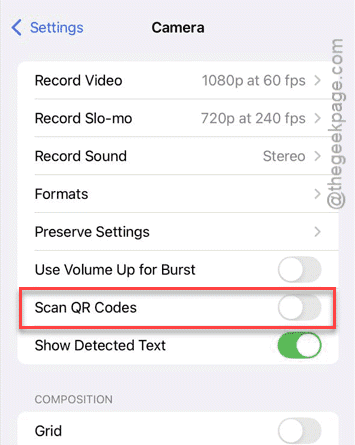
Step 4 – After this, close all the windows and reboot the iPhone.
Step 5 – After restarting the device, go to the Camera settings again.
Step 6 – This time, enable the Scan QR Codes option.
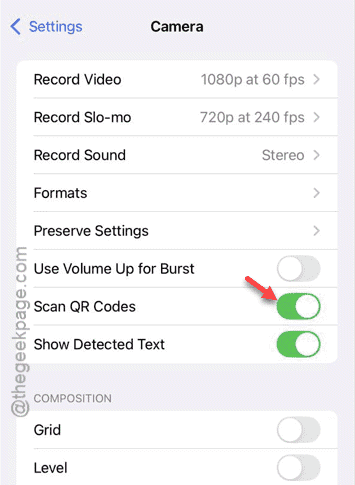
After enabling the Scan QR Code function, you can use the UPI app again.
Fix 2 – Check the Camera permissions for UPI apps
The UPI apps on the iPhone need Camera permission to work properly.
Step 1 – In the iPhone Settings page, go to the Apps tab.
Step 2 – Open the UPI app where you are facing this issue.
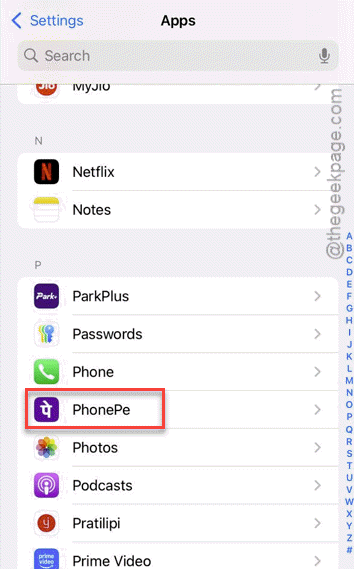
Step 3 – Make sure the Camera permission is enabled for it. Turn off the Camera permission and re-enable it from there.
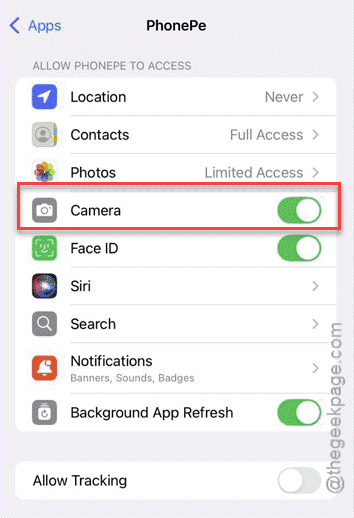
After refreshing the camera permissions, you can use the UPI app to scan QR codes and make payments.
Fix 3 – Ensure Camera is allowed in Privacy settings
The Camera access can be controlled from the Privacy window on the iPhone Settings.
Step 1 – Open the Privacy & Security settings.
Step 2 – Next, load up the Camera module.
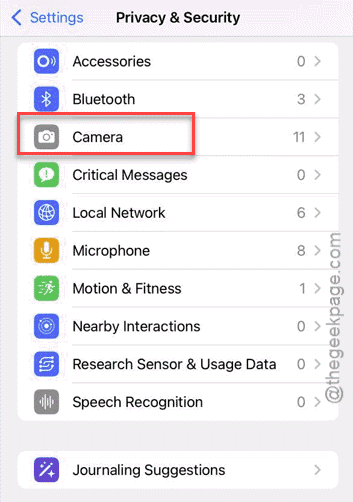
Step 3 – Now, look for the UPI apps (such as PhonePe, PayTm, Google Pay, etc.) there in the list. Make sure the camera permission is enabled.
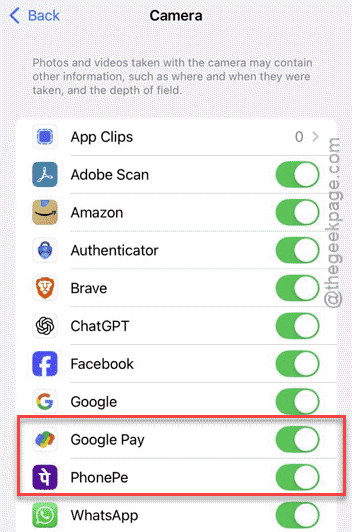
Try to use the Scan QR code option in the UPI apps of your choice.
Fix 4 – Force restart the iPhone
If you are still facing the same issue with the camera on the UPI apps, you can force restart the iPhone to fix it.
Step 1 – At first, close all the apps on the iPhone. Next, press the Volume Up button once and release that.
Step 2 – Then, hit and release the Volume Down button.
Step 3 – After this, press-hold the Power button until the screen completely turns off and the device restarts.
Once you have force-restarted the iPhone, this issue will be resolved.
FAQs –
1. Why can’t I use the camera to scan QR codes?
2.