Does the Wi-Fi on your iPhone keeps disconnecting again and again since updating to the iOS 26? This is a widespread problem that has been reported by many iPhone users, even the new iPhone 17 series users. We have addressed this problem in this article. These solutions will help resolve the frequent Wi-Fi disconnect issue on your device.
Quick Fixes –
1. The primary quick fix that you can try is just to do a simple reboot of the iPhone. Sometimes, a temporary bug or glitch may cause the same issue.
2. Turn on the AirPlane mode on your iPhone, and then, wait for a few seconds and turn if off. This particular refresh will help you resolve the issue.
Fix 1 – Install the latest patch for iOS 26 (iOS 26.0.1)
Apple has officially addressed this problem and released the iOS 26.0.1 patch to fix the occasional Wi-Fi disconnect issue on the iPhone 17, Air and 17 Pro model devices.
Step 1 – Open the iPhone’s Settings page.
Step 2 – Then, go to the General panel. Later, open up the Software Update section.
Step 3 – In the Software Update section, wait for a few seconds, and you will see the iOS 26.0.1 or the latest iteration of the iOS 26 available for download. Tap the Update now option there to download and install the updates.
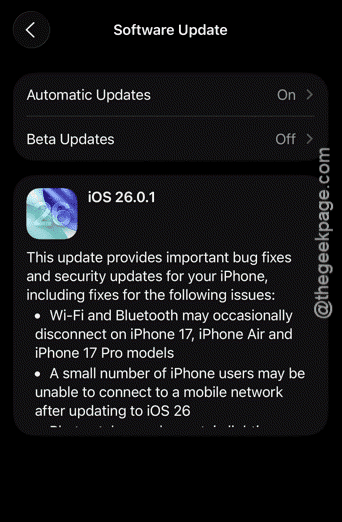
Once it is downloaded, your iPhone will prompt you to restart the device once for the completion of the update. This patch should fix that frequent Wi-Fi disconnection issue that you are having since updating to iOS 26.
Fix 2 – Forget the Wi-Fi and reconnect
If the Wi-Fi is connecting and disconnecting again and again, you should delete the current Wi-Fi details and reconnect.
Step 1 – Load up the Settings page on your iPhone. Next, go to the Wi-Fi page.
Step 2 – Now, tap the ℹ button next to the Wi-Fi that you are connected to or trying to establish a connection.

Step 3 – Later, use the Forget this Network option at the top to delete the saved network details.

Step 4 – Now, coming back to the main Wi-Fi list, locate the same Wi-Fi there.
Step 5 – Tap it once and choose the Wi-Fi to reconnect to it.
Step 6 – Type the Wi-Fi password there and connect with it.
After reconnecting to the Wi-Fi, see whether the Wi-Fi is working or not.
Fix 3 – Reset the iPhone’s network settings
Resetting the iPhone’s network settings might just fix the issue.
NOTE – When you reset the iPhone’s network configuration, it does remove all the saved network credentials like all the saved Wi-Fi passwords, carrier settings, etc. Just make sure you know the Wi-Fi password before resetting your iPhone’s network settings.
Step 1 – At first, load up the iPhone Settings console.
Step 2 – Next, proceed to the General part of the settings.
Step 3 – Then, scroll down a little bit and open the Transfer or reset iPhone section.
Step 4 – Choose the Reset option next. Finally, when you see various resetting options, tap the Reset Network Settings option.
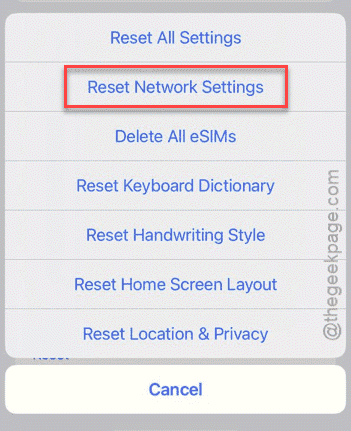
Once the entire resetting process is complete, your iPhone will restart. Now, reconnect to the Wi-Fi and test.
Why the Wi-Fi keeps disconnecting on iOS 26 for iPhone 17 users?
The frequent Wi-Fi disconnection issue on iPhone 17, iOS 26 version is a reported bug where the users’ iPhone is disengaging from Wi-Fi automatically. This is due to a bug in the initial iteration of iOS 26. Apple has just released a bug-fix patch, iOS 26.0.1 to patch this Wi-Fi issue and other reported bugs such as cellular services issue, app icons blank problem with this iOS 26.0.1 update.