Some users have relayed their frustrations over the Spotlight search slowing down on their iPhones. If your iPhone also struggles to search something or takes too much time to load up search results after this iOS 26 update, don’t worry, you are not the only one. Here are some solutions that should take care of this issue.
Fix 1 – Refresh the Siri & Search features
You have to turn off the Siri & Search results in the iPhone settings and, turn them back on to refresh the whole mechanism.
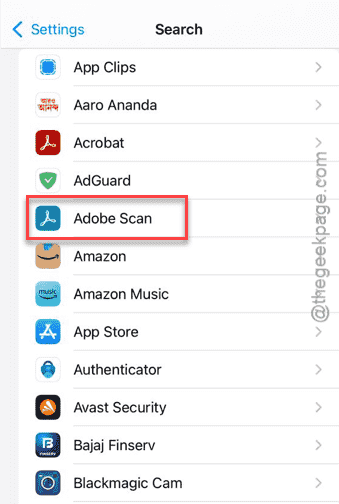
Step 1 – Open the iPhone Settings and load up the Search settings.
You will find a list of indexed apps here.
Step 2 – So, find the problematic app there, which is producing late results in the Spotlight. Open up that app.
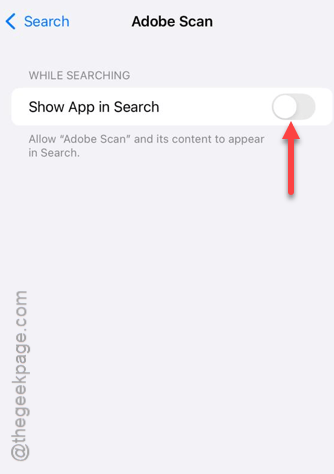
Step 3 – Turn off the Show App in Search option.
Step 4 – Then go ahead and restart your iPhone.
Step 5 – Now, return to the same Search settings and proceed to that app settings.
Step 6 – Then, toggle the Show App in Search option to On mode.
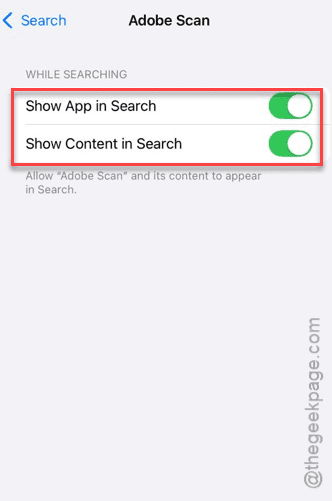
After refreshing the search system on the iPhone, this issue will be resolved for that particular app.
Repeat the same steps for any other such apps.
Fix 2 – Wait for the indexing to finish
Spotlight indexes every item on your iPhone in the background. So, if you have loaded up some bulky files recently, there is a chance that the indexing process is still running.
Step 1 – You can open the iPhone Settings and reach the General settings.
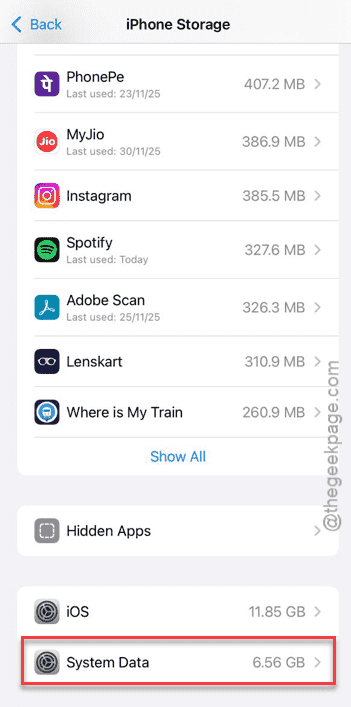
Step 2 – Go to the iPhone Storage settings, next.
Look for the System Data. If that shows a huge figure, understand that the indexing process is still on the flow.
Step 3 – Simply, lock the iPhone and put it on charge, and leave the device alone for 30–60 minutes for all the files to get indexed.
Once all the files are indexed, the search results will be prompt and fast.
Fix 3 – Refresh the Spotlight Search options
You have to refresh the Spotlight search suggestions in the iPhone.
Step 1 – Open the Settings.
Step 2 – Then, proceed to the Siri, Search & Suggestions section.
Step 3 – Turn off these features in the Suggestions –
Suggestions in Search
Suggestions in Spotlight
Suggestions on Home Screen
Suggestions on When Sharing
Suggestions on Lock Screen
Step 4 – Switch off the iPhone and, later, restart the device.
Step 5 – Turn on all those suggestions that you have disabled in Siri, Search & Suggestions panel in the iPhone Settings.
This should have resolved the slow Spotlight search result issue.
Fix 4 – Update the iPhone
You should always install the latest patch of the iOS. If there is any bug related to the files indexing on previous version of iOS 26 or so, it will be patched in the next builds. So, make sure to look for any pending update and install it on the device.
Step 1 – Go to the General settings on the iPhone.
Step 2 – Next, load up the Software Update category.
Step 3 – Wait for a few seconds there to find out whether is an update is pending or not.
Step 4 – If you can see any update, tap Update Now button to start the process. Just accept the terms and conditions of that update.
Wait for the entire update, package to download and installed on the device.