OneNote was fine yesterday. Then Microsoft pushed an update. And now? The app barely opens. Tabs won’t load. Sync hangs. Notes disappear for a second and come back garbled.
Annoying. And weirdly common after big Office updates.
Why This Happens
Short version? Microsoft ships an update and something inside OneNote breaks. Could be the cache. Could be a bad add-in. Could be a clash between the old OneNote for Windows 10 version and the newer OneNote desktop app that ships with Microsoft 365. Yes — both can be installed at once. Confusing, I know.
But none of this is permanent. The fixes below clear it up.
Fix 1 – Check Which OneNote You’re Actually Using
This trips up everyone. The older OneNote app can clash with the Microsoft 365 OneNote app.
1 – Click the Start button.
2 – Type OneNote in the search box at the top.
3 – Look at what shows up. If you see two results, you’ve got both.
4 – Right-click the older OneNote for Windows 10 and pick Uninstall.
5 – Stick with the regular OneNote app. It’s the one Microsoft is actually keeping.
Reboot. Open OneNote. See if it stops misbehaving.
Fix 2 – Force Update Office From Inside Word
Sounds weird. But OneNote shares update plumbing with the rest of Office. And updating Office can fix OneNote even when OneNote itself refuses to update.
1 – Open Word. Yes, Word. Not OneNote.
2 – Click File in the top left.
3 – Click Account on the left sidebar.
4 – Click Update Options.
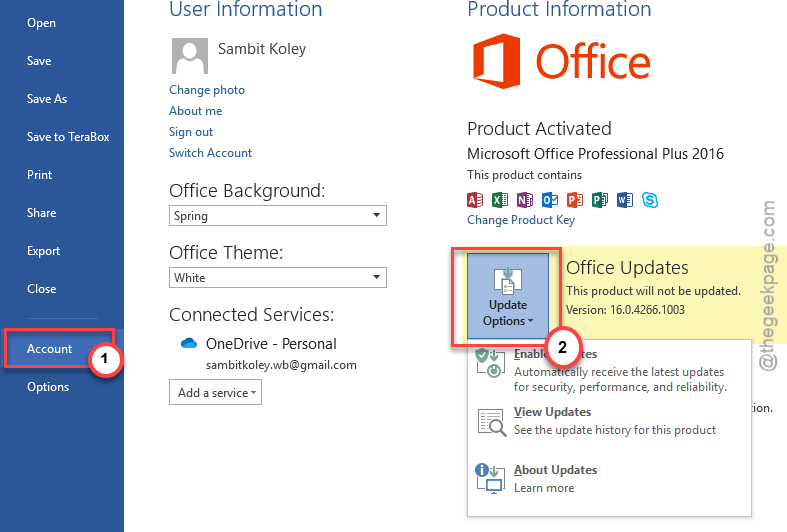
5 – Click Update Now.
Wait for it to finish. Could take a few minutes. Then close everything and open OneNote.
Fix 3 – Repair or Reset the OneNote App
This is the nuclear option for app bugs. But it works.
1 – Press Windows + I to open Settings.
2 – Click Apps on the left.
3 – Click Installed apps.
4 – Type OneNote in the search box at the top. Way faster than scrolling.
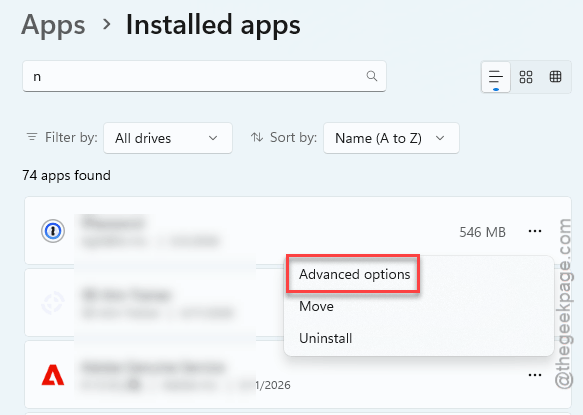
5 – Click the three dots (⋯) next to OneNote.
6 – Click Advanced options.
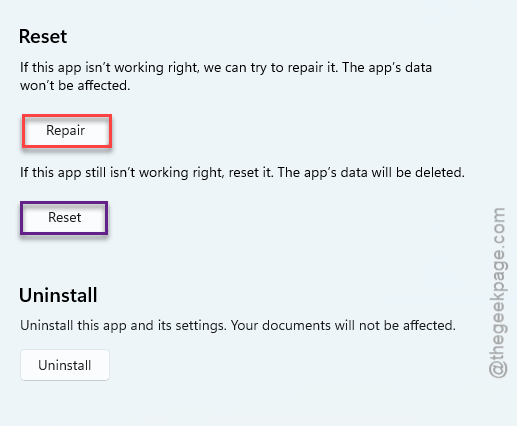
7 – Scroll down. Try Repair first. It keeps your notes intact.
8 – If repair doesn’t help, click Reset. This wipes app data but not your notebooks (those live in OneDrive).
Open OneNote again. Sign back in. Your notebooks should re-download.
Fix 4 – Launch OneNote in Safe Mode
Add-ins are a common culprit after updates. They get out of sync with the new app version. So OneNote crashes on launch or freezes on certain pages.
Safe Mode lets you check.
1 – Press Windows + R to open the Run dialog.
2 – Type onenote /safe (mind the space).
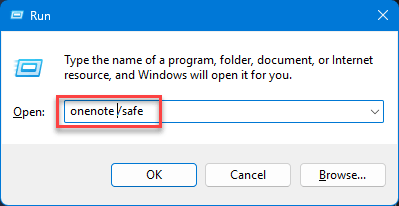
3 – Press Enter.
If OneNote opens cleanly in safe mode, an add-in is your problem. Now disable them.
4 – Click File > Options.
5 – Click Add-ins on the left sidebar.
6 – At the bottom, set Manage to COM Add-ins and click Go.
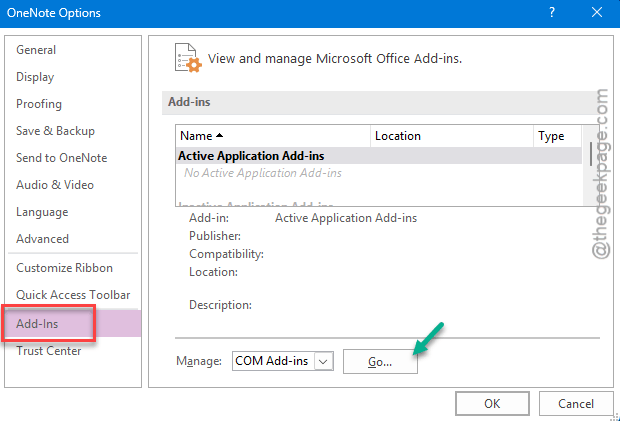
7 – Uncheck everything. Click OK.
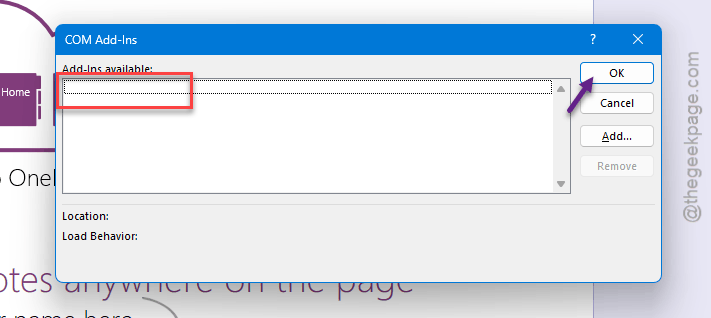
Restart OneNote normally.
Fix 5 – Clear the OneNote Cache
Old cache files cause weird sync problems. Pages going blank, edits not saving, that kind of thing.
1 – Close OneNote completely.
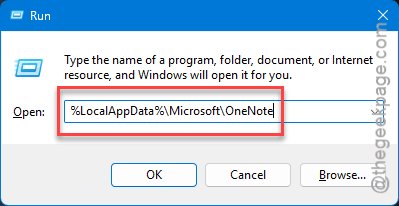
2 – Press Windows + R.
3 – Paste this exactly:
%LocalAppData%\Microsoft\OneNote
4 – Press Enter. You’ll land in the OneNote folder.
5 – Open the version folder inside (something like 16.0).
6 – Open the cache folder.
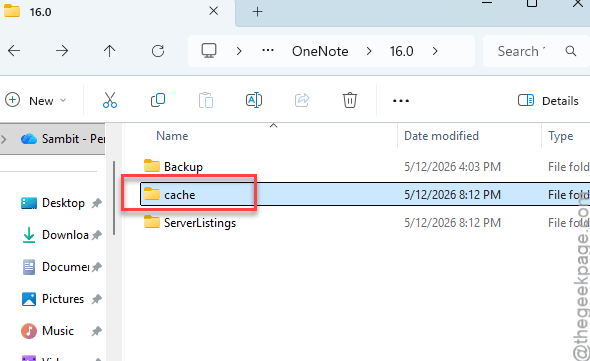
7 – Select everything inside (Ctrl + A) and delete it. (Don’t worry, this won’t touch your actual notes — those are in OneDrive.)
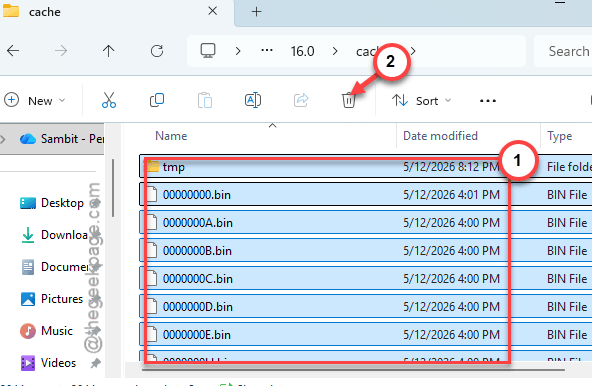
Reboot the PC. Open OneNote. It’ll rebuild the cache.
Fix 6 – Turn Off Hardware Graphics Acceleration
Some graphics drivers don’t play nice with OneNote after updates. The app renders weird, text disappears, scrolling lags. Disabling acceleration fixes it.
1 – Open OneNote.
2 – Click File > Options.
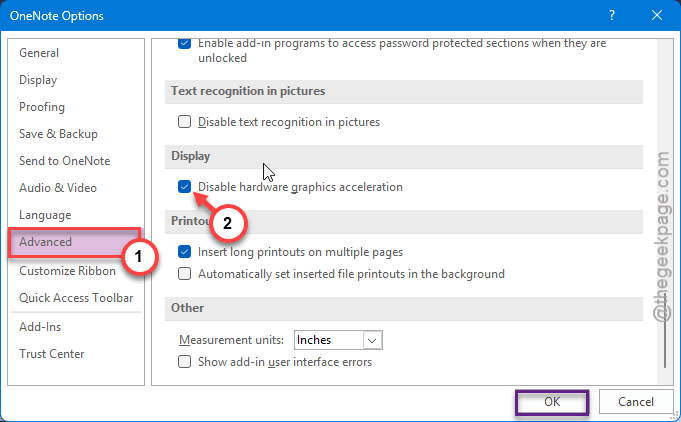
3 – Click Advanced on the left.
4 – Scroll way down to the Display section. It’s near the bottom.
5 – Check the box for Disable hardware graphics acceleration.
6 – Click OK and restart OneNote.
Not the prettiest fix. But for older GPUs and weird display setups, it’s the one.
Fix 7 – Sign Out and Sign Back In
Sometimes the account token just goes stale. A quick sign-out fixes it.
Open OneNote. Click File > Account. Click Sign out next to your name.
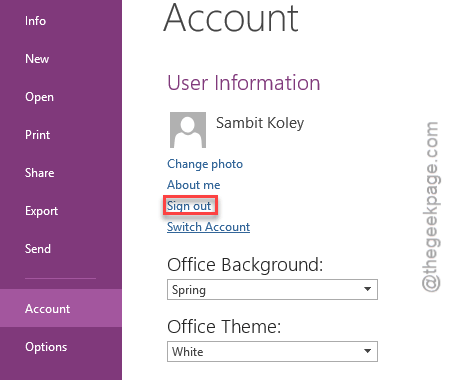
Close OneNote. Reboot. Open OneNote again and sign back in.
Sounds too simple. But it fixes more weirdness than it should.
How to Prevent This
- Pick one OneNote and stick with it.
- Install any available Windows Update on your machine. Older builds clash with newer Office updates.
- Keep your notebooks on OneDrive. Local-only notebooks lose data when things break.
People Also Ask
Why has my OneNote stopped working?
Usually a bad update or a corrupted cache. Sometimes a clash between two installed OneNote versions. Try a quick repair from Settings first.
Has Microsoft stopped supporting OneNote?
The old OneNote for Windows 10 is gone. Microsoft retired it. But the regular OneNote desktop app (the one with Microsoft 365) is alive and getting updates. That’s the version you want now. Don’t waste time troubleshooting the dead one.