You open OneNote 2013. It tries to sync with OneDrive. And boom — crash. Or it freezes for a minute, then closes itself. Sometimes it doesn’t even open at all.
Not ideal. Especially when you’ve got years of notes in there.
Why This Happens
Basically? OneNote 2013 is old. Really old. Microsoft stopped patching it years ago. So when modern OneDrive throws new sync protocols at it, the app chokes.
A few specific things go wrong. The cache gets corrupted. A single notebook section becomes unreadable. Handwriting recognition crashes on certain pages. Or a stuck print job (yes, really) freezes the whole app. Weird, but it happens.
But you can keep it running. Fixes below.
Fix 1 – Disable Automatic Handwriting Recognition
Sounds random. But, there are user reports suggests that this has caused this issue.
1 – Open OneNote.
2 – Click File > Options.
3 – Click Advanced on the left sidebar.
4 – Scroll down to the Pen section.
5 – Uncheck Enable automatic handwriting recognition.
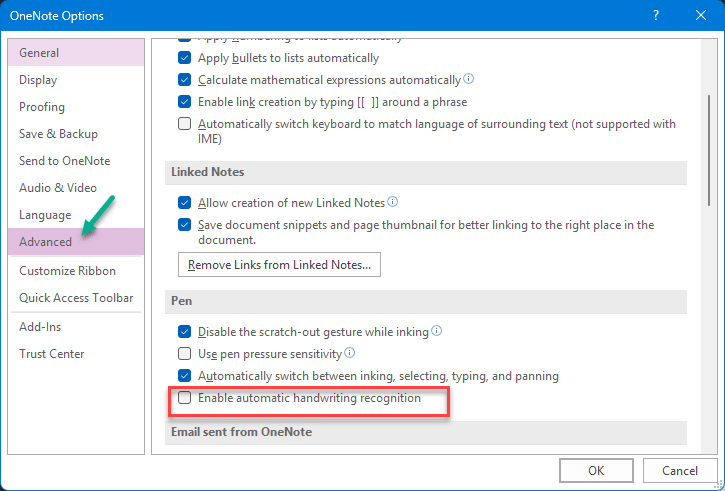
6 – Click OK.
7 – Close and reopen OneNote.
You lose the auto-text feature on handwritten notes. But the app stops crashing. Fair trade.
Fix 2 – Clear the OneNote Cache
This is the most common fix. Corrupted cache files crash OneNote 2013 hard.
1 – Close OneNote completely. You should open the Task Manager (Ctrl + Shift + Esc). Then, kill any ONENOTE.EXE process, if they are running.
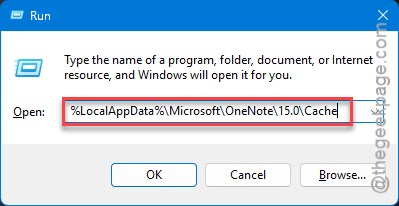
2 – Press Windows + R.
3 – Paste this:
%LocalAppData%\Microsoft\OneNote\15.0\Cache
4 – Press Enter. You’ll land in the cache folder.
5 – Press Ctrl + A to select everything inside.
6 – Press Delete.
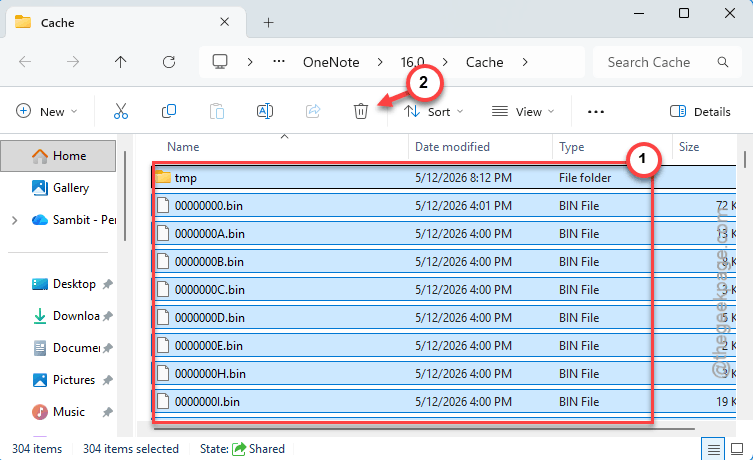
7 – Empty the Recycle Bin.
8 – Reboot.
9 – Open OneNote. It rebuilds the cache automatically.
Your actual notes are in OneDrive. Not in the cache. So you won’t lose anything.
Fix 3 – Repair Office Online
Online Repair fixes a lot of OneNote 2013 weirdness in one shot. It re-downloads broken DLLs and resets config files.
1 – Press Windows + I to open Settings.
2 – Click Apps > Installed apps.
3 – Type Office in the search box at the top.
4 – Click the three dots (⋯) next to Microsoft Office (the 2013 version).
5 – Click Modify.
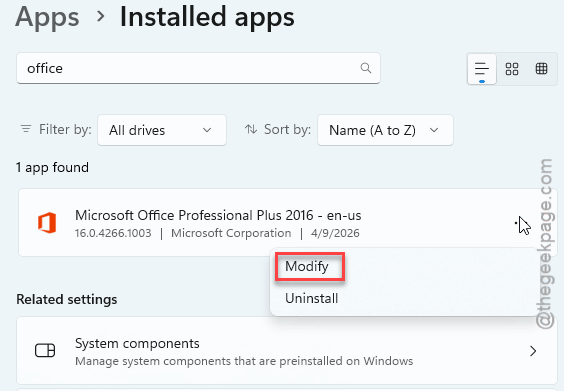
6 – Pick Online Repair (not Quick Repair — that one rarely helps).
7 – Click Repair.
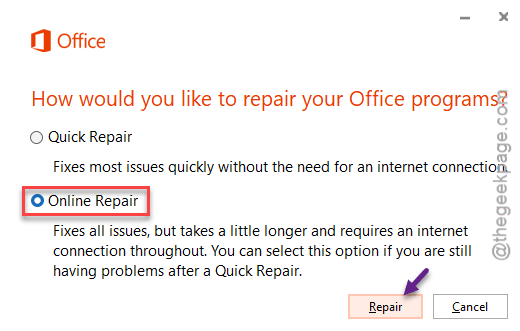
8 – Wait. Could take 15 minutes. Don’t cancel it.
Check if this works.
Fix 4 – Clear the Print Queue (Weird But Works)
Stuck print jobs crash OneNote 2013 on launch. No idea why Microsoft tied these together. But they did.
1 – Press Windows + R.
2 – Type services.msc and press Enter.
3 – Scroll down to Print Spooler.
4 – Right-click it.
5 – Click Stop.
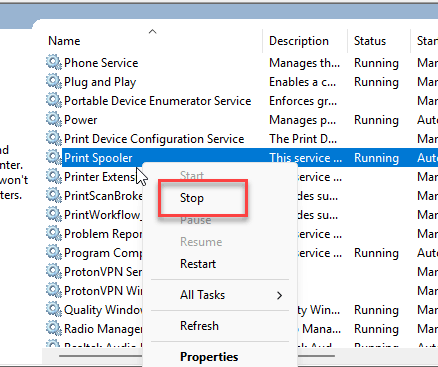
6 – Leave that window open. Press Windows + R again.
7 – Paste this in the empty Run box:
C:\Windows\System32\spool\PRINTERS
8 – Press Enter.
9 – Select everything inside and delete it.
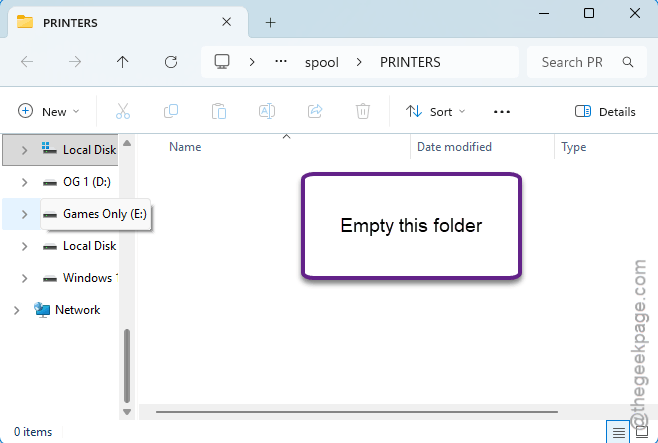
10 – Go back to Services. Right-click Print Spooler and click Start.
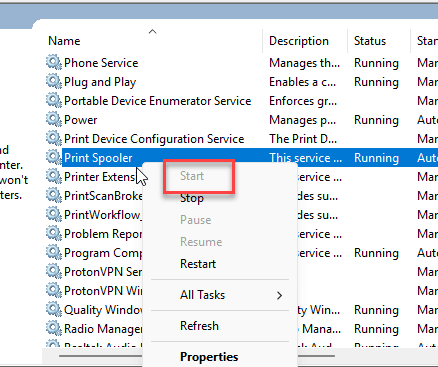
Open OneNote. Crash gone for a lot of people.
Fix 5 – Force Maximum GPU Performance for OneNote
On NVIDIA GPUs especially, OneNote 2013 sometimes runs on the integrated graphics by mistake. Then it crashes when the GPU switches modes.
Force it to always use the full GPU.
1 – Right-click your desktop.
2 – Click NVIDIA Control Panel.
3 – On the left, click Manage 3D Settings.
4 – Click the Program Settings tab.
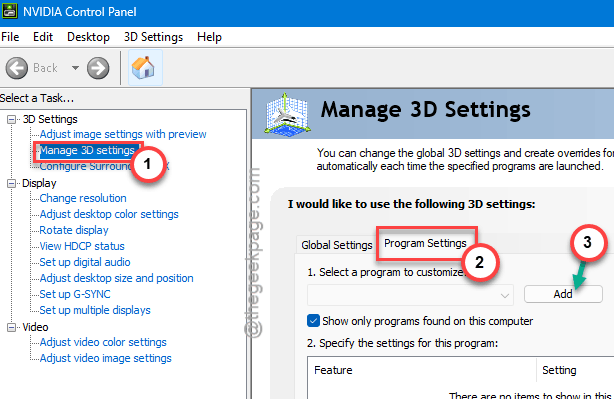
5 – Click Add and find ONENOTE.EXE. It’s usually at C:\Program Files\Microsoft Office\Office15.
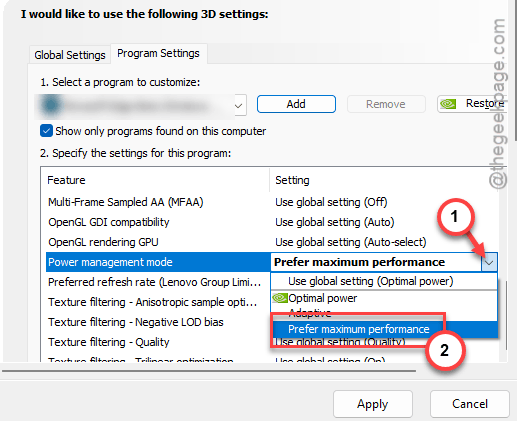
6 – Scroll down in the settings list to Power management mode.
7 – Change it to Prefer maximum performance.
8 – Click Apply at the bottom right.
AMD users have a similar setting in Radeon Software. Look for Graphics > Power Saving and disable it for OneNote.
Fix 6 – Copy Sections to a Brand New Notebook
Got a specific notebook that crashes OneNote every time? It’s probably corrupted on the OneDrive side. Migrate the good sections to a new notebook.
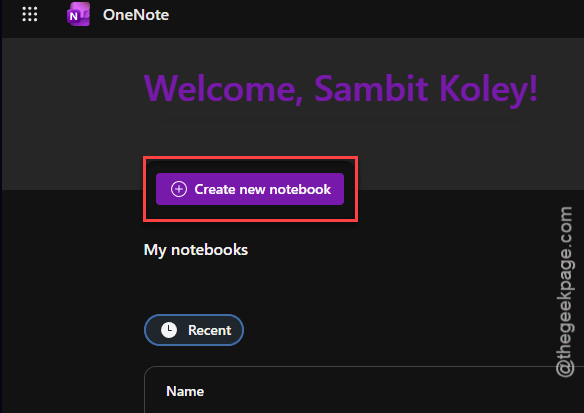
1 – In OneNote, click File > New.
2 – Pick OneDrive as the location.
3 – Name the new notebook something like MyNotes-Clean.
4 – Click Create Notebook.
5 – Now go back to the old, crashing notebook.
6 – Right-click each section tab at the top.
7 – Click Move or Copy.
8 – Pick the new notebook and click Copy.
9 – Repeat for every section.
If a specific section refuses to copy — that’s the corrupted one. Open it, copy the pages by hand, and skip the broken pages.
Fix 7 – Honestly? Consider Moving to Modern OneNote
You should move on towards the new OneNote deskop client which is offered as a Microsoft 365 subscription.
1 – Go to OneNote Downloads.
2 – Open the new OneNote.
3 – Sign in with the same Microsoft account.
4 – Your notebooks appear automatically. Same OneDrive data.
5 – Use both for a week if you want. Then uninstall 2013 once you’re sure everything looks right.
Not the answer you wanted. But honestly? This solves the problem permanently.
How to Prevent This
- Clear the OneNote cache once a month. Stops corruption before it builds up.
- Don’t load huge sections with hundreds of pages into a single notebook. Split them.
- Keep handwriting recognition off if you don’t use a pen.
- Honestly — migrate to modern OneNote. 2013 has no future, and every Windows 11 update widens the gap.
People Also Ask
How to fix Windows 11 lagging and slow problem quick fix?
For OneNote specifically? Force it onto the dedicated GPU through NVIDIA Control Panel or AMD Radeon Software. And close all other Office apps when working in OneNote — they share resources. System-wide, check Task Manager for runaway processes.
Why is my OneNote so laggy?
Big notebooks with lots of media. Or a corrupted cache. Or handwriting recognition burning through CPU. Clear the cache first. Then disable handwriting recognition. If it’s still slow, your notebook is probably too large — split it into smaller ones.