You’re deep in a match. Then the screen freezes, goes black for a second, and Battlefield 6 dumps you to desktop. Or Windows flashes a driver timeout warning.
On a Ryzen AI laptop or PC, this happens more than it should. And the causes are pretty specific. Overlays, the NPU, a shaky driver version, a tight timeout limit.
Why This Happens
Basically? The graphics driver hits a wall and Windows pulls the plug.
When the GPU takes too long on a frame, Windows assumes it’s hung. So it resets the driver mid-game — that’s the timeout, and it usually crashes you out. Heavy scenes plus a new driver is a recipe for it.
Ryzen AI chips add their own wrinkle. They’ve got an NPU — a separate AI processing unit. Some games try to lean on it for frame generation, and that tug-of-war with the CPU causes stalls.
And then there’s AMD’s own software. Recording overlays and a background “crash defender” service can misfire during loading screens. Meant to help. Sometimes they’re the thing crashing you.
Fix 1 – Turn Off AMD Overlays
Fastest thing to try.
1 – Open AMD Adrenalin Edition (right-click the desktop or find it in the system tray).
2 – Click the gear icon to open Settings.
3 – Find AMD Record & Stream and toggle it off.
4 – Switch off any other screen-capture or overlay features while you’re in there.
5 – Launch Battlefield 6 and test.
If the crashes stop, one of those overlays was the cause. Easy win.
Fix 2 – Disable the AMD Crash Defender Service
This one’s sneaky. AMD Crash Defender is meant to catch driver resets — but it often fires off false alarms during BF6’s loading screens and crashes you instead.
1 – At first, press Windows + R,
2 – Then, type and press Enter.
services.msc
2 – Scroll down to AMD Crash Defender Service.
3 – Then, right-click it and choose Properties.
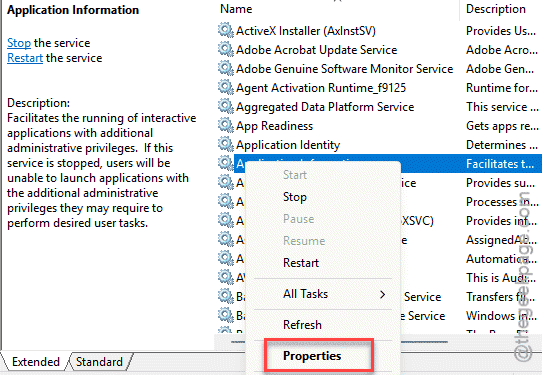
4 – Next, set the Startup type to Disabled.
5 – Click Stop, then OK.
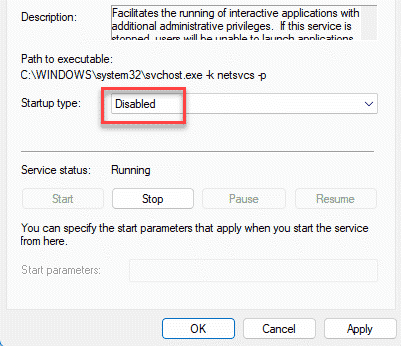
6 – Restart your PC.
Check if this works.
Fix 3 – Give the GPU More Time Before a Timeout
Getting the driver-timeout warning specifically? Try this:
1 – Press Windows + R, type this code, and press Enter.
regedit
2 – Then, reach to this path:
HKLM\System\CurrentControlSet\Control\GraphicsDrivers
3 – Right-click in the right pane and choose New > DWORD (32-bit) Value.
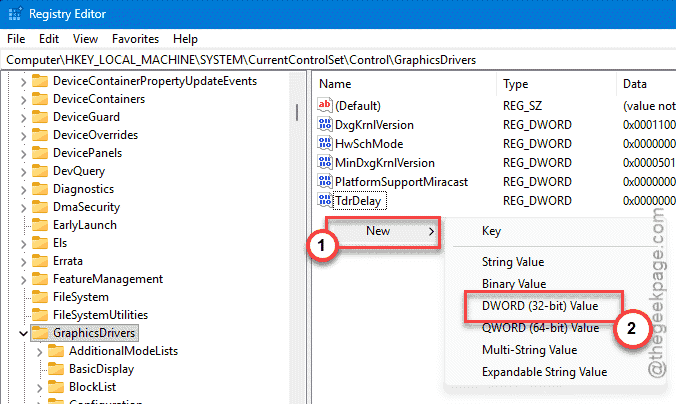
4 – Name it TdrDelay.
5 – Double-click it and set the value to 8. That gives the GPU 8 seconds to recover instead of the default 2.
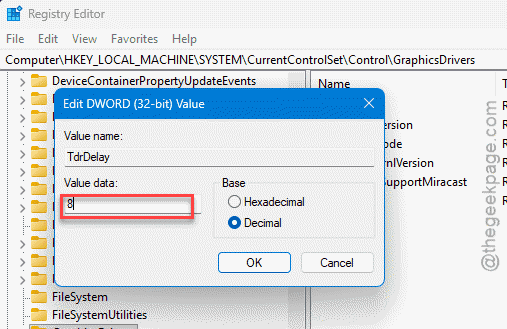
6 – Close regedit and restart your PC.
This won’t fix a truly broken driver, but it stops the false timeouts that boot you during demanding scenes.
Fix 4 – Roll Back to a Stable Driver
If the crashes started right after a driver update, the new version is likely the problem.
1 – Download Display Driver Uninstaller (DDU) and the stable AMD driver — version 26.6.2 — before you start.
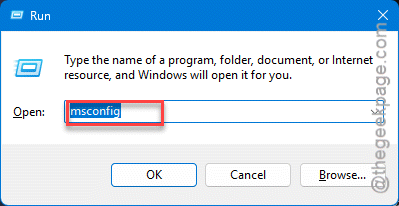
2 – Now, you must boot into Safe Mode. Start by pressing the Windows + R keys.
4 – Type msconfig, hit Enter.
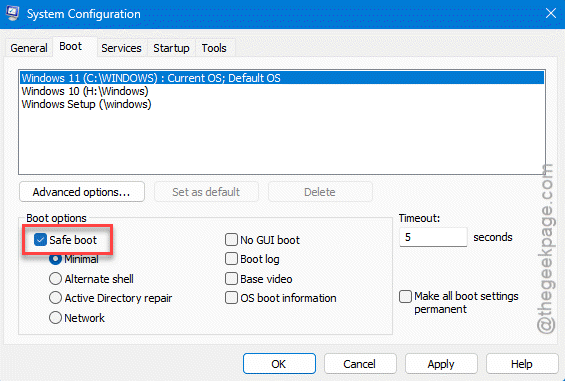
5 – Go to the Boot tab. Then, tick Safe boot, and restart.
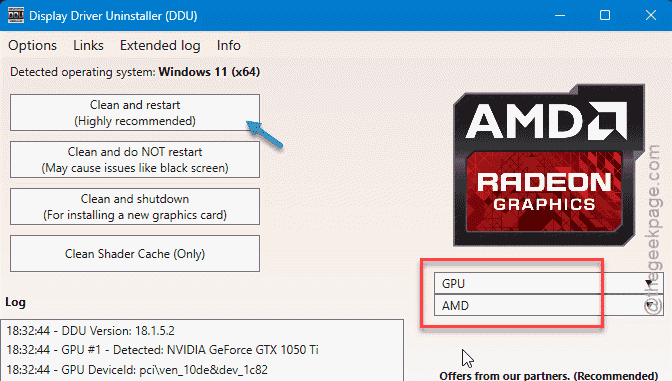
3 – Open DDU, pick GPU and set it to AMD, and click Clean and restart.
4 – Once Windows loads normally, install the 26.6.2 driver you downloaded.
5 – Turn Safe boot back off in msconfig so you boot normally next time.
The newer package (like 26.6.4) shipped with rough engine allocations for BF6. The older branch dodges them.
Fix 5 – Unbind the NPU From Frame Generation
On Ryzen AI, the NPU fighting the CPU can cause stalls. Take the AI features off it in the game’s own settings.
1 – You can open the Task Manager with Ctrl + Shift + Esc and click the Performance tab.
2 – Watch the NPU while you play. If it spikes hard during crashes, that’s your clue.
3 – In Battlefield 6’s Video or Graphics settings, turn off AI-assisted frame generation or any AI upscaling option.
4 – Apply and test a match.
This keeps the heavy work on the GPU and CPU where the game runs it reliably.
Fix 6 – Verify the Game Files
Last quick check. A bad patch or interrupted download leaves broken files that crash the game.
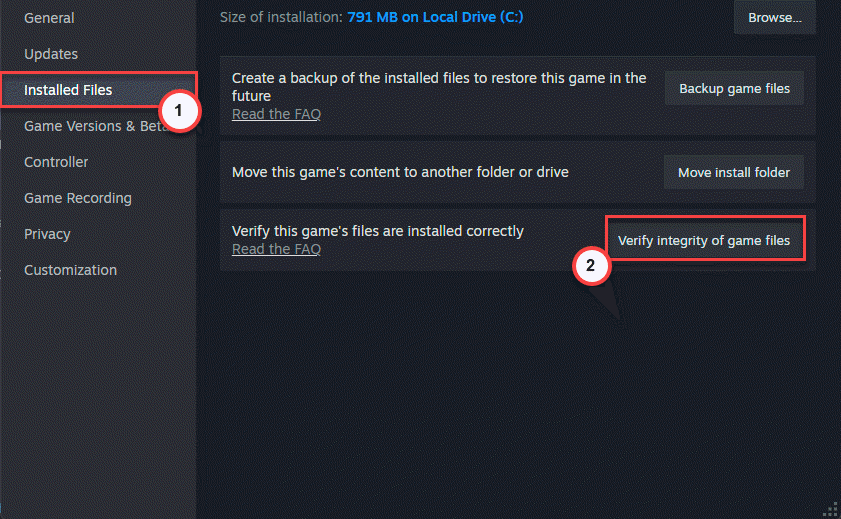
1 – On Steam, right-click Battlefield 6, choose Properties,.

2 – Then, go to the Installed Files section. Then, click Verify integrity of game files.
On EA, use Repair in the game’s settings menu. It re-downloads anything corrupt.
How to Prevent This
– Don’t rush to the newest AMD driver the day it lands.
– Leave AMD Crash Defender off if disabling it fixed your crashes. For a lot of Ryzen AI users, it causes more resets than it prevents.
– Keep overlays to a minimum. Every overlay hooking into the game is one more thing that can crash it.
– Update Battlefield 6 and your driver on the same day when you can. Mismatched versions are a common crash source.
People Also Ask
How do I keep Battlefield 6 from crashing?
Battlefiled 6 primrarily crashes due to obsolote graphics driver, bugs or glitches in the game. Sometimes, the
What is the AMD driver for BF6?
AMD releases game-ready Adrenalin drivers that include Battlefield 6 support. But the very latest package isn’t always the most stable — some versions like 26.6.4 caused crashes, while 26.6.2 ran cleaner. Check AMD’s release notes and pick the version people report as stable for your card.