You lock your laptop, step away for a few minutes, come back — and the Wi-Fi is dead. A download stalled. A video call dropped. A remote session kicked you out.
And it is always the lock screen that does it. Leave the laptop wide awake and Wi-Fi holds fine. Lock it? Gone. So no, it is not your router. It is your laptop putting the Wi-Fi card to sleep on purpose.
Why This Happens
It’s not your router. Worth repeating, because that’s where everyone wastes their time first.
Here’s the real cause. The moment you lock the screen, Windows decides you’re done for now. So it tells your Wi-Fi card to power down and save battery. The card drops its connection to the router. Quietly. No warning.
Wi-Fi cards have their own power-saving tricks built into the firmware too. Features with names like U-APSD — that’s a power-save delivery mode — kick in the second the lock state hits. And they cut the connection mid-handshake.
On laptops with a combined Wi-Fi and Bluetooth chip, it gets worse. Locking the screen can make the chip favor Bluetooth and starve the Wi-Fi side. Why a lock screen triggers all this? Battery math. Windows just assumes you don’t need the network while you’re away.
Fix 1 – Stop Windows From Powering Off the Wi-Fi Card
This is the big one and it fixes most cases. There’s a single checkbox letting Windows shut down your Wi-Fi card to save power. Uncheck it and the card stays awake when you lock the screen.
1 – Press Windows + X and click Device Manager.
2 – Click the arrow next to Network adapters to expand it.
3 – Find your Wi-Fi card. Right-click it and choose Properties.
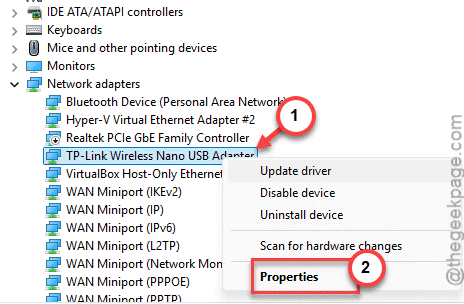
4 – Click the Power Management tab at the top.
5 – Uncheck Allow the computer to turn off this device to save power.
6 – Click OK.
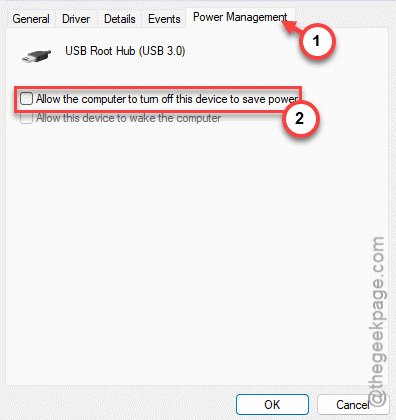
Don’t see a Power Management tab? Some laptops hide it. That’s fine — move on to the next fix.
Fix 2 – Turn Off the Card’s Aggressive Power-Saving Modes
Try disabling the Wi-Fi card’s agressive power saving modes.
1 – Back in Device Manager, right-click your Wi-Fi card again and open Properties.
2 – Click the Advanced tab at the top. You’ll see a long list of properties.
3 – Click U-APSD Support in the list. On the right, change its value to Disabled.
4 – Now click MIMO Power Save Mode. Change it to No Power Save. If that’s not an option, pick Static SMPS.
5 – Click OK to save.
Not every card lists these exact names. If yours doesn’t have them, skip ahead. No harm done.
Fix 3 – Disable Bluetooth Collaboration
For laptops with a combined Wi-Fi and Bluetooth chip, this one matters. When you lock the screen, the chip can start prioritizing Bluetooth and choke off Wi-Fi. Switching this off keeps Wi-Fi first.
You’re back in the same Advanced tab from Fix 2.
1 – Find Bluetooth Collaboration in the properties list.
2 – Change its value to Disabled.
3 – While you’re here, look for Ultra Low Power Mode or Energy-Efficient Ethernet. If either one is there, set it to Off.
4 – Click OK.
Check if this helps.
Fix 4 – Force Network Connectivity With Powercfg
Sometimes Windows hides the “keep the network on in standby” option from the normal settings screen. You can force it on from the command line instead.
1 – Click Start, type cmd, right-click Command Prompt, and choose Run as administrator.
2 – Type this command and press Enter:
powercfg /setacvalueindex scheme_current sub_none 1e6417a8-c0d2-4fdc-a23d-de2c9a66e55b 1
3 – Type the next one and press Enter. It’s the same thing, but for when you’re on battery:
powercfg /setdcvalueindex scheme_current sub_none 1e6417a8-c0d2-4fdc-a23d-de2c9a66e55b 1
4 – Now apply it with this last command and press Enter:
powercfg /setactive scheme_current
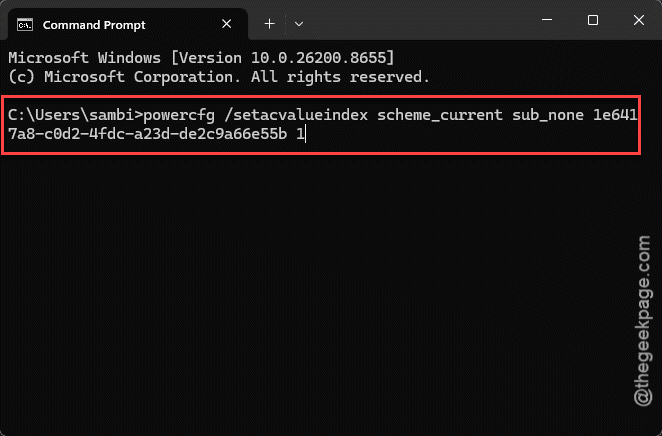
No confirmation message will show up. That’s normal — if you don’t get an error, it worked. Lock your screen and test.
Fix 5 – Set the Wi-Fi Service to Restart Itself
WLAN AutoConfig is the Windows service that runs your wireless connection. Windows sometimes treats a lock as you logging off, and the service times out and drops the radio. This makes it restart instead of giving up.
1 – Press Windows + R, type services.msc, and press Enter.
2 – Scroll down to WLAN AutoConfig. Right-click it and choose Properties.
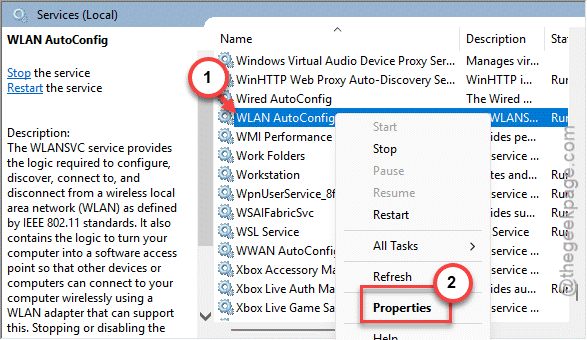
3 – Click the Recovery tab.
4 – Set First failure, Second failure, and Subsequent failures all to Restart the Service.
5 – Click Apply, then OK.
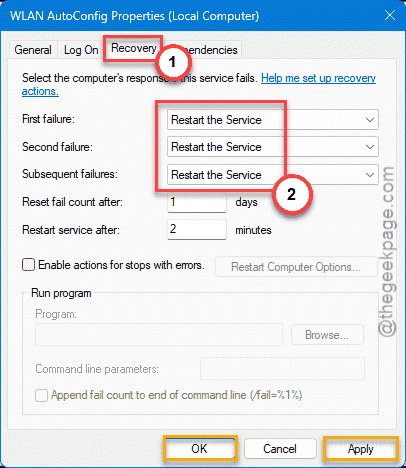
This won’t stop the drop from happening, but it’ll bring Wi-Fi back fast when it does. A safety net while the other fixes do the real work.
How to Prevent This
– After any big Windows update, re-check the Power Management box from Fix 1. Updates love to switch it back on. They just do.
– Keep your Wi-Fi driver current — but grab it from Intel, Realtek, or your laptop maker, not only Windows Update. Better power-handling, fewer surprises.
– If you mostly run on battery, accept the trade-off. These fixes keep Wi-Fi alive when locked, but they do sip a little more power.
– Leave a quick note for yourself on which settings you changed. Next reinstall, you will not have to rediscover all this from scratch.
People Also Ask
Why does my laptop disconnect from WiFi when locked?
Because Windows powers down the Wi-Fi card to save battery the moment you lock the screen. You can easily disable that from the Device Manager utility.
Why does my WiFi disconnect when I lock my screen?
Locking triggers your Wi-Fi card’s low-power modes — things like U-APSD — which drop the connection. Disable those in the adapter’s Advanced settings, and turn off the card’s power management. The connection should hold through the lock screen after that.