When it comes to read/write speed or transfer speeds, Samsung’s Pro series means serious business. But, if your system doesn’t even recognize your newly bought Samsung 980 Pro SSD, what is the use of it? The reason why the machine can’t detect the SSD can be hidden behind the unsupported format, incompatible device drivers or misconfigured disk partition settings. We have picked up only the best solutions for you, that you may apply on your own and make the 980 Pro usable again on your machine.
Fix 1 – Format the drive
In the most of the cases, Windows can’t recognize the format of the Samsung 980 Pro. So, if it can’t recognize the drive, you must format it afresh in NTFS format and check.
Step 1 – To do this, tap the Win+X keys together.
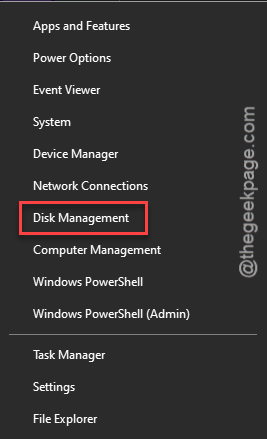
Step 2 – Later, tap to open up the “Disk Management” settings.
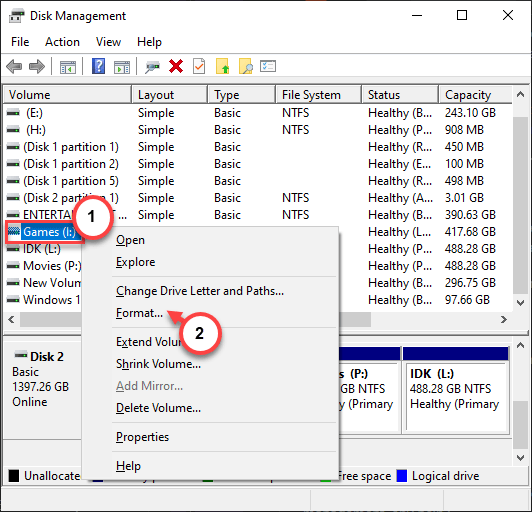
Step 3 – In this console, try to find your Samsung 980 Pro SSD. You may not find it straightaway if it is an unsupported format drive (Windows tags it with a generic name).
Step 4 – Better to recognize it from the drive size or other aspects of the drive.
Step 5 – However you find it, right-click the drive and tap “Format” option.
Step 6 – Choose the “NTFS” format as the ‘File System’. Change the ‘Volume Label’ according to your preference.
Step 7 – Then, tap “OK” to start formatting the drive.
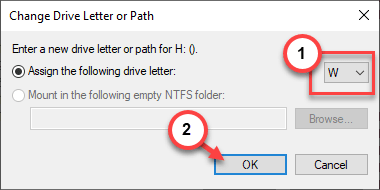
After the drive is formatted, your Samsung 980 Pro SSD will be usable again. Check it out from the File Explorer.
Fix 2 – Enable the NVMe mode from BIOS
Some of the device BIOS has a switch that controls the support for NVMe mode. You must do this from the BIOS settings on your computer.
Step 1 – Restart your computer.
Step 2 – While the device is restarting, you will see the button that can take you to the BIOS page. Normally, this is assigned to one of the functional keys, like F2, F12 or any other special keys like Delete, End, etc. We recommend you observe it for once or twice, while rebooting the device.
Step 3 – Pressing the subsequent key during the boot should load up the “BIOS” page on your computer.
Step 4 – After you have landed on the BIOS page, find the “NVMe” section in there. It is possible that it is hidden inside the “Advanced“, “Storage” sub-section or has a dedicated section of it’s own.
Step 5 – Turn on the NVMe features in there.
Step 6 – If your system has a dedicated PCIe x4 mode, turn it on to a have a better connectivity.
Step 7 – After this, just save the changes and quit the BIOS page.
Your computer will restart automatically after this. Let it restart normally. Now, try to check whether you can use the Samsung 980 Pro SSD on your system or not.
Fix 3 – Update the disk drives
You can update the Samsung 980 Pro SSD drive directly from Device Manager screen.
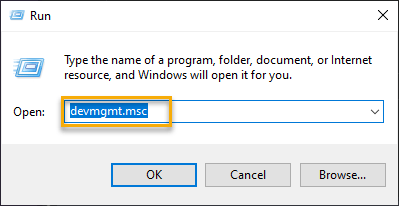
Step 1 – Call up a Run box. Use Win+R keys to do that.
Step 2 – Then, paste this there and click “OK“.
devmgmt.msc
Step 3 – Then, expand the “Disk Drives” section.
Step 4 – Right-click the Samsung SSD and tap “Update driver” option.
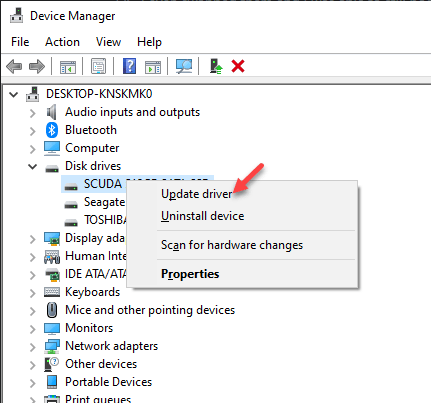
Step 5 – Tap the “Search automatically for drivers” option.
This way, Windows automatically does search for the latest driver of the Samsung’s SSD and install it on the machine directly.
A restart is sometimes necessary to facilitate this change.
NOTE – Sometimes, these updates come through the Windows Update channels, which the system automatically installs on the device. Do remember to check for the optional updates in the Windows update subsection for the Samsung SSD driver updates and install them from there.